Selling Packages Growth+This feature requires the Growth+ plan or higher
A package combines customer choices into one booking. For example, a weekend package can offer a room choice and a transfer choice. Each option has a price per traveler, and the total updates as the customer chooses.
A package is just a special kind of experience, so everything you already know - categories, descriptions, departures, the booking widget, confirmation emails - works the same way. Customers choose their options before continuing to checkout.
Packages are included on the Growth+ and Pro plans. If you don't see the package option when creating an experience, check your plan under Settings → Billing.
What makes a package different
| A normal experience | A package | |
|---|---|---|
| Length | A few hours (e.g. a 2-hour activity) | One or more days (e.g. "2 Days / 1 Night") |
| Times | Runs at a set clock time | Dates only - no clock times |
| Price | One fixed per-person or per-group price | Built from the choices the traveler makes |
| Booking | Pick a time, pick travelers | Pick a date, pick travelers, choose room + transfer |
Creating a package
- Click Experiences in the sidebar, then select Experiences.
- Click Add Experience (top-right), then choose Package.
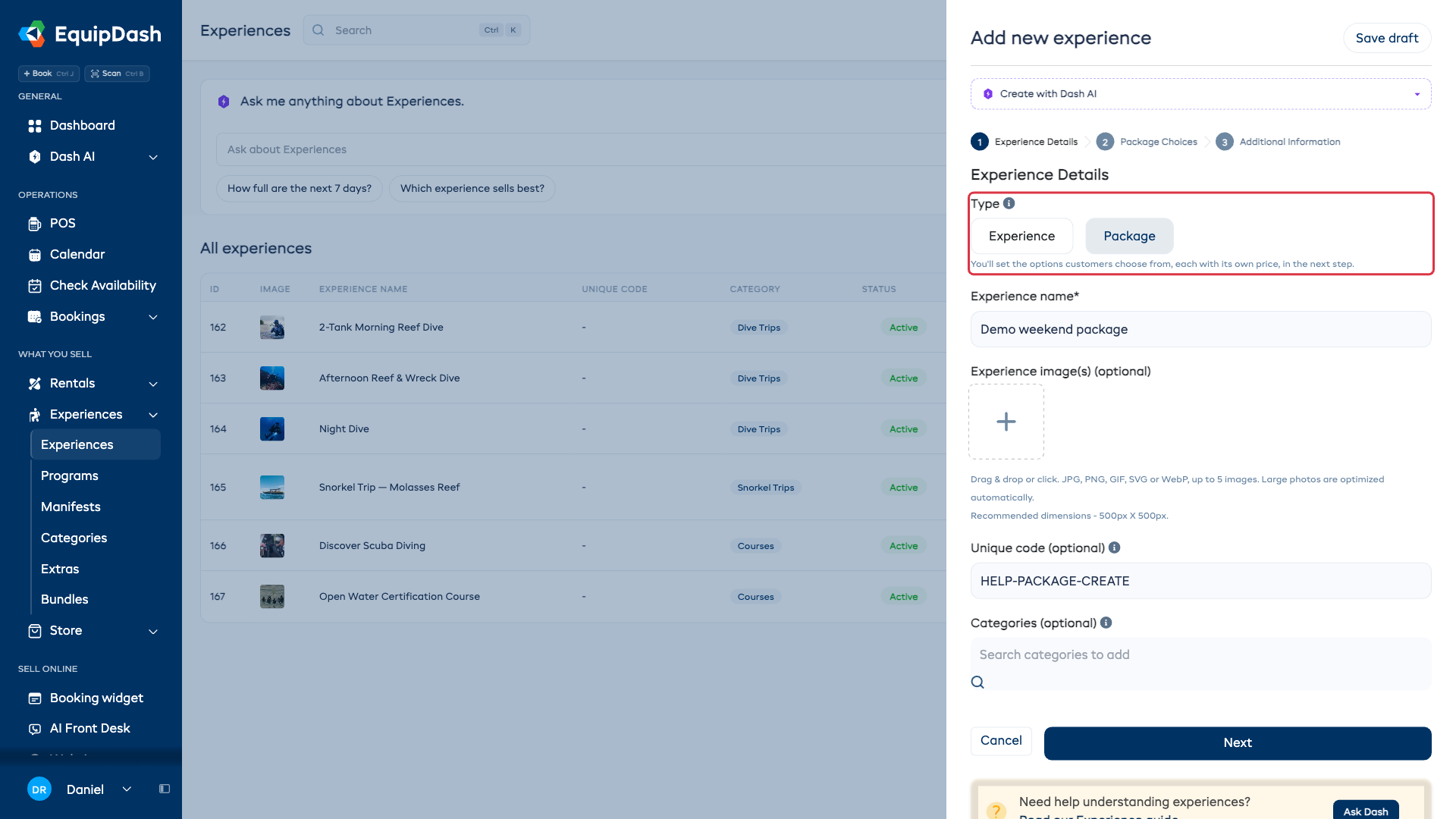
- Enter a Name, such as "Weekend package". Add any images, category and unique code you need, then click Next.
Adding the choices
A choice group is one question the traveler answers. Each option carries a price per traveler.
In the Package Choices step:
- Name the first question, such as Room. A new package starts with one question and one option.
- Enter each option's name and Price / traveler. Use Add option for another choice, such as Standard room and Deluxe room. Add a short description to help customers compare them.
- Click Add choice group to add another question, such as Transfer, with its own options and prices.
- Keep Must choose one on for a required question, or turn it off when answering is optional.
- Click Next to set the duration and capacity, then save the package. Reopen its Choices tab to edit the questions later.
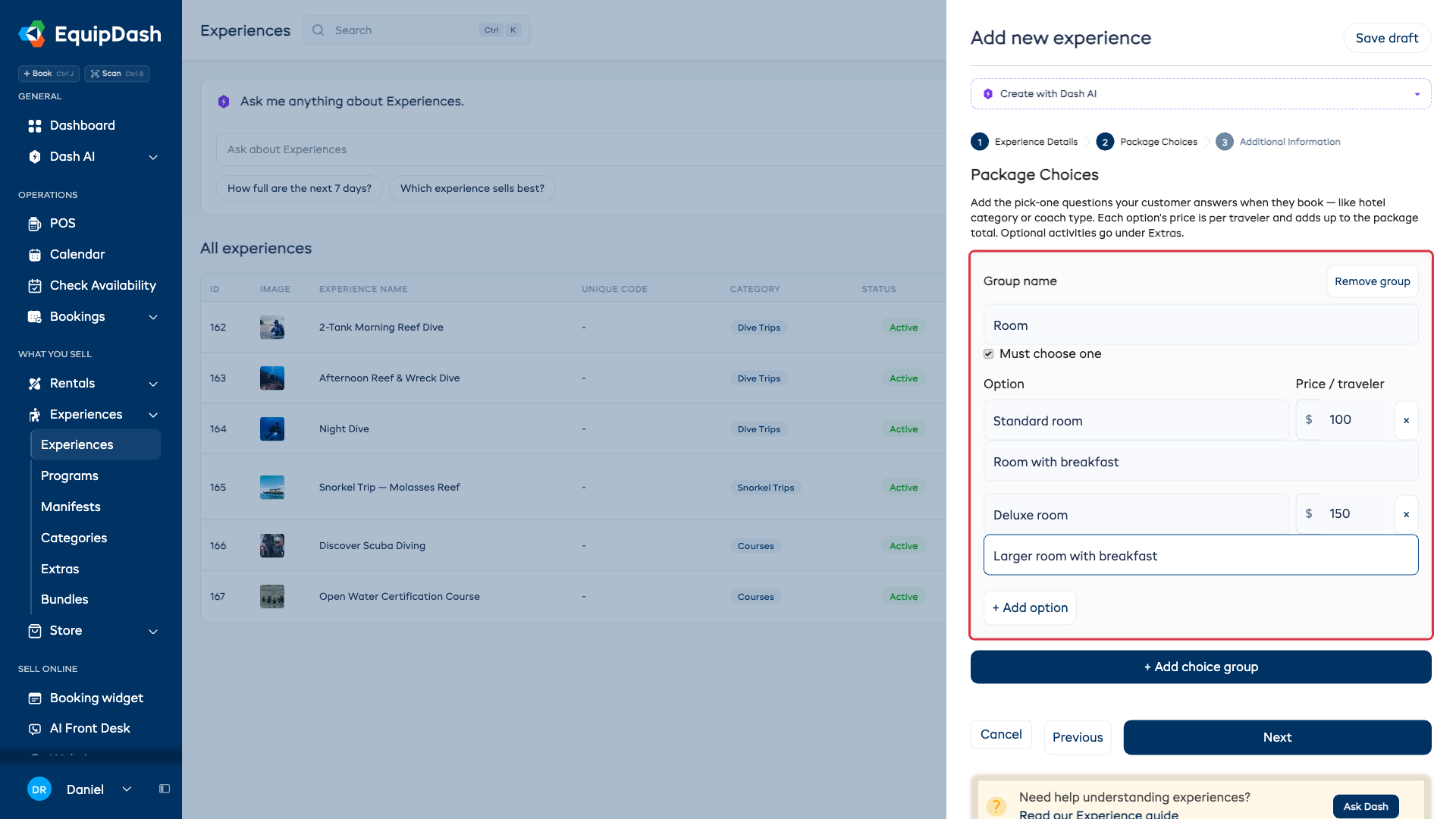
Every package needs at least one choice group - that's what the package is priced on. If you try to save without one, EquipDash reminds you to add a choice like "Room" first.
The price each traveler pays is simply added up from the options they pick. There's no grid of every combination to fill in - the groups are independent, so "Deluxe room + Private transfer" works out on its own. For a 2-traveler Deluxe room + Private transfer booking, EquipDash charges each option twice and shows the running total.
Add optional activities (extras)
Want to offer an optional activity? Add them as extras, priced per person, the same way you add extras to any experience. Customers tick the ones they want when they book. See How Experience Pricing Works for more on extras.
Set the duration
A package is measured in days, not hours. In Additional Information, enter Package duration and EquipDash shows you the friendly label your customers will see:
- 5 days shows as "5 Days / 4 Nights".
- 1 day shows as just "1 Day".
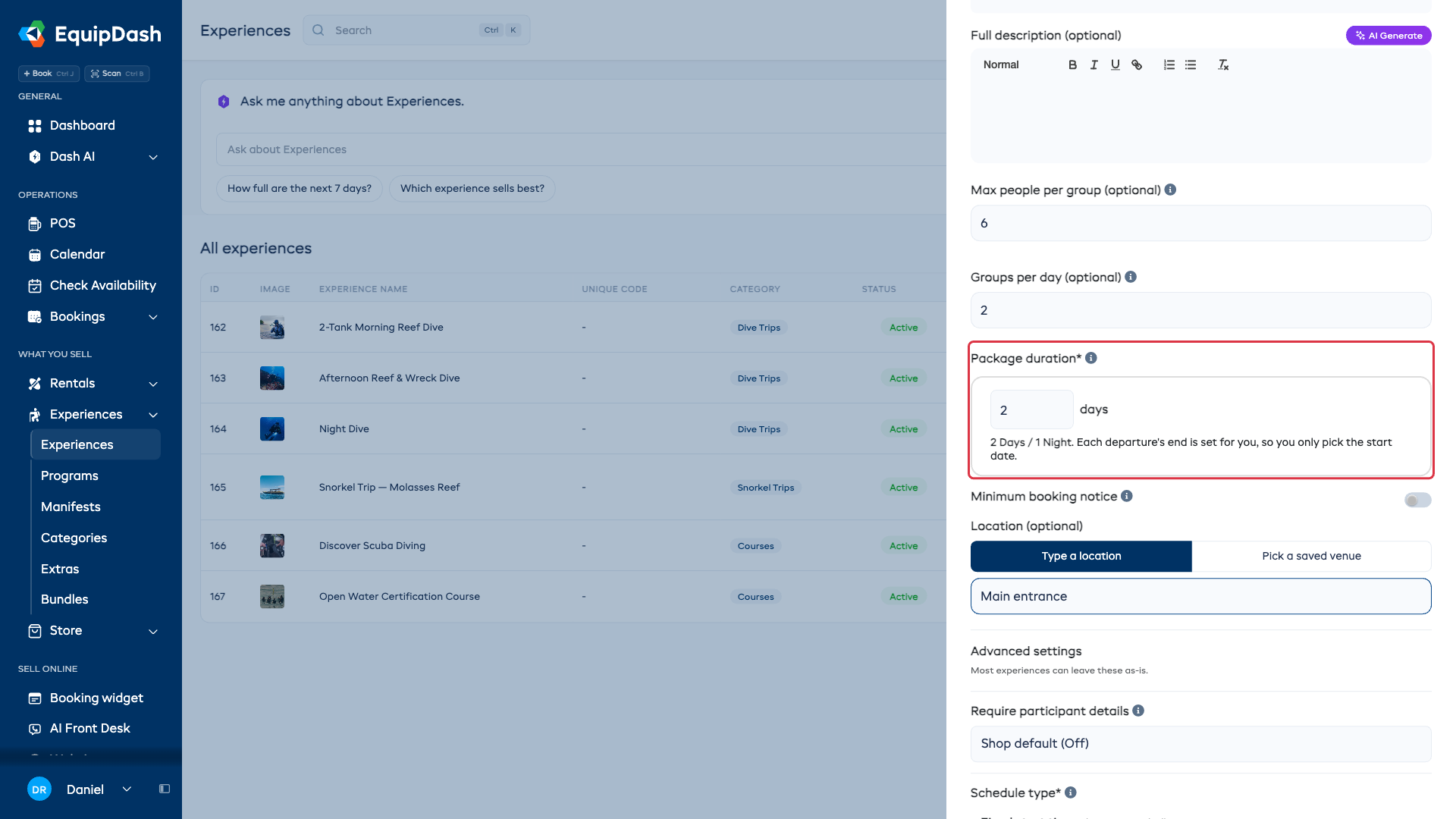
You set the trip length once. EquipDash works out the end date of every departure for you, so you never type an end date by hand. If you change the trip length later, every future, unbooked departure re-stretches to match - already-booked trips keep the length the customer paid for.
Setting capacity
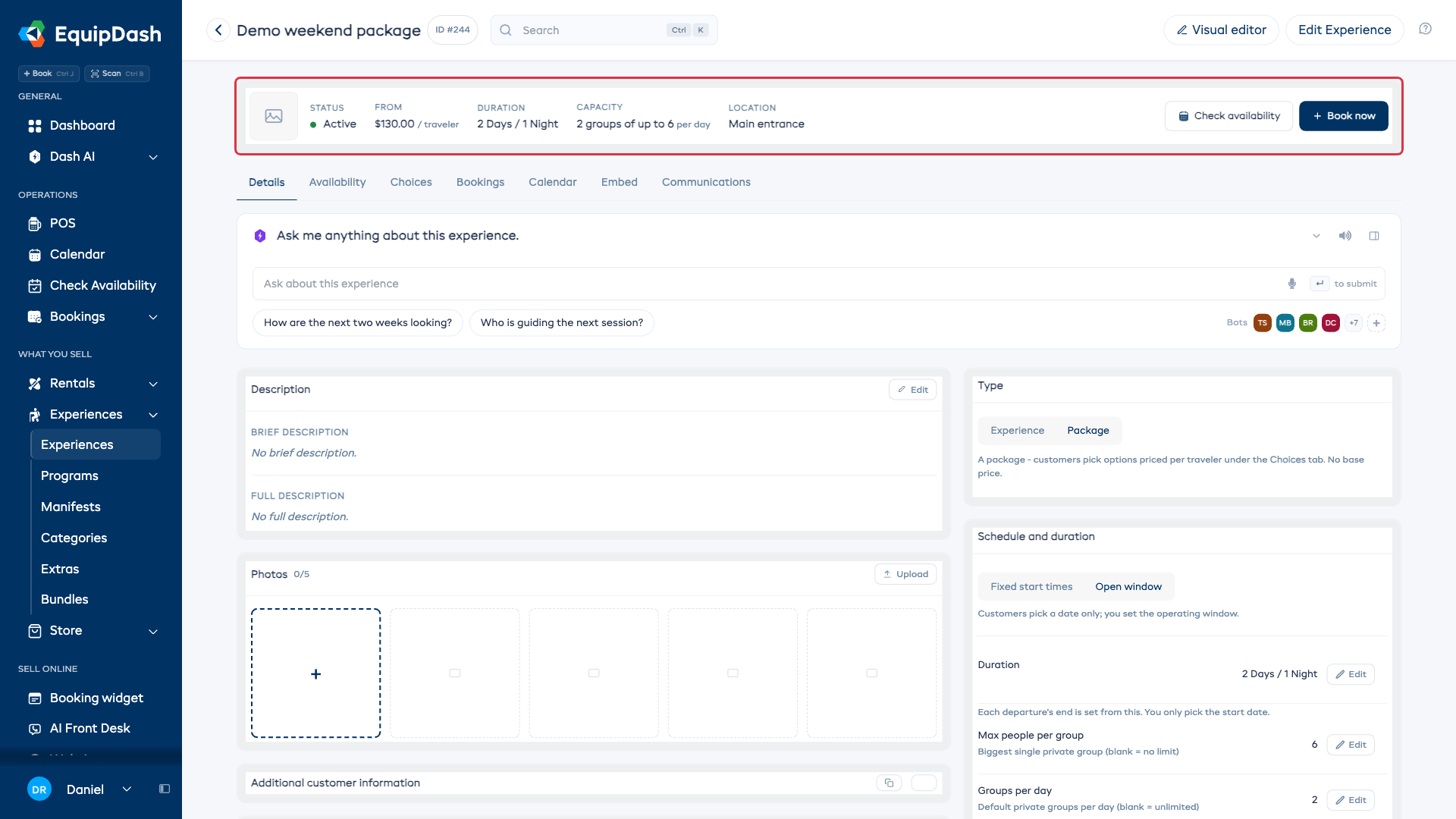
A package controls how many people can come on each departure. A departure always belongs to one party, so a package asks two questions instead of a seat count:
- Max people per group - the most travelers one booking can have. Blank means no limit.
- Groups per day - how many separate groups can depart on the same date. Blank means unlimited.
Because a package is never shared by the seat, the Private or shared? question and the Seats per session field you see on a normal experience do not appear.
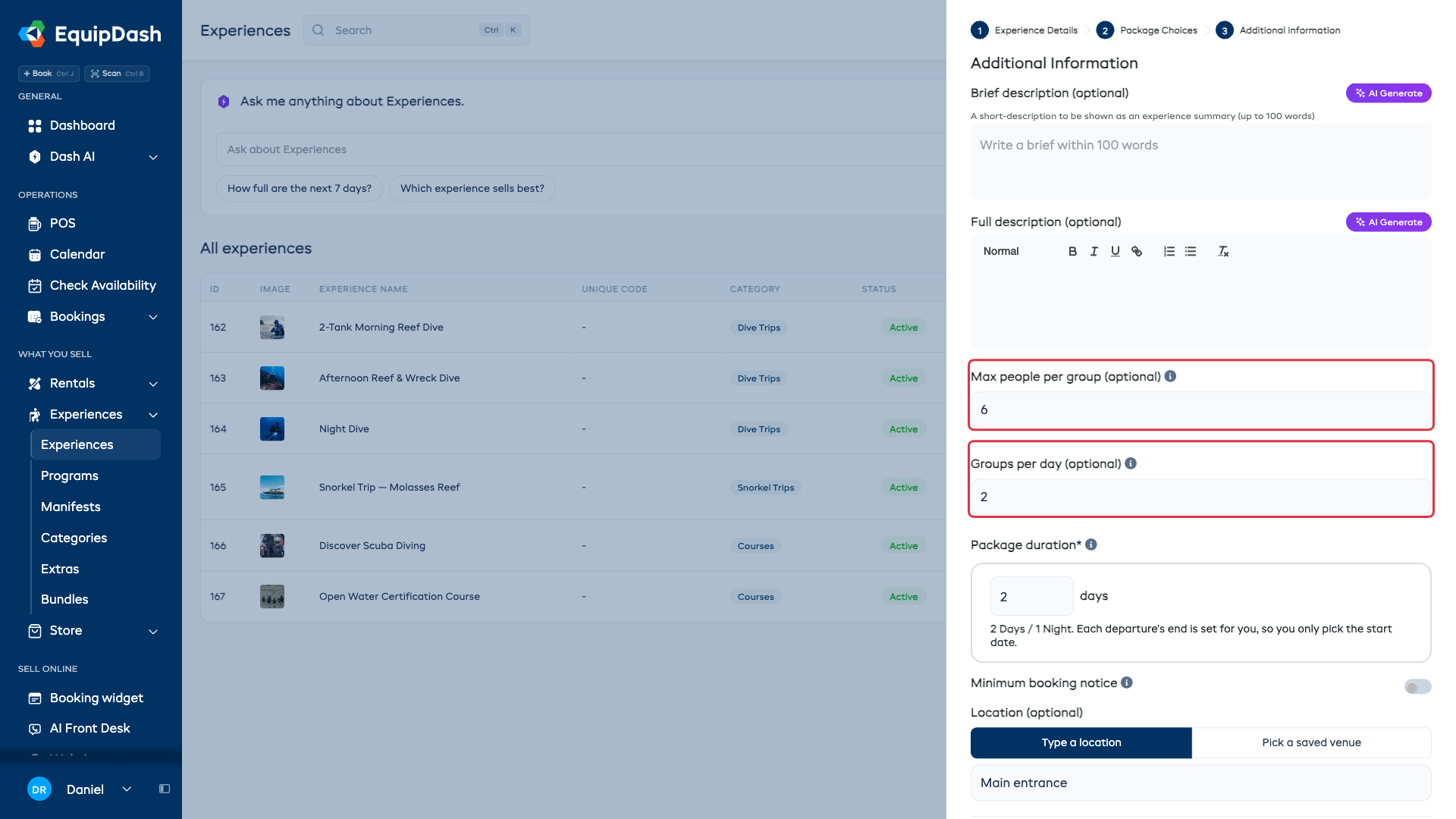
You can set capacity in the wizard, and you can change it later inline on the experience's Details tab without reopening the whole wizard.
Adding departure dates
Packages run on dates only - there are no clock times to set.
Add one departure
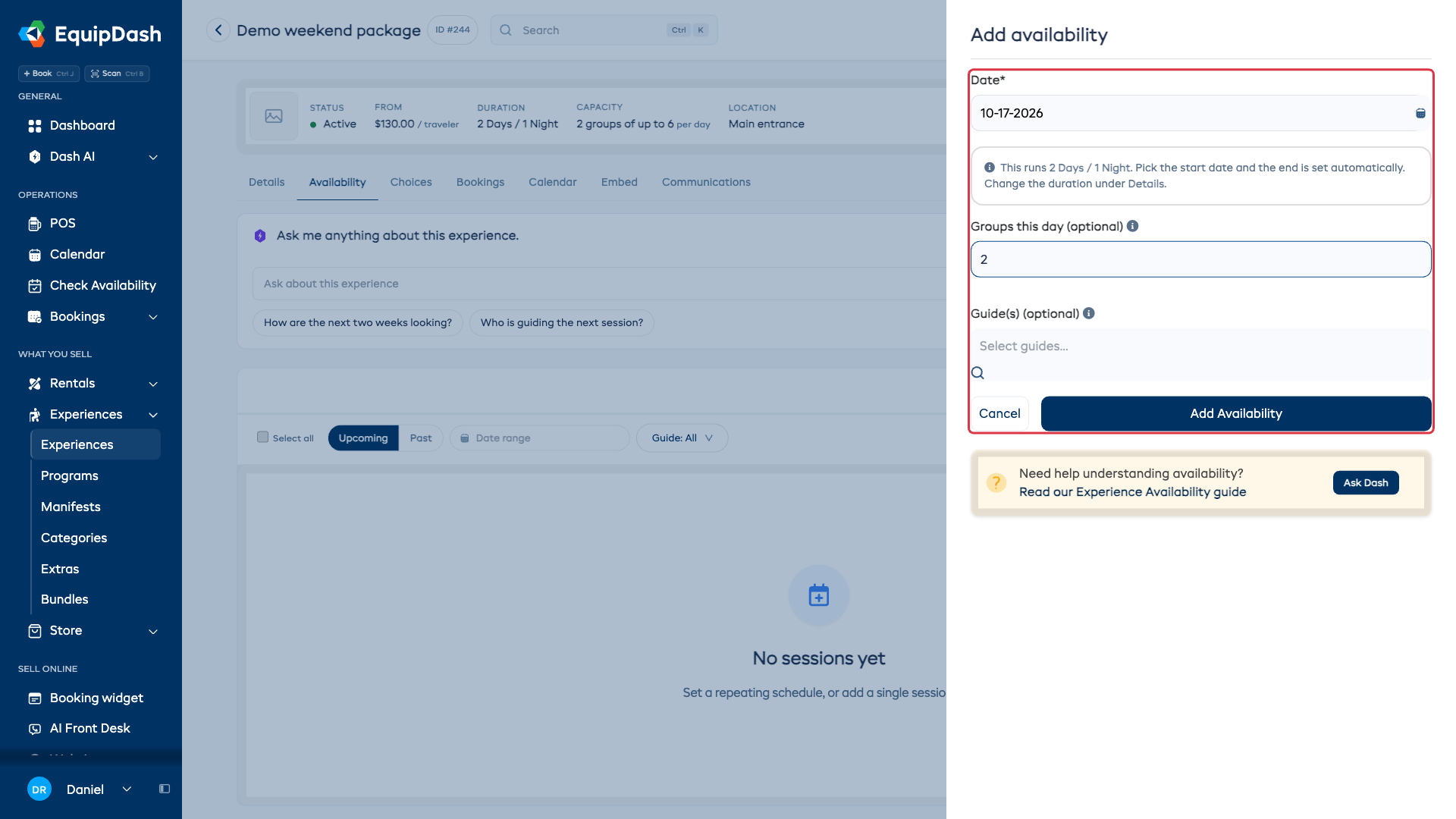
On the package's detail page, open Availability and click Add session. Pick a start date in Date. EquipDash fills in the end date automatically from your trip length (a 5-day package starting Mon 1st runs through Fri 5th). You never type an end date. Set Groups this day if this departure needs a different limit, then click Add Availability.
Add a whole season at once
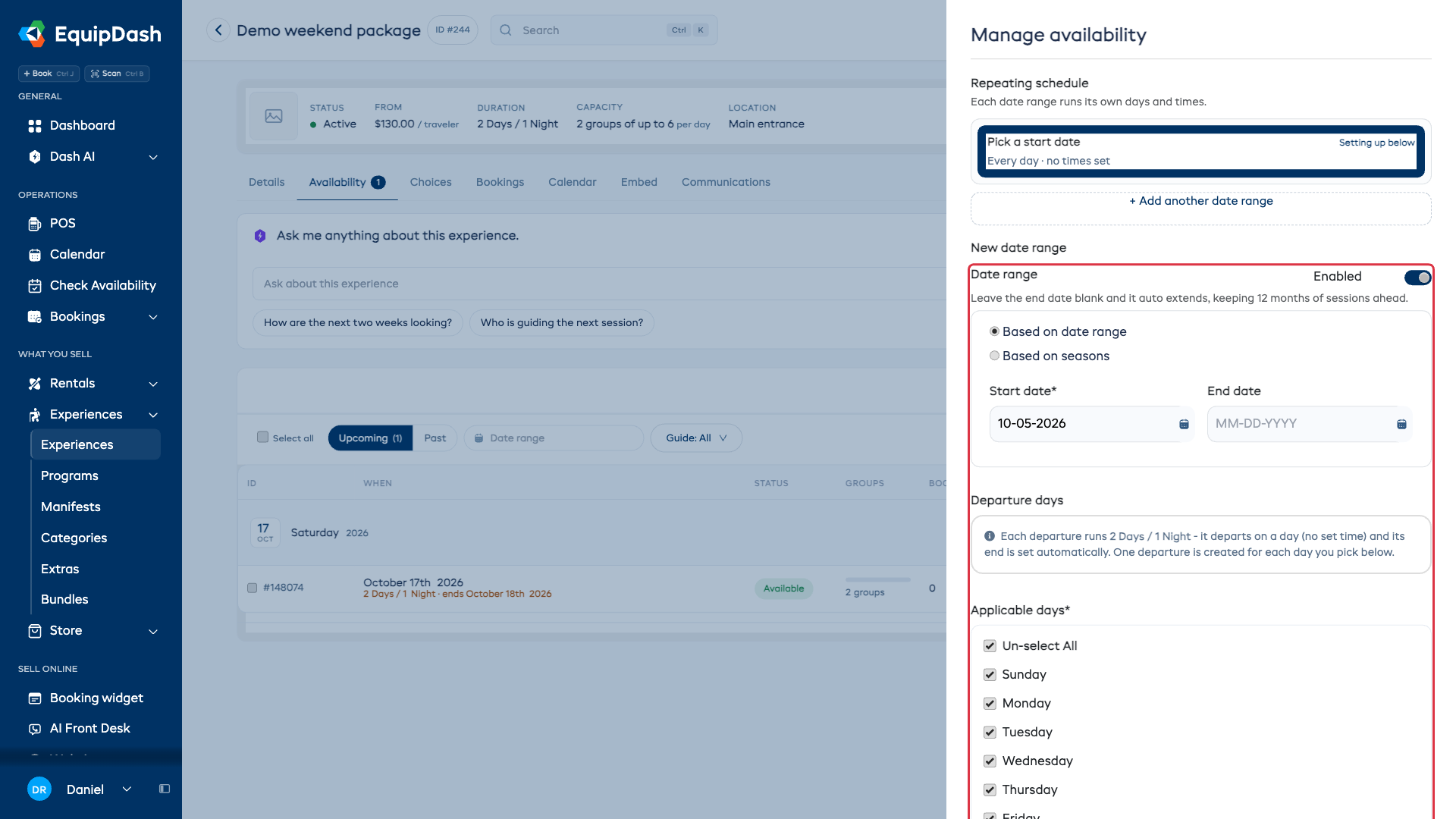
To open up lots of dates, use Manage schedule to generate recurring departures - for example "every Saturday from June to September". Each generated departure automatically spans the full trip length, so a week of start dates becomes a row of full multi-day trips, not single days.
How customers book a package
On your booking widget (or your website), the traveler:
- Picks a departure date from the available dates.
- Chooses how many travelers are coming, using the Travelers stepper (the + / − buttons or the number dropdown). It won't go above your Max people per group.
- Makes their choices - Room, Transfer - and ticks any optional activities. The price updates live as they choose.
- Enters traveler details and pays online.
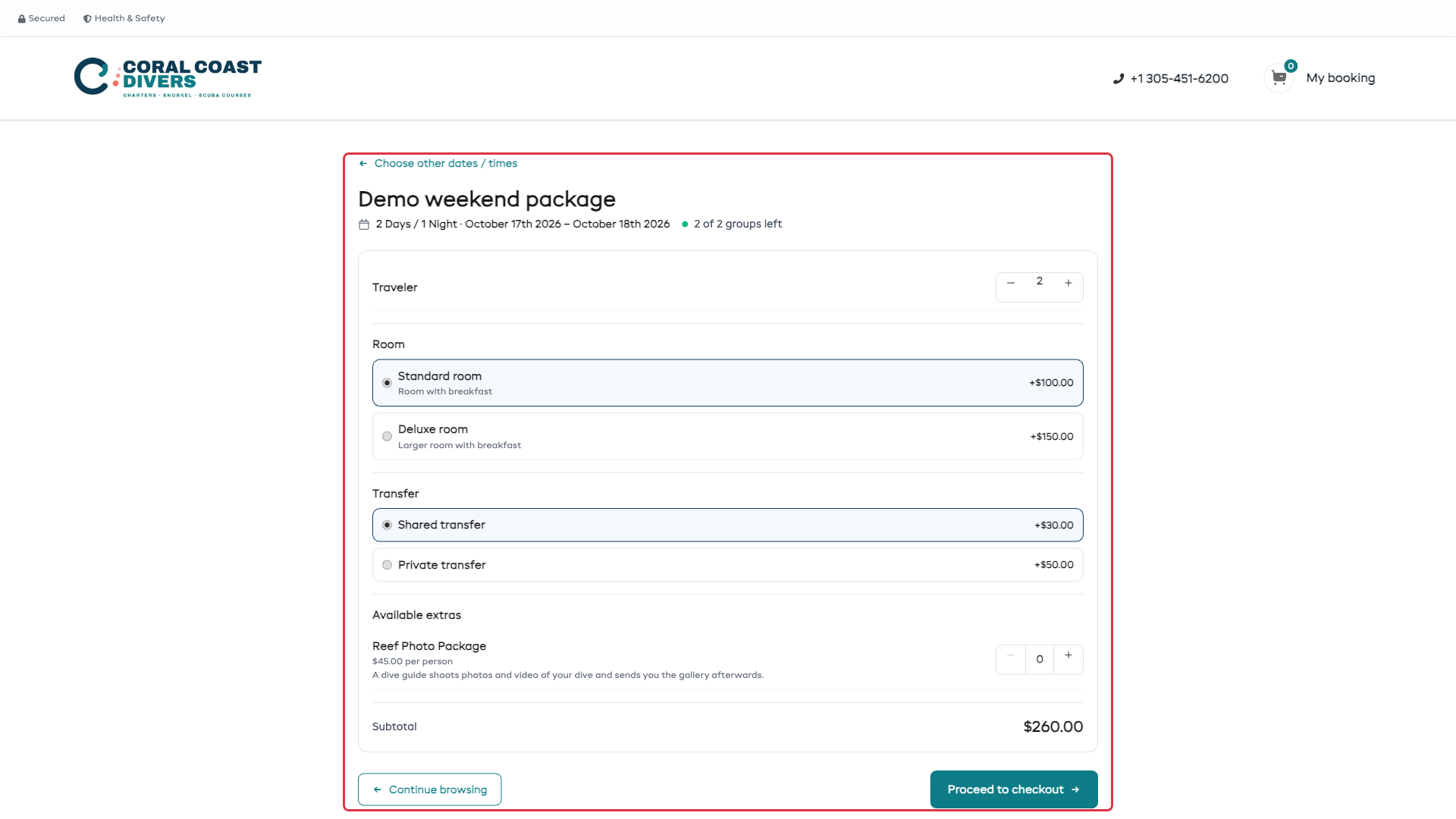
Their selections follow the booking everywhere - the cart, the confirmation page, the confirmation email, and the customer's magic link all show the chosen room, transfer, travelers, and dates. Your team can also take a package booking in person from the Point of Sale the same way.
The day sheet (manifest)
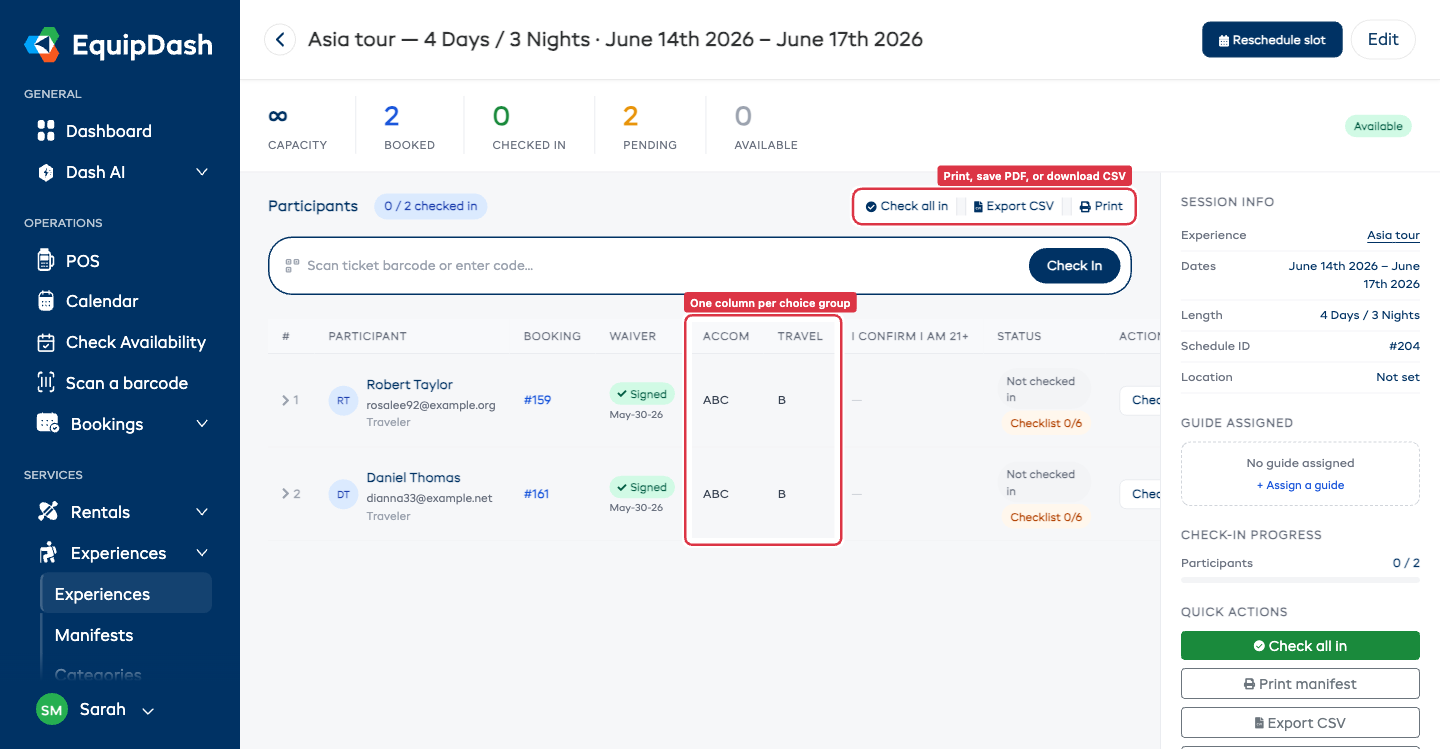
Every departure has a manifest - your day sheet of who's coming and what they chose. Open it from the package's departures, and you can view it on screen, Print it, save a PDF, or download a CSV to share with a coach company.
Each traveler's choices appear as their own columns - one per choice group (a Hotel column, a Coach column) - so you can see at a glance who's on which hotel level and which coach. Because packages are date-only, no clock times appear on the manifest.
See Trip Manifests for everything the manifest can do.
Changing prices and choices later
You can rename a choice (e.g. "Deluxe" → "Deluxe Plus") or change a price any time. Existing bookings keep what the customer actually paid - their booking, receipt, and email still show the price and choice from when they booked. Only new bookings use the updated names and prices.