Run Tours on Your Rental Fleet
Many operators sell the same machines several ways: a two-hour guided ride, a half-day tour, a full-day adventure — and sometimes self-drive rentals too. They all run on one fleet. EquipDash lets you link each experience to the rental product that is that fleet, so every session checks the same stock and a vehicle can never be in two places at once.
How it works
- Your fleet is a rental product. Create a product for the equipment (e.g. "Can-Am Maverick X3") and stock its inventory with the units you own. You manage the fleet exactly like any rental — inventory items, workshop, downtime, condition reports, buffer times.
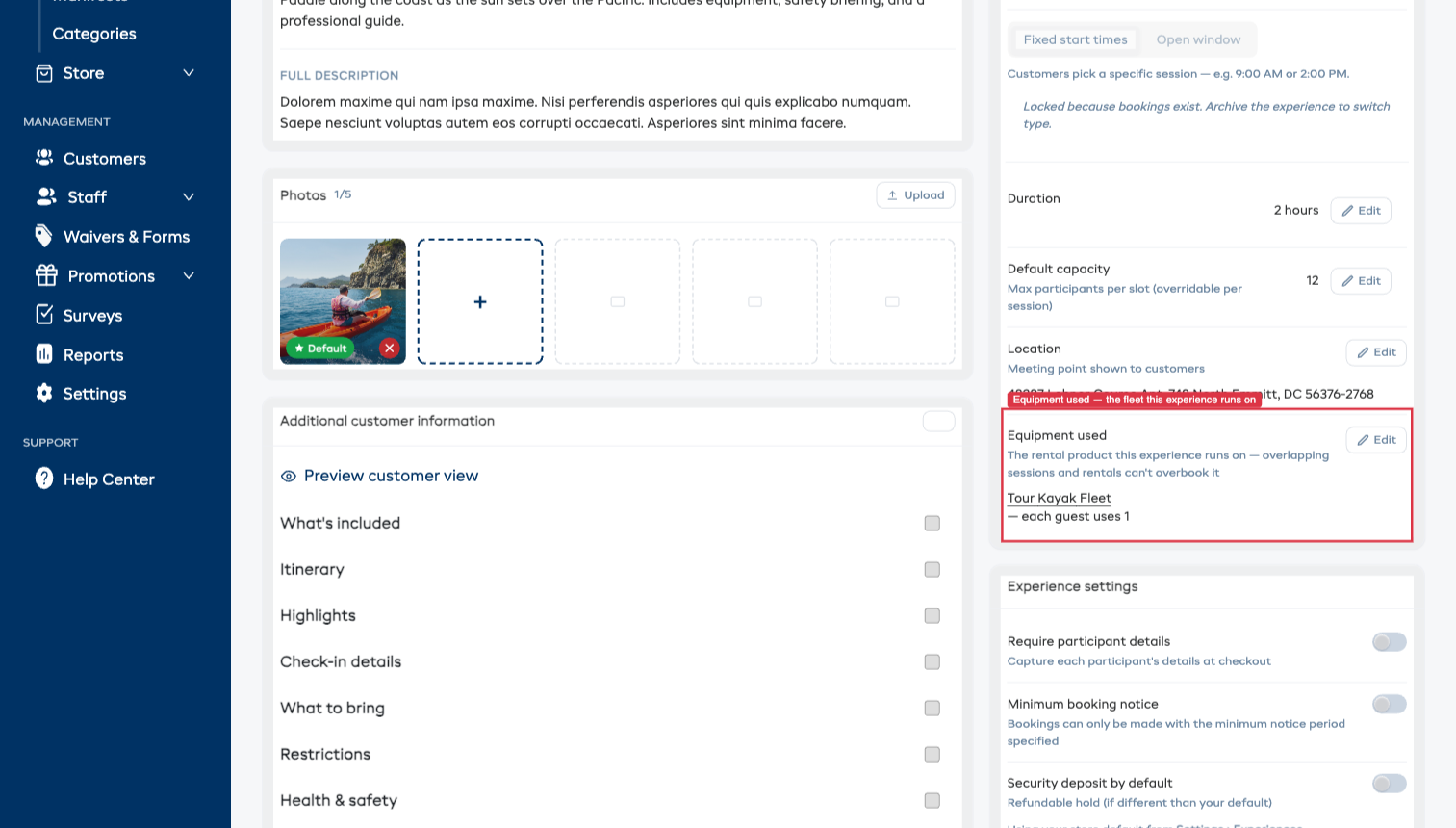
- Each experience says what it uses. On the experience's detail page, the Gear this uses card links the experience to the product(s) it runs on and says how much each booking takes — one or several gear types per experience.
- Sessions get a second ceiling. A session can sell up to its seat capacity or the units free during its time window — whichever is smaller. A full-day booking that takes the last machine sells out every overlapping two-hour and half-day session automatically; a morning ride leaves the machine free for the afternoon.
- Equipment is only committed by bookings. A season of empty sessions holds nothing. The first booking on a session reserves the units; cancellations free them straight away.
Link an experience to its equipment
- Open the experience and find the Gear this uses card on the Details tab.
- Click Add and pick the rental product the experience runs on.
- Choose how it's consumed:
- Each booking uses [N] — a group shares the machine(s). A side-by-side tour books one vehicle per group.
- Each guest uses 1 — one unit per person. A kayak tour takes a kayak for every guest.
- Save. Every session of the experience now checks the fleet — no per-session setup.
Repeat for every experience that runs on the same fleet. Overlapping sessions across all of them — and rentals of the product, if you offer it as a rental — share the same stock.
If the gear doesn't count its stock
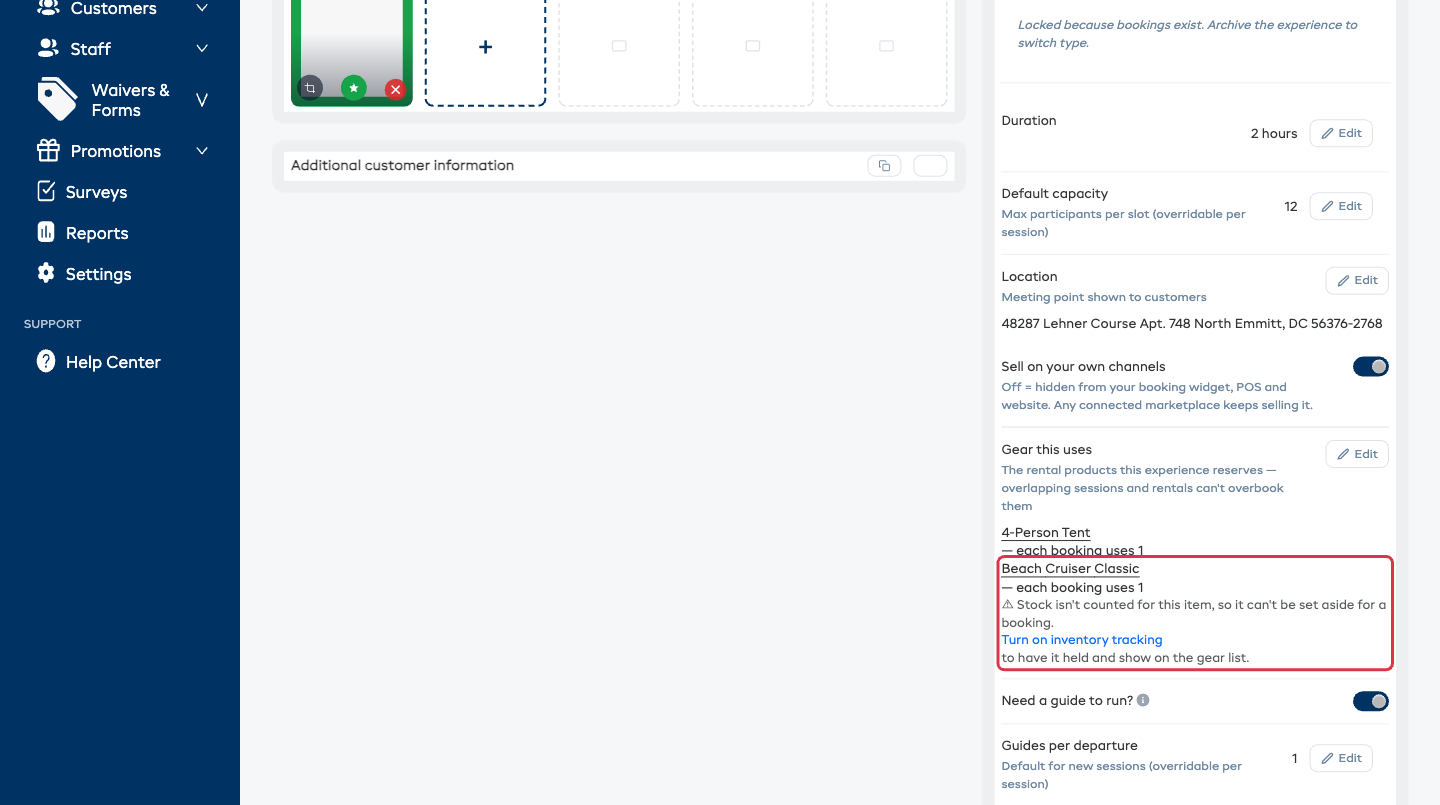
Gear can only be held for a booking when EquipDash knows how many you own. If you pick a product with Inventory tracking turned off, the card warns you right there: the item still shows on run sheets as needed, but nothing is reserved, so it can never block a double-booking and it reads Not set aside on the gear list.
Fix it by opening that product from Rentals → Products, turning Inventory tracking on, and adding your stock — see Inventory Units.
Using several gear types at once
Activities that need more than one kind of gear are fully covered — add a row for each. An activity that hands every guest a helmet and gives the group one boat would be two rows:
- Helmet — each guest uses 1
- Boat — each booking uses 1
Every row reserves from its own pool on every booking, with its own per-booking or per-guest count. Remove a row any time — its future holds are released; the other gear types are untouched.
Tour-only fleets: hide the product from rental listings
If the machines are never rented self-drive, turn Offer as a rental off on the product's Details tab. The product disappears from your booking widget, POS, and app rental listings — customers can't hire it — but it stays fully manageable in your portal, with an Equipment only badge on your products list.
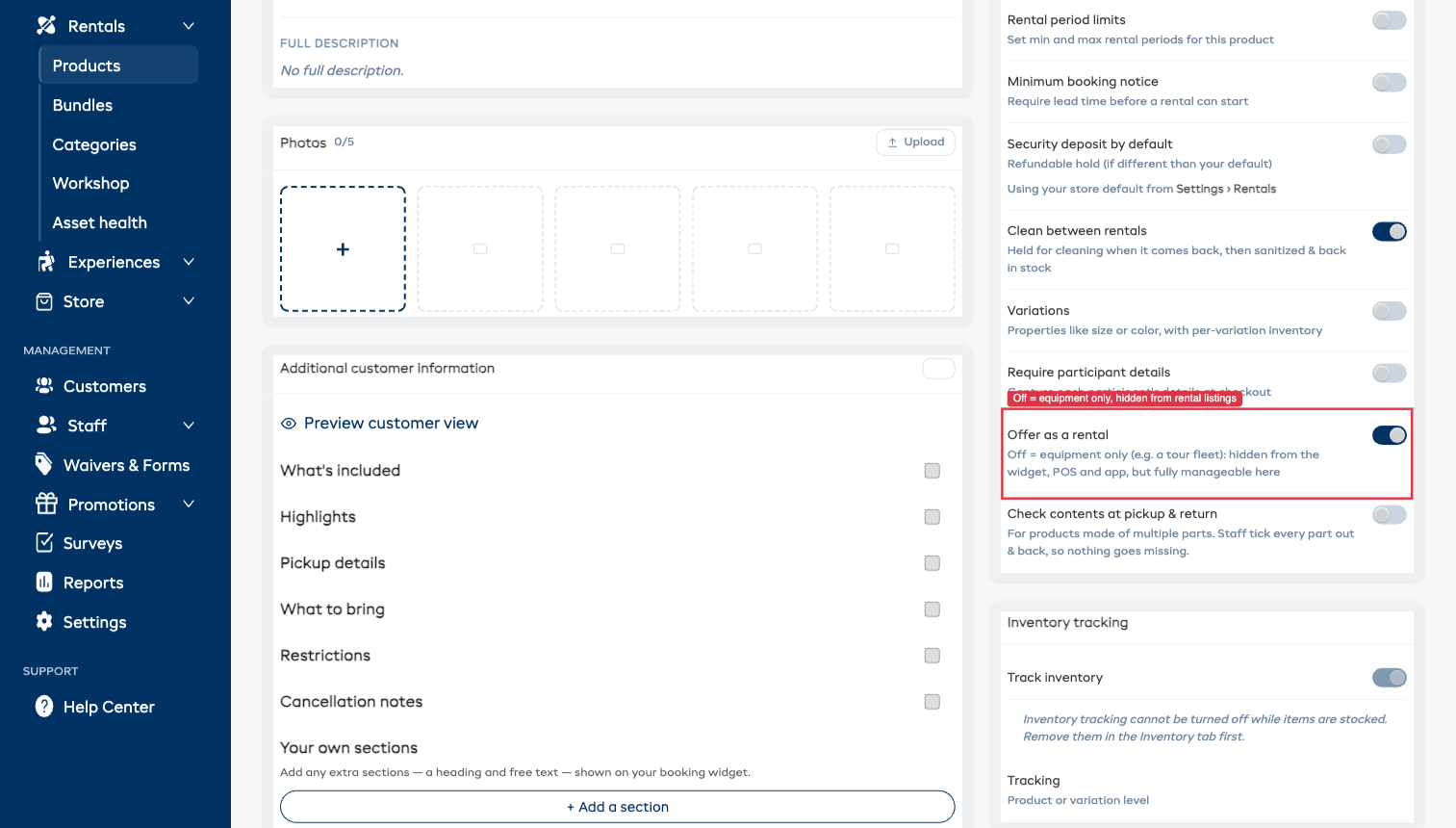
Leave the toggle on if customers can also rent the equipment directly: rentals and tours then deplete each other, so a rented machine blocks tour seats for that window and vice versa.
Turnaround time between uses
Set buffer time on the equipment product (e.g. 30 minutes after) and every use — tour or rental — blocks the unit for that long afterwards, covering refuelling and cleaning between departures.
Equipment on your manifests
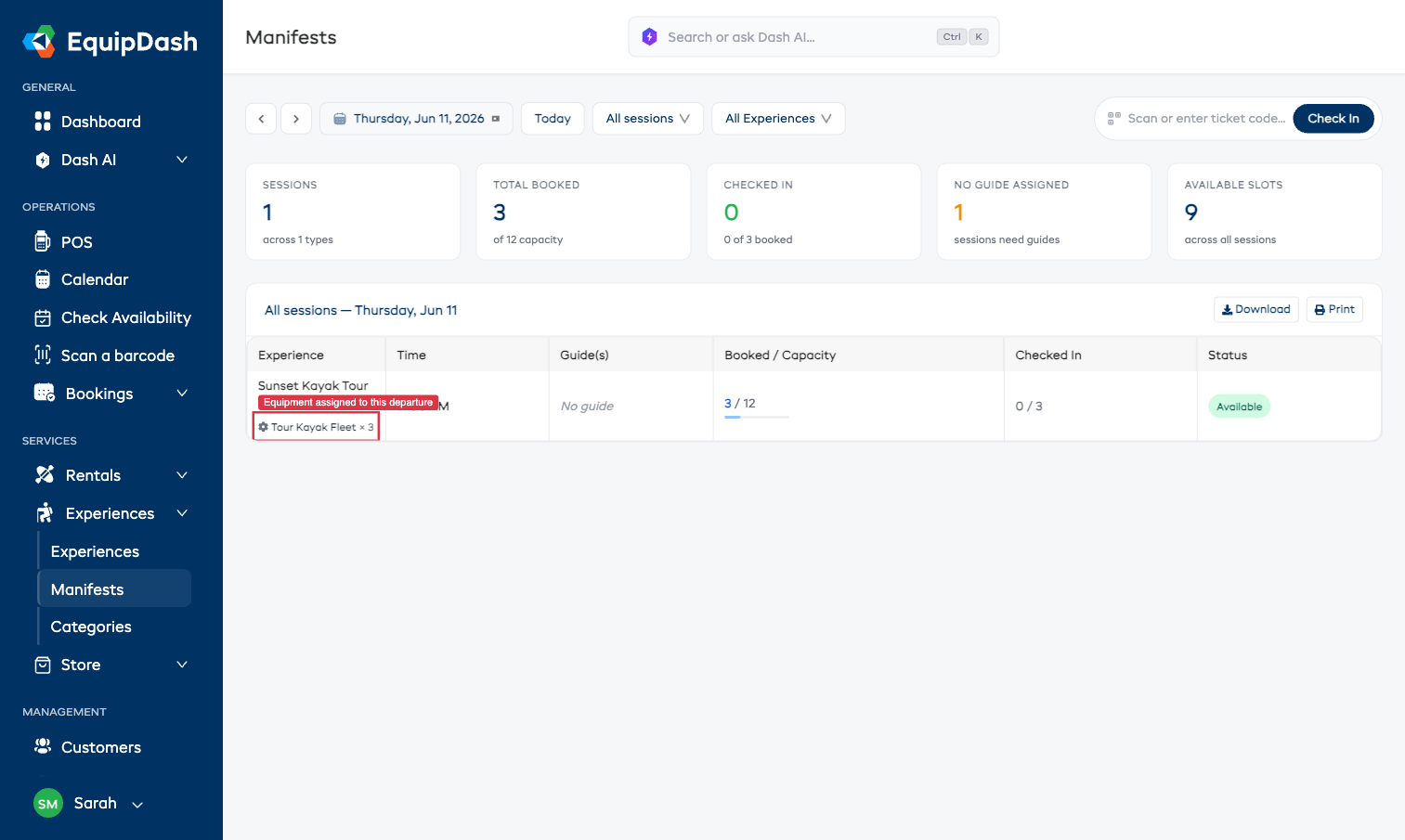
Each departure's manifest shows the equipment assigned to it. Fleets stocked as a quantity show the unit count; fleets stocked as individual items list the specific machines, with who's on each — and a swap action to move an assignment to the next free unit. The same information appears on the printed manifest and in the mobile app's manifest screen.
Worked example
A tour operator owns 5 side-by-sides and sells a 2-hour ride, a half-day (9:00 AM and 1:30 PM departures) and a full-day (9:00 AM):
- One product "Maverick X3" — 5 inventory items, 30-minute buffer, Offer as a rental off.
- Three experiences, each with Equipment used = Maverick X3, each booking uses 1.
- Five full-day bookings come in → every overlapping 2-hour and half-day session shows sold out for the day.
- Instead, one 9:00–11:00 ride is booked → the 12:00+ half day still shows the full fleet (less the half-hour turnaround).
Good to know
- Session capacity still applies — equipment adds a second limit, it never raises the seat count.
- Changing the equipment settings affects new bookings; existing reservations stay as they are unless the booking is edited.
- You can't delete a product while experiences are linked to it — unlink them first.
Related guides
- The Gear List — what to pull off the shelf for a booking or a program run
- Inventory Units — counting stock and labeling individual items
- Manifests — the equipment assigned to each departure