Change Password
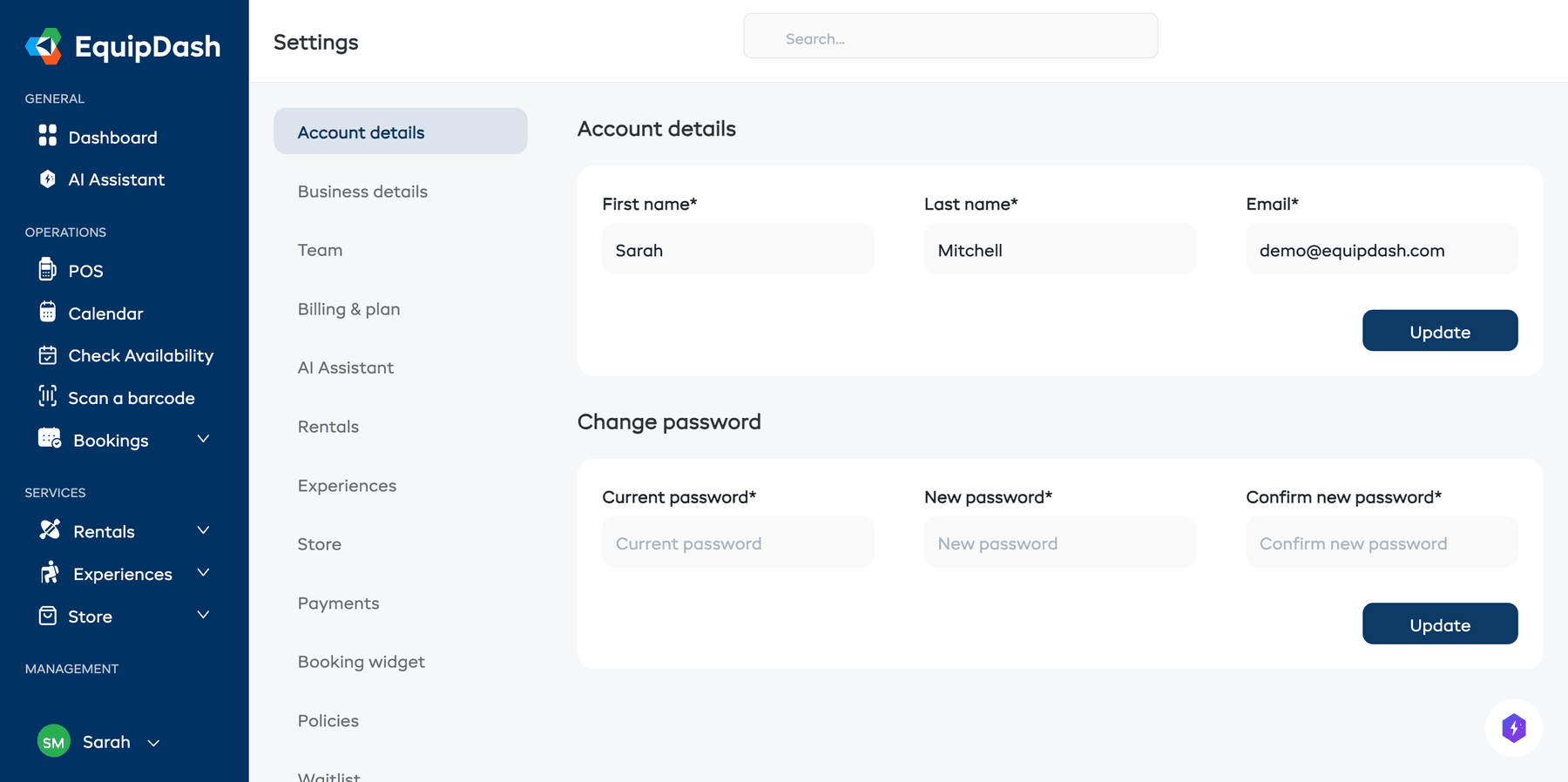
Keeping your password secure is important. You can update your password at any time from the Account Details page.
How to Change Your Password
- Click Settings in the sidebar.
- You will land on the Account details page (it is the first item in the settings menu).
- Scroll down to the Change password section.
- Enter your Current password.
- Enter your New password.
- Re-enter the new password in the Confirm new password field.
- Click Update.
Signed in with Google?
If you created your account using Sign in with Google, you will not see the password change form. Instead, a message will appear:
"You are using Google to sign in. You can't change your password."
Your password is managed by Google. To change it, update your password in your Google Account settings.
Password Requirements
- Your new password must be at least 8 characters long.
- For best security, use a mix of uppercase letters, lowercase letters, numbers, and special characters.
- Your new password cannot be the same as your current password.
tip
Consider using a password manager to generate and store a strong, unique password for your EquipDash account.
Forgot Your Password?
If you have forgotten your current password and cannot log in, use the Forgot Password link on the login page. EquipDash will send a password reset link to your registered email address.