Two-factor authentication (2FA)
With two-factor authentication (2FA) on, EquipDash asks for a 6-digit code from your phone after your password. Someone who learns your password still cannot get in without your phone.
You need an authenticator app on your phone, like Google Authenticator or 1Password.
Turn it on
- Click Settings in the sidebar. You land on Account details.
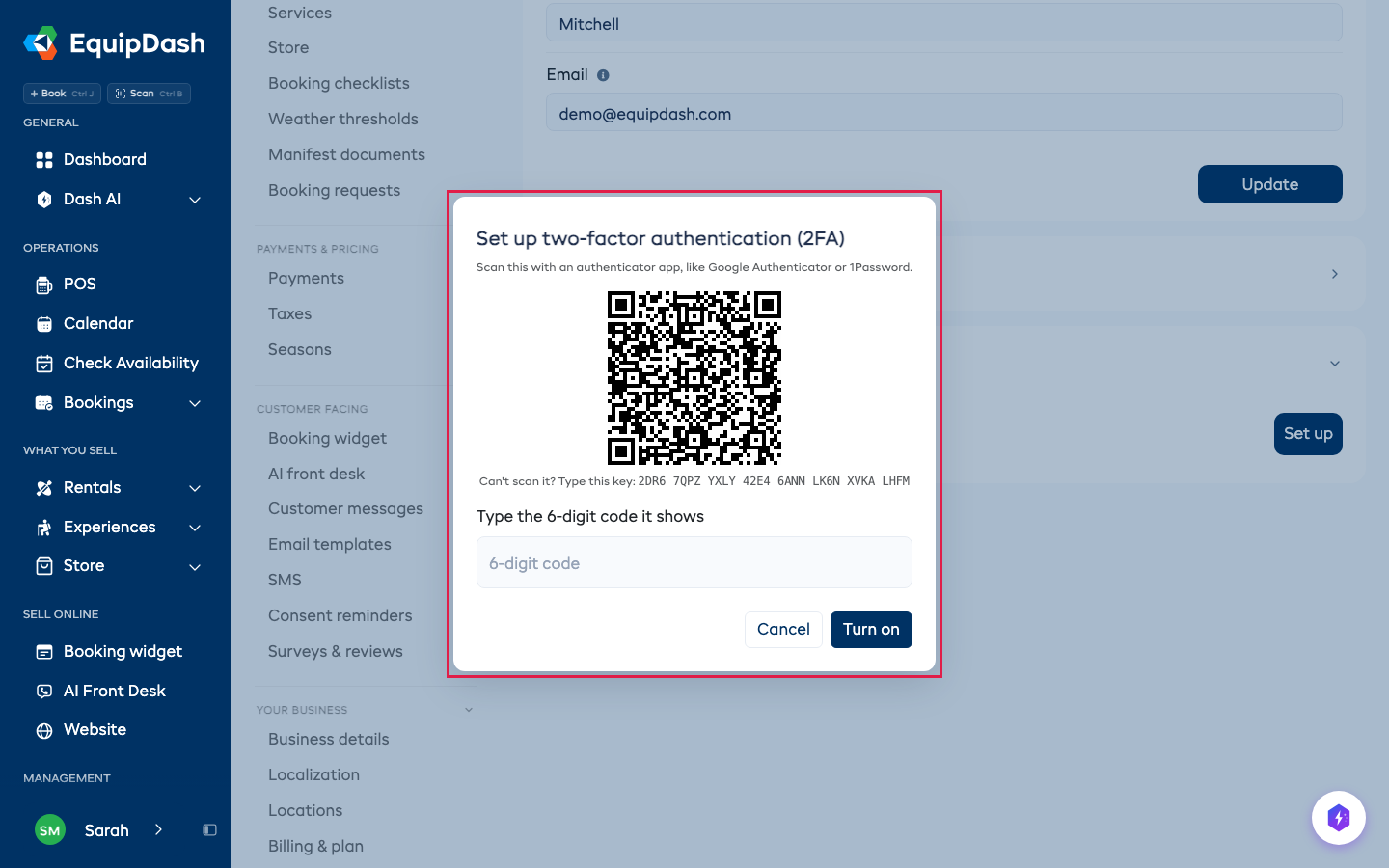
- Open the Two-factor authentication (2FA) section and click Set up.
- Scan the square code with your authenticator app. Can't scan it? Type the key shown under the square into the app instead.
- Type the 6 numbers your app shows and click Turn on.
- EquipDash shows 8 backup codes. Click Download or Copy and keep them somewhere safe. Each one works once, if you lose your phone. You will not see them again.
Signing in
After your email and password, type the 6 numbers from your app and click Continue.
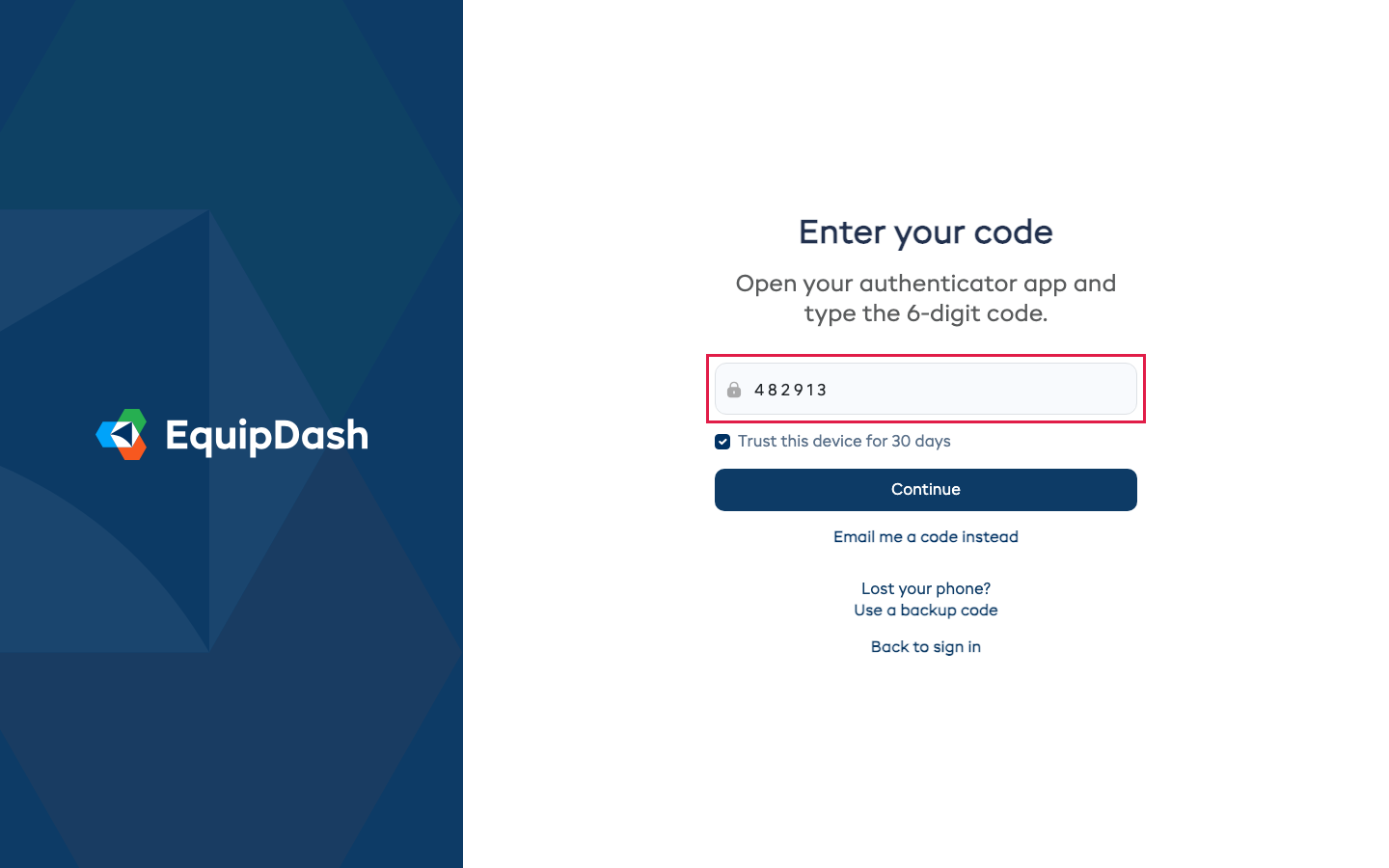
- Trust this device for 30 days is ticked for you. On that browser, EquipDash does not ask for a code again for 30 days. Untick it on a computer other people use.
- Email me a code instead sends 6 numbers to your email. They work once, for 10 minutes.
- Use a backup code lets you type one of your 8 backup codes.
Type a wrong code 5 times and you wait 5 minutes before trying again.
If you Sign in with Google, Google checks it is you, so EquipDash does not ask for a code.
Managing it
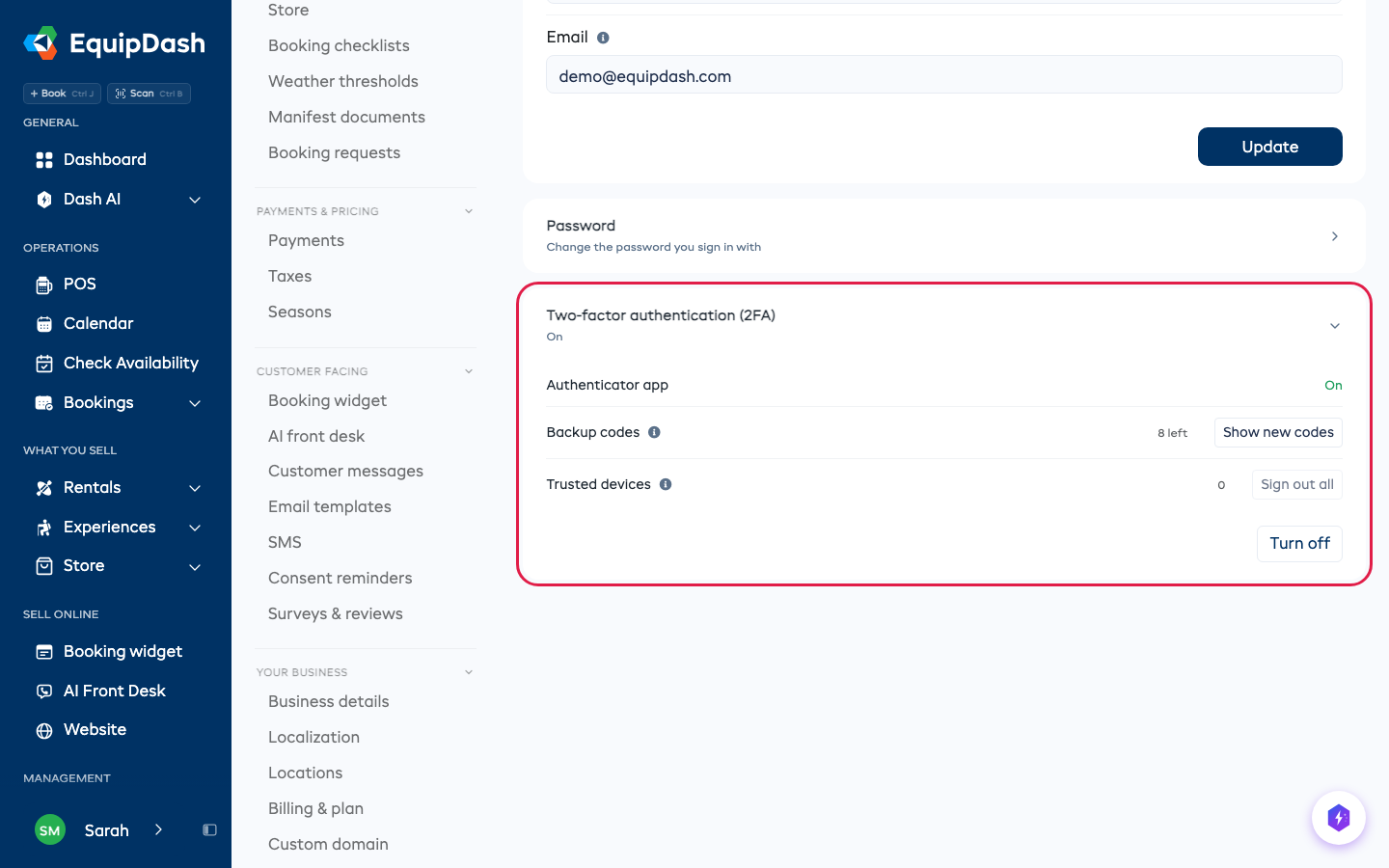
In Settings > Account details > Two-factor authentication (2FA):
- Show new codes gives you 8 new backup codes. The old ones stop working.
- Sign out all makes every trusted browser and phone ask for a code again.
- Turn off stops asking for a code. We email you when it is turned off.
Each of these asks for a current code from your app, or a backup code, first.
Require 2FA for your team
If you can manage your team, you can make everyone use it.
- Go to Settings > Team.
- Switch on Everyone must use 2FA.
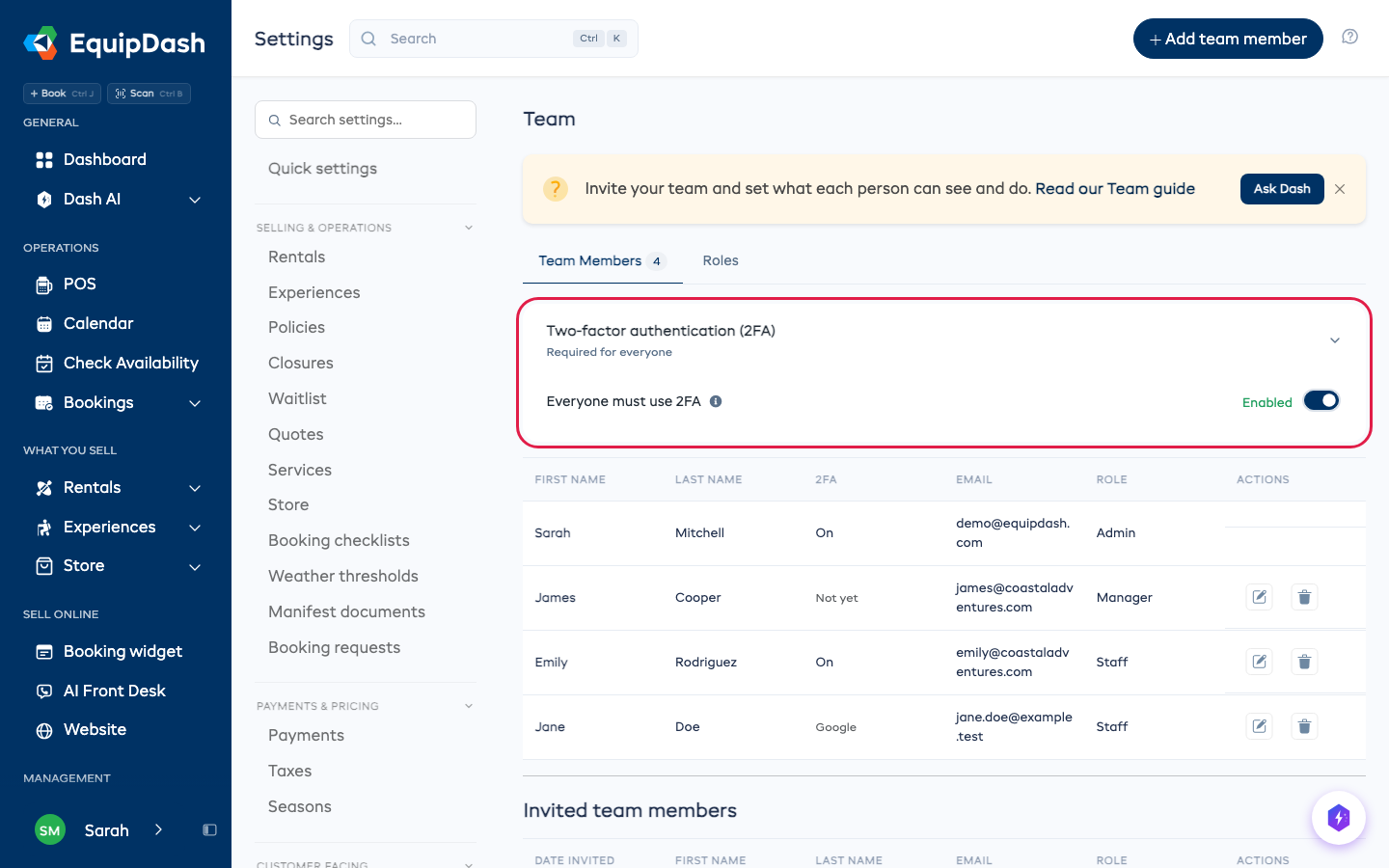
The 2FA column shows who has it On, who signs in with Google, and who has Not yet set it up. Anyone without it sets it up the next time they sign in with a password, before they can do anything else. Nobody is signed out when you switch it on.
The phone app
Sign in to the EquipDash phone app with your password and it asks for the same code, with the same Email me a code instead and Use a backup code options. If your team requires 2FA and you have not set it up yet, sign in on the website first to set it up.