Notifications
This page controls the emails that land in your own inbox — a new booking comes in, a payment is received, a rental is late, and so on.
It does not control what your customers or staff receive. Those emails — their wording, when they go out, and whether they go out at all — live under Email templates.
Notifications — emails that come to you. Email templates — emails that go out to customers and staff.
Choosing what you get
- Click Settings in the sidebar.
- Select Notifications.
- Emails are grouped into sections. Click a section heading to open it.
- Flip each switch on or off.
Changes save as you make them — there is no Save button.
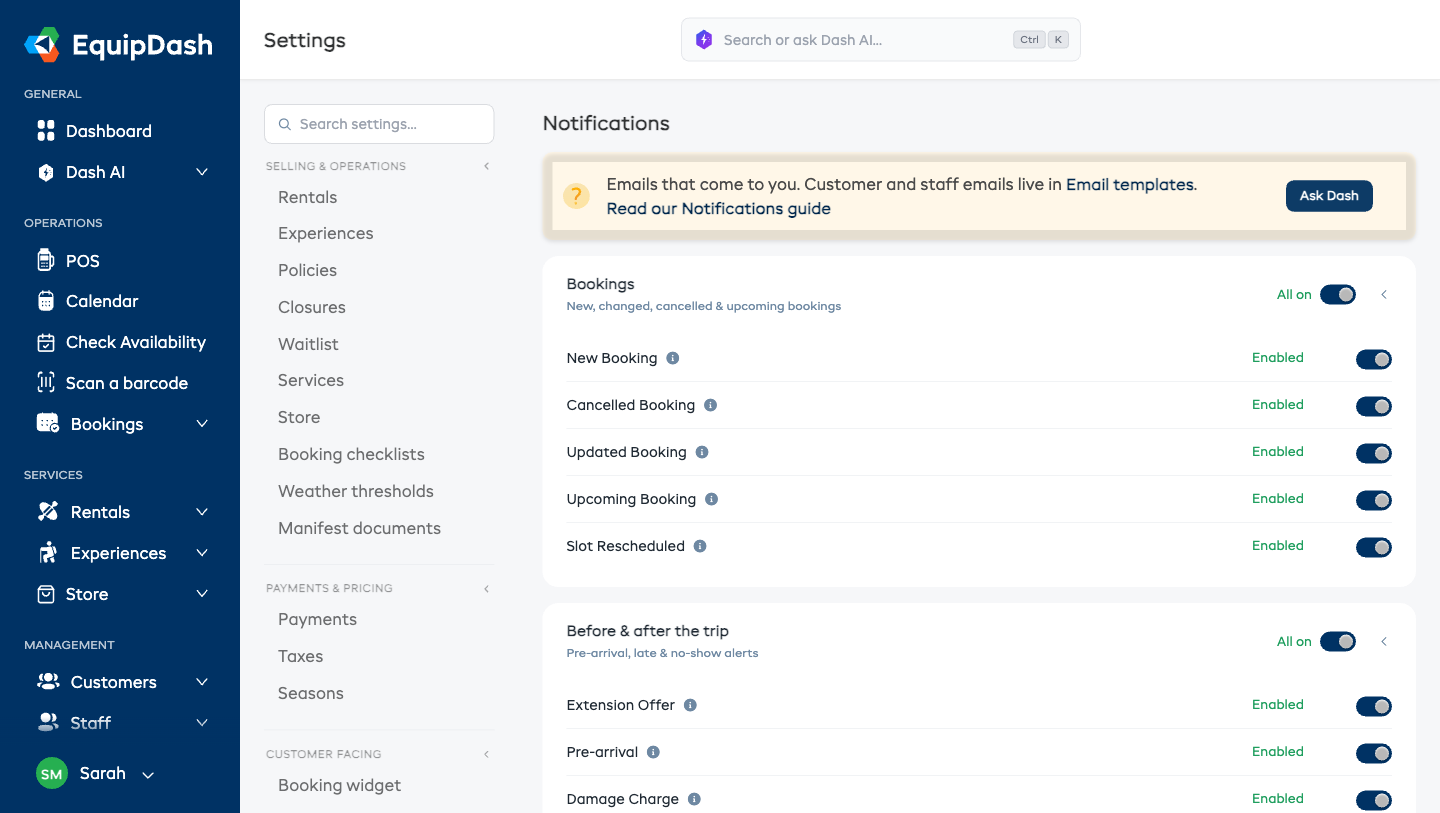
Switching a whole section at once
Every section heading has its own switch on the right, so you can turn all of that group on or off in one click instead of working down the list.
It shows you where the section stands at a glance:
| It says | What that means | Clicking it |
|---|---|---|
| All on | You get every email in this section | Turns them all off |
| All off | You get none of them | Turns them all on |
| Some on | You get a few of them | Turns them all on |
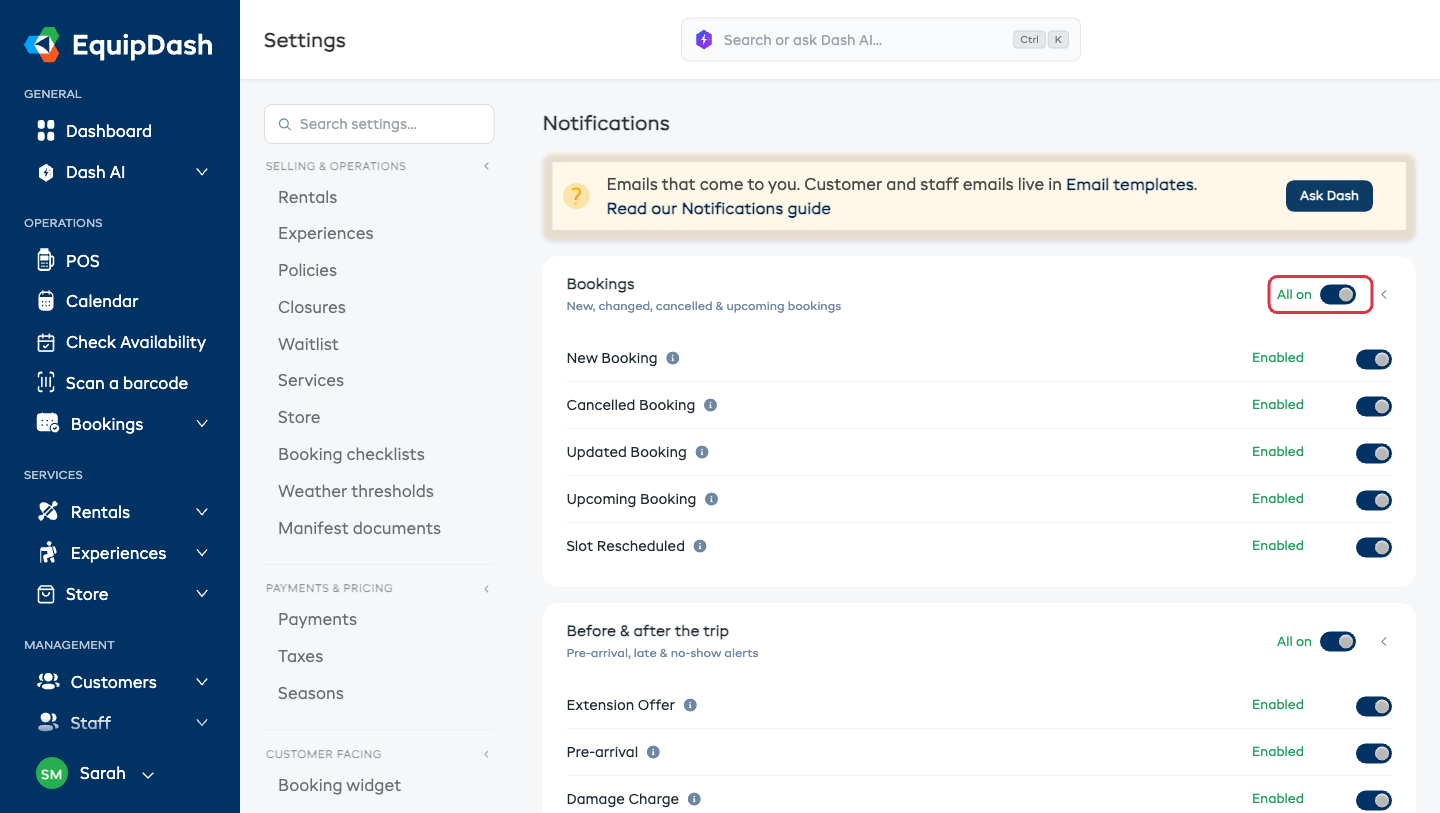
The sections
| Section | What lands in your inbox |
|---|---|
| Bookings | New, changed, cancelled and upcoming bookings |
| Before & after the trip | Pre-arrival, late pickup, late return and no-show alerts |
| Money & deposits | Payments, refunds and security deposits |
| Waivers & forms | Waiver requests, responses and exports |
| Surveys & reviews | Survey requests, responses and rewards, plus your weekly feedback digest |
| Waitlist | When someone joins, or a spot opens up |
| Gear & operations | Workshop jobs, low stock and weather alerts |
| Staff | Certification reminders |
| Your website | Messages sent through your website's contact form |
| Dash AI | Your daily briefing and agent runs |
| AI bookings | When the chat on your booking page hands a conversation to your team |
| Concierge setup | Updates while we set your account up |
| Your account | Trial help and product updates |
A few worth knowing by name:
- No show — an experience booking that never checked in.
- Late pickup / Late return — a rental that hasn't been collected or brought back.
- Chat handed to your team — the AI on your booking page couldn't finish a conversation and needs a person.
- Condition photos submitted — a customer sent in their own pickup photos, which completes the pickup. See Customer Condition Photos.
- Survey Weekly Digest — the Monday morning "Your week in feedback" email. See Your Weekly Feedback Digest.
- Survey Detractor — an instant heads-up the moment a customer leaves a low survey score, so you can make it right before it becomes a public review.
AI bookings is a paid add-on
If AI bookings isn't active on your plan, that section shows a padlock and its switch can't be turned on — there's nothing to send yet. Once it's active, the padlock disappears and it behaves like any other section.
Things to keep in mind
- These settings are yours alone. Every person on your team has their own. Turning something off here stops you getting it — your colleagues keep getting it until they turn it off themselves. If an email is still arriving for someone else on the team, they need to switch it off on their own Notifications page.
- Everything defaults to on for a new account.
- Nothing on this page is ever seen by a customer.
- To stop an email going out to your customers, use the Send this email switch on that template under Email templates.
Related Guides
- Customizing Email Templates — the emails your customers and staff get
- Pre-Arrival Messages
- Chasing Unsigned Consents
- Overdue Reminders & Extension Offers
- Custom Sending Domain