Localization
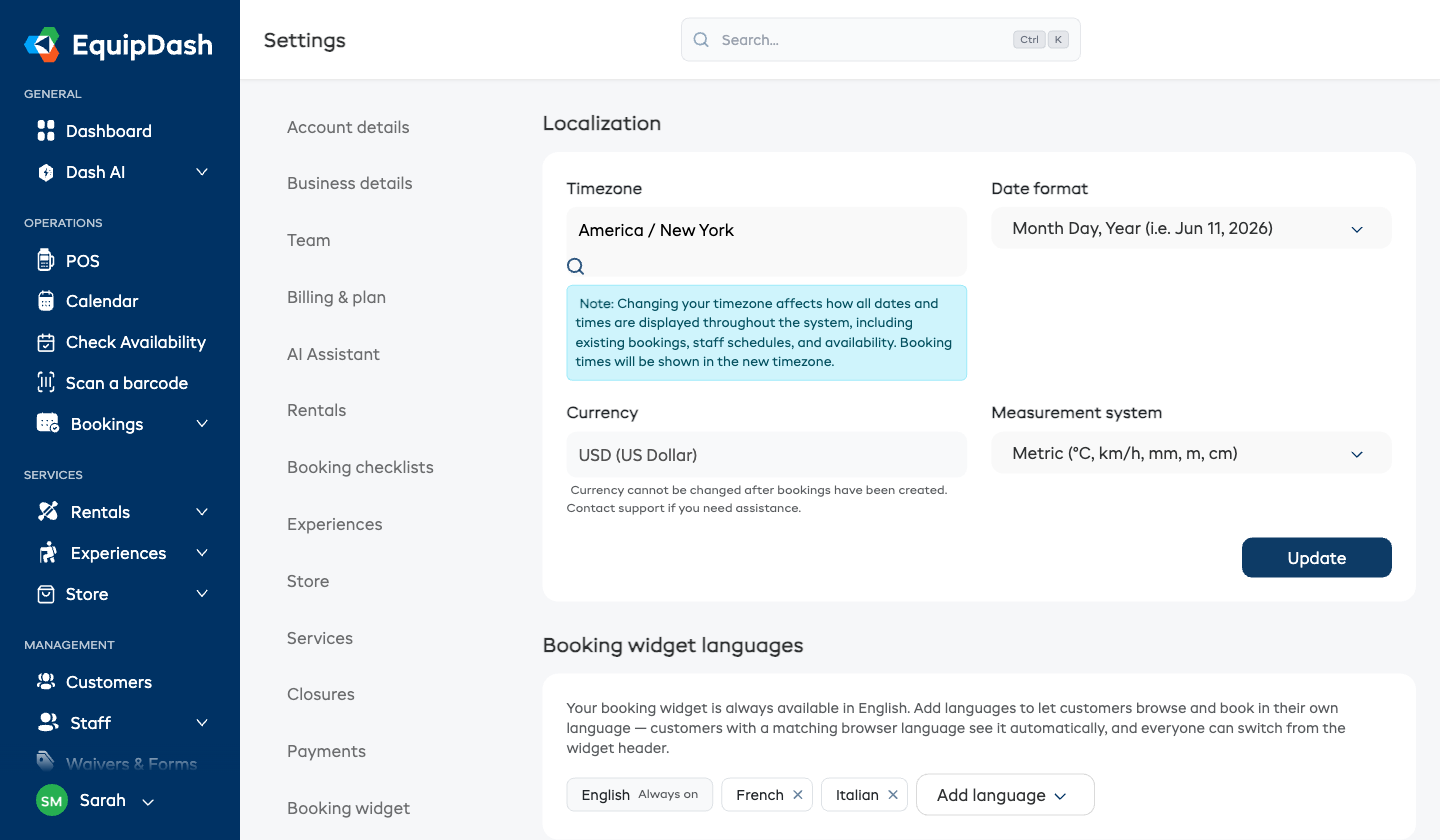
Localization settings control how dates, times, and currency are displayed throughout EquipDash -- in your dashboard, on bookings, in the booking widget, and in customer-facing emails. Getting these right from the start saves confusion later.
Configuring Your Localization Settings
- Click Settings in the sidebar.
- Select Localization from the settings menu.
- Configure the following:
Timezone
- Click the Timezone dropdown and search for your timezone (e.g., "America/New_York" or "America/Los_Angeles").
- Select the correct timezone from the results.
Currency
- Click the Currency dropdown and search for your currency (e.g., "USD" or "EUR").
- Select the correct currency from the results.
You can only change your currency before any bookings have been created. Once you have bookings in the system, the currency is locked to protect financial data integrity. Contact support if you need help changing it after bookings exist.
Date Format
- Choose your preferred date format from the dropdown. Options include Month Day, Year (e.g., Feb 26, 2026) and Day Month, Year (e.g., 26 Feb, 2026).
Each setting saves automatically as you change it -- you'll see a Saved confirmation in the corner. There is no separate Save button.
Booking Widget Languages
The Booking widget languages card on this page lets you offer your booking widget in your customers' languages. English is always on; click Add language to add another -- your catalog auto-translates once using your included AI credits (the estimated cost is shown before you confirm), customers can switch language from the widget header, and every email and SMS for a booking follows the language the customer booked in.
The languages you add here also make your waivers and forms multilingual: the standalone form shows a language switcher, you can set a different logo or image per language, and each PDF document can be generated in the languages you choose. The translated wording stays editable here, and your edits are kept.
See Booking Widget Languages for the full guide.
Where These Settings Apply
| Setting | Where it appears |
|---|---|
| Timezone | All date/time displays, calendar, booking times, email timestamps |
| Currency | Pricing, invoices, receipts, booking widget, reports |
| Date Format | Date pickers, booking details, reports, emails |
Things to Keep in Mind
- Your timezone affects when automated emails are sent (e.g., booking reminders) and how times display on your calendar.
- Changing the timezone does not alter existing booking times -- they are stored in UTC and converted for display.
- The date format applies everywhere in the app, including date pickers and exported reports.