Booking Widget Languages ProThis feature requires the Pro plan
Your booking widget is always available in English. Offering it in more languages is a Pro plan feature — add languages and customers can browse, book, pay, and receive their confirmation all in their own language. Your product and experience content translates automatically, so there's nothing to rewrite by hand.
30 languages are available. English is always on; you can add any of the other 29.
Available Languages
| Arabic | Hebrew | Polish |
| Czech | Hindi | Portuguese |
| Danish | Hungarian | Romanian |
| Dutch | Indonesian | Russian |
| English | Italian | Spanish |
| Filipino | Japanese | Swedish |
| Finnish | Korean | Thai |
| French | Malay | Turkish |
| German | Mandarin Chinese | Ukrainian |
| Greek | Norwegian | Vietnamese |
Adding a Language
- Click Settings in the sidebar.
- Select Localization from the settings menu.
- Scroll to the Booking widget languages card. English is always on — it can't be removed.
- Click Add language and pick a language from the list.
- A confirmation appears showing the estimated one-time AI credit cost for translating your catalog into that language. Review it, then click the Add button to confirm (it shows the language name, e.g. Add French) -- or Cancel.
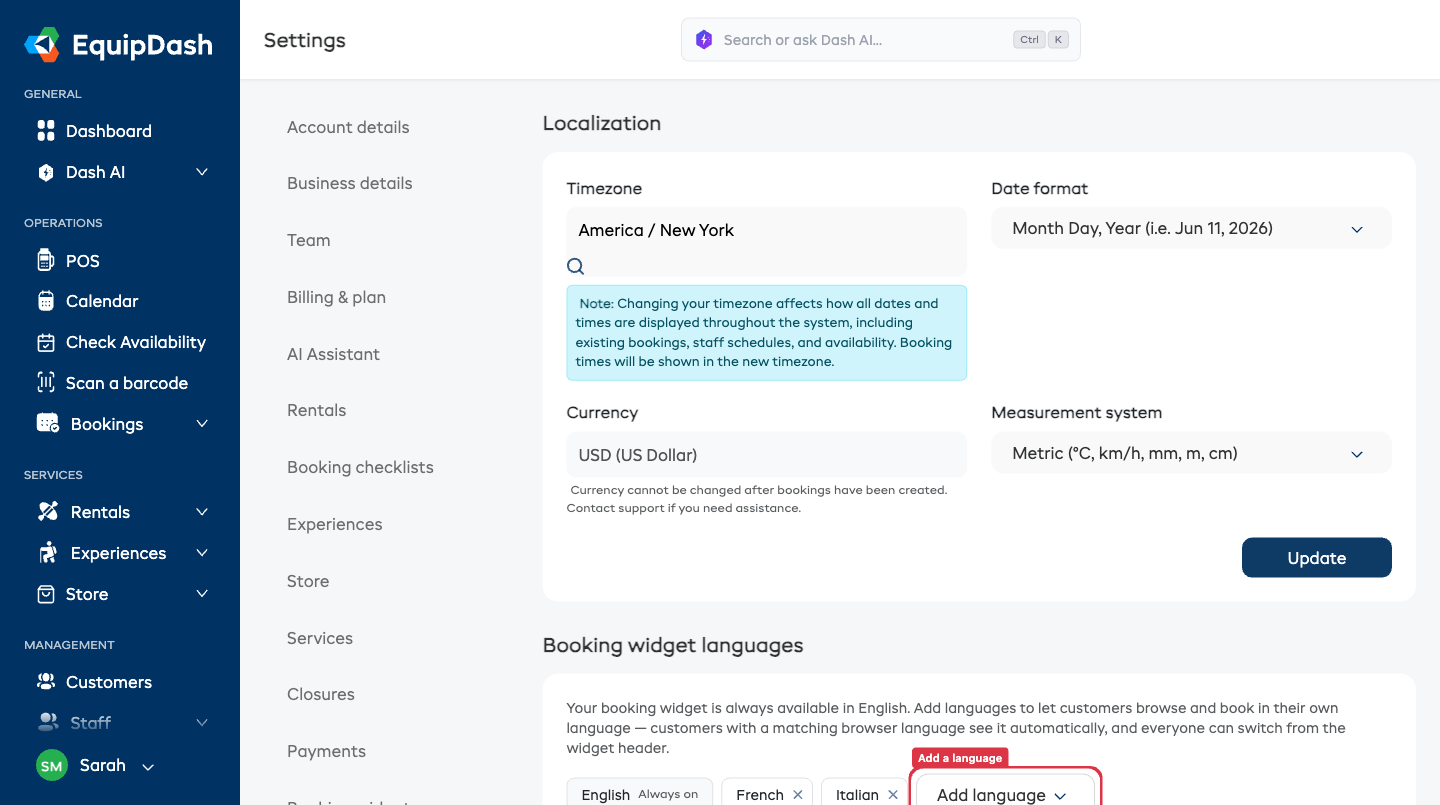
That's it — the language is live on your widget immediately. Your catalog translates in the background; any item whose translation isn't ready yet simply shows in English until it is, so nothing ever appears blank or broken.
What gets translated
Everything a customer reads on your widget:
- Product and experience names and descriptions
- The "What's included", "What's not included", and "Itinerary" lists (each item and its detail)
- Custom content sections
- Section headings (What's included, Itinerary, Highlights, etc.) — including any you've renamed
- The price-structure summary (Price applies, Price structure, and the price line)
- Categories and locations
- Bundles and store products
- Waivers
The widget itself — buttons, checkout steps, the cart, validation messages, and the confirmation page — also displays in the customer's language. Dates show localized month names; prices keep your store's currency format exactly as configured.
What it costs
- Translation uses your included AI credits — there's no extra fee and no separate translation service to sign up for.
- The cost is one-time per language: the estimate is shown before you confirm, so there are no surprises.
- After the initial run, editing any piece of content re-translates just the edited field into each enabled language automatically. New products and experiences translate as you add them.
- If you've connected your own AI key (BYOK), translation uses your key instead of included credits.
Removing a language
Click the × on a language's chip in the Booking widget languages card. The language disappears from your widget right away.
Filling in missing translations
Your catalog translates once when you first add a language, and individual items re-translate whenever you edit them. If you ever notice something showing in English that should be translated — for example a section that's newer than the language you enabled — click Translate missing content in the Booking widget languages card. It translates anything that isn't done yet across all your enabled languages. Already-translated content is skipped, so only the gaps use AI credits, and your hand-edited translations are left untouched.
What Your Customers See
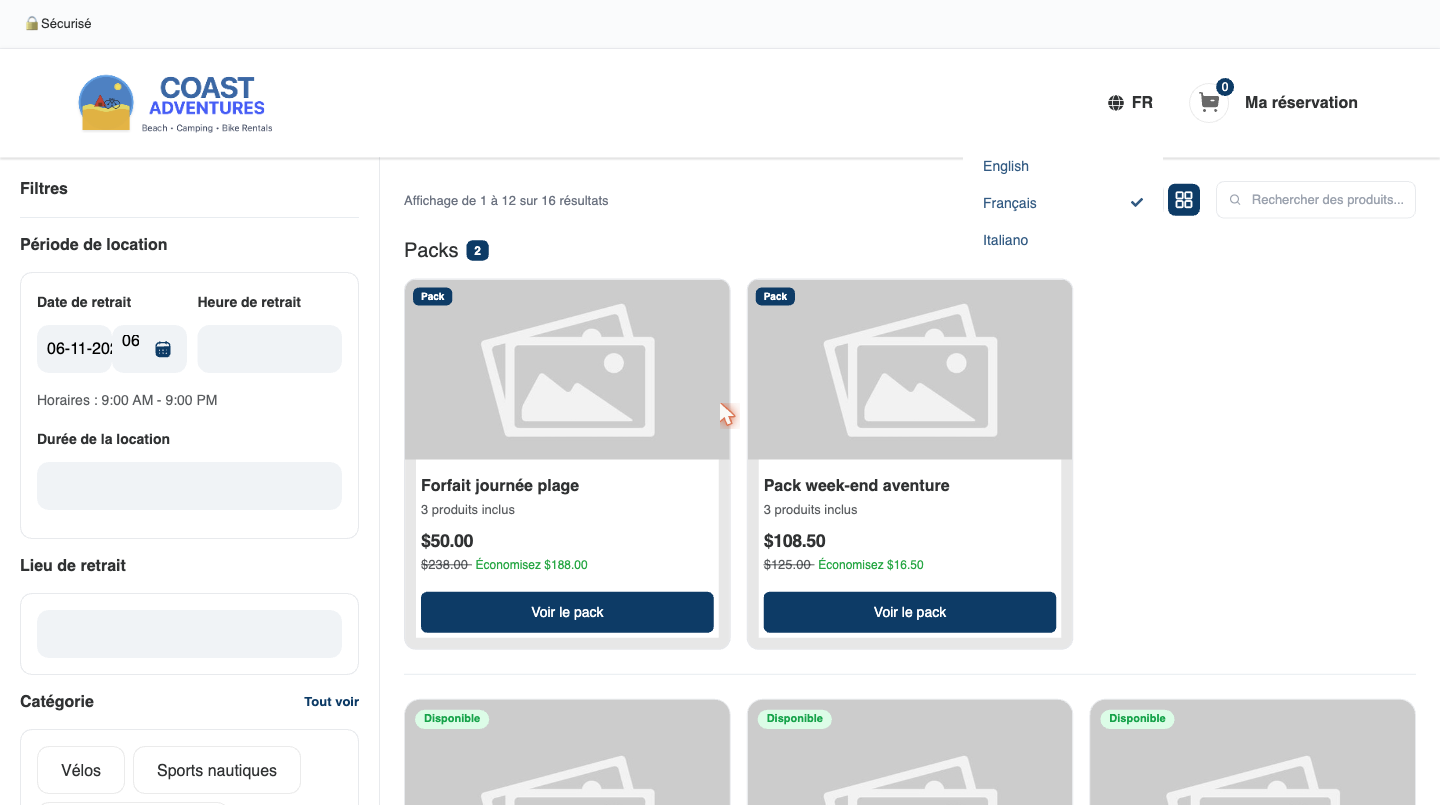
- Automatic detection — if you offer the customer's browser language, the widget opens in it automatically. A French-speaking customer lands on a French widget with zero clicks.
- The globe menu — customers can switch language anytime from the globe menu in the widget header. Their choice sticks for the whole booking journey: listings, item details, cart, checkout, and the confirmation page.
- Localized details, consistent prices — dates display with the right month names for the language; prices always keep your store's currency format, so the amount on screen matches the amount charged.
Emails and SMS Follow the Booking
The language a customer books in is saved with their booking, and every message about that booking sends in that language — not just the confirmation:
- Booking confirmation
- Reminders
- Balance due and overdue notices
- Refund and deposit notifications
- Waiver requests
The abandoned-cart recovery email ("still want to book…?") follows the same rule — it sends in the language the customer was browsing your widget in when they left, so a French shopper gets a French reminder.
Your own admin notification emails stay in English, so your team always reads them comfortably.
If you've written custom SMS or email template overrides, those send exactly as you wrote them — your own wording is never auto-translated.
Bookings you create yourself
When you create a booking — at the point of sale or with Quick Book — there's no widget for the customer to choose a language on, so those bookings send in English by default. If your shop operates in another language, set your default once:
- Go to Settings → Localization and scroll to the Booking widget languages card.
- Under Default language for bookings you create, pick the language you want. The list shows English plus every language you've enabled.
- From then on, every booking you create yourself sends its confirmation, reminders, texts, and self-service links in that language.
Online widget bookings are unaffected — they always use the language the customer chose. To offer a language here, enable it on your widget first and it appears in the dropdown.
Waivers and the Legal Original
Customers see your waiver auto-translated into their language so they can actually read what they're signing. A notice above the signature makes clear that the original English version is the legally binding one.
When a customer signs, the record stores the language they signed in and the exact text they were shown — so you always know precisely what was on screen at signing time.
See Inline Waiver Signing for how waivers appear in checkout.
Self-Service Pages
The links customers receive to manage their booking — view booking, reschedule, extend, cancel — all render in the language they booked in. The whole journey stays in one language from first click to last.
Editing a Translation
Auto-translations are good, but sometimes you'll want your own wording — a brand phrase, a local idiom, a technical term.
- Open the product or experience.
- On the Description card, click the language pill for the language you want to edit.
- Edit the text in place and save.
Hand-edited translations are yours: they are never overwritten by re-translation, even if you later edit the English original.
Custom Translations
Some words are kept exactly as you wrote them when your content is translated — your business name, a brand term, or a model name. That's usually what you want (you wouldn't translate "Sea-Doo"), but sometimes you do — for example, you want your business name to read Biffrentals Aventure in French instead of staying Biffrentals Adventure inside your waiver clauses.
Custom translations let you decide. List a word once and how it should read in each of your languages, and we use your version everywhere it appears — your booking page, forms, waiver PDFs, and emails.
- Click Settings in the sidebar, then Localization.
- Scroll to the Custom translations card (it appears once you've added a second language).
- Click Add word.
- Type the word in the Word / name (English) box, then how it should read in each language.
- Click Save custom translations.
Your version applies straight away — there's nothing to re-translate and it doesn't use any AI credits. Change a word and save, and every page updates instantly; remove it and the automatic translation comes back.
This only affects your other languages — the English original is always left exactly as you wrote it.
Things to Keep in Mind
- Suppliers with no extra languages enabled see zero change — no globe menu, English everywhere, exactly as before.
- A customer can only pick from the languages you've enabled. A browser language you don't offer falls back to English.
- Untranslated content always falls back to English — your widget never shows a blank.