Customer Condition Photos Growth+This feature requires the Growth+ plan or higher
Customers can take the condition photos themselves, on their own phone, from a link in their booking email. They snap each item, pick a condition, add a note if something's already scuffed — and the pickup completes itself.
Two things this buys you:
- Contactless pickup. Gear can be left in a locker, on a rack, or at a gate. Nobody has to be at the counter to hand it over and nobody has to be there to sign it out.
- A dated record, in their own words. If a board comes back with a ding, you have the customer's own photo from the moment they collected it.
You never lose the manual path — staff can still pick up items at the counter exactly as before.
This runs on the same no-login link system. Switch on Customer portal first — see Customer Portal. Without it, nothing below appears.
Asking for Photos on a Product
You decide which gear is worth photographing. A wetsuit probably isn't; a paddleboard, an e-bike or a jet ski probably is.
- Go to Rentals → Products and edit the product.
- On step 3 — Additional Information, open Advanced settings.
- Switch on Customer must submit condition photos at pickup.
- Save the product.
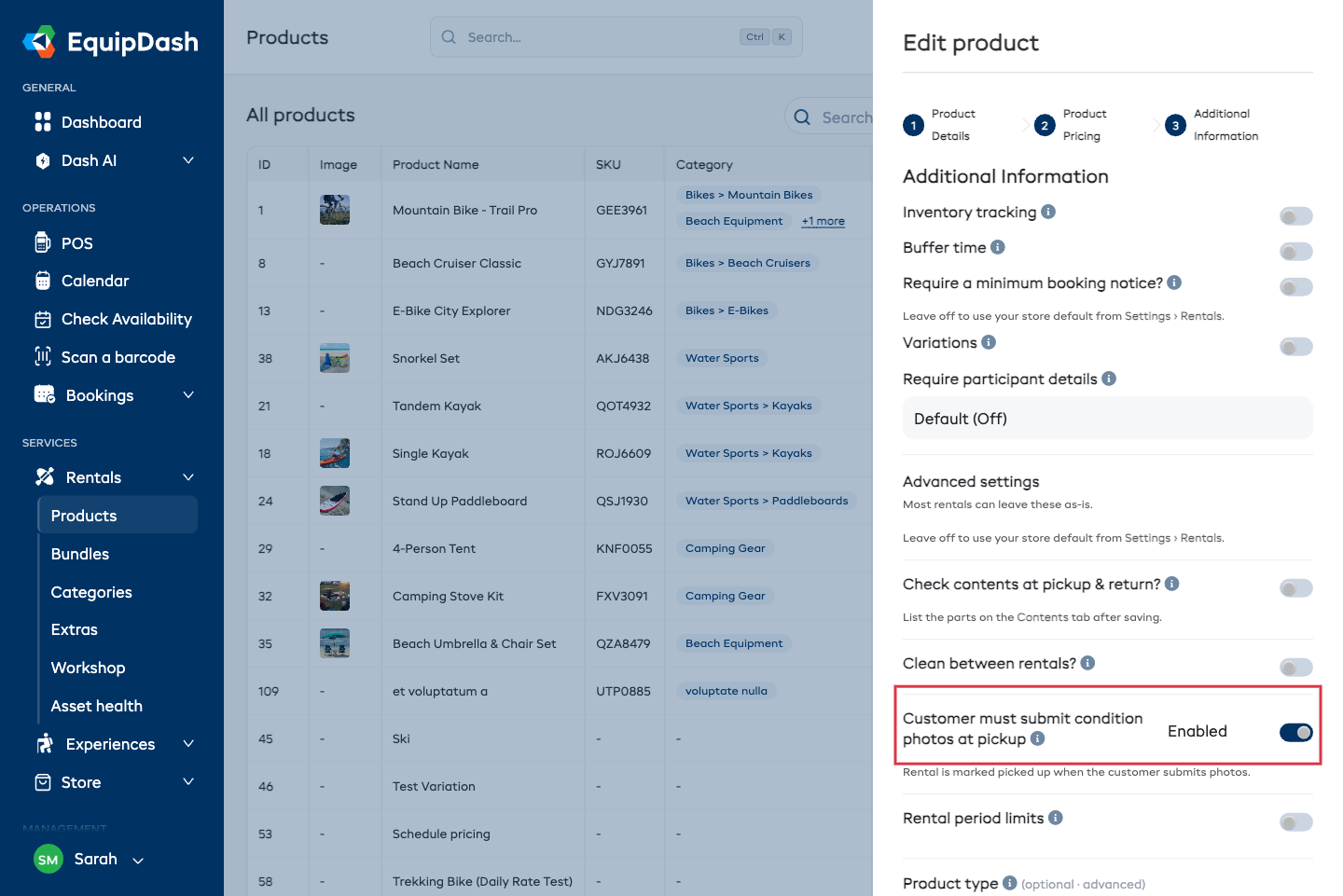
The toggle only appears when the customer portal is switched on for your shop.
From then on, any booking containing that product gets a Submit condition photos link in its confirmation and reminder emails, and a Condition photos button on the customer's My bookings page.
What the Customer Does
The link opens a simple page — one card per item on the booking.
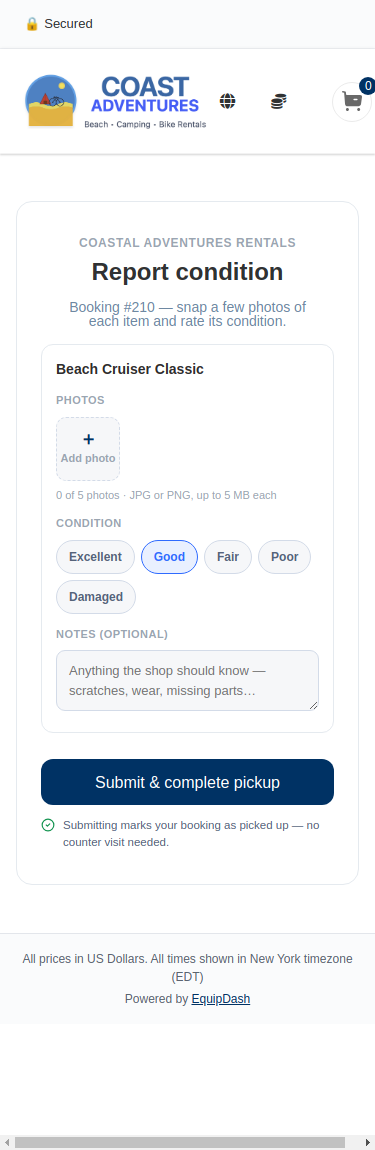
For each item they:
- Tap Add photo — up to 5 photos per item, JPG, PNG or WebP, up to 5 MB each.
- Pick a condition: Excellent, Good, Fair, Poor or Damaged.
- Add a note if they want ("small ding near the nose").
Then they tap Submit & complete pickup.
The page shows all the rental items on that booking, not just the ones you flagged. A customer photographing the paddleboard may as well photograph the paddle at the same time — and if you track units individually, each unit is listed by its own identifier.
A photo is required for anything marked Poor or Damaged — the same rule your staff follow at the counter. Everything else is optional.
What Happens When They Submit
At pickup, the items are marked Picked Up straight away. The customer gets a confirmation email, and your team gets a notification.
At pickup, when the item also has a pre-departure checklist, their photos are filed but the items aren't marked picked up — you've said someone has to run that check before the gear goes out, so the handover stays with you. The customer is told this up front rather than hitting a wall: the button reads Send my condition photos, and the page says the shop will get their gear ready and confirm the pickup.
At return, nothing changes status. The photos are filed against the booking and your team confirms the return as usual — a customer saying they've dropped something off isn't the same as you having it back on the rack.
Either way the customer sees their own record and can go back to it later:
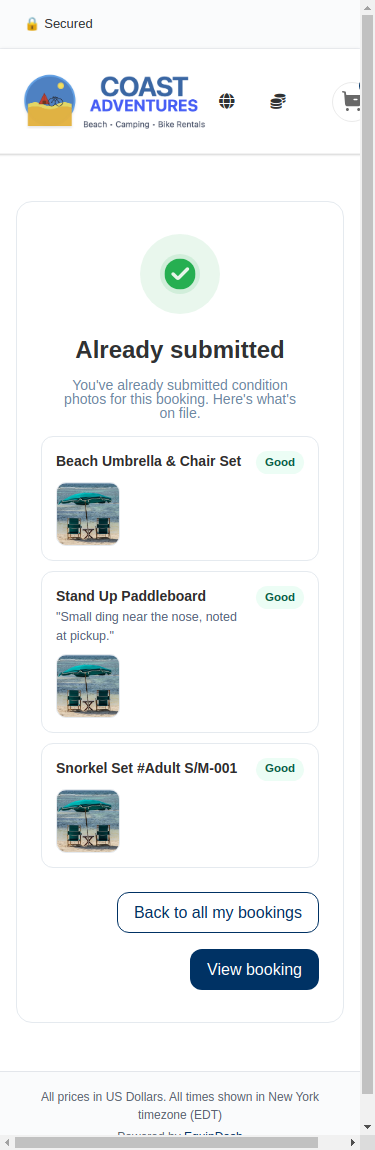
They can only submit once per pickup and once per return — reopening the link shows what's on file rather than letting them file a second version.
What You See
Customer-submitted reports appear in the Condition Reports section of the booking, right alongside the ones your staff log. They carry a violet Customer badge, and the group is headed "by Customer".
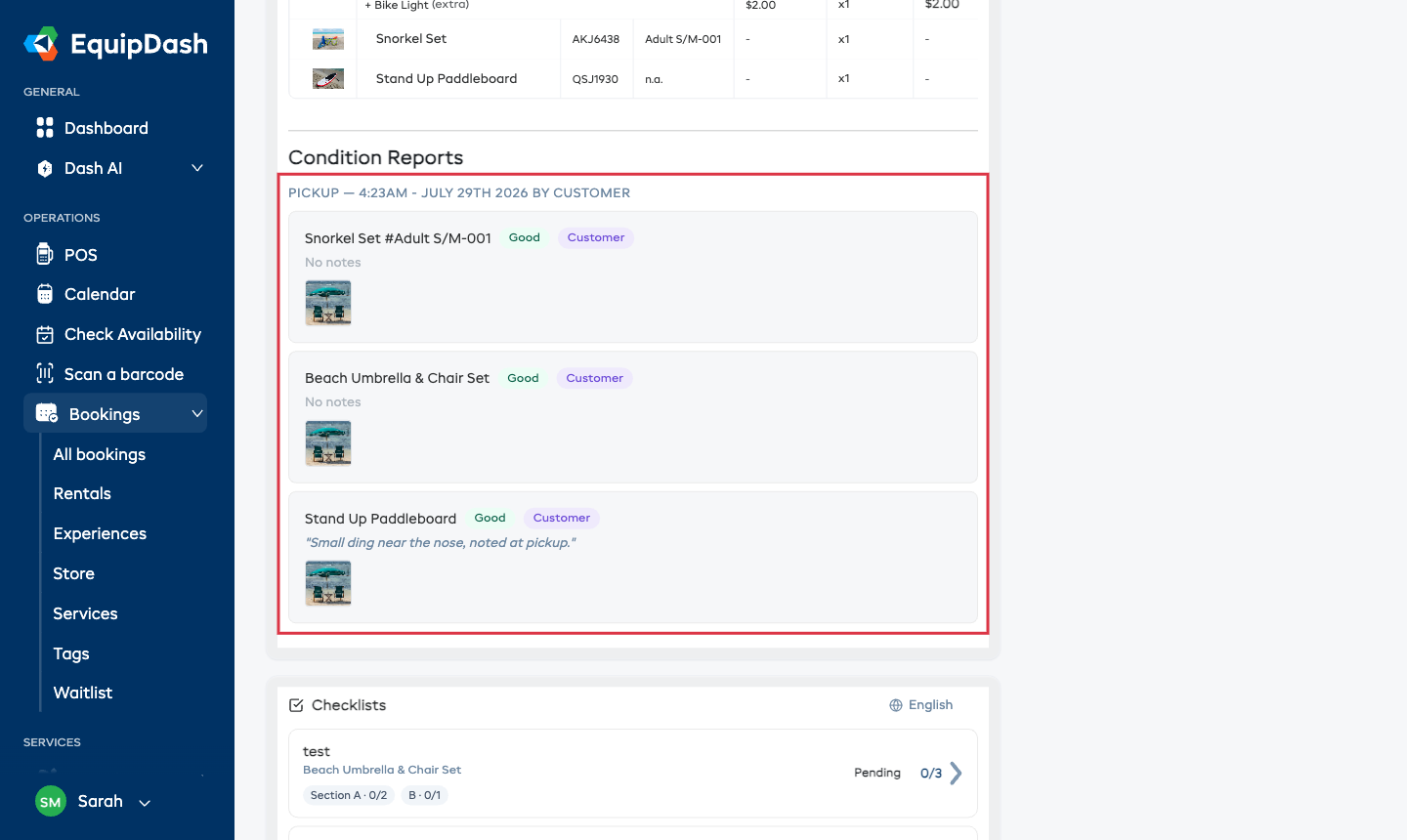
Everything else works as normal — click a photo to see it full size, and the report feeds the same condition history and damage charge flows a staff report does.
When Nobody Submits
Customers forget. If the pickup time passes on a booking that's waiting on photos:
- The booking shows an Awaiting customer condition report banner.
- A one-off reminder email goes to the customer asking them to send the photos.
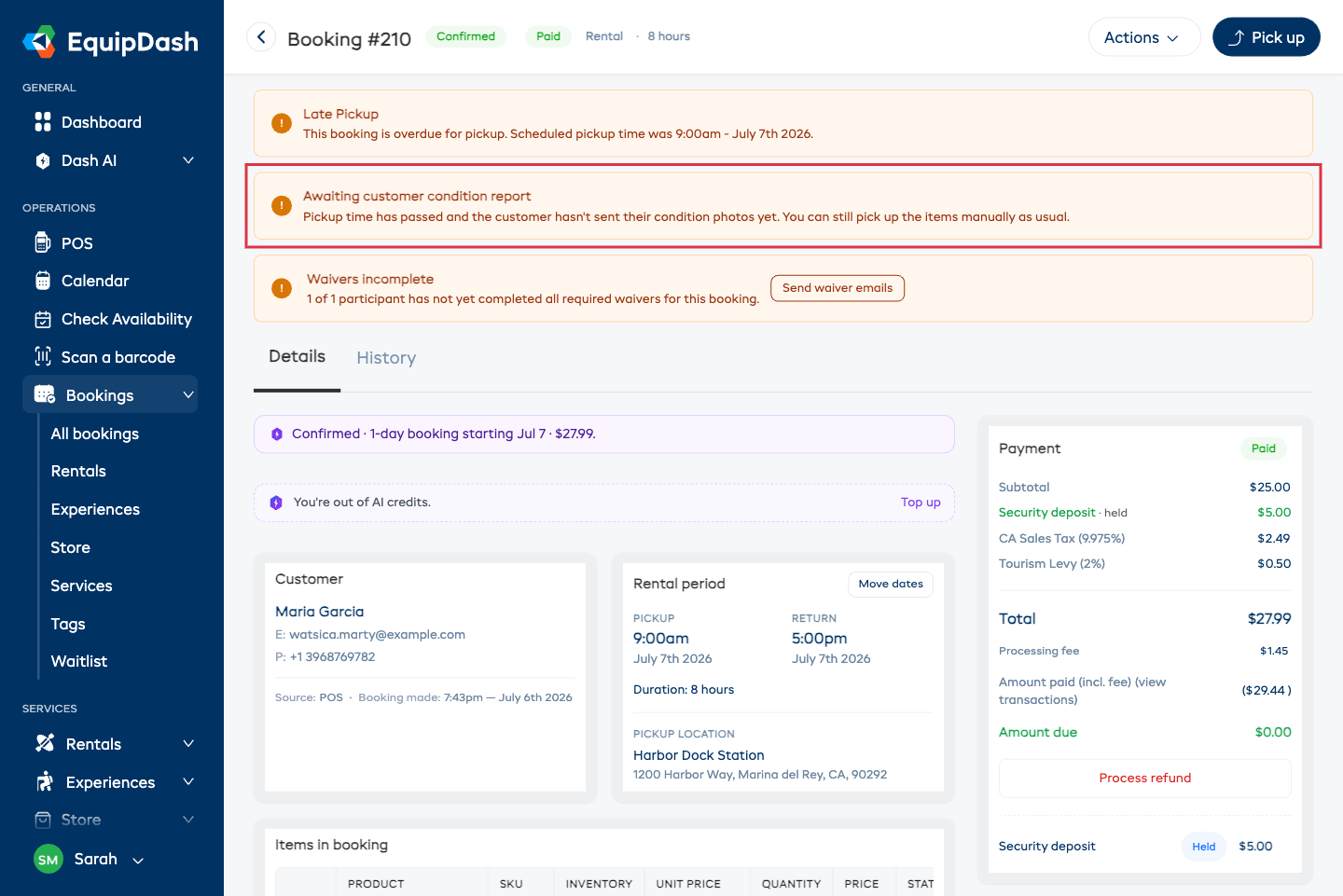
The banner spells out that you can still pick up the items manually as usual — and doing so clears it. The reminder is sent once, not on a loop.
When They've Sent Photos But a Check Is Outstanding
If a pre-departure checklist covers the item, the customer's side is done the moment they submit — yours isn't. The booking shows a Customer sent their photos — pickup still to finish banner with a Finish pickup button, which opens the usual pickup window with the check ready to tick and their photos already saved against the booking. Tick it, confirm the pickup, and the banner clears.
Nothing is lost by leaving it a while: the photos are on file from the moment they hit send, so you still have their record of how the gear looked even if the handover happens an hour later at the counter.
Getting Told About It
You're emailed when a customer submits photos, so a contactless pickup doesn't happen silently. When a check is still outstanding the email says so, so it reads as come and finish this rather than this is done. Turn it on or off for yourself under Settings → Notifications, in the Bookings section — like every notification, that setting is yours alone and doesn't change what your colleagues receive.
Things to Know
- Photos are per booking, not per customer. A customer who books the same board twice photographs it twice — that's what makes the record useful.
- A pre-departure checklist still has to be run by you. It's your check, so a customer submission can't tick it — their photos are filed and you finish the pickup. If you want pickups to complete without anyone at the counter, don't attach a pre-departure checklist to those products.
- Turning the customer portal off turns this off too. Existing links show a short "no longer available" message rather than an error.
Related Guides
- Customer Portal — the link that carries all of this.
- Fulfillment — Pickups & Returns — the staff side, and condition reports in general.
- Charging for Damage — turning a condition report into a charge.
- Inventory Units — condition history per unit.
- Creating a Product — where the toggle lives.