Custom Sending Domain Growth+This feature requires the Growth+ plan or higher
By default, all customer-facing emails (booking confirmations, payment receipts, reminders, etc.) are sent from noreply@equipdash.com. With a custom sending domain, you can send these emails from your own business address -- for example, bookings@yourbusiness.com. This builds trust with your customers and makes your emails look more professional.
Emails sent from your own domain are more likely to land in your customer's inbox (not spam), and they reinforce your brand every time a customer receives a message.
Before You Start
You will need access to your domain's DNS settings. This is usually managed through your domain registrar (the company you bought your domain from) or your hosting provider. Common providers include GoDaddy, Namecheap, Cloudflare, Google Domains, and AWS Route 53.
If you are not sure where your DNS settings are, contact the person or company that set up your website.
Setting Up Your Custom Domain
- Click Settings in the sidebar.
- Select Custom domain from the settings menu.
- In the Email sending domain section, click Set up custom domain.
- Fill in the following fields:
- Domain -- your business domain (e.g.,
yourbusiness.com). Do not includehttps://orwww. - From Email Address -- the email address customers will see when they receive your emails (e.g.,
bookings@yourbusiness.com). This must use the domain you entered above. - From Name -- the sender name that appears in your customer's inbox (e.g.,
YourBusiness Rentals).
- Domain -- your business domain (e.g.,
- Click Verify Domain.
EquipDash will contact your domain's email service and generate three DNS records that you need to add to your domain.
Adding DNS Records
After clicking Verify Domain, you will see a table with three CNAME records. These records prove to email providers that you own the domain and authorize EquipDash to send emails on your behalf.
For each of the three records:
- Copy the Name value (click the copy icon next to it).
- Copy the Value.
- Log in to your domain provider's DNS management page.
- Add a new CNAME record using the Name and Value you copied.
- Repeat for all three records.
After adding the records, it can take anywhere from a few minutes to 72 hours for the changes to take effect. EquipDash keeps checking for 72 hours.
How to Add CNAME Records (by Provider)
The exact steps differ slightly depending on your domain provider. Here is a general guide:
| Provider | Where to find DNS settings |
|---|---|
| GoDaddy | My Products > your domain > DNS |
| Namecheap | Domain List > your domain > Advanced DNS |
| Cloudflare | Select your domain > DNS > Records |
| Google Domains | My domains > your domain > DNS |
| AWS Route 53 | Hosted zones > your domain > Create record |
In each case, create a CNAME record, paste the Name into the host/name field, and paste the Value into the value/target field.
Checking Verification Status
Once you have added the DNS records at your domain provider:
- Go back to Settings > Custom domain.
- In the Email sending domain section, click Check status.
If the DNS records have propagated, the status will change to Verified (green badge). If the records have not propagated yet, the status will remain Pending Verification (yellow badge) -- simply wait and try again later.
EquipDash also checks your domain status automatically every 30 minutes, so it will verify on its own once your DNS records are in place.
Once Verified
When your domain is verified, all customer-facing emails will automatically be sent from your custom address. You will see a green Verified badge and a confirmation message showing your active sending address.
Emails that now use your custom domain include:
- Booking confirmations, updates, cancellations, and reminders
- Payment receipts, refund notifications, and balance due reminders
- Voucher and gift card confirmations
- Campaign emails
- Survey requests
- Waitlist notifications
- Overdue pickup, return, and check-in reminders
- Form/waiver request emails
Staff-facing emails (such as admin notifications, shift reminders, and team invitations) will continue to be sent from noreply@equipdash.com.
Enabling and Disabling
After your domain is verified, you can turn it on or off at any time without losing your setup:
- Go to Settings > Custom domain.
- In the Email sending domain section, use the Enabled toggle.
When disabled, all emails will revert to being sent from noreply@equipdash.com. Your domain verification stays intact, so you can re-enable it whenever you like.
Editing Your From Details
To change the From Email Address or From Name (without changing the domain itself):
- Go to Settings > Custom domain.
- In the Email sending domain section, click Edit.
- Update the From Email Address or From Name.
- Click Save.
If you need to change the domain entirely (e.g., switching from oldbusiness.com to newbusiness.com), you will need to remove the existing domain first and set up the new one from scratch.
Removing Your Custom Domain
If you no longer want to use a custom sending domain:
- Go to Settings > Custom domain.
- In the Email sending domain section, click Remove Domain.
- Confirm the removal in the dialog that appears.
All emails will immediately revert to being sent from noreply@equipdash.com. You can set up a new custom domain at any time.
Troubleshooting
Status stays on "Pending Verification"
- Wait up to 72 hours. DNS changes take time to propagate. If it has been less than 72 hours, the records may simply not have taken effect yet.
- Double-check your DNS records. Log in to your domain provider and confirm all three CNAME records are added correctly. Make sure the Name and Value match exactly what EquipDash provided.
- Check for typos. Even a small typo in the record Name or Value will prevent verification.
- Remove trailing dots. Some providers automatically add a trailing dot (
.) to CNAME records. If your provider does this, do not add one yourself. - Check for proxy settings. If you use Cloudflare, make sure the CNAME records are set to DNS only (grey cloud), not Proxied (orange cloud).
Status shows "Verification Failed"
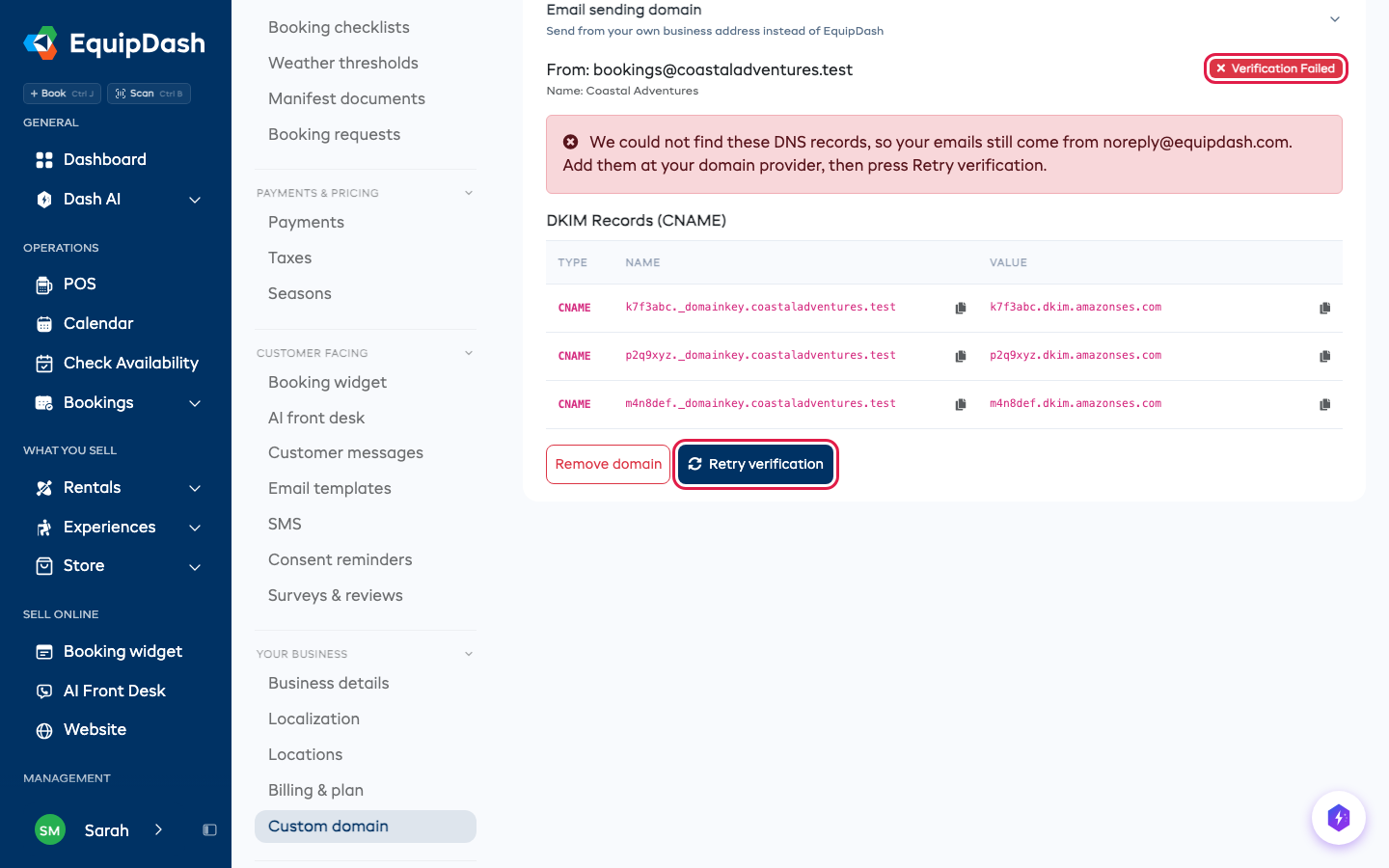
EquipDash looks for your DNS records for up to 72 hours. If it does not find them, the status changes to Verification Failed, your emails keep coming from noreply@equipdash.com, and everyone on your team who gets account emails receives one telling them so, with the records to add.
- Add or fix the records at your domain provider (see the steps above).
- Go to Settings > Custom domain.
- In Email sending domain, click Retry verification.
The status goes back to Pending Verification and EquipDash starts looking again. If the records on the page change after you retry, add the new ones: the old ones no longer work.
Status shows "Revoked"
This happens when your DNS records are removed or changed after your domain was verified. Your emails go back to noreply@equipdash.com and your team gets an email about it. Re-add the records shown on the page, then click Retry verification.
Emails still showing noreply@equipdash.com after verification
- Make sure the Enabled toggle is turned on.
- Wait a few minutes -- there may be a short caching delay after enabling.
- Confirm the status shows Verified (green badge), not Pending (yellow badge).
Frequently Asked Questions
Do I need a paid email hosting account for this? No. You only need access to your domain's DNS settings. You do not need a mailbox set up for the "from" email address -- EquipDash handles the sending.
Will replies from customers go to my custom email address? No. Reply addresses are configured separately. Customer replies are handled through your normal business email. The custom sending domain only controls the "from" address on outgoing emails.
Can I use a subdomain (e.g., mail.yourbusiness.com)?
Yes. Enter the subdomain as your domain and set the from email to use that subdomain (e.g., bookings@mail.yourbusiness.com).
What happens if my domain verification expires or is revoked? EquipDash sends from noreply@equipdash.com until the domain is verified again, and emails your team so you know. No emails are lost.
Is there a limit to how many emails I can send from my custom domain? The email sending limits are the same as your current EquipDash plan. Using a custom domain does not change your sending limits.