Chasing Unsigned Consents Growth+This feature requires the Growth+ plan or higher
When someone hasn't signed their waiver or filled in their form, EquipDash can chase them for you. You lay out the sequence once — the form goes out when the booking is confirmed, then a reminder a week later, then two days after that — and it runs itself, only ever contacting the people who still owe a signature, and stopping the moment they sign.
Where the Settings Live
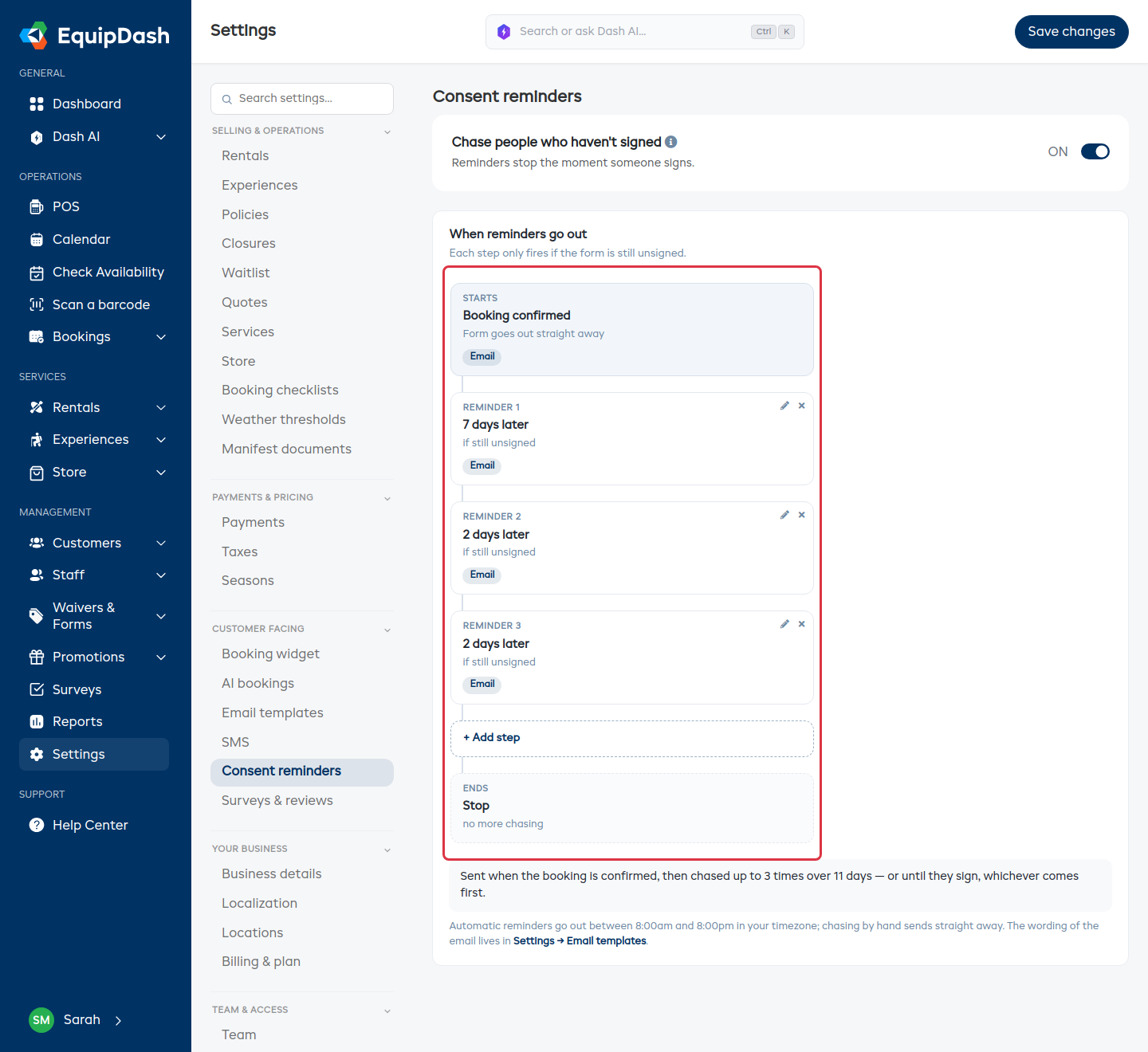
Go to Settings → Consent reminders (in the Customer facing group). This one page controls the whole chase: whether it runs at all, and what happens when.
Turning It On
The switch at the top — Chase people who haven't signed — is the master on/off.
- On — the sequence below runs automatically.
- Off — nothing goes out on its own. People are only nudged when you press Chase now yourself.
When it's off, the sequence is hidden entirely. Turn it back on and it comes back exactly as you left it.
Reading the Sequence
The sequence reads top to bottom, and each step only happens if the form is still unsigned:
| Step | What it means |
|---|---|
| Starts — Booking confirmed | The form goes out straight away, by email. This step is always there and can't be changed. |
| Reminder 1, 2, 3… | Each one says how long after the previous step it goes out, and how it's sent. |
| Ends — Stop | No more chasing after the last reminder. |
Underneath, a plain-English summary reads the whole plan back to you, so you never have to work it out from the numbers:
Sent when the booking is confirmed, then chased up to 3 times over 11 days — or until they sign, whichever comes first.
Change a step and the sentence updates with it.
Editing, Adding and Removing Steps
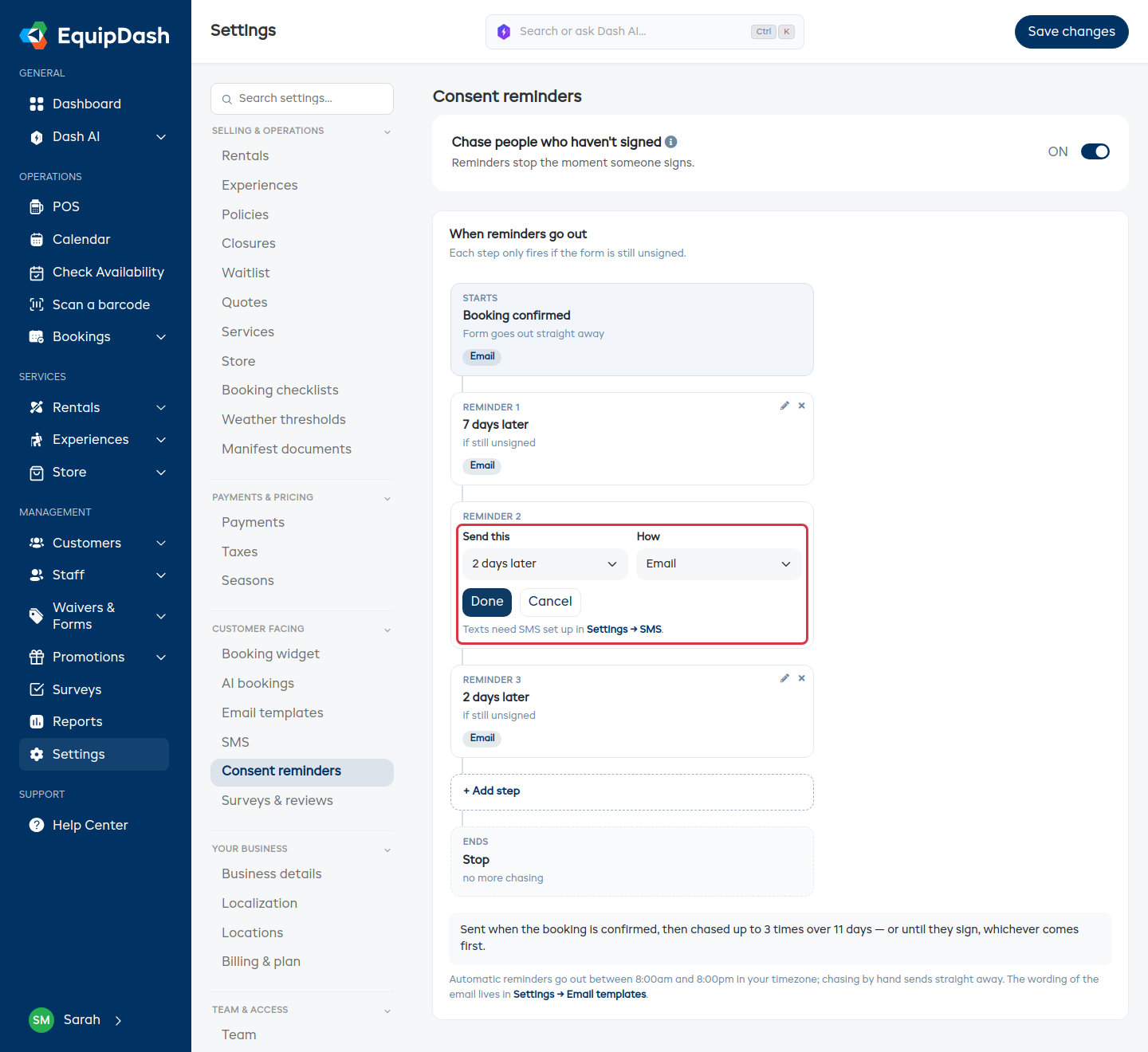
- Click the pencil on any reminder to edit it in place.
- Send this — how long after the previous step, from 1 day up to 30.
- How — Email, Email and text, or Text only.
- Click Done, then Save changes at the top right.
To add another nudge, click + Add step, set it up the same way and click Done. To drop one, click the × on that step. You always keep at least one reminder.
The text options only become available once your account can send texts. Until then the step editor shows a pointer to Settings → SMS. See Getting Started with SMS.
When Reminders Actually Go Out
Automatic reminders only send during waking hours in your own business timezone — nobody gets a 3am nudge. The exact window is shown in the note under the sequence.
Chasing by hand is different: it sends straight away, whatever the time. That's deliberate — when tomorrow's booking needs a signature tonight, you don't want to wait for the morning.
Chasing By Hand
You can nudge someone yourself from wherever you're already working:
- The Consent tracker — a whole booking at a time, or several bookings at once. See The Consent Tracker.
- A booking's participants — one person at a time. See Following One Person's Consent.
- A program's participants list and a session manifest — the same button on each row.
A manual chase counts as one of that person's reminders and shows up on their timeline like any other send, so you can always see what went out and when.
Wording the Email
The reminder email itself is the Waiver Reminder template under Settings → Email templates — that's where you change the wording, not whether it sends. Its on/off lives here, on the Consent reminders page, together with the timing. See Customizing Email Templates.
The first email, the one sent the moment they book, is the Waiver Request template on the same page. Both sit under Waivers & forms.
Good to Know
- Signed means left alone. Reminders only go to people who still owe a signature. Someone who signed on day one never hears from the sequence again.
- Group bookings are chased per person, not per booking — the people who have signed drop out as they go.
- A booking made at the last minute isn't immediately re-chased; the customer has only just received the first request.
- Nothing is ever sent twice in the same window, whether it was triggered by the schedule or by you.
Who Can Change It
Viewing the page needs permission to view waivers and forms. Changing the switch or the sequence needs Manage waivers & forms. See Roles Explained.