Season Passes
A pass is sold once and used on later bookings: a season pass, a 10-visit card, a summer membership. Each pass has one named holder and brings that person's price to zero on the things it covers.
To charge a monthly fee that takes a percentage off every booking instead, see Memberships.
Create a pass
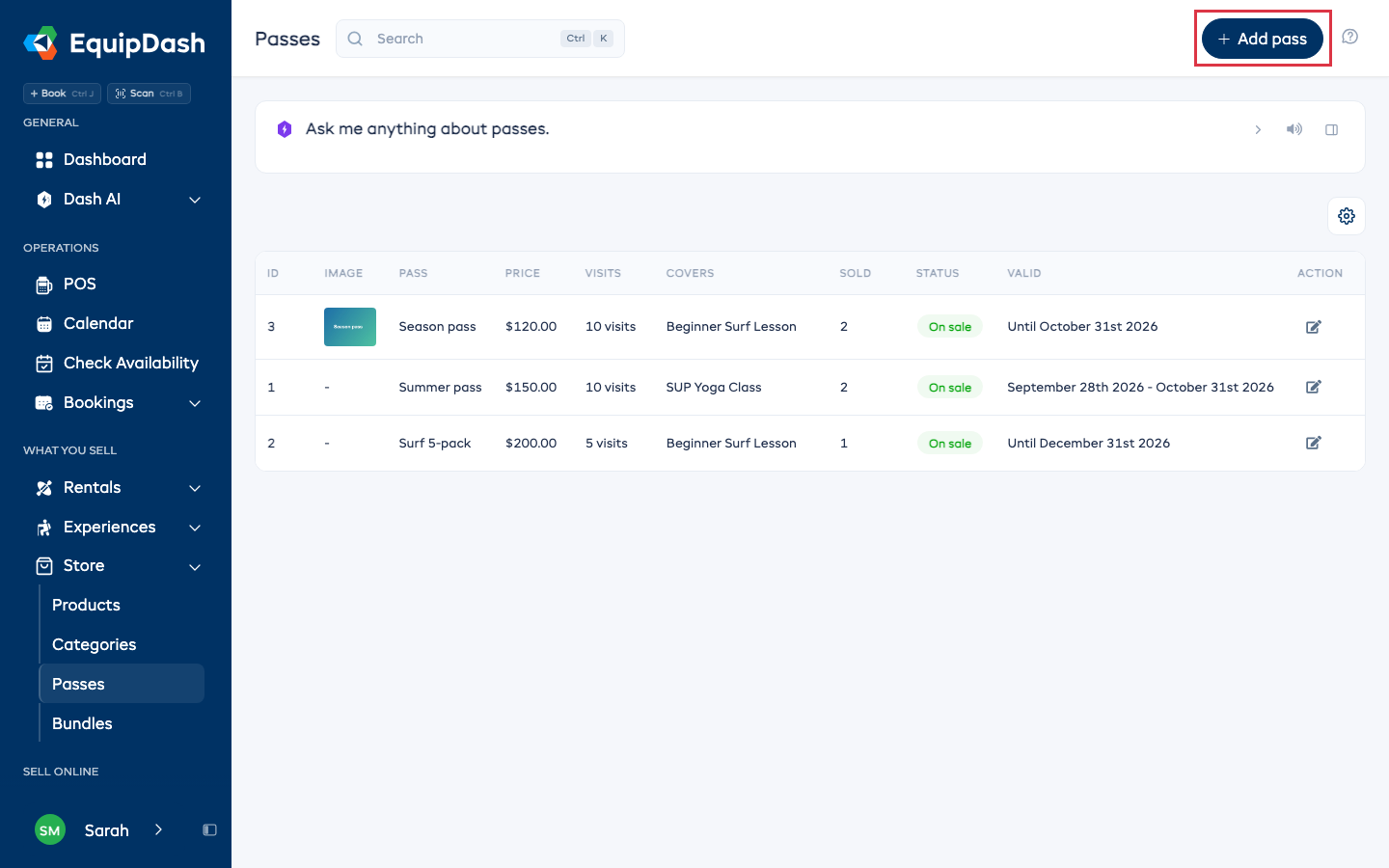
- Go to Store > Passes in the left sidebar.
- Click Add pass.
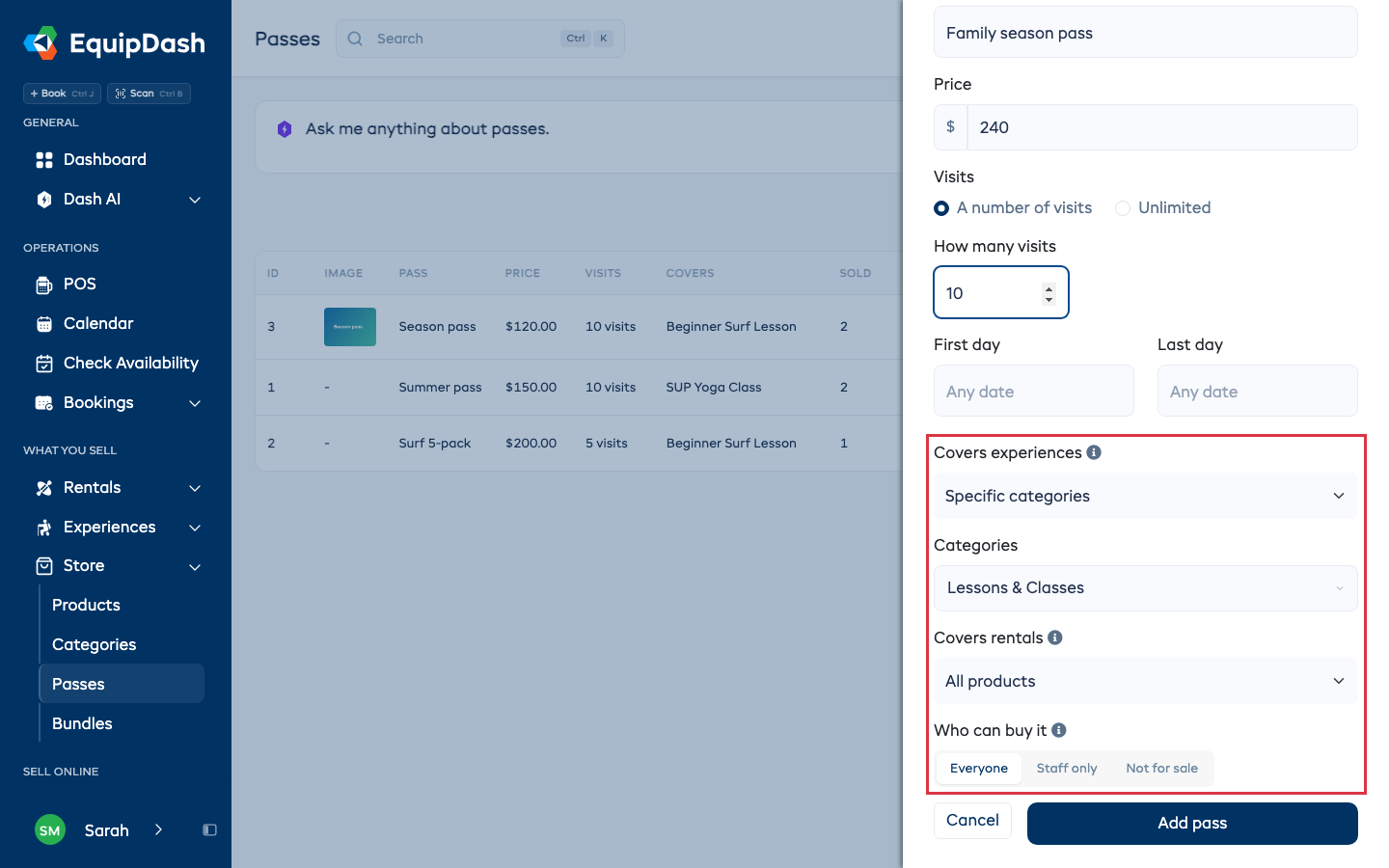
- Enter a Name (for example "Season pass") and a Price.
- Under Visits, pick A number of visits and enter how many, or pick Unlimited.
- Optionally set a First day and a Last day. The pass works on both days. Leave them empty for a pass with no dates.
- Under Covers experiences and Covers rentals, pick what the pass covers for each: All, Specific categories, Specific experiences (or Specific products), or Not for that kind. Picking specific categories or items opens a list to choose from. A category includes everything filed under it, including its subcategories.
- Under Who can buy it, pick Everyone to sell it on your booking page and at the counter, Staff only to sell it in POS and the app only, or Not for sale.
- Click Add pass.
The pass page
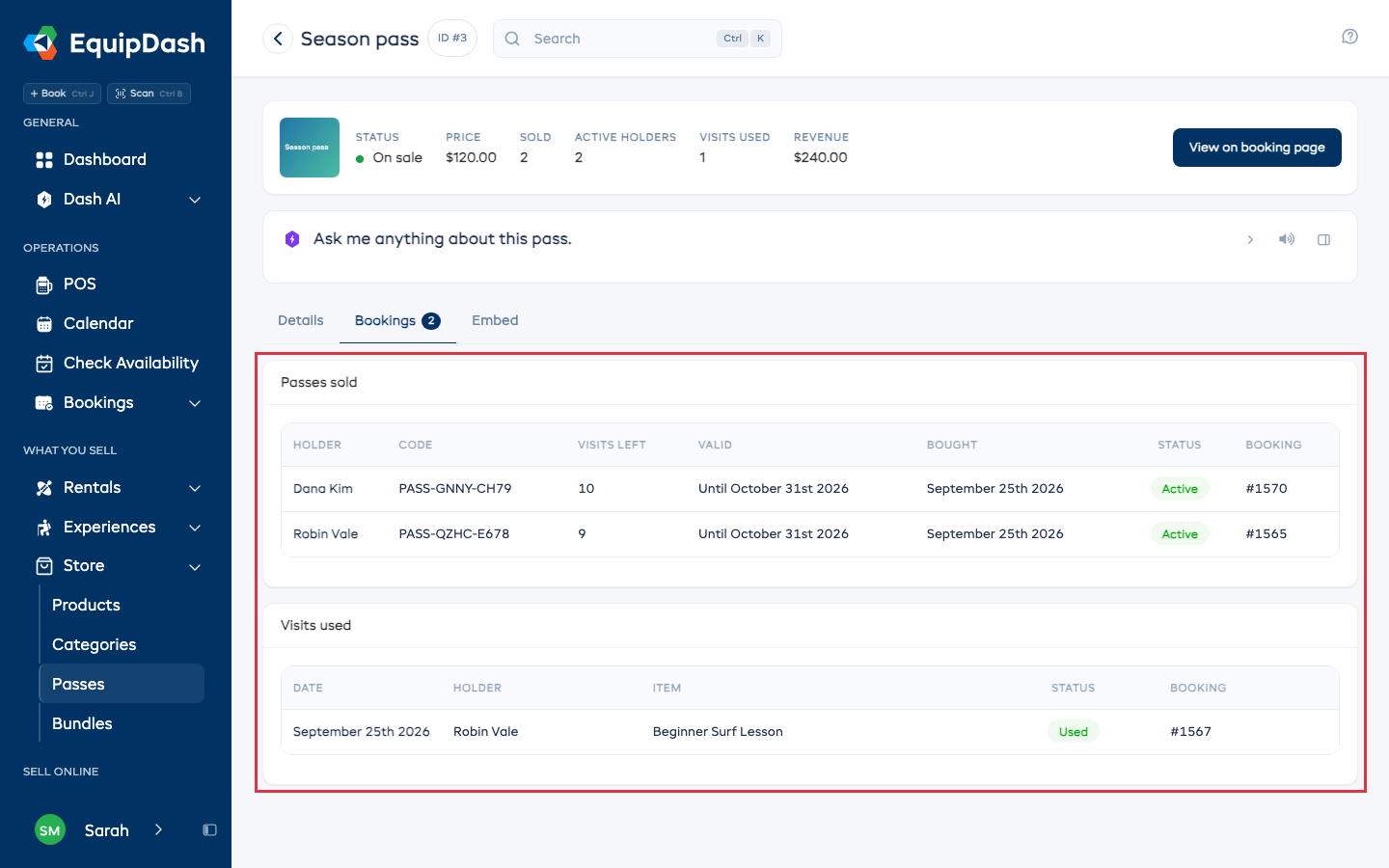
Click a pass in the Store > Passes list to open its page. The top shows its photo, status, price, how many are sold, how many holders can still use theirs, the visits used and the money it has taken.
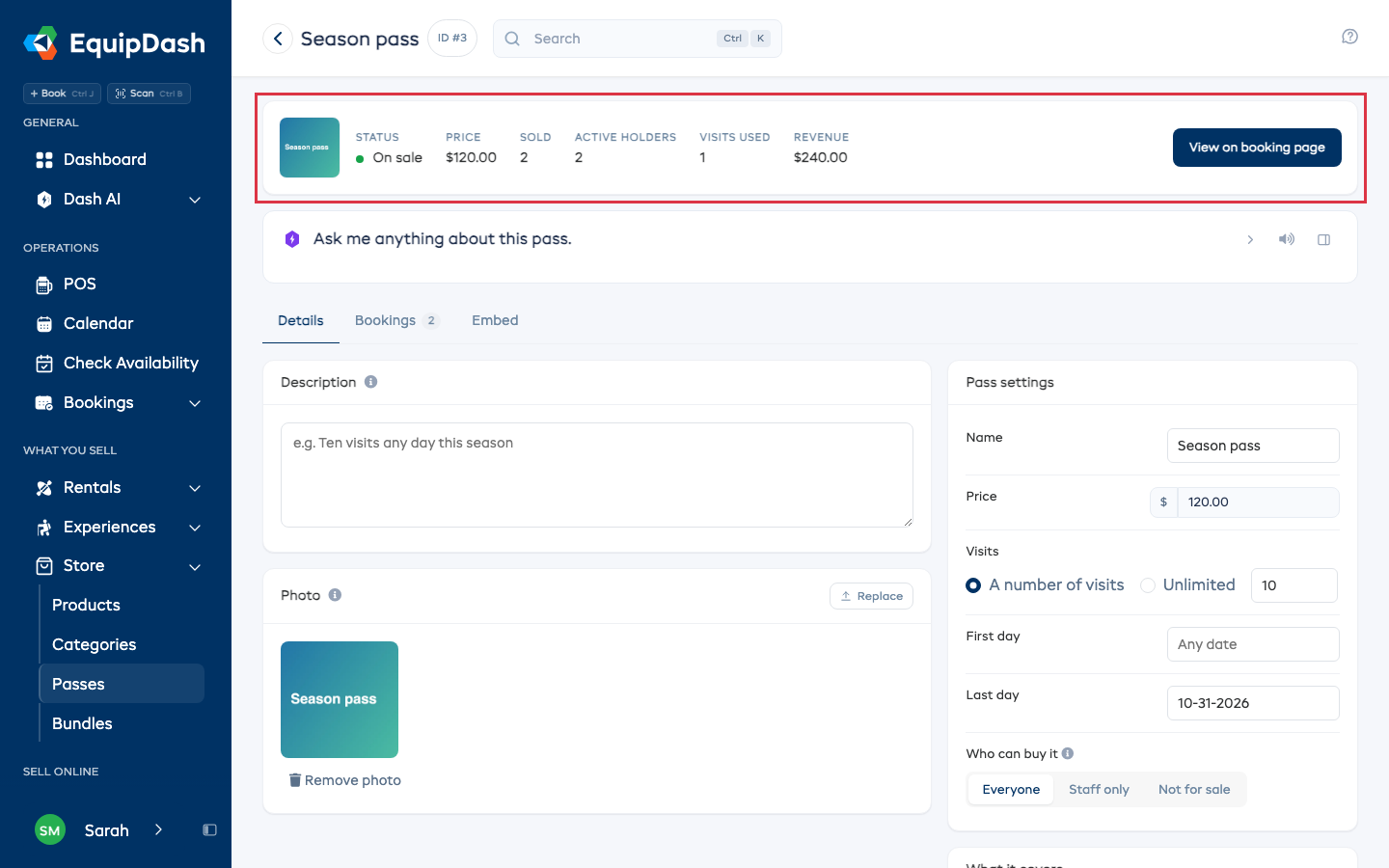
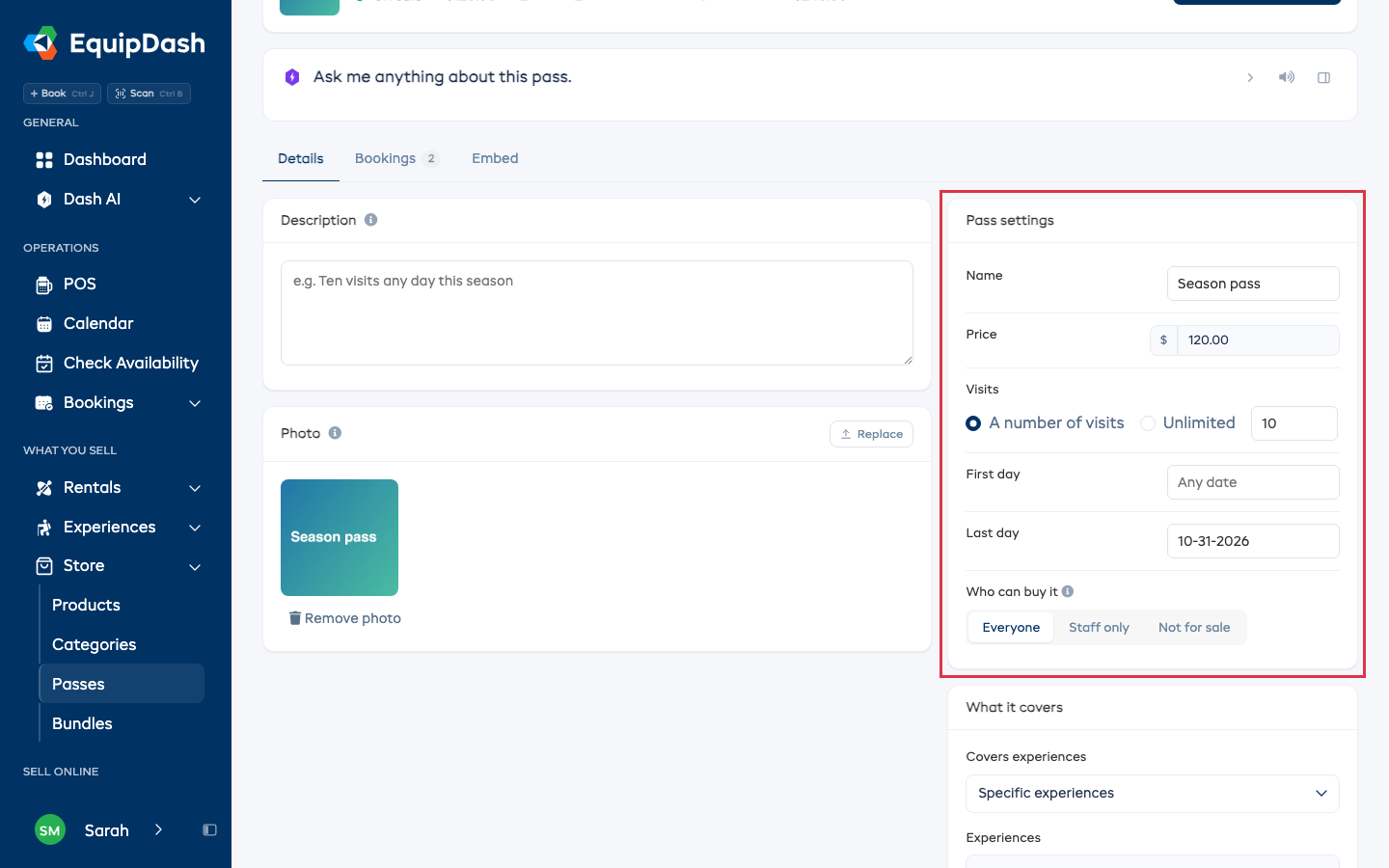
- Details: change anything on the pass in place: name, description, photo, price, visits, dates, Who can buy it and what it covers. Each change saves as you leave the field. The description and photo show on the pass card on your booking page.
- Bookings: who bought the pass (with their code, visits left and the booking), and each visit used, with the booking it was used on.
- Embed: a link, a page or a Buy now button for this pass, to put on your own website.
Who can buy it
| Pick | Where it sells |
|---|---|
| Everyone | Your booking page, POS and the app |
| Staff only | POS and the app. It does not show on your booking page |
| Not for sale | Nowhere. Passes already sold keep working |
Sell a pass
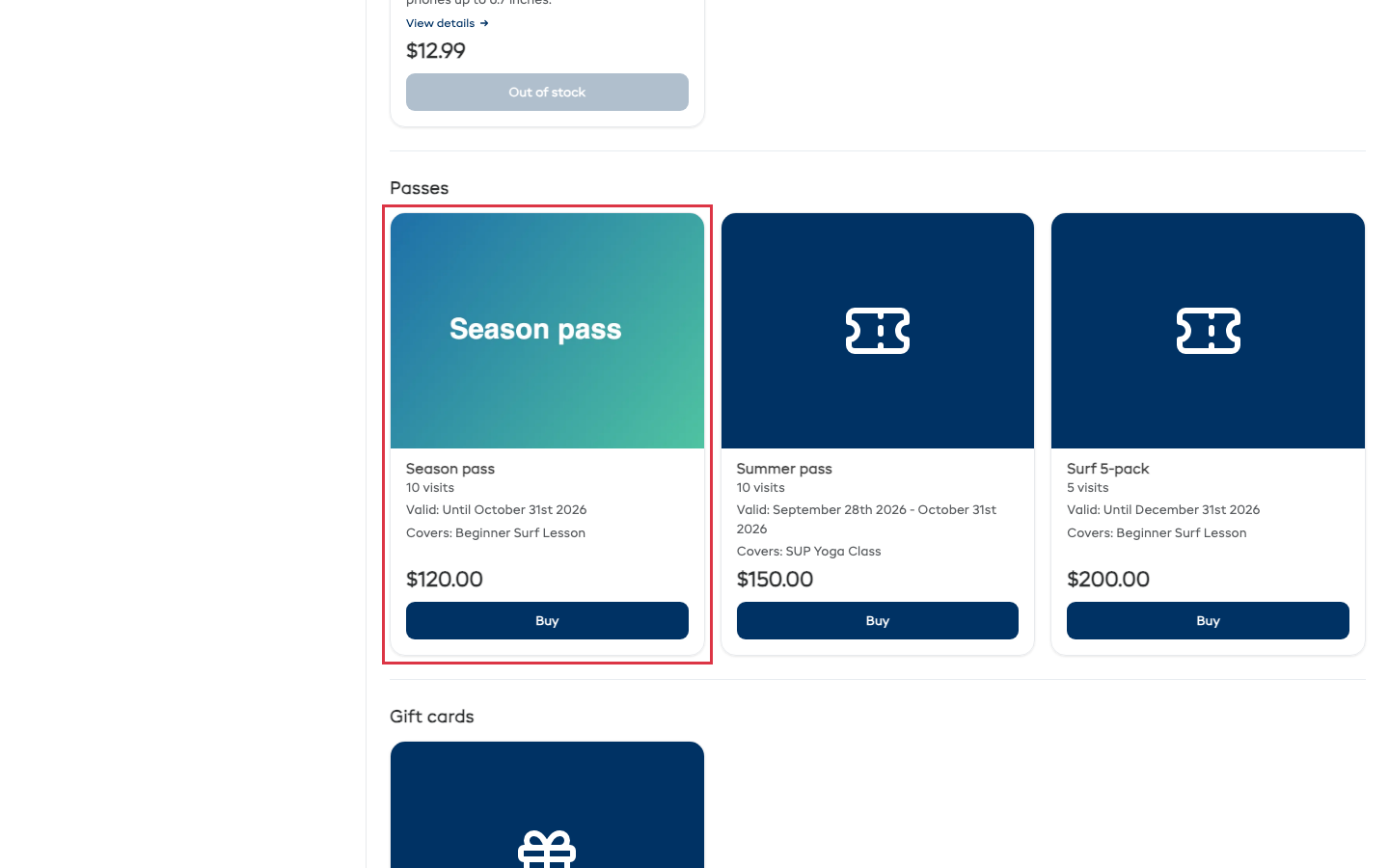
Online: passes appear on your booking page's Store page, under Passes. The customer clicks Buy, types the name on the pass, and pays with the rest of their cart. The pass code arrives by email once the order is paid.
A pass is always paid in full, even when your shop takes a deposit on rentals and experiences. A link to a pass (from a collection or your website) opens the Store page at that pass, ready for the holder's name.
At the counter: in POS, open the Store tab and click Add to booking on the pass. The booking's customer is the holder, and the code is emailed when the booking is saved.
Use a pass
Customers booking online: on the booking step, click I have a pass, type the code and click Apply. One person comes to zero, and the line under the code says how many visits are left.
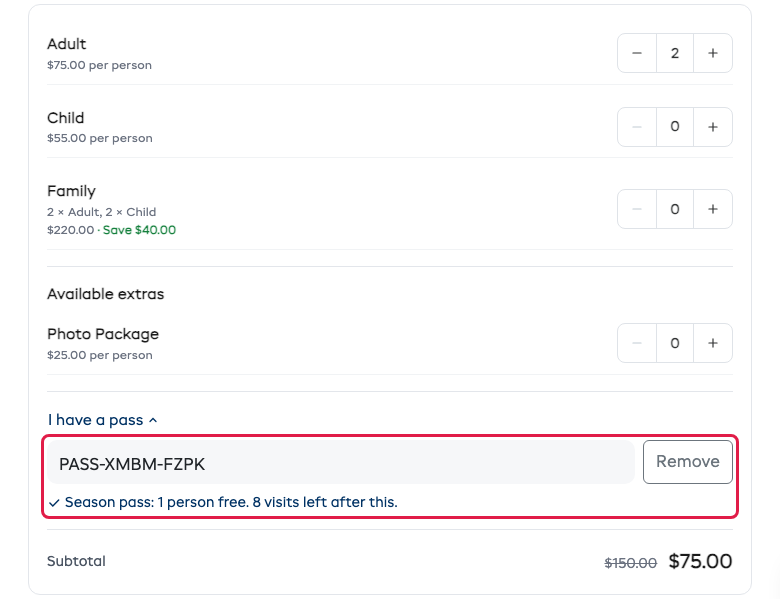
At the counter: type the pass code in the Promo, voucher or pass code box in POS and click Apply. The first line the pass covers loses one person (or one rental unit). Click Remove under the line to take it off.
At check-in on the phone: open the booking in the EquipDash app, type the code in the Pass card and tap Use pass.
With Dash: ask "use pass PASS-7QKM-B4RT on booking 1204" or "how many visits are left on PASS-7QKM-B4RT?". Dash asks before it uses a pass.
How visits are counted
| What happens | The visit |
|---|---|
| The booking is saved, or the customer presses Pay online | Set aside for that booking |
| The booking is confirmed or paid | Used |
| The booking is cancelled, a draft is discarded, or an online checkout is never paid | Goes back on the pass |
| The booking moves to another date | Stays used |
An unlimited pass never runs out; it still only works between its dates.
See a customer's passes
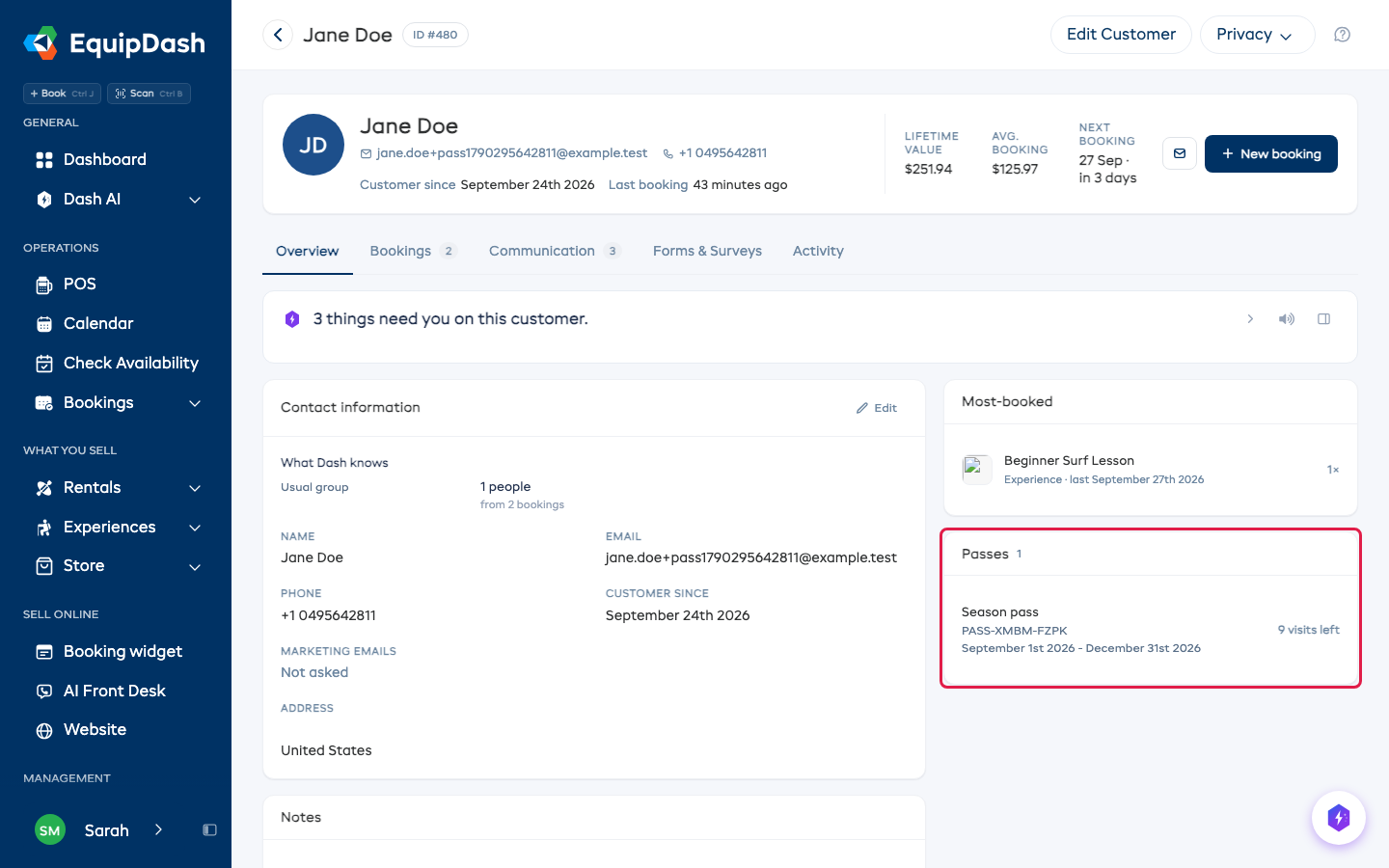
Open the customer's record. The Passes card lists each pass they hold, its code, its dates and the visits left.
Good to know
- One pass covers one person on a booking. Two people with passes use two codes.
- A pass works on per-person prices. A group price has no per-person price to cover.
- Editing a pass never changes passes already sold: each keeps the visits and dates it was bought with.
- A pass someone has bought cannot be deleted. Set Who can buy it to Not for sale to stop selling it; codes already sold keep working.
- The booking a pass was bought on lists it under Passes and gift cards, with its code. The phone app shows it in Items in Booking.
- A pass stops selling after its Last day, on your booking page and in POS. The list shows it as Ended.