Memberships
A membership is a pass the customer pays for every month. While it is paid, the member gets a set percentage off every item it covers, each time they book. It is set up and sold the same way as a season pass.
Memberships need Stripe card payments switched on, because each month is charged to the card the member paid with. Without Stripe, Every month is locked in the Add pass drawer and says Needs Stripe. See Connecting Stripe.
Set up a membership
- Go to Store > Passes and click Add pass.
- Enter a Name, for example "Members Club".
- Under Charges, pick Every month. Visits and dates go away, because a membership runs for as long as it is paid.
- Enter the Price a month.
- Enter the Member discount, for example 15%.
- Under Covers experiences and Covers rentals, pick what the discount applies to: everything, some categories, some items, or nothing of that kind.
- Under Who can buy it, pick Everyone, Staff only or Not for sale, then click Add pass.
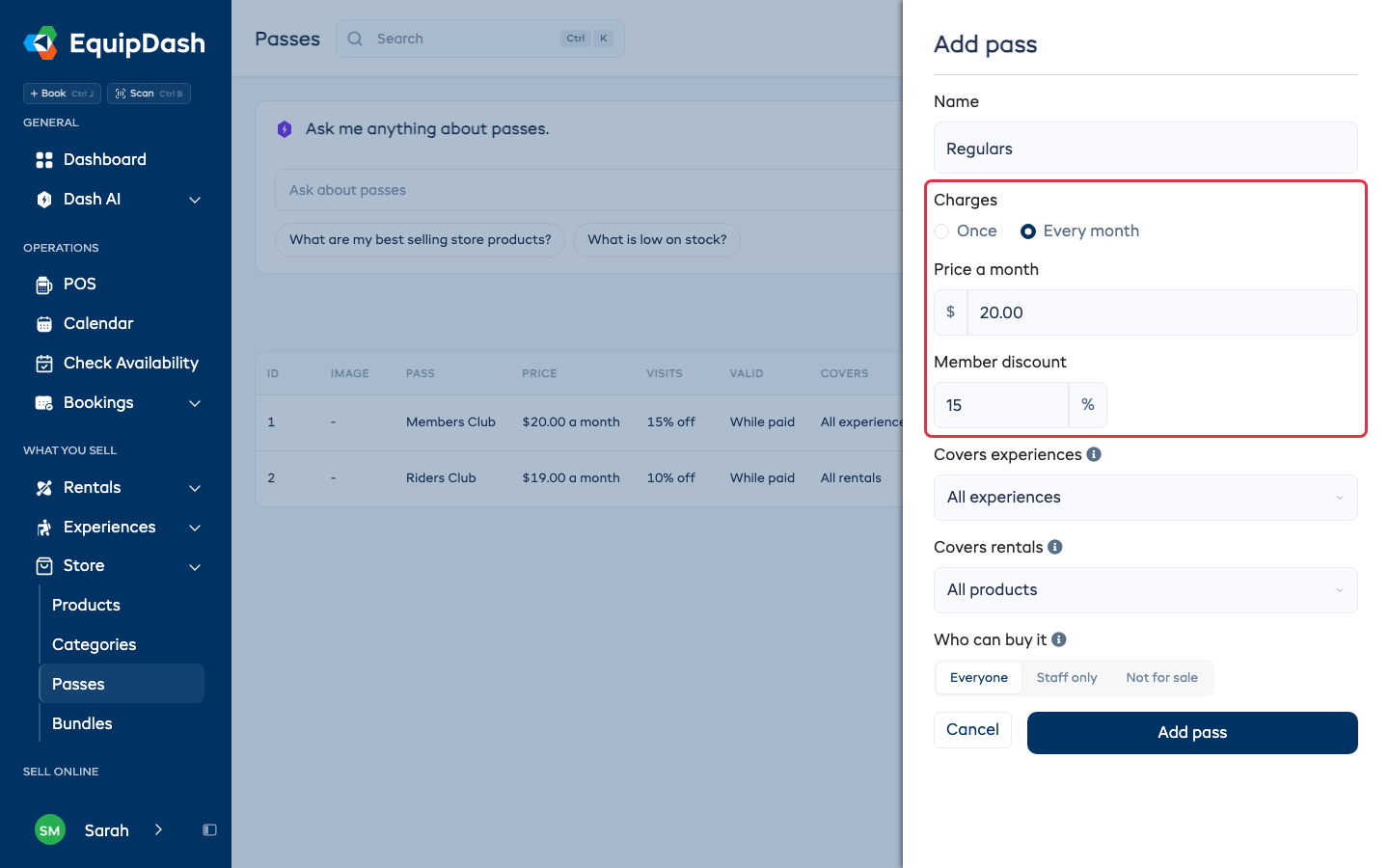
The Passes list shows the price as "a month" and the discount in the Visits column.
How a customer joins online
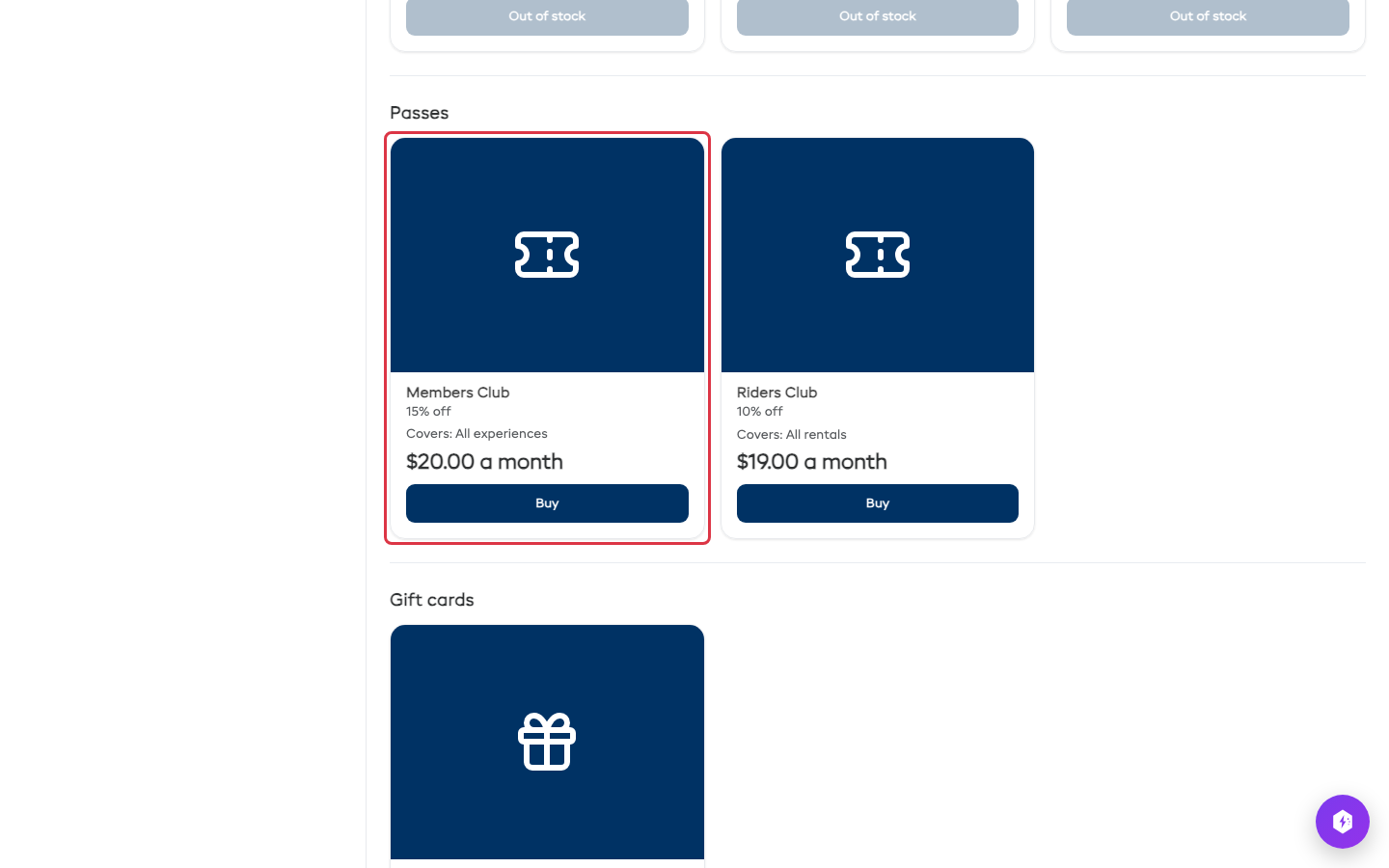
Memberships show on your booking page's Store page, under Passes, with the discount, what it covers and the monthly price. The customer clicks Buy, types the member's name and checks out like any other item.
- The first month is paid at checkout, with your tax on top, plus the card fee if you pass processing fees on.
- The card they pay with is kept for the monthly charge.
- Each month after that, the card is charged the monthly price plus your tax (and the card fee, if you pass it on), on the same day of the month they joined.
- They get an email with their membership code, the discount, the date it renews and a Cancel membership link.
How members get their discount
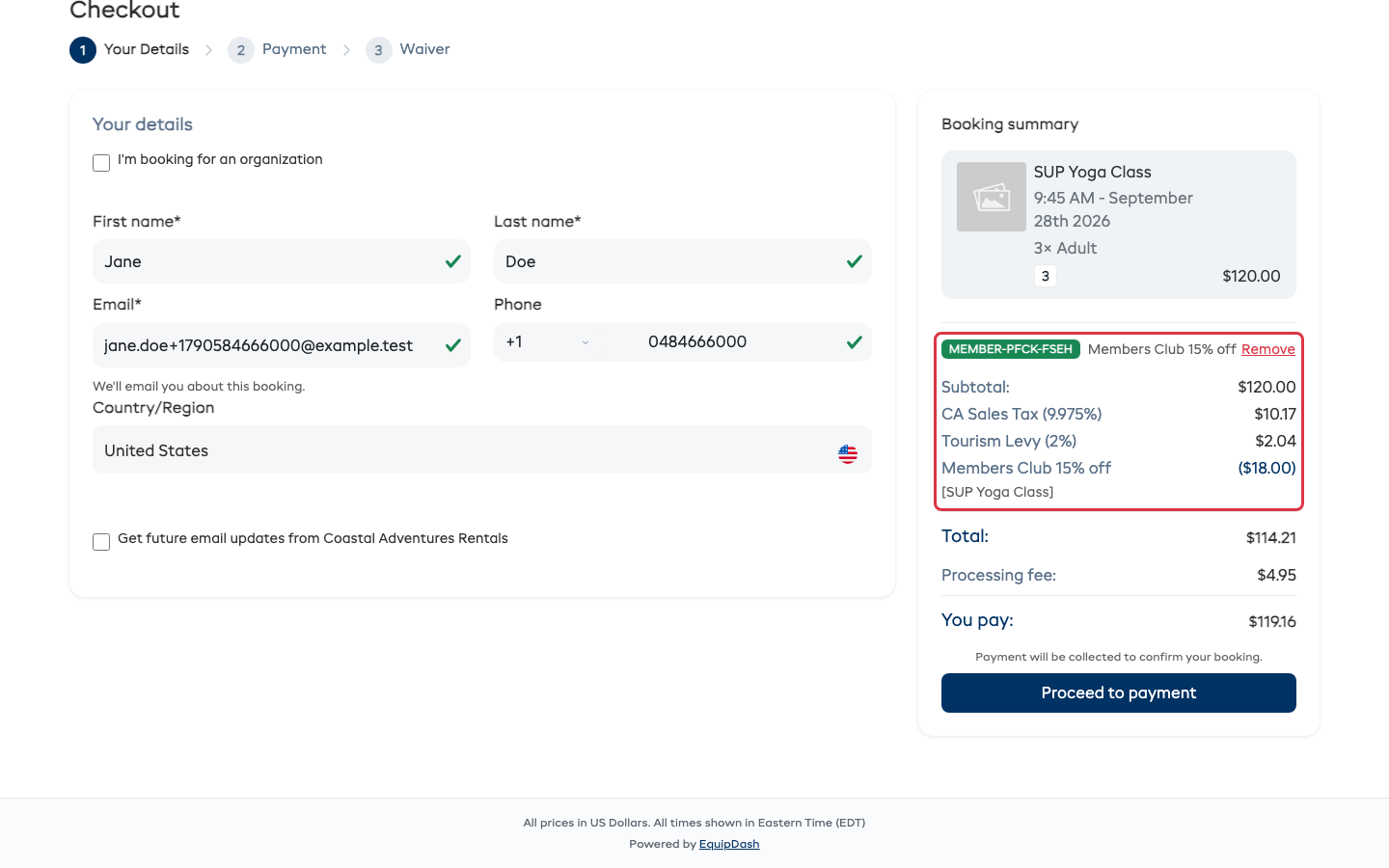
Online: the member types their membership code in the checkout code box (Promo or gift card code) and clicks Apply. Every line the membership covers loses the member discount, shown in the summary as its own line, for example Members Club 15% off. A member booking for their family gets the discount on everyone.
At the counter: type the code in the Promo, voucher, pass or membership code box in POS and click Apply. The cart shows Member discount applied.
A promo code and a membership don't add up. If a booking has both, the customer gets whichever takes more off.
The code is turned away with a short reason when it cannot be used: the first month is not paid yet, a payment is overdue past the month already paid for, the membership has ended, or nothing in the booking is covered.
Sell a membership at the counter
In POS, open the Store tab and click Add to booking on the membership. The booking's customer becomes the member.
- Paid by card: the card is kept and the membership renews on it each month.
- Paid another way, such as cash: the member is emailed a link to save a card. The first month works straight away, and the monthly charge starts once they save a card.
Watch members and payments
Open the membership from Store > Passes. The top shows the monthly price, how many members it has and what it brings in each month.
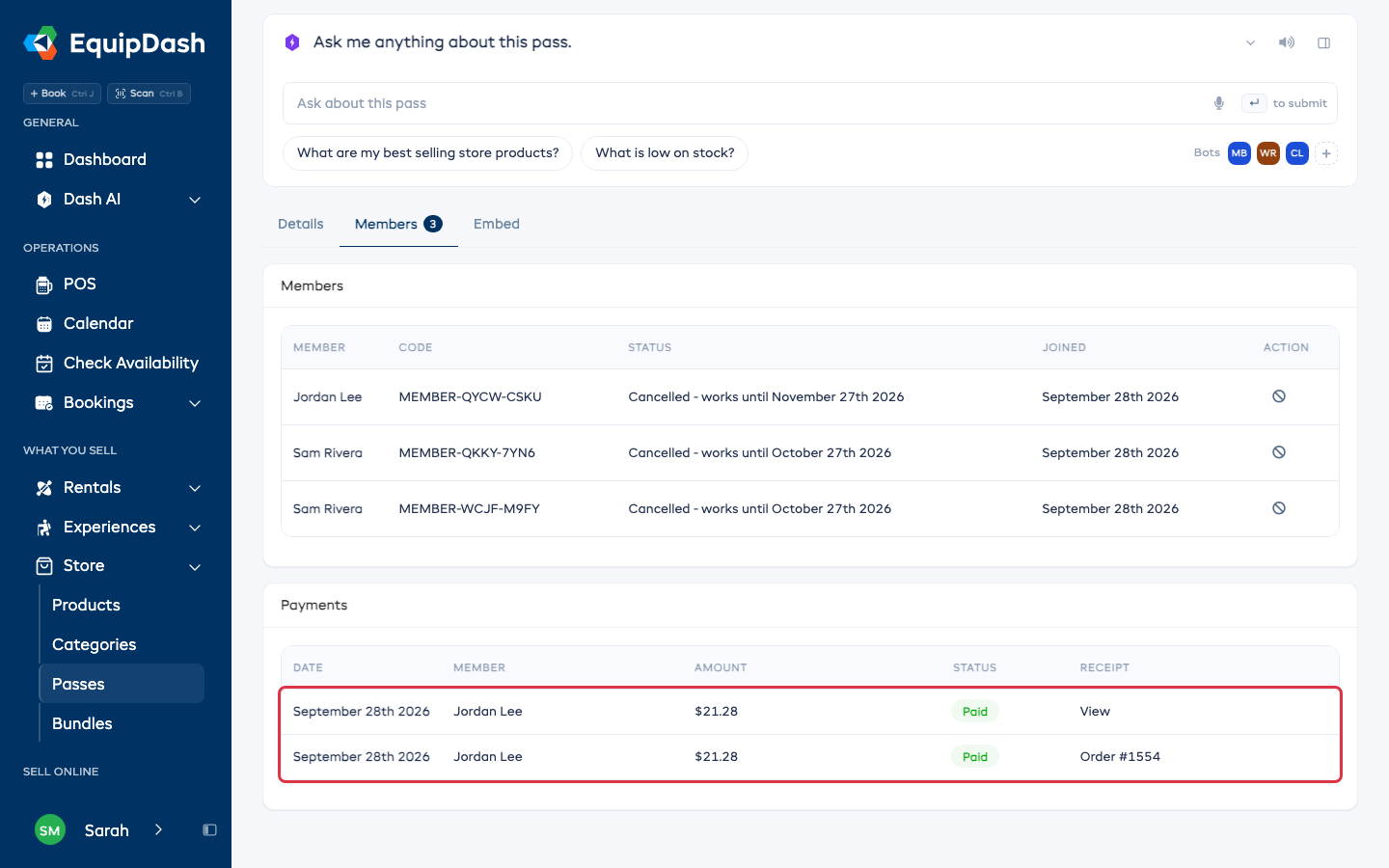
The Members tab lists each member, their code and a status line, for example Active - renews October 28th 2026 - $22.39 a month or Cancelled - works until October 18th 2026. The amount includes your tax, and the card fee if you pass it on.
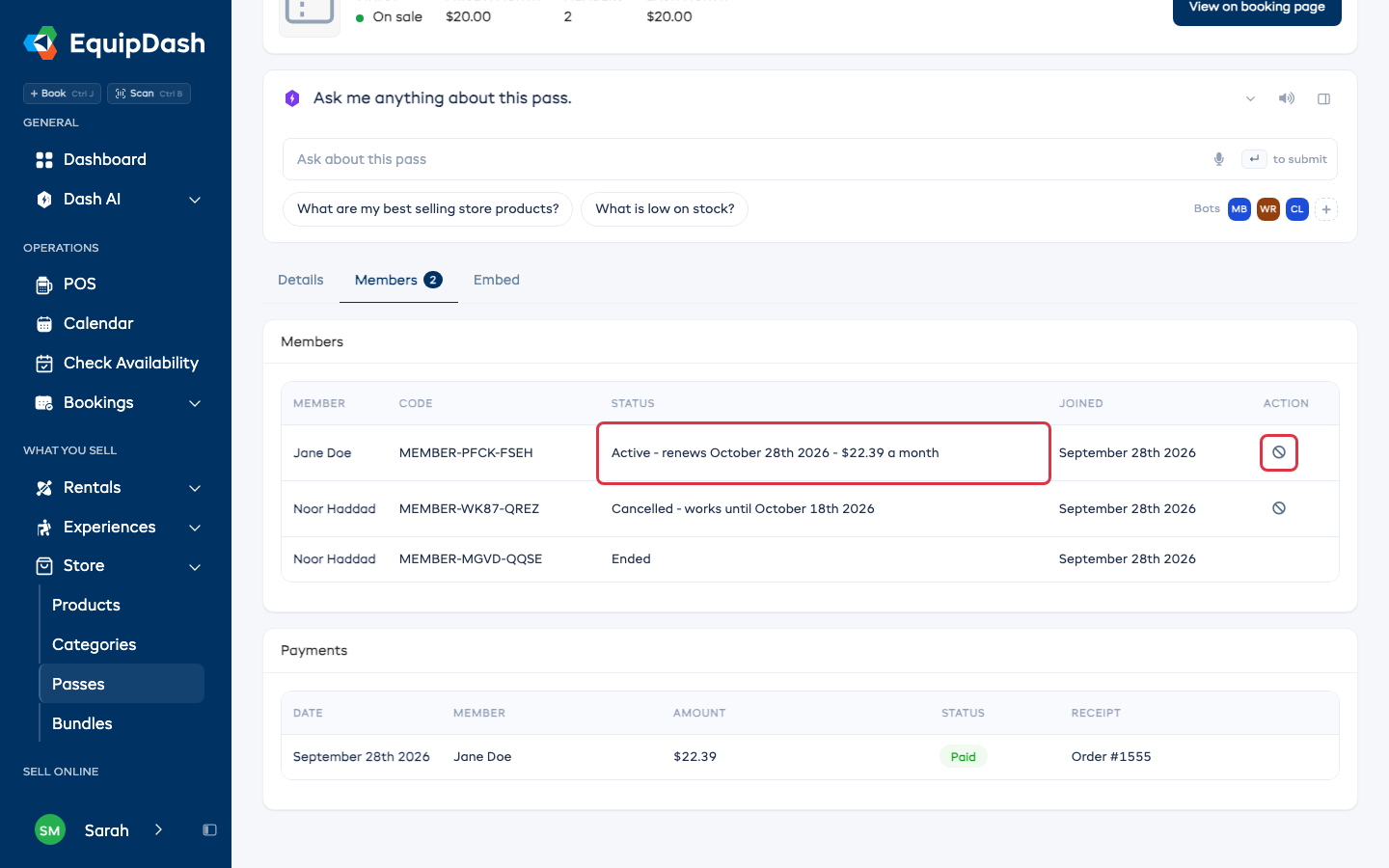
Under it, Payments lists every month a member has paid: the first month links to the order it was bought on, and each renewal after that links to its receipt.
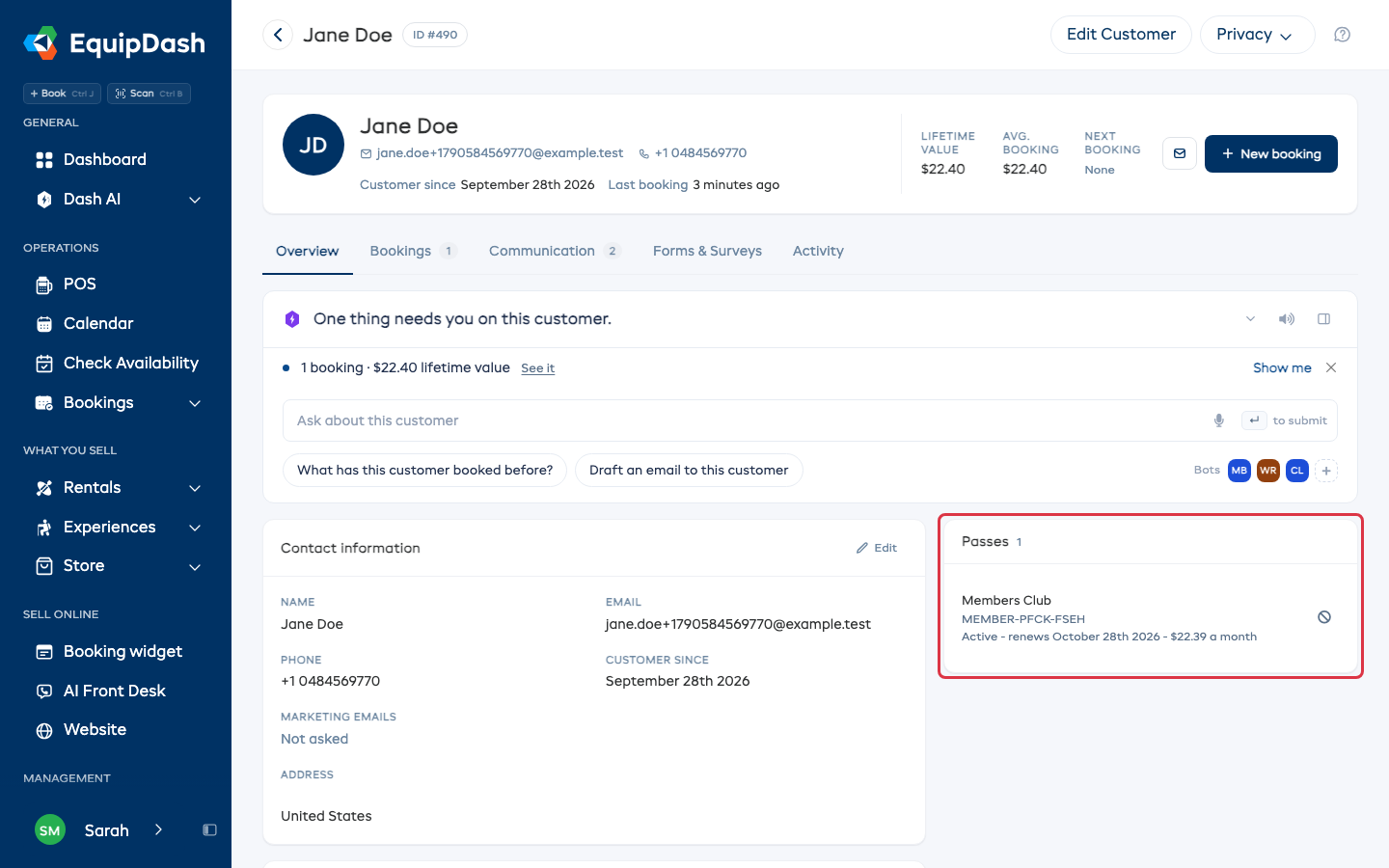
The customer's record shows the membership in its Passes card, with the code and the same status line.
Cancel a membership
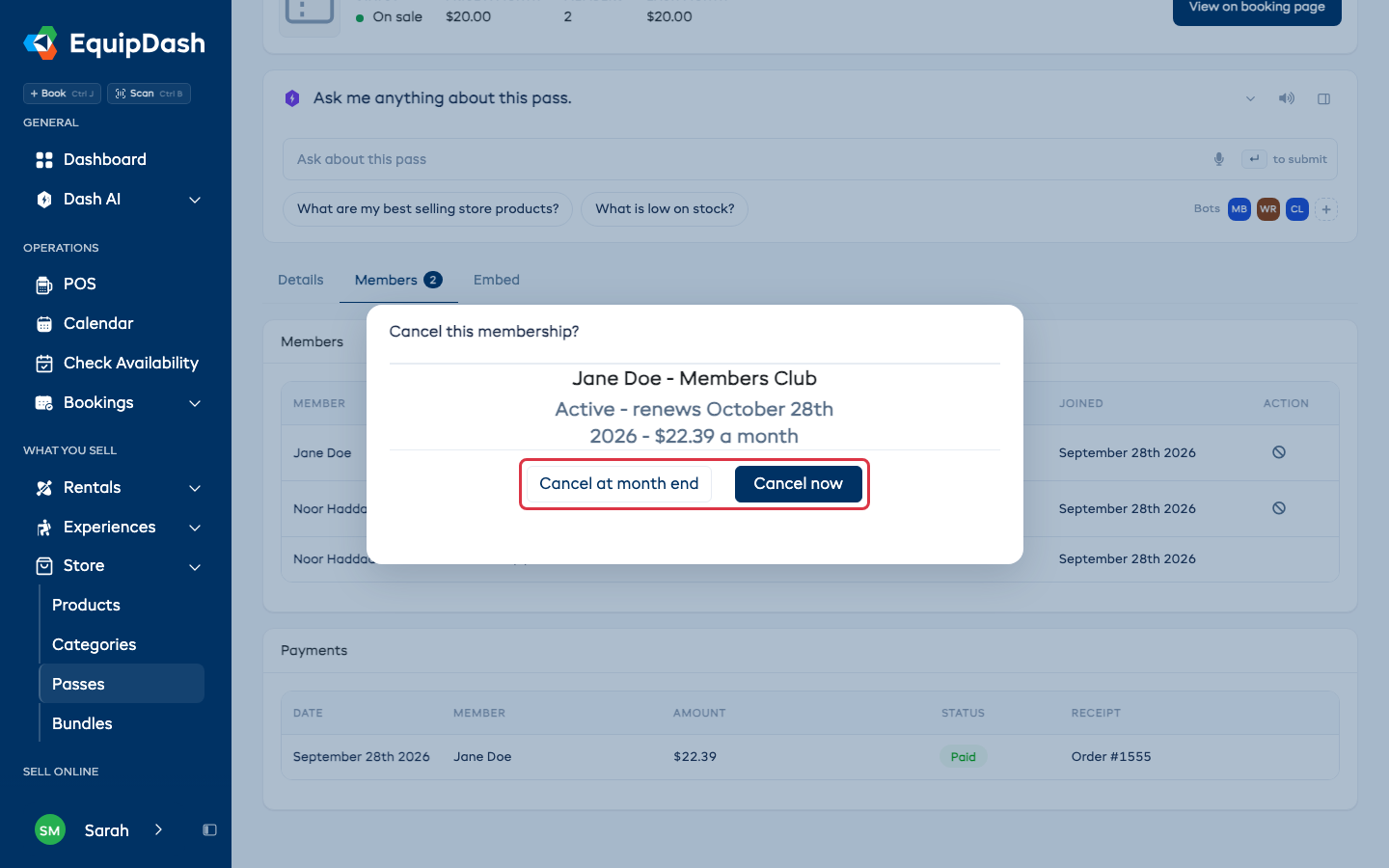
Click the Cancel membership icon on the member's row, on the Members tab or on the customer's record, then pick:
- Cancel at month end: the membership keeps working until the end of the month they paid for, then stops. No more charges.
- Cancel now: the code stops working straight away.
Members can also cancel themselves from the Cancel membership link in their email. Their membership works until the end of the month they paid for.
When a monthly payment fails
The member gets an email with an Update card and pay button. Their membership keeps working until the end of the month they already paid for. Once they pay, it carries on as normal, with nothing for you to do. If it stays unpaid, the code is turned away after that date.
Reports and accounting
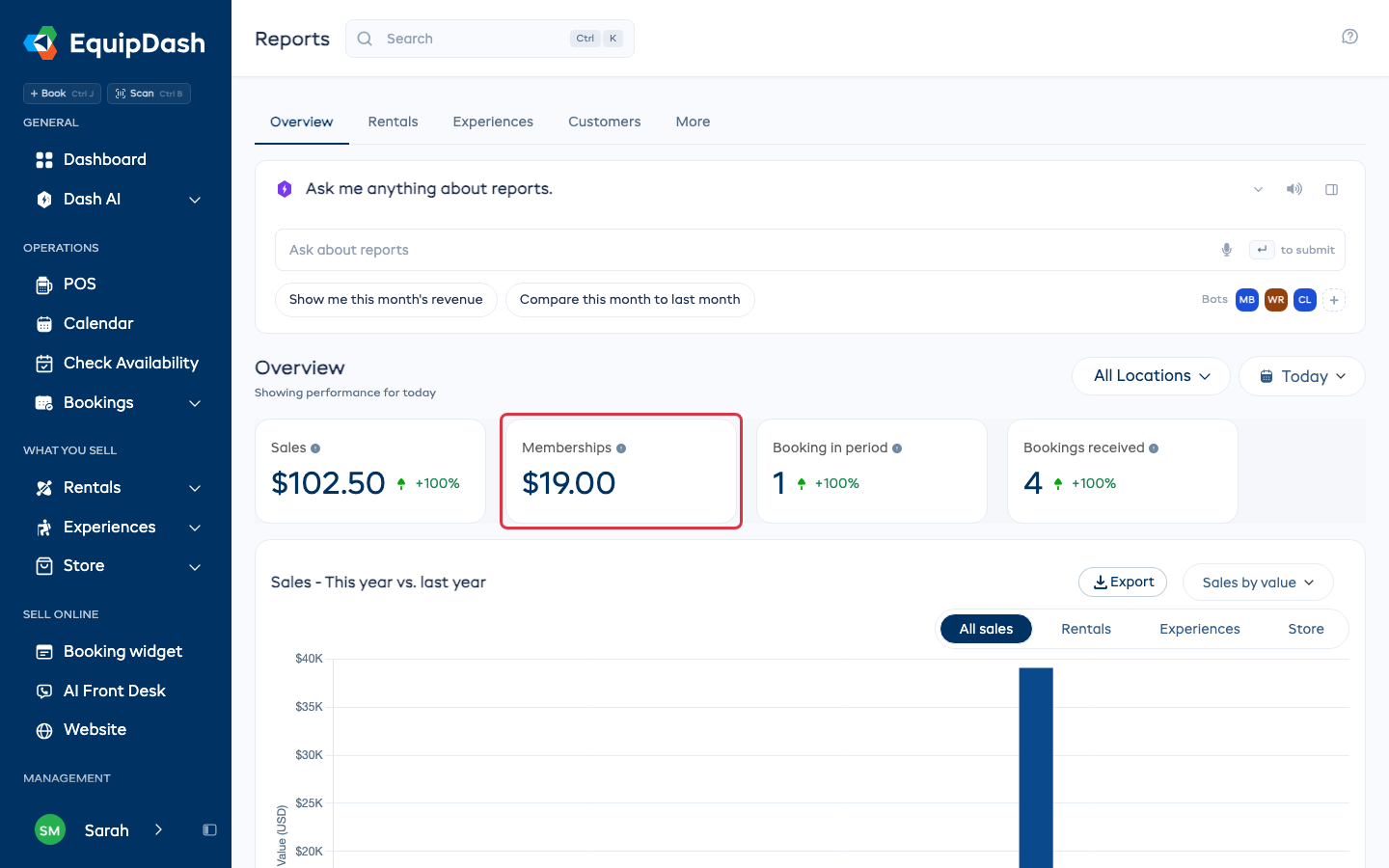
Monthly renewals appear as Memberships on the Reports overview, before tax, and are included in Sales. The first month is part of the order it was bought on, so it counts like any other sale. The card only shows when a renewal was paid in the period you picked.
If you use Xero or QuickBooks, each renewal syncs to your books. Pick where they go under Membership Revenue Account in that integration's settings. Left as it is, they go to your store revenue account.
Good to know
- Changing a membership's price or discount never changes it for people who already joined. They keep the price and discount they signed up with.
- A membership that people have joined cannot be deleted. Set Who can buy it to Not for sale to stop selling it; current members keep theirs.
- A membership code and a season pass code go in different places. A membership code goes in the checkout code box; a pass code goes in I have a pass when the customer picks a time.