Seasonal Pricing Growth+This feature requires the Growth+ plan or higher
Seasonal pricing lets you charge different rates at different times of the year. Charge more during your busy peak season and offer lower rates during quieter periods to attract bookings.
Each product uses either year-round pricing or seasonal pricing -- not both. When you switch a product to seasonal pricing, the year-round rates no longer apply. Choose the mode that best fits how you price that product.
Creating Seasons
Before applying seasonal pricing to a product, you need to create your seasons in Settings:
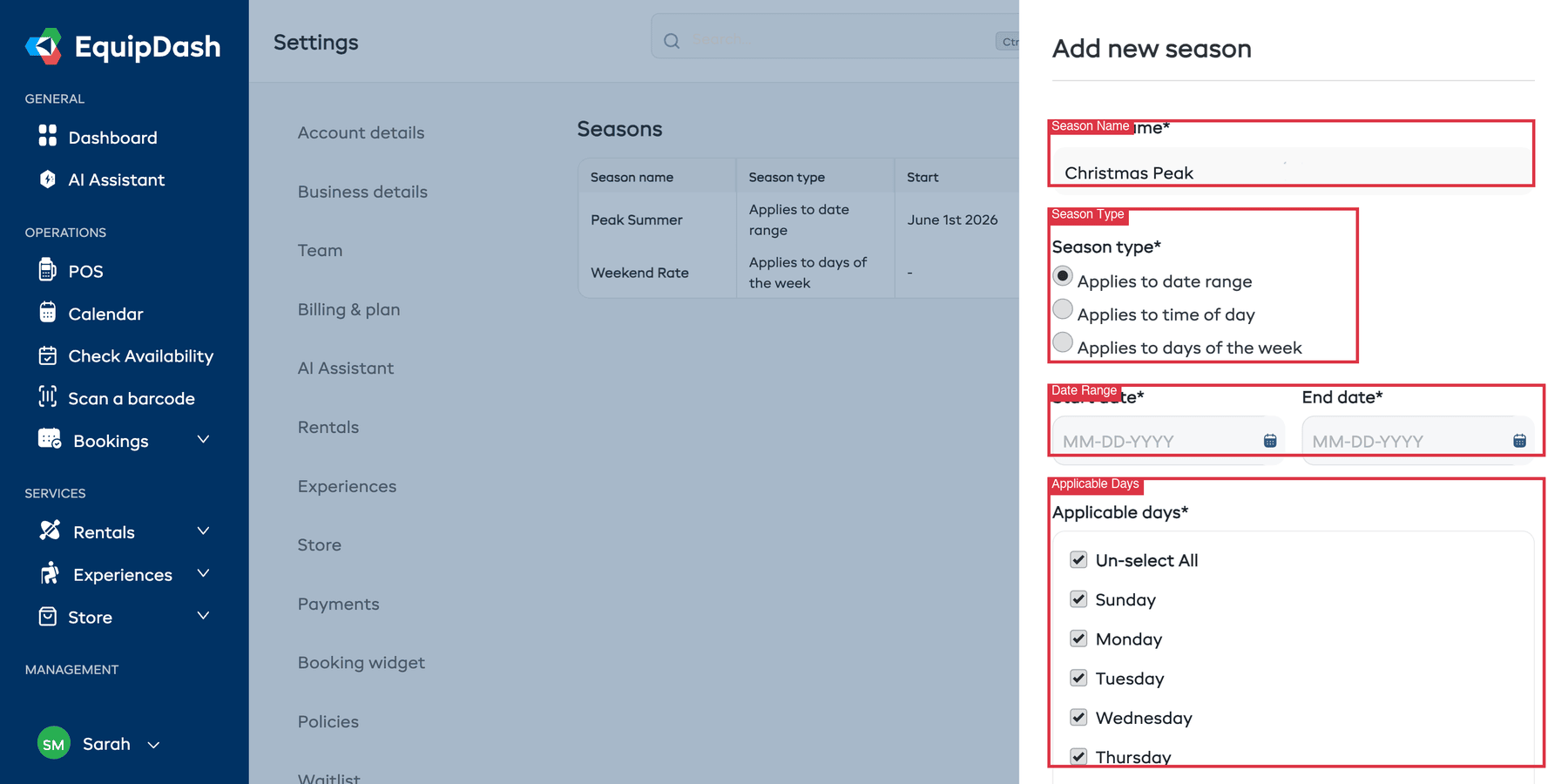
- Go to Settings > Seasons in the left sidebar.
- Click + Add new season.
- Fill in the season details:
- Season Name -- A descriptive name (e.g., "Peak Summer", "Christmas Peak").
- Season Type -- How the season is defined:
- Applies to date range -- One or more date ranges (e.g., June 1 to August 31). A single season can cover several separate periods of the year -- see Covering several date ranges.
- Applies to time of day -- Specific hours of the day (e.g., morning vs afternoon rates).
- Applies to days of the week -- Specific days (e.g., weekends only).
- Date ranges -- The date range (or ranges) the season covers, shown when "Applies to date range" is selected. Click + Add another date range to cover more than one period.
- Applicable Days -- Which days of the week the season applies to.
- Click Save.
- Repeat for each season you need.
Covering several date ranges
A date-range season can cover more than one period of the year. This is handy when the same rate applies on either side of a peak -- set it up as one season with two date ranges, rather than two separate seasons that share a price.
For example, if your peak is over the holidays:
- Regular -- Dec 1 - Dec 20 and Jan 11 - Apr 12
- Peak -- Dec 21 - Jan 10
Here "Regular" is a single season with two date ranges, so you set its price once and it applies across both. To add a range, click + Add another date range and enter the extra start and end dates. Date ranges within the same season can't overlap each other.
Applying Seasonal Pricing to a Product
- Go to Rentals > Products and create or edit a product.
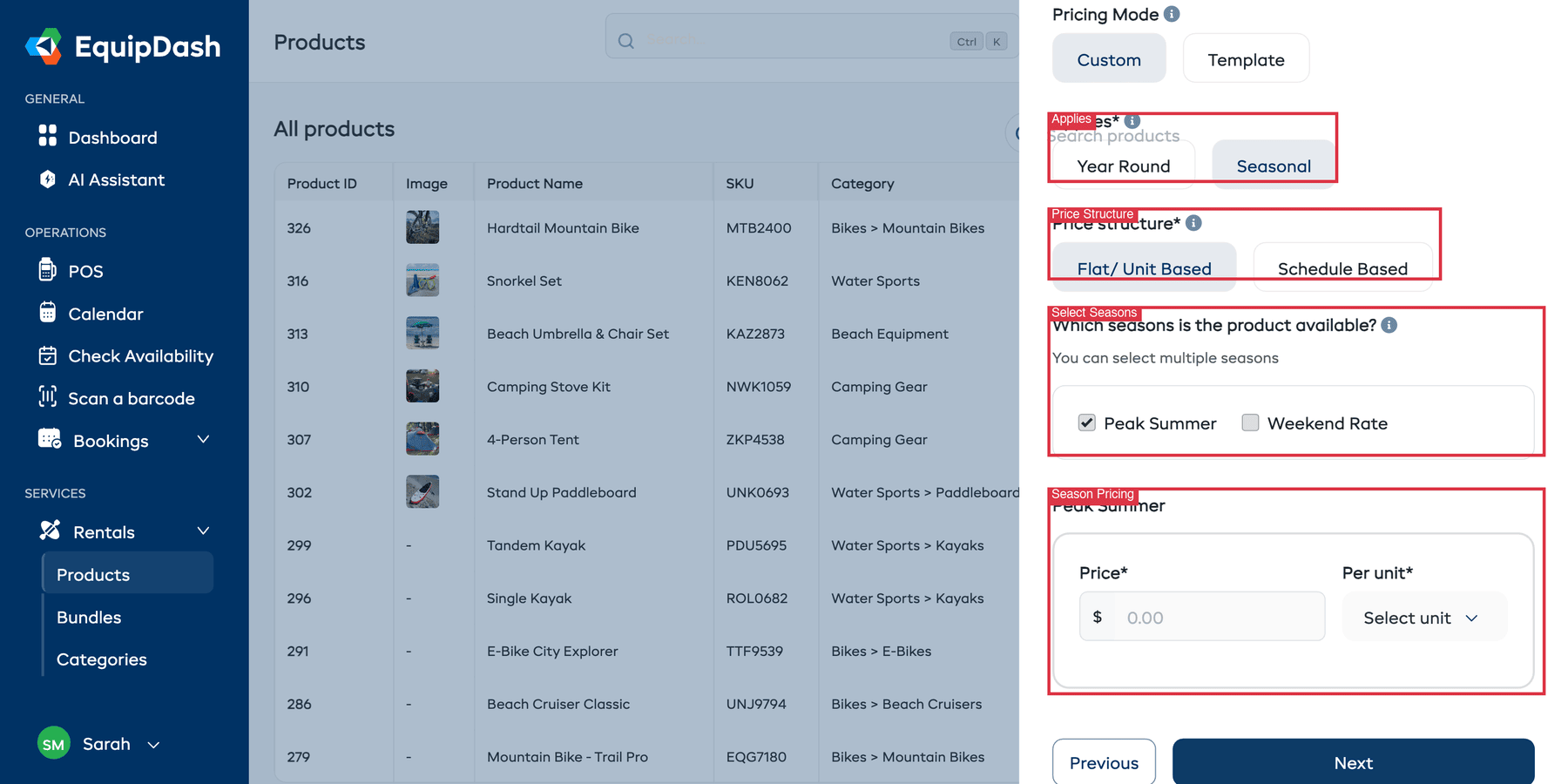
- In Step 2: Product Pricing, set Applies to Seasonal.
- Choose the Price Structure for this product (Flat/Unit Based or Schedule Based).
- Under Which seasons is the product available?, check the seasons that apply. You can select multiple seasons.
- For each selected season, a pricing section appears where you set the Price and Per unit (e.g., $80/day for Peak Summer).
- Save the product.
How Seasonal Pricing Works
When a customer makes a booking:
- EquipDash checks which season the booking dates fall into.
- The rates for that season are used to calculate the total.
- If a booking spans multiple seasons, each portion is priced according to its respective season's rates.
Example
Suppose you have:
- Peak Summer (Dec 1 - Feb 28): $80/day
- Off-Peak (Mar 1 - Nov 30): $50/day
A booking from Feb 25 to Mar 3 would be:
- 3 days in Peak Summer: 3 x $80 = $240
- 3 days in Off-Peak: 3 x $50 = $150
- Total: $390
Gaps Between Seasons
If a booking falls on dates not covered by any season, no price can be calculated for those dates and the product will be unavailable to book for that period. Make sure your seasons cover all dates when the product should be available.
To avoid gaps:
- Cover the full year -- Ensure your seasons span every day of the year with no gaps between them. Because a single season can cover several date ranges, one "Regular" season can fill the periods on both sides of a peak.
- Use a catch-all season -- Create a broad "Standard" or "Off-Peak" season that covers any dates not already covered by other seasons.
Season Management Tips
- Name seasons clearly so your team understands them (e.g., "Christmas Peak" rather than "Season 1").
- Avoid overlapping dates between seasons. If two seasons overlap, pricing behavior may be unpredictable.
- Review annually -- Update your season dates each year to match actual demand patterns.
Related Guides
- How Pricing Works -- Overview of the pricing model.
- Product Pricing -- Setting up pricing on products.
- Pricing Templates -- Creating reusable pricing templates.