Connect Mailchimp Growth+This feature requires the Growth+ plan or higher
Connect Mailchimp and your customers go into your Mailchimp audience on their own, tagged by what they booked. When someone unsubscribes from a Mailchimp email, EquipDash marks them as not wanting emails too, so your campaigns from EquipDash skip them as well.
Before you start
- You need a Mailchimp account with at least one audience.
- To send customers who said yes to emails, your booking page has to ask. Turn on the marketing checkbox in Settings > Booking widget.
Connect it
- Go to Settings > API & Integrations.
- Under Email marketing, click Connect Mailchimp.
- Sign in to Mailchimp and click Allow.
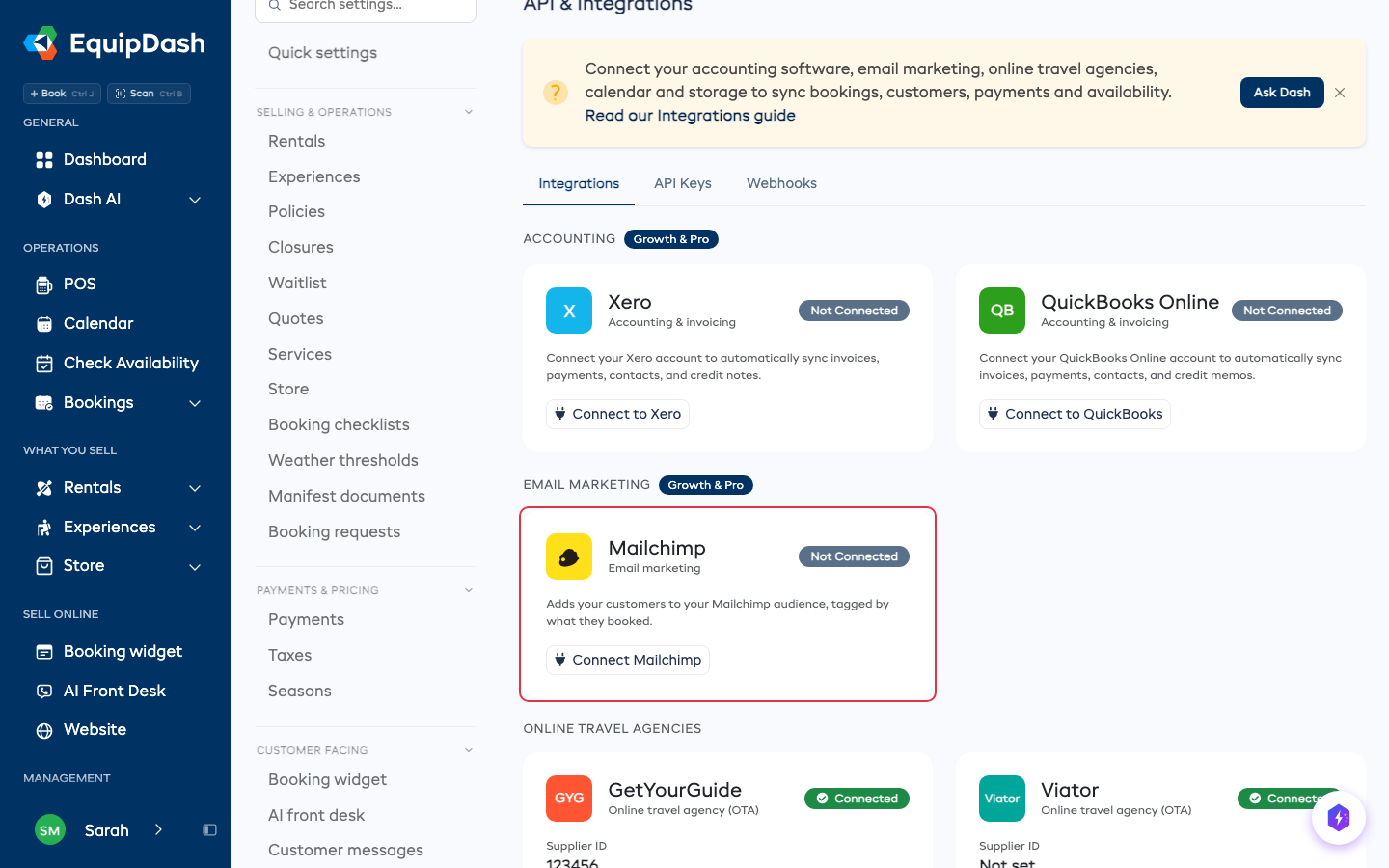
You land back on the Mailchimp page. Your customers start going across straight away, and the count under Your audience goes up as they arrive.
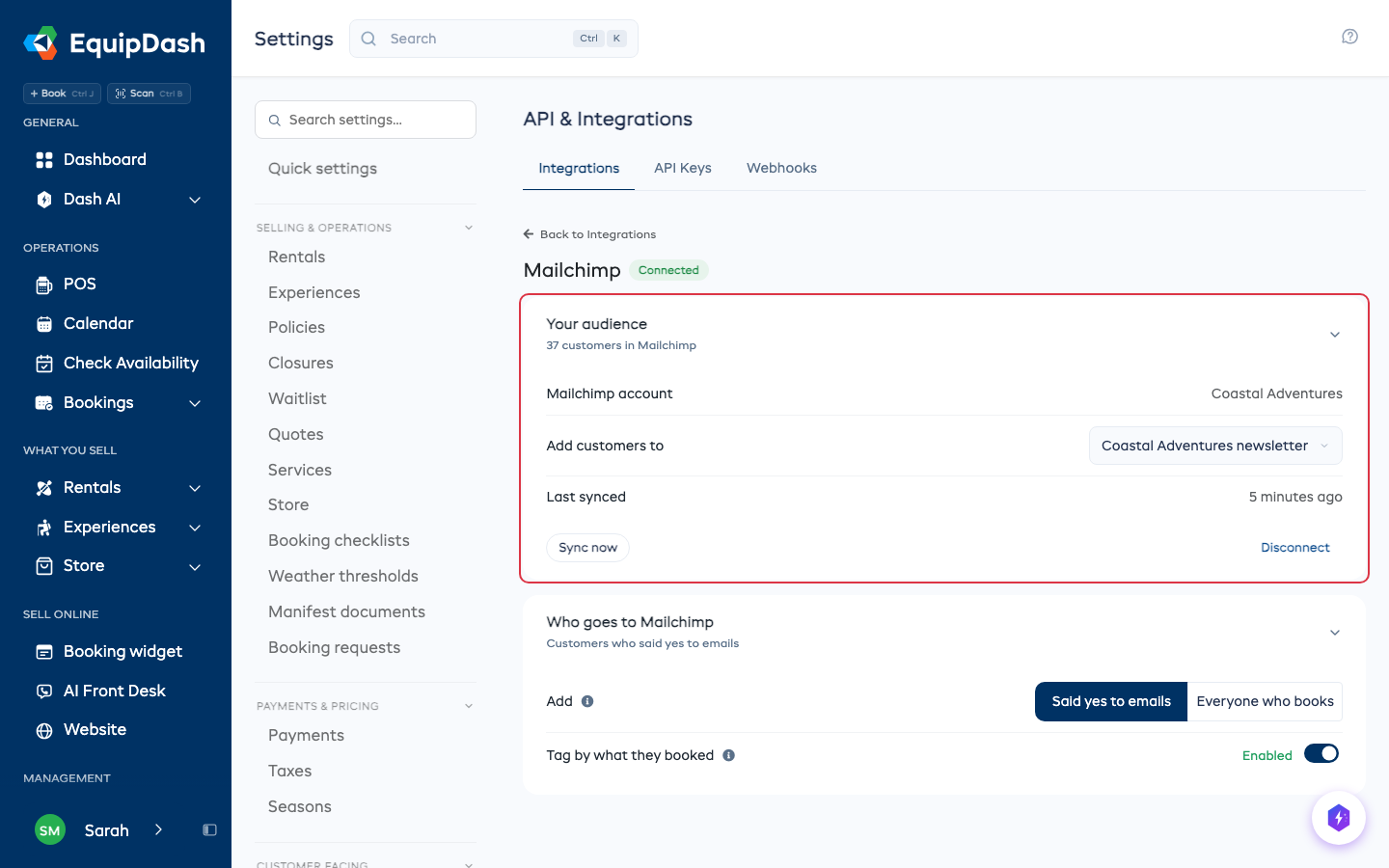
If your Mailchimp account has more than one audience, pick the one to use in Add customers to.
Choose who goes to Mailchimp
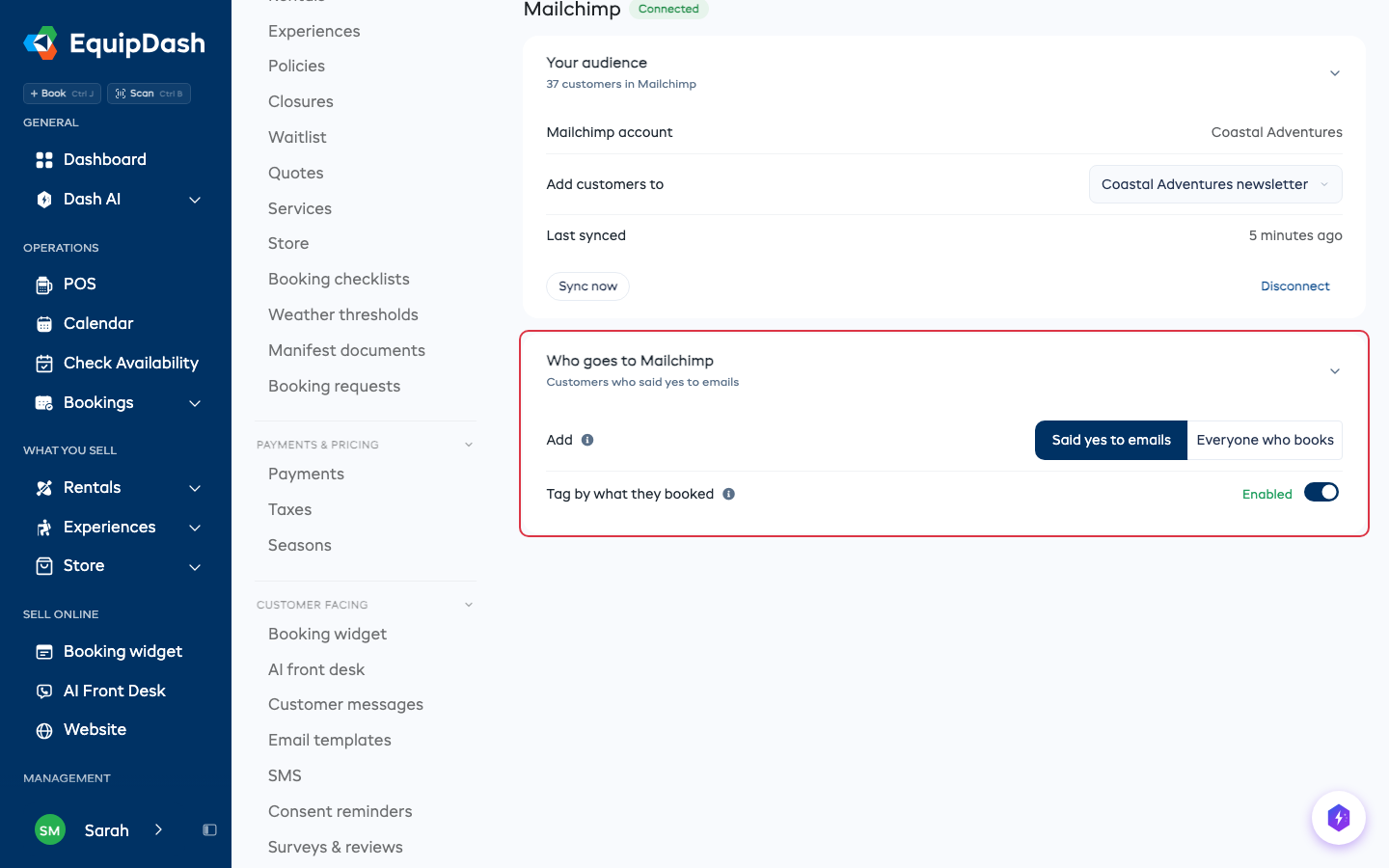
- Said yes to emails (the default): only customers who ticked the marketing checkbox, or who said yes some other way.
- Everyone who books: every customer with an email address. Customers who never said yes still go in, but Mailchimp won't send them marketing.
Tag by what they booked adds tags like Rentals or Experiences, plus the name of each item. In Mailchimp you can then email just the people who booked a certain thing.
Each customer also gets a Last booking date and a Bookings count in Mailchimp.
What happens from then on
- A new customer, a new booking, a changed email address or a new yes to emails reaches Mailchimp within a minute.
- Someone who unsubscribes or whose emails bounce in Mailchimp is marked as not wanting emails in EquipDash.
- If you delete or forget a customer in EquipDash, they are deleted from your Mailchimp audience too.
- Click Sync now to send everyone across again, for example after changing your tags.
If the page says Paused
This means Mailchimp stopped accepting the connection, for example after you removed EquipDash in your Mailchimp account. Click Reconnect and sign in again. Nothing is lost.
Disconnect
Click Disconnect under Your audience. New customers stop going to Mailchimp. Everyone already in your audience stays there.