Sell on GetYourGuide Growth+This feature requires the Growth+ plan or higher
GetYourGuide is a website where travelers find and book things to do. Once you connect it, GetYourGuide sees your times and prices, and every booking made there lands in EquipDash like any other booking.
Before you start
- You need a GetYourGuide supplier account. Your Supplier ID is on your GetYourGuide supplier dashboard.
- You need at least one active experience with a price.
- Your time zone in Settings > Localization must match the time zone of each product on GetYourGuide. If they differ, GetYourGuide won't show your times.
Set it up
Step 1: Open the GetYourGuide page
Go to Settings > API & Integrations and click Set Up GetYourGuide.
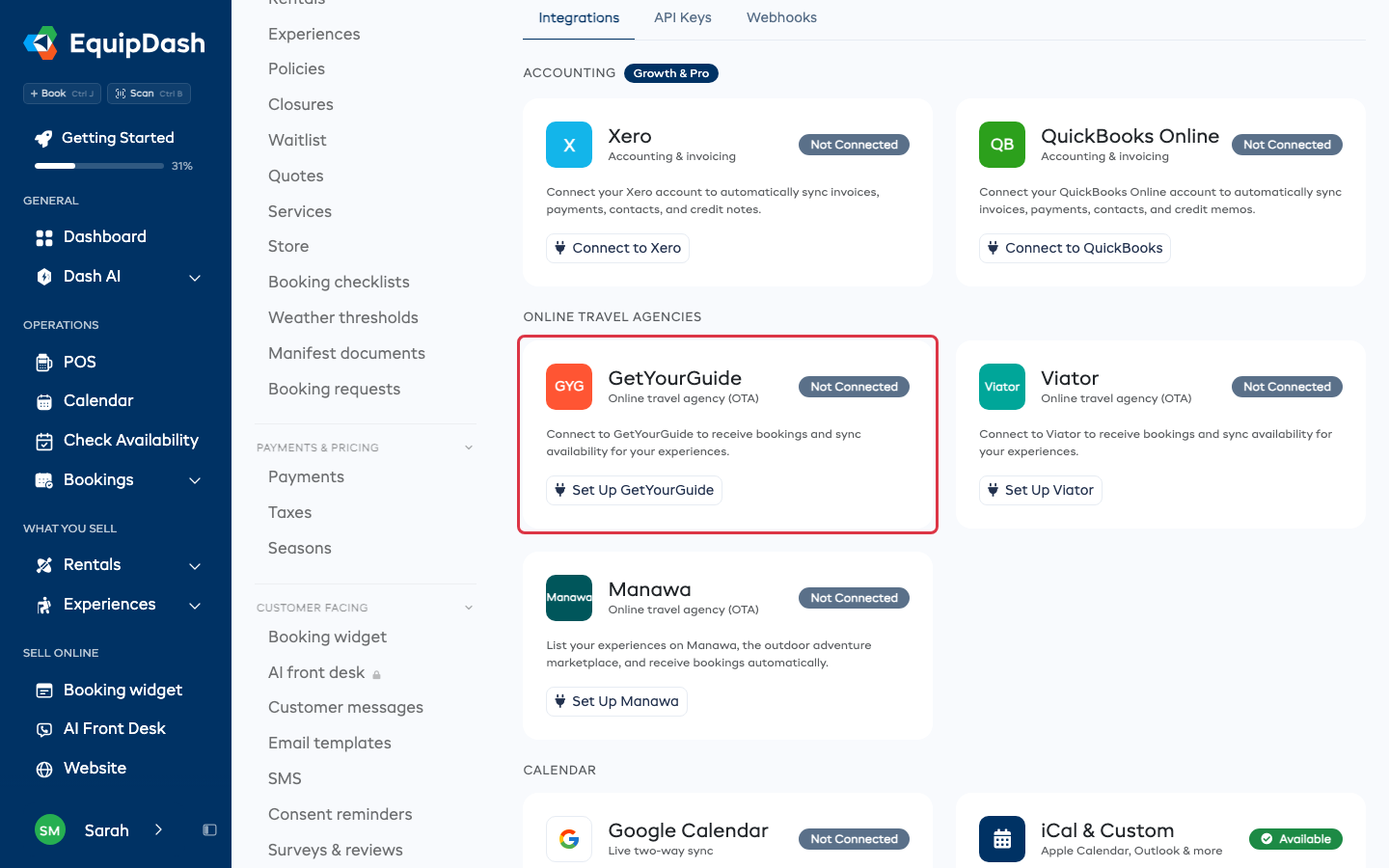
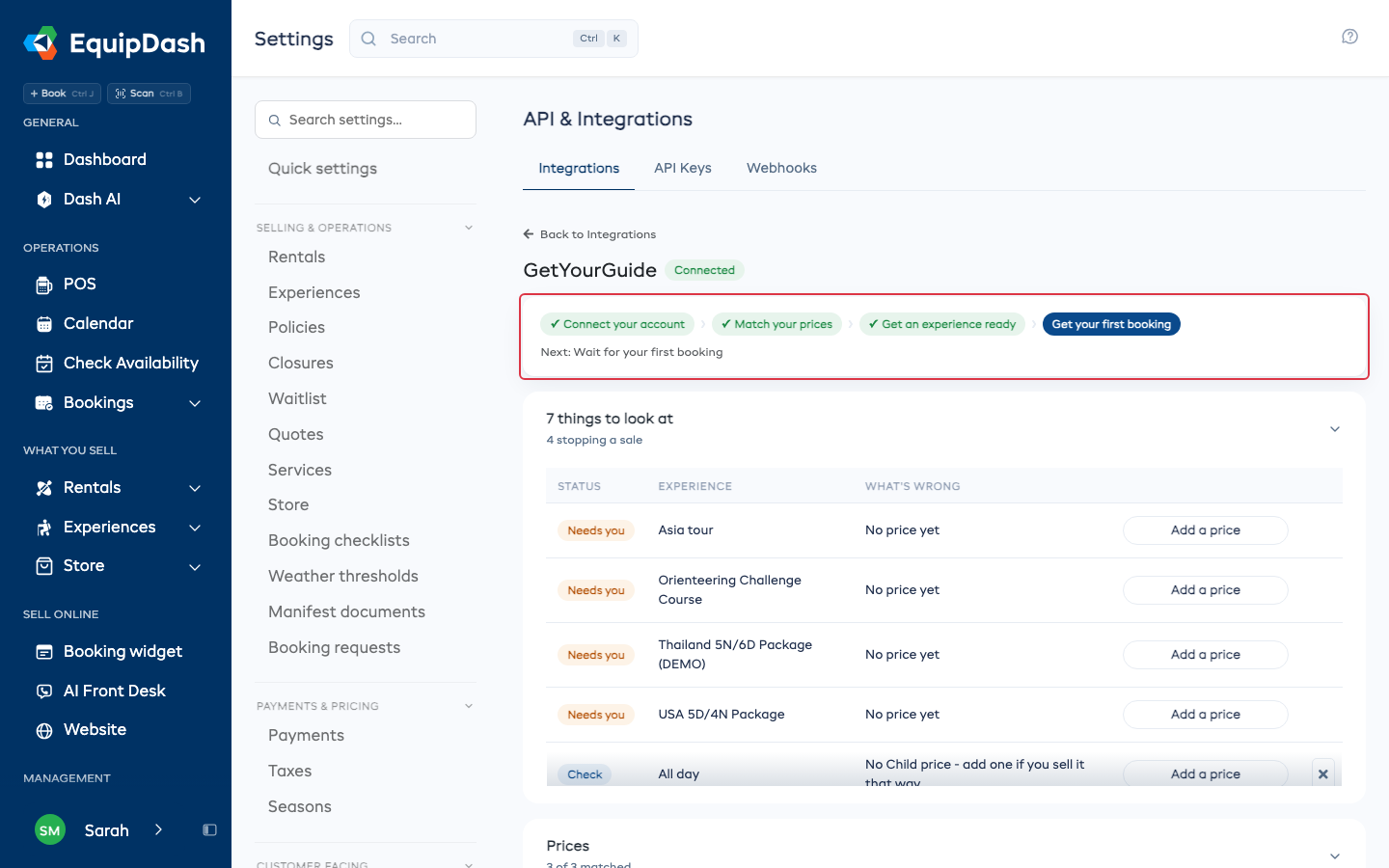
Four steps run across the top of the page. Each one ticks by itself when it is done, and the line under them tells you what comes next.
Step 2: Connect your account
- Type your GetYourGuide Supplier ID.
- Click Connect.
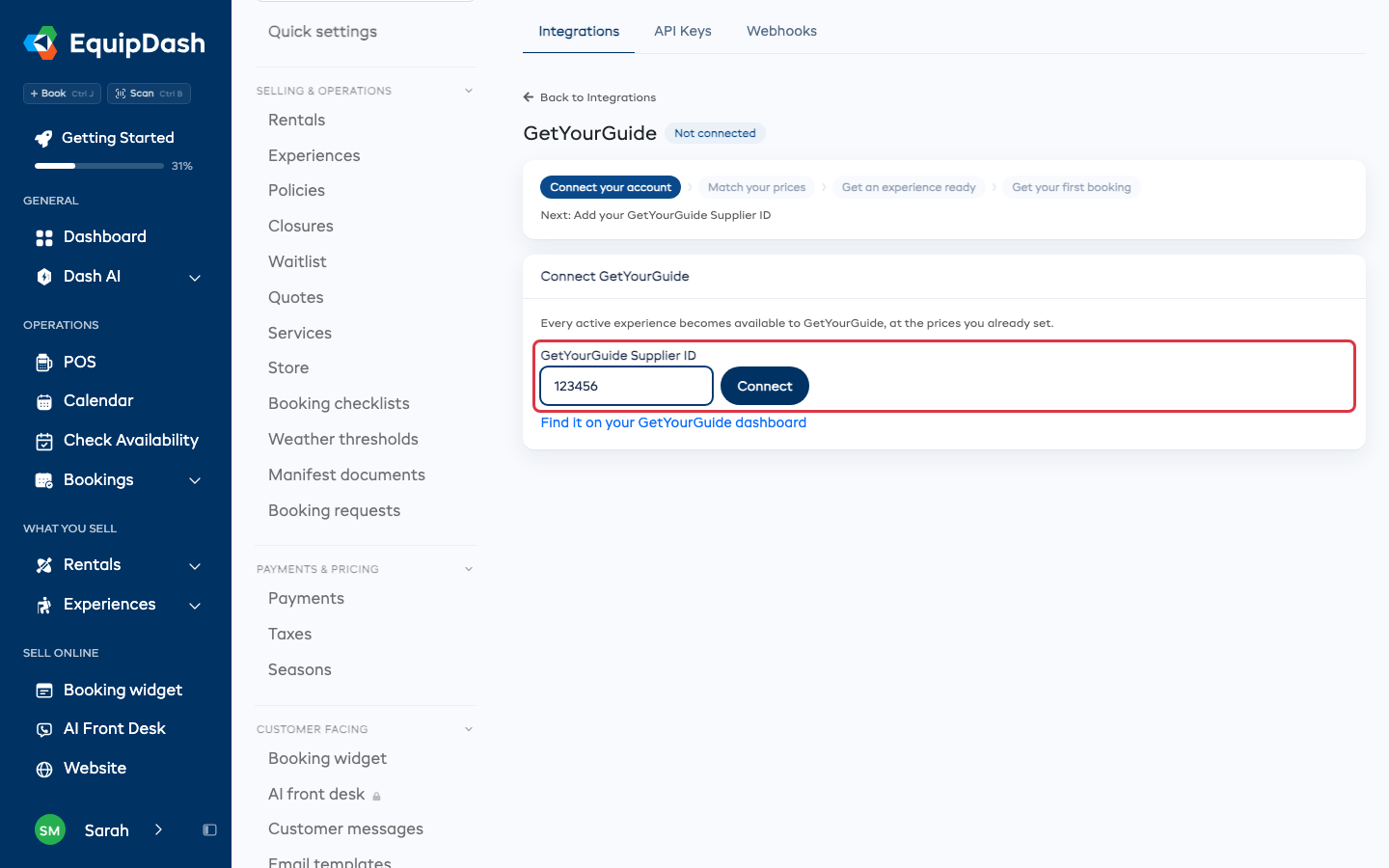
Every active experience is now available to GetYourGuide, at the prices you already set.
Step 3: Match your prices
GetYourGuide has its own names for prices: Adult, Child, Youth, Infant, Senior, Student and a few more. Under Prices, any of your prices with one of those names is matched for you. For any other name, such as Family or Local, pick the GetYourGuide price it should be, or pick Don't offer on GetYourGuide. It saves as soon as you pick.
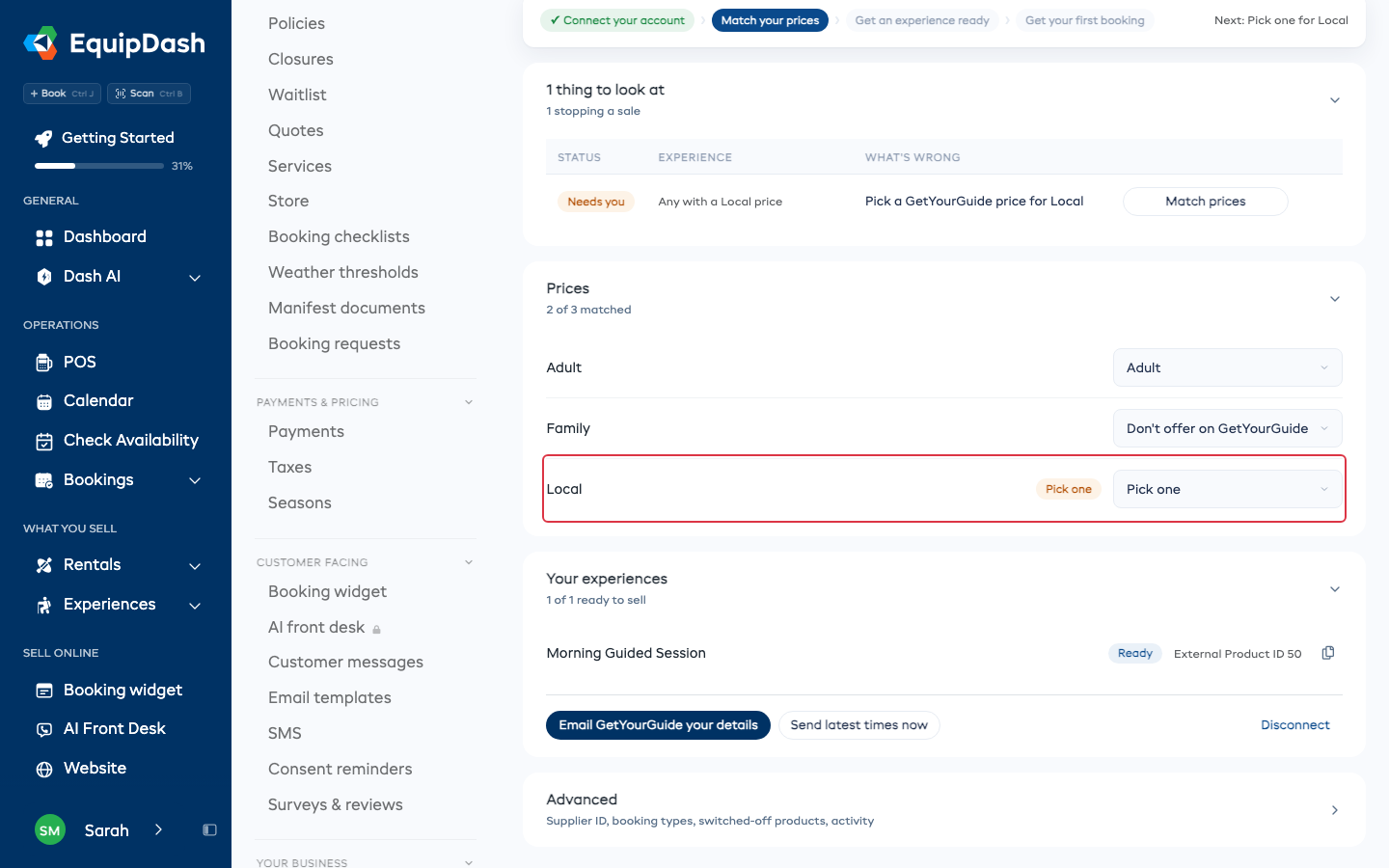
- A price marked Our guess was matched from a name like Traveler or Per person, so we put it on Adult. Change it if that's wrong.
- Each GetYourGuide price can hold only one of yours, so one that's already taken is left out of the list.
- An experience priced for the whole group matches GetYourGuide's Whole group by itself.
Step 4: Tell GetYourGuide which experience is which
Under Your experiences, each experience has an External Product ID. GetYourGuide needs it for every product you sell there. Ready means nothing is stopping it.
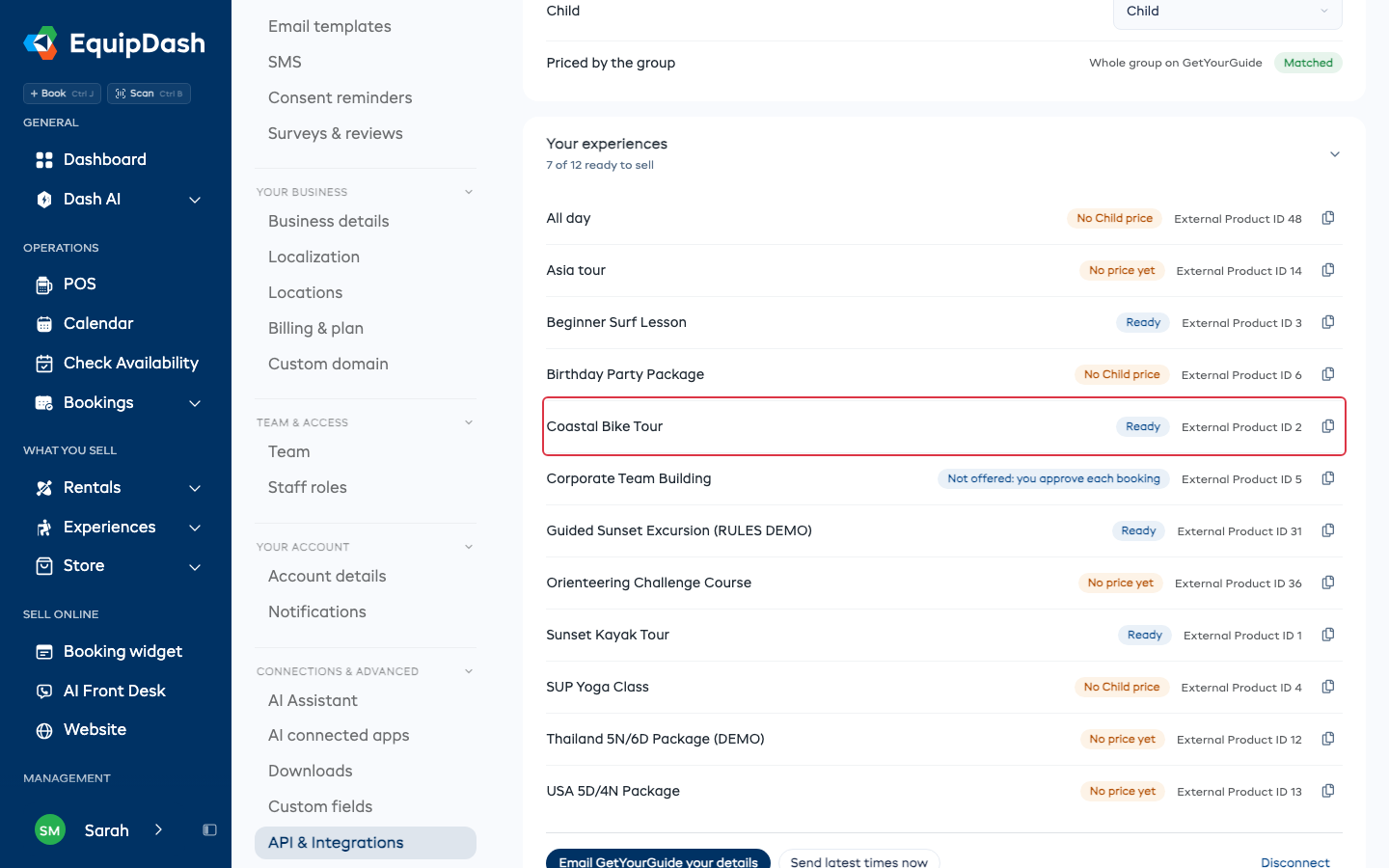
The quick way is to click Email GetYourGuide your details. Your email app opens with your Supplier ID and the External Product ID of every experience that is ready to sell already in the message. Type your GetYourGuide contact's email address and send it.
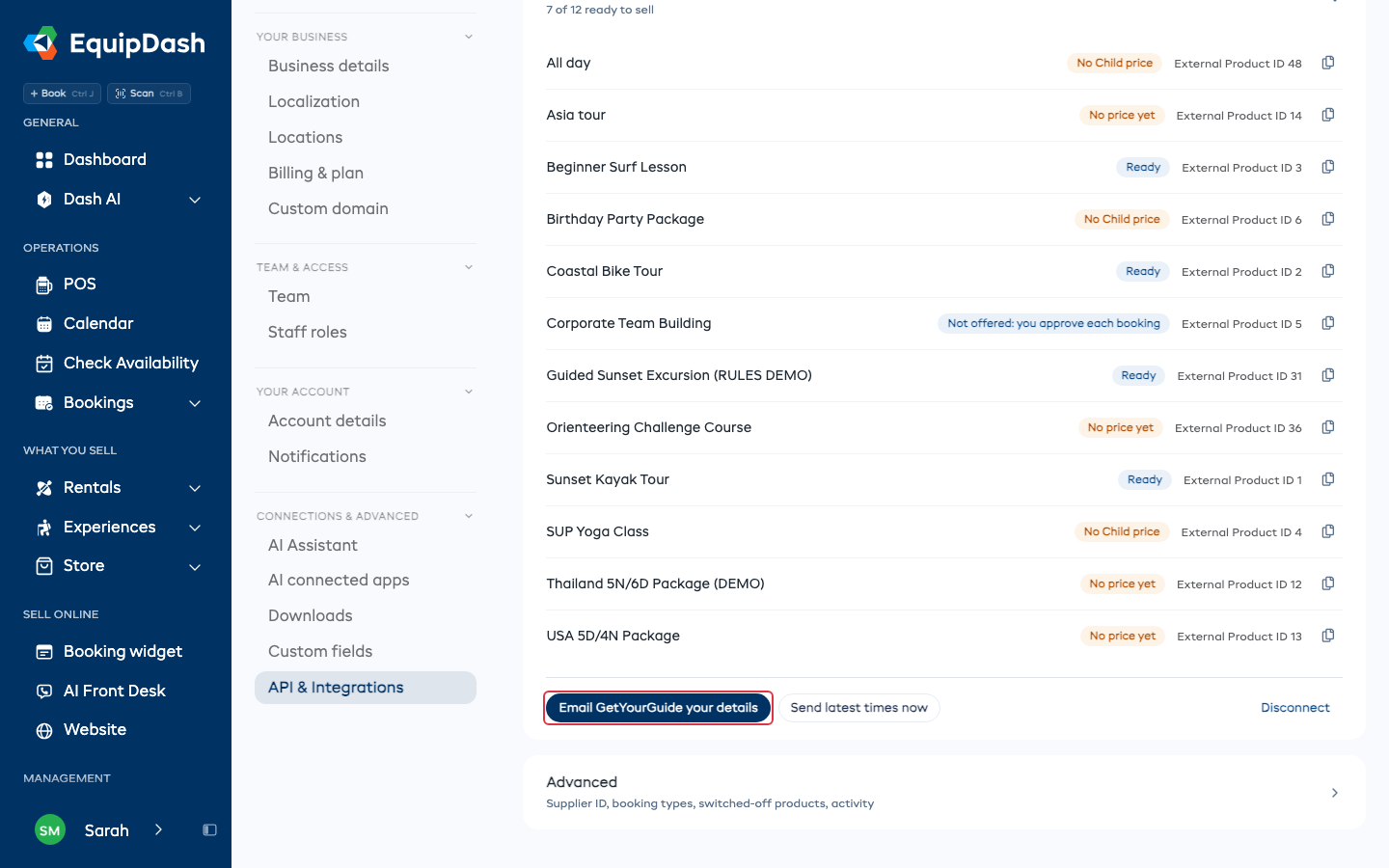
To do it yourself on GetYourGuide, repeat this for each product:
- In the GetYourGuide supplier portal, go to Manage > Products and click See Details on the product.
- Edit the option and open Connectivity Settings.
- Pick EquipDash as your reservation system.
- In EquipDash, click the copy icon beside the experience's External Product ID. Paste it into External Product ID on GetYourGuide and save.
GetYourGuide's own guide, with pictures: Connecting a New Product to Your Reservation System.
Step 5: Your first booking
Nothing to do here. The last step ticks when your first GetYourGuide booking arrives. GetYourGuide bookings show in Bookings, the calendar and your reports.
Fixing problems
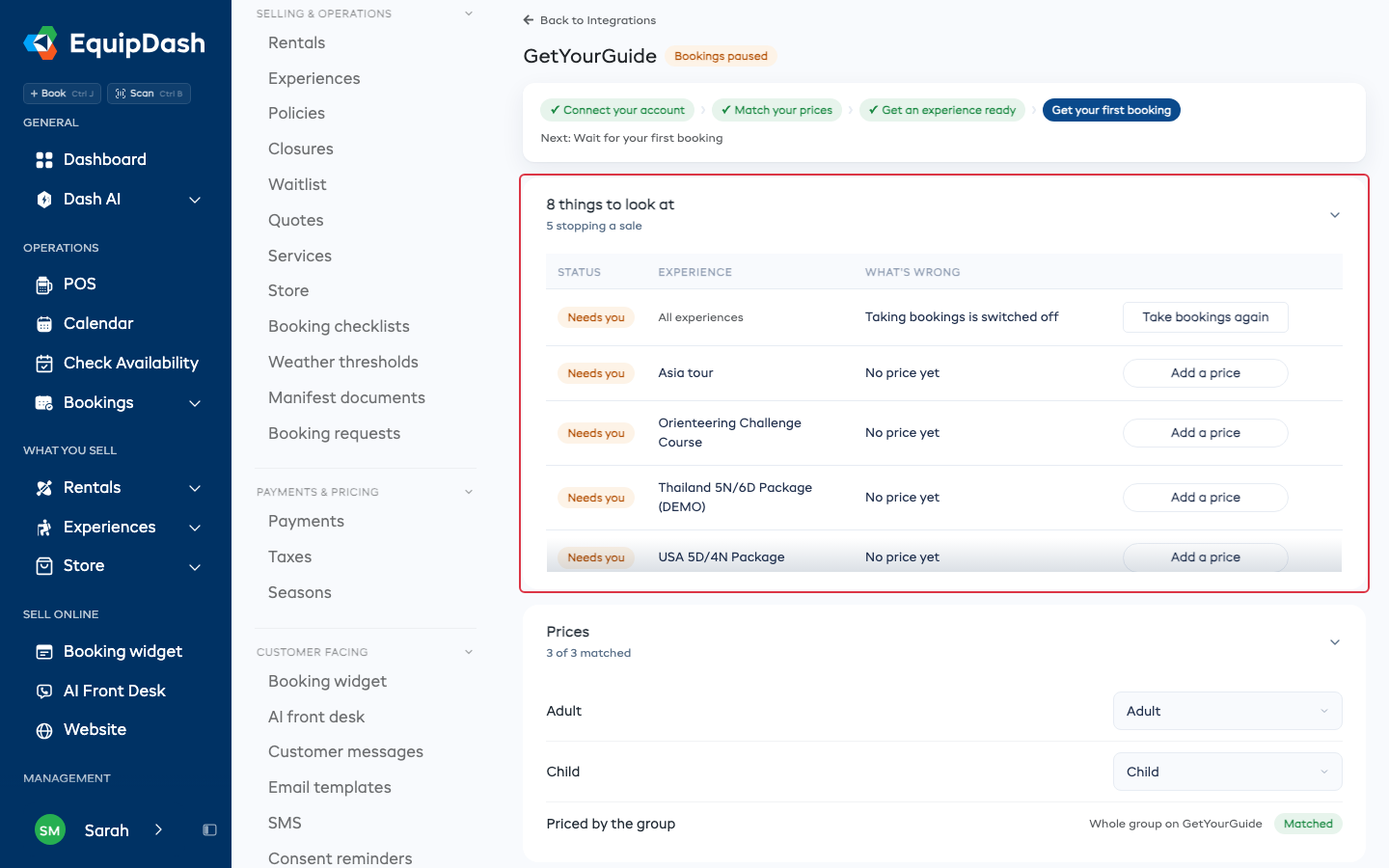
Anything that needs you shows in a table near the top of the page, one row per problem, with the fix on the row. A row about more than one experience says which ones in grey, for example All experiences.
| The row says | What to do |
|---|---|
| No price yet | Click Add a price and give the experience a price. |
| Its prices are not matched yet | Click Match prices, then pick a GetYourGuide price under Prices. |
| Pick a GetYourGuide price for ... | Click Match prices and pick one under Prices. |
| Switched off by GetYourGuide | The row says why and what to check, for example the experience's times or its prices. Fix that, then click Switch it back on. If a box asks for an Option ID, copy it from GetYourGuide's email and click Go. |
| Taking bookings is switched off | Click Take bookings again. |
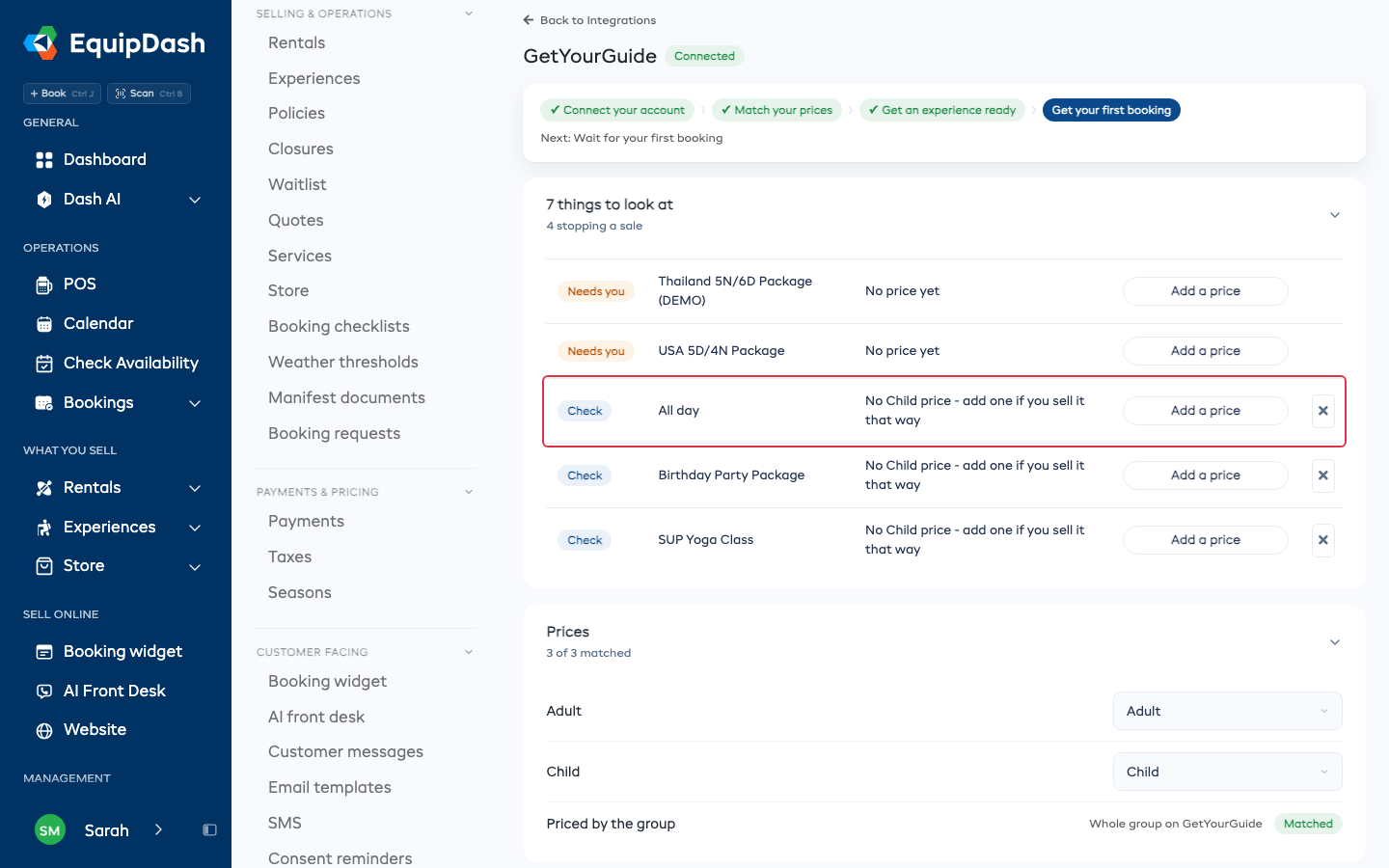
Rows marked Check don't stop a sale. They say GetYourGuide gets no price of a kind you sell elsewhere, for example no Child price on an experience you only sell to adults. Add one if you sell it that way. If you don't, click the x to put the note away.
An experience where you approve each booking yourself says Not offered: you approve each booking. GetYourGuide confirms bookings straight away, so it is never shown times for that experience.
If GetYourGuide says a product is invalid, check that the External Product ID on GetYourGuide is exactly the one shown in EquipDash, with no spaces.
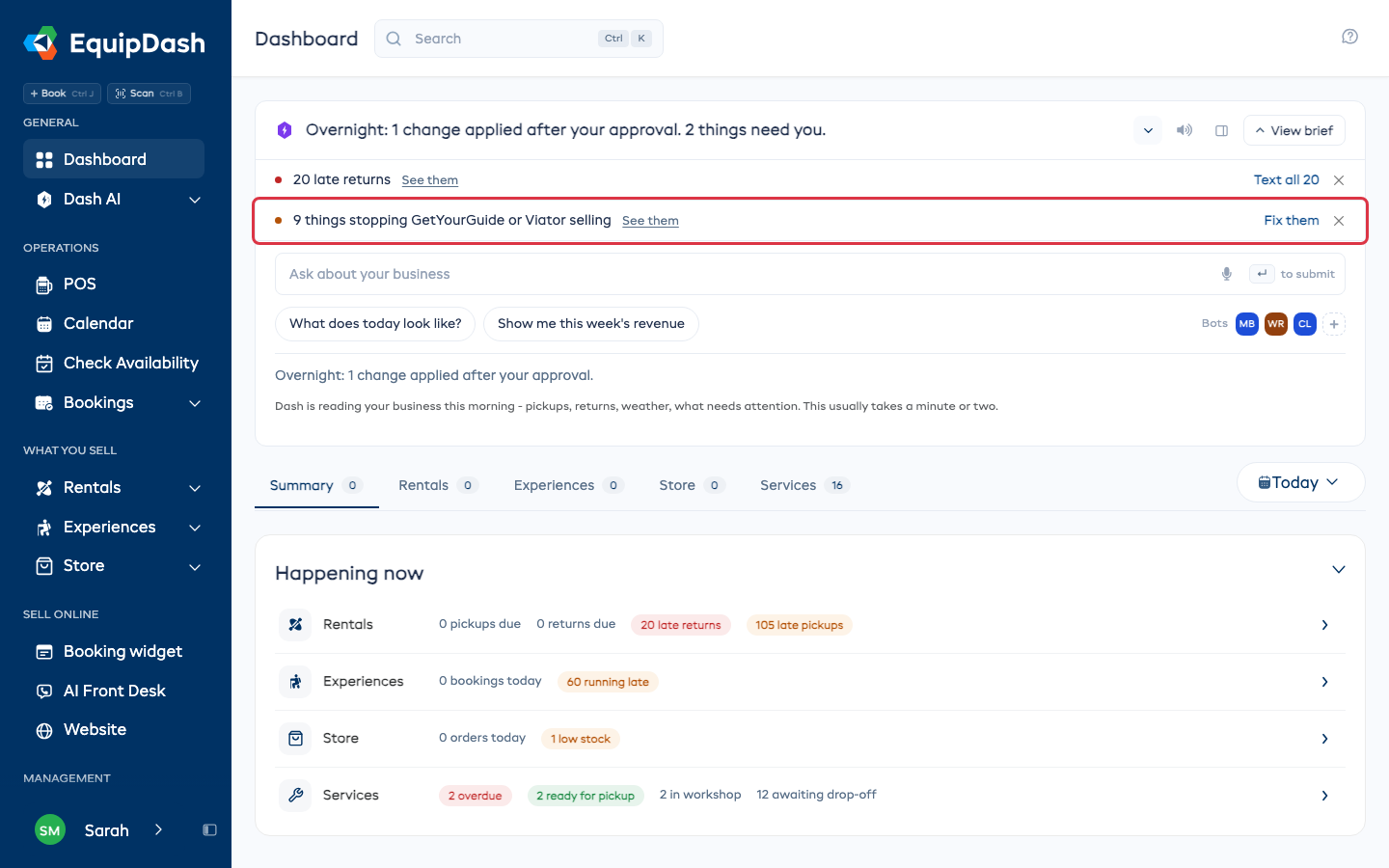
The Dash card at the top of your dashboard also counts what is stopping a sale, on GetYourGuide and Viator together, so you see it without opening this page. Its button takes you straight to where they are fixed: the experience, or that site's own page.
Check an experience
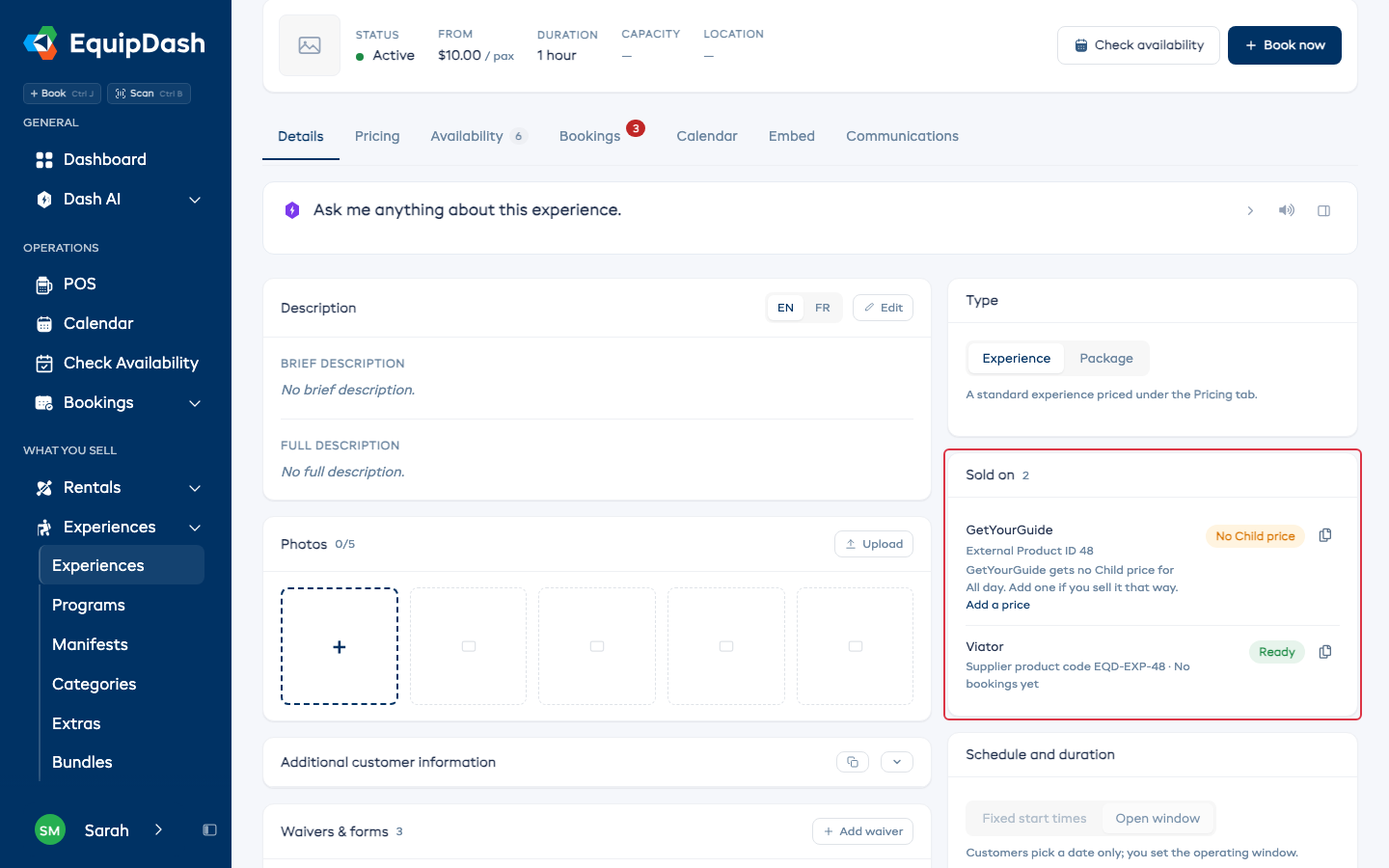
Open any experience. Its Details tab has a Sold on card with one row for each site you are connected to: the status, its External Product ID (GetYourGuide) or Supplier product code (Viator) with a copy icon, anything stopping it, and the date of its last booking from that site.
You can also ask Dash, for example "Is anything stopping me selling on GetYourGuide?". Dash can match a price for you too ("Offer my Family price on GetYourGuide as Youth") and shows you the change to approve first.
Other settings
- Send latest times now, beside the email button, sends your times and prices for the next 90 days to GetYourGuide straight away, instead of waiting for GetYourGuide's next check.
- Click Advanced at the bottom of the page for the rarer settings:
- GetYourGuide Supplier ID, if you need to change it.
- Take bookings from GetYourGuide. Switch it off to stop new GetYourGuide bookings without disconnecting.
- A booking type for each GetYourGuide price you use: Standard, Free, no ticket, Free, ticket needed or Not allowed.
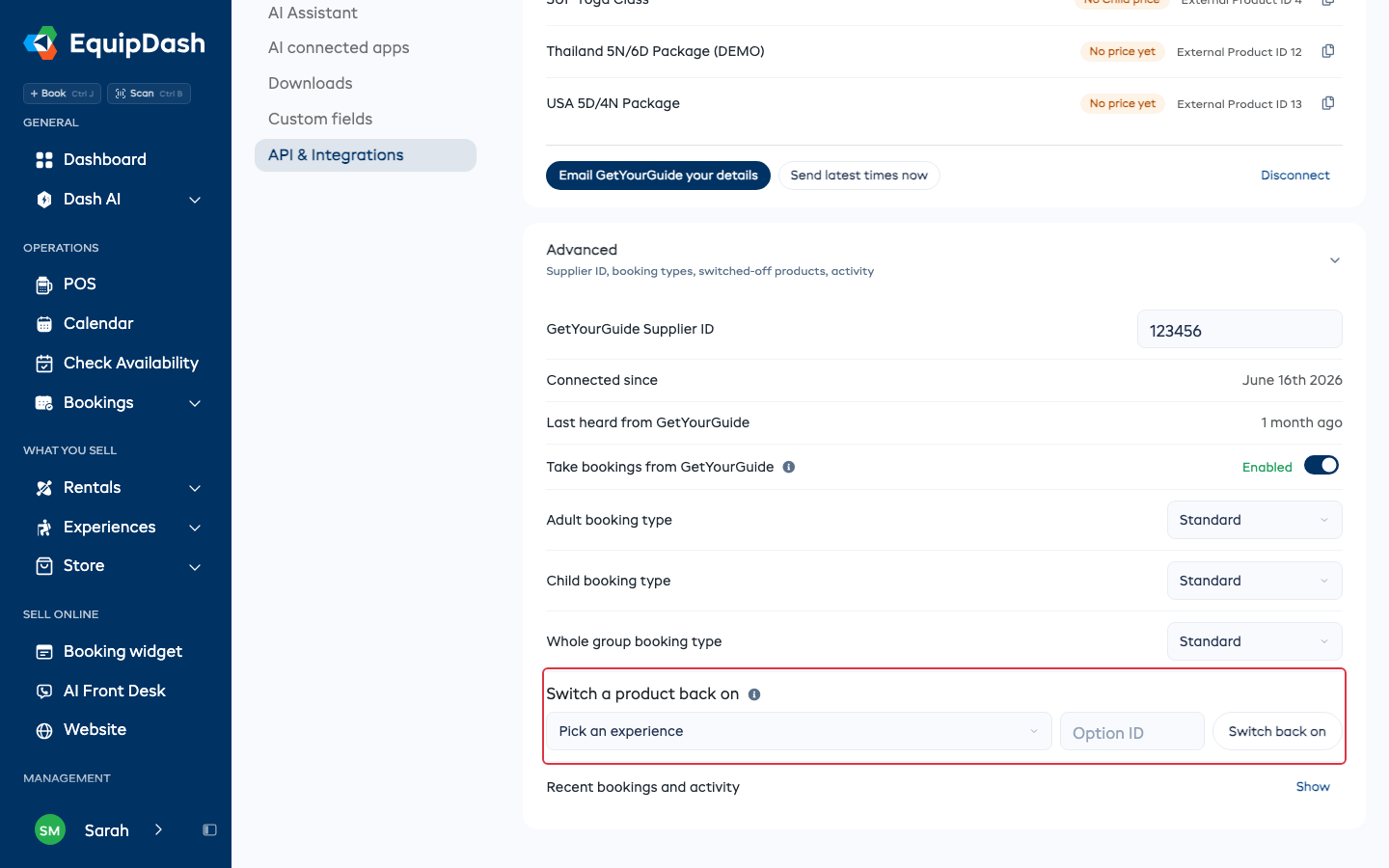
- Switch a product back on, for a product GetYourGuide switched off: pick the experience, type the Option ID from their email and click Switch back on.
- Recent bookings and activity. Click Show to see your latest GetYourGuide bookings.
Disconnecting
Click Disconnect, then Disconnect again. GetYourGuide stops booking you and the bookings you already have stay as they are. You can connect again any time, and your prices stay matched.