Dash on WhatsApp ProThis feature requires the Pro plan
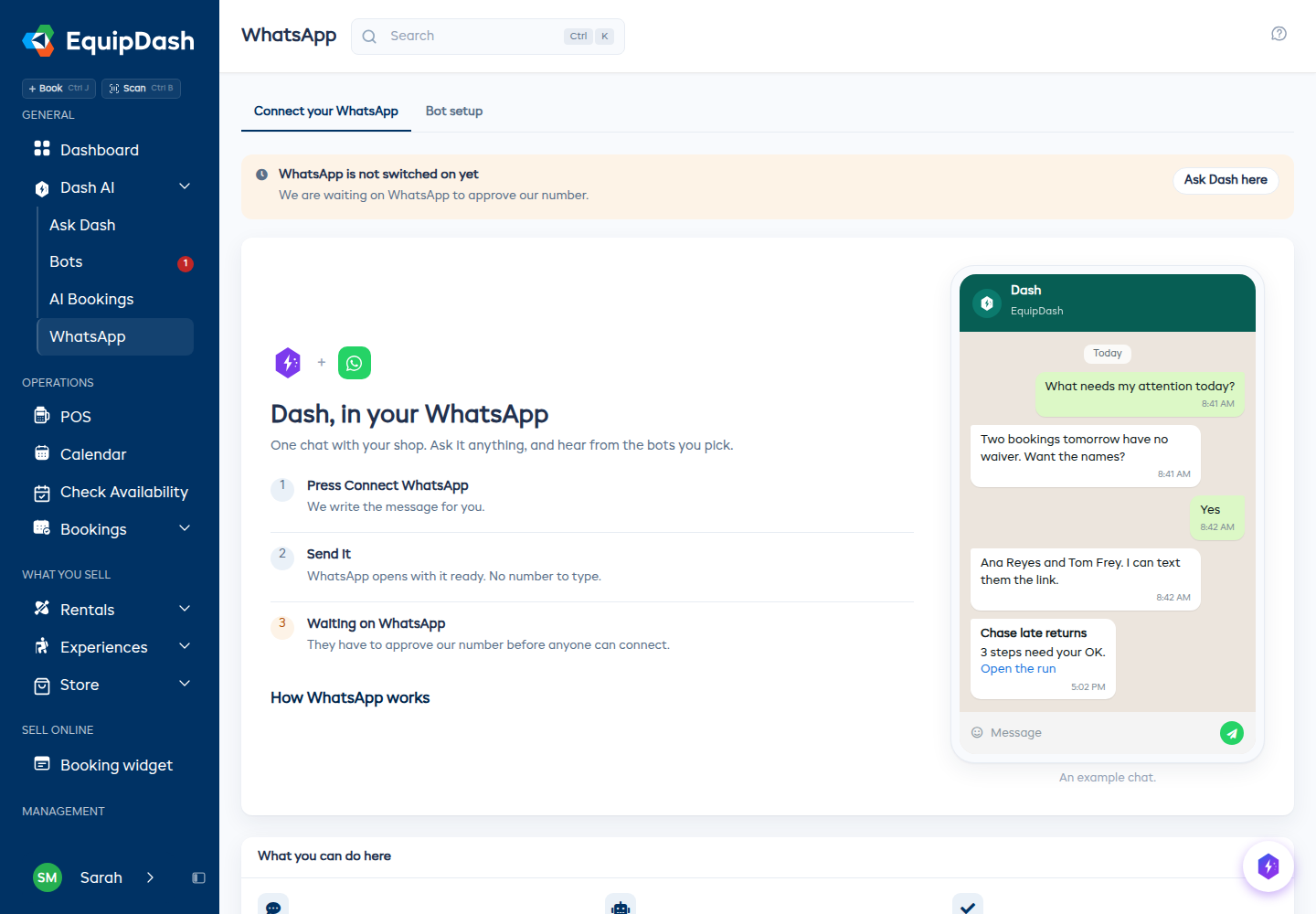
Ask Dash anything from your phone, in the app you already have open. One chat with your shop: today's bookings, what is free on Saturday, who still has not signed a waiver.
You do not need a WhatsApp number of your own, and neither does your business. EquipDash has one, and you connect your phone to it.
Connecting your phone
- Open Dash AI → WhatsApp.
- Press Connect WhatsApp. Your phone opens WhatsApp with the message already written - do not change it, it carries a one-time code that expires in ten minutes.
- Send it.
- The page flips to connected within a few seconds, and Dash says hello in the chat.
Whichever phone sends that message is the one that gets connected, so it does not have to match the number on your profile.
If nothing happens
The code expires after ten minutes. Press Connect WhatsApp again for a fresh one.
One WhatsApp number belongs to one shop at a time. Connecting a phone that is already connected to another business moves it, and anything queued for the old connection stops.
Asking Dash things
Message it the way you would message anyone:
- What needs my attention today?
- Which bookings came in this week?
- Is anyone out on the water right now?
- Who hasn't paid yet?
Answers are written for a phone - short lines, no tables, no page links you cannot tap. If an answer is genuinely long, Dash trims it and points you at EquipDash for the rest.
What Dash will not do over WhatsApp
Anything that moves money, or anything a customer will see, is never done from a message. Dash sends you a link instead, and you approve it signed in. A reply of "yes" in the chat does not approve a bot's work.
Choosing which bots message you
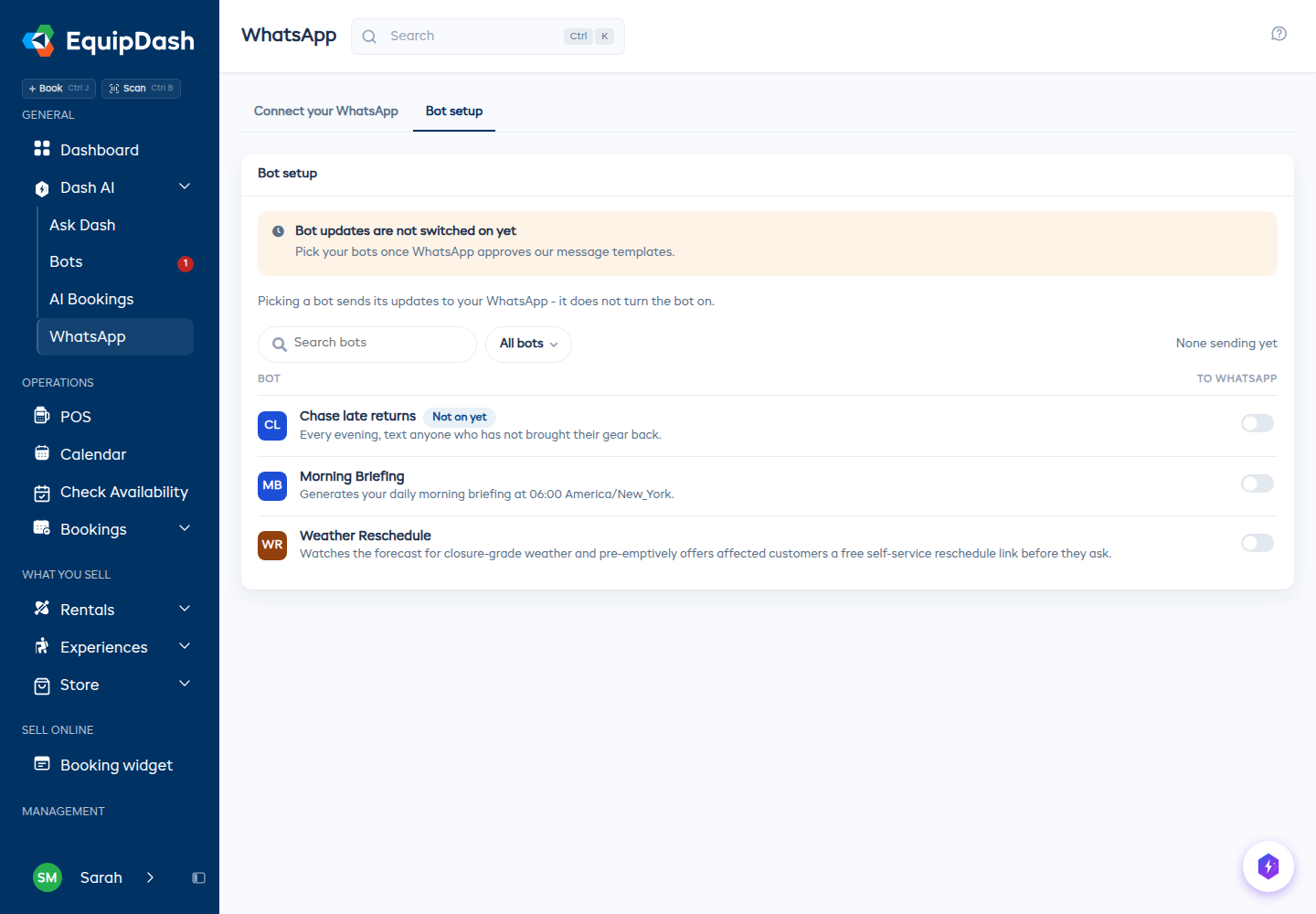
Open the Bot setup tab on the same page. Every bot you can see is listed with what it does and a switch.
Switching one on means its updates come to your WhatsApp. It does not turn the bot on - a bot that is not running sends nothing, and it is marked Not on yet in the list.
You will hear from a bot when:
- it has finished something and recorded what it did, or
- it has stopped and needs your OK before it goes further.
An update that needs a decision carries a link that opens that run in EquipDash, already signed in.
Turning it off
Disconnect on the WhatsApp page stops everything for your phone. You can also reply STOP in the chat.
Turning the channel off for the whole business is a switch in Settings → AI assistant → Answer on WhatsApp.
Good to know
- Messages are limited per number, so a burst of messages goes quiet rather than arguing with you.
- A conversation picks up where it left off for twelve hours. After that the next message starts fresh, so yesterday's context never answers today's question.
- Your team each connect their own phone. A bot only messages the people who switched it on, and only if they are allowed to see it in EquipDash.