Approving changes Dash makes ProThis feature requires the Pro plan
Ask Dash to change something and it prepares the change, then waits. Nothing is saved until you press the button.
The change card
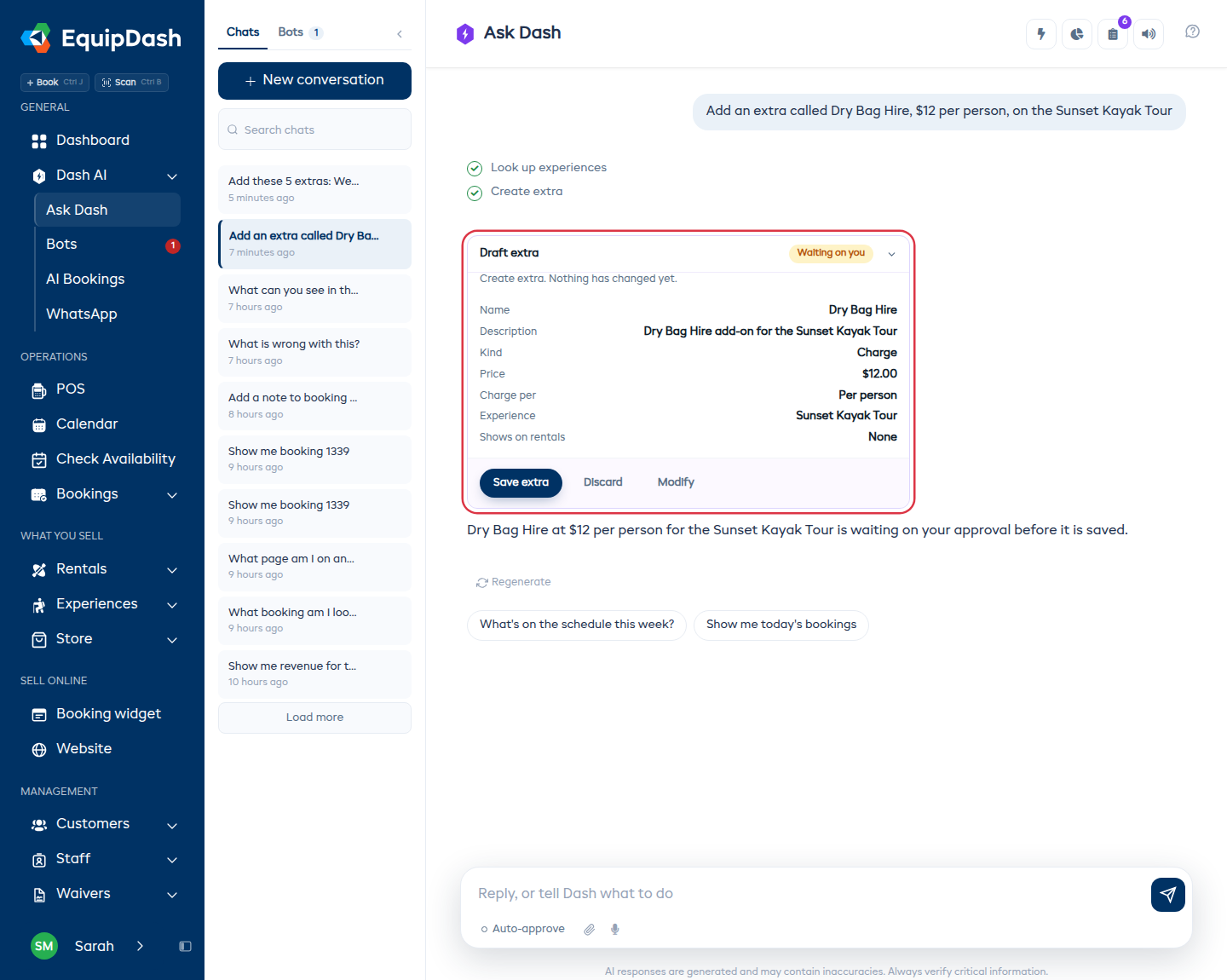
When you ask for something that changes your shop - a new add-on, a price, a schedule - Dash answers with a card marked Waiting on you. It lists what the change would be, and three buttons:
- The first button does it. It says what it will do, so it reads Save extra on a new add-on and Approve move on a booking you are moving.
- Discard - drop it. Nothing is saved.
- Modify - say what should be different. Dash updates the card and still waits.
Nothing on the card has happened yet. The wording says so, and the card only changes to Done once you press the first button.
Several changes at once
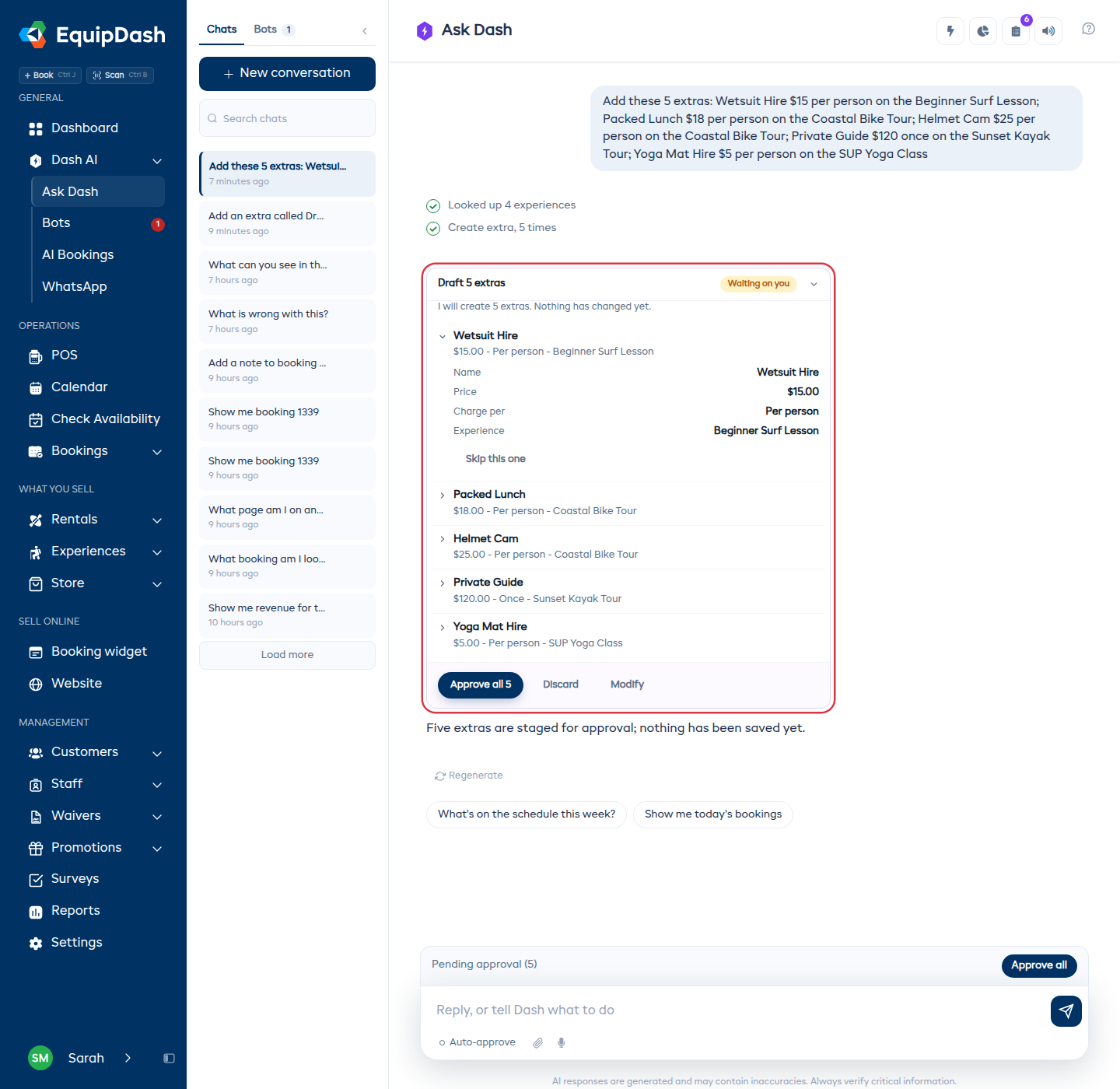
Ask for five add-ons and you get one card, not five. Each line is one of them:
- Read the name and the short line under it - the price, how it charges, which experience it shows on.
- Open any line with the arrow to see every field it would save.
- Press Skip this one on a line you do not want. The rest stay waiting, and the count on the button drops.
- Press Approve all 5 when the list is right.
After you approve, the card lists every one it made, each with Done and a link to open it.
Letting everyday changes through
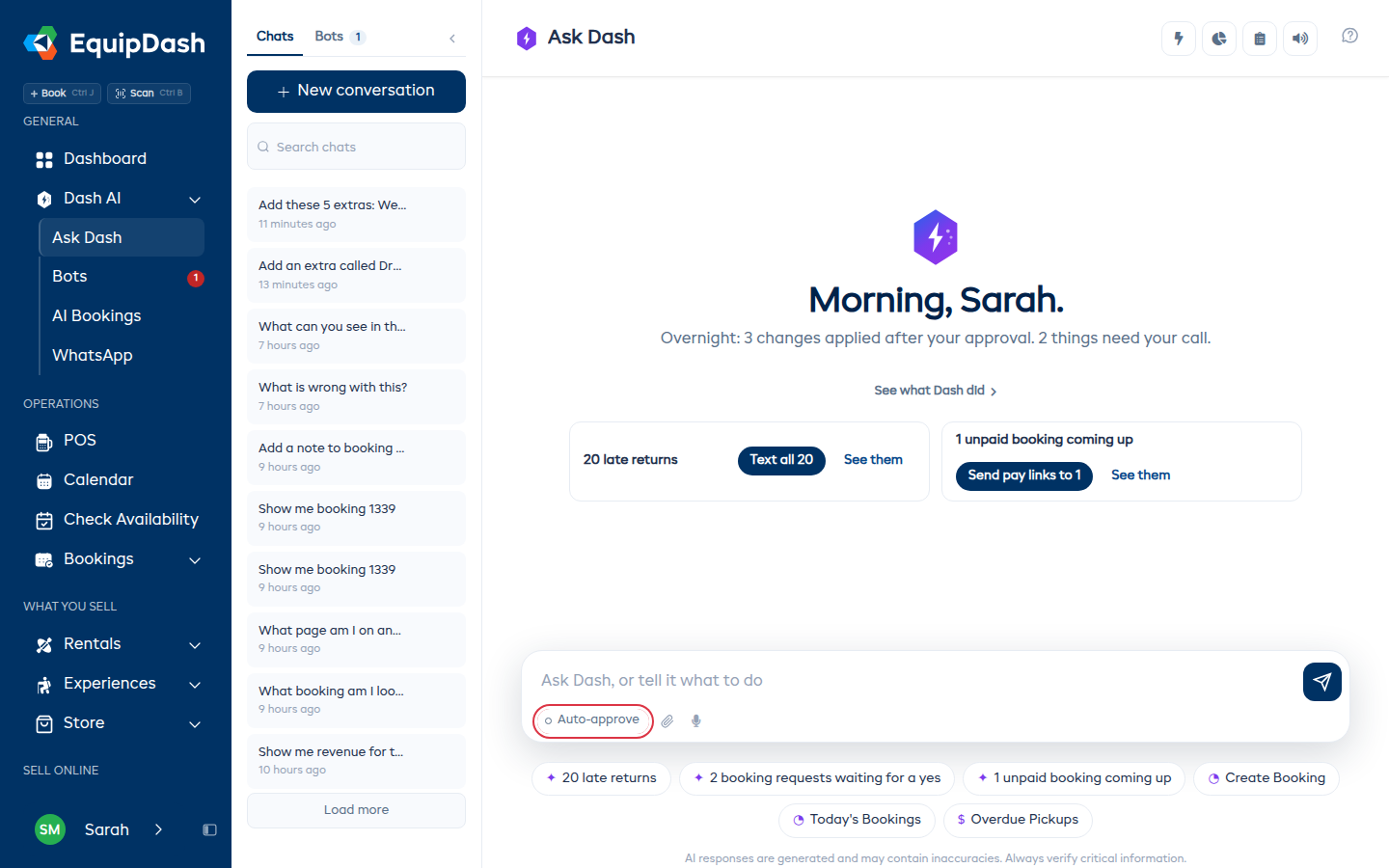
If you would rather not approve every small change, turn on Auto-approve under the ask box. Everyday changes then apply as soon as Dash makes them, and it tells you what it did instead of asking first.
It stays on until you turn it off, on every device you sign in on, and it is yours alone - it does not change anything for your staff.
What it never covers
Some things always come back as a card, however Auto-approve is set:
- Refunds, charges and recording a payment
- Sending a payment link
- Releasing a security deposit
- Cancelling a booking or a series
- Anything that goes out to a customer, like an email or a text
- Deleting something
These are the changes you cannot take back from a chat message, so Dash always shows you first.
Tips
- Try it on the small stuff first. Add-ons, categories and prices are easy to check and easy to change back.
- Skip beats Discard. If six of seven drafts are right, skip the odd one rather than throwing the lot away and starting again.
- Modify saves a round trip. "Make it $60 and per booking" is quicker than discarding and typing the whole request again.
- Turn Auto-approve off when someone else is at the counter. It is remembered for you, so it follows you to whichever computer you sign in on.