The Consent Tracker Growth+This feature requires the Growth+ plan or higher
The Consent tracker is the answer to "who still hasn't signed?" — one screen listing every upcoming booking that still has an outstanding waiver or form, soonest booking first.
Before, that meant opening bookings one at a time and guessing. Now the list is in front of you, and you can chase anyone on it in a click.
Finding It
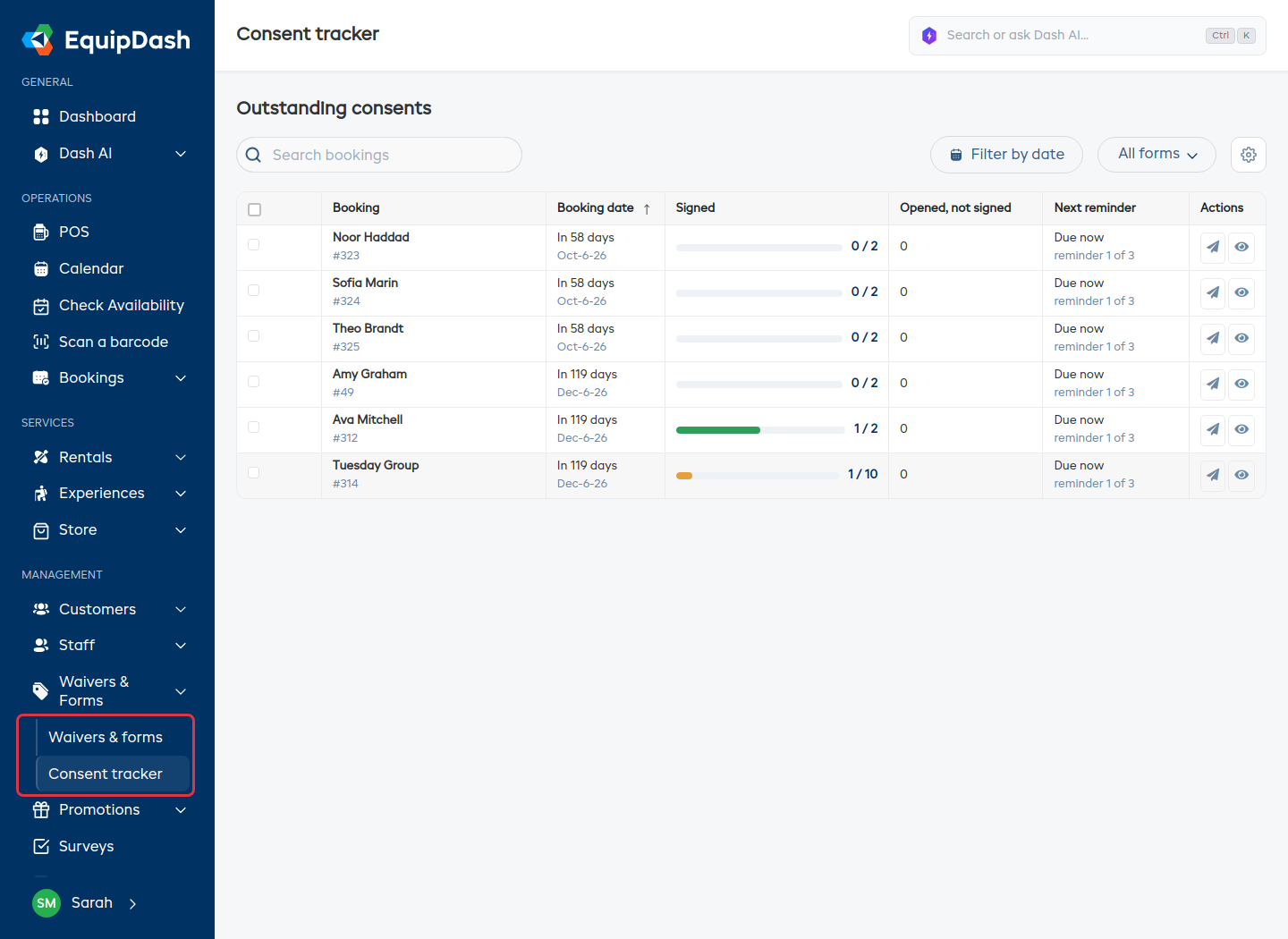
Waivers & Forms in the left sidebar opens into two pages. Waivers & forms is your list of forms; Consent tracker is the outstanding-signatures screen.
Reading a Row
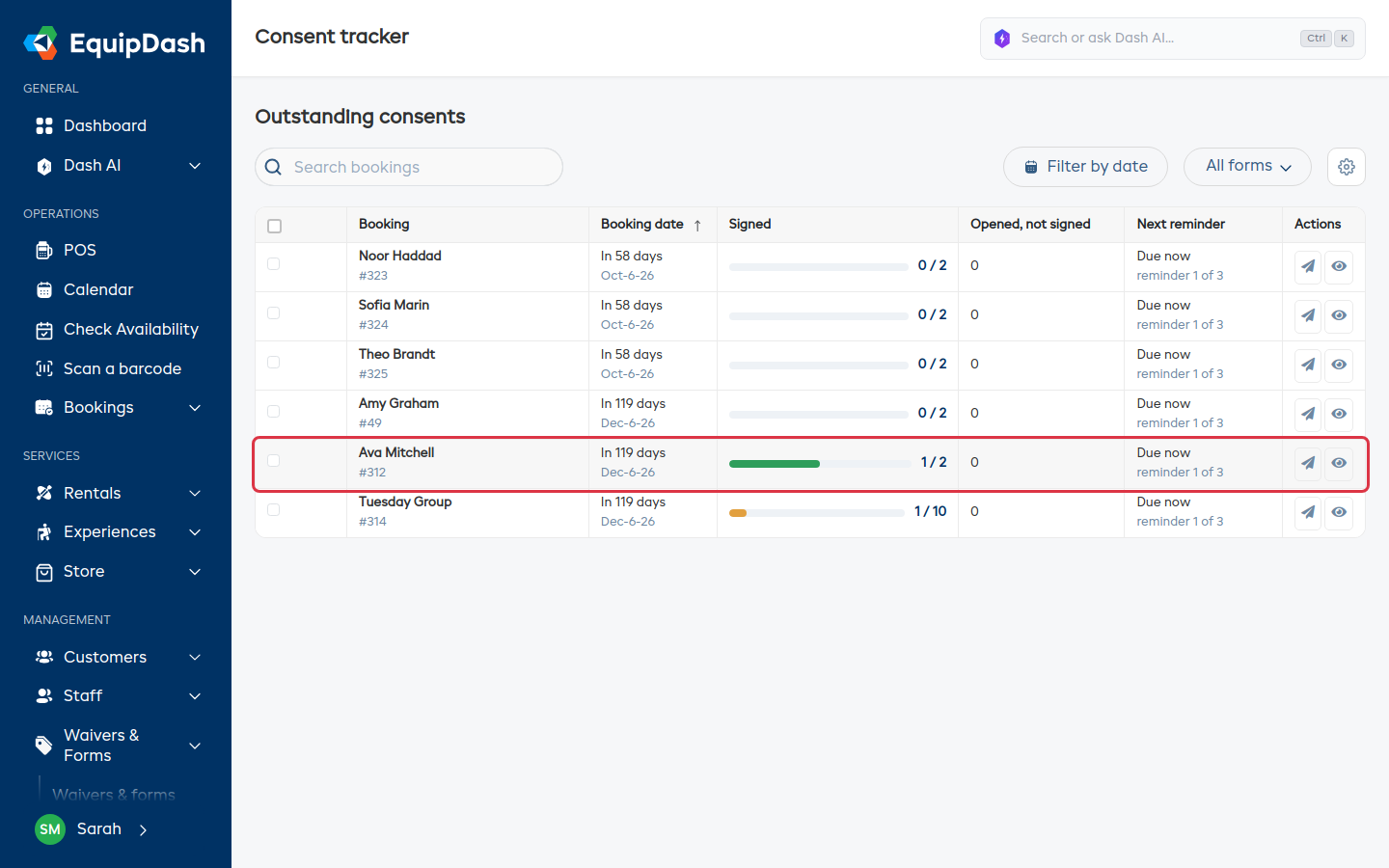
Each row is one booking with at least one person who still owes a signature.
| Column | What it tells you |
|---|---|
| Booking | The customer or group name, with the booking number underneath. Click it to open the booking. |
| Booking date | How soon it is — Today, Tomorrow or In N days — with the date underneath. The most urgent bookings sort to the top. |
| Signed | A progress bar and a count, e.g. 1 / 2. That counts every signature the booking needs — each person, each form they've been given. |
| Opened, not signed | How many people clicked their link but didn't finish. These are your best candidates for a nudge. |
| Next reminder | When the next automatic reminder is due, and which one it is (reminder 1 of 3). It reads Due now when one is waiting to go out, Chase exhausted once the sequence has run its course, or Reminders off if automatic chasing is switched off. |
| Actions | Send a reminder to everyone on that booking who hasn't signed, or open the booking. |
You can add two more columns from the gear icon on the right: Still to sign (the raw number outstanding) and Booking type. Click any underlined column heading to sort by it.
The tracker only ever shows what's outstanding. An empty screen means you're all clear.
Narrowing the List
- Search bookings — type a customer name, a group name or a booking number.
- Filter by date — limit to a booking-date range, e.g. just this week.
- All forms — pick one form to see only the bookings waiting on that one.
- Gear icon — choose which columns you see and what order they're in.
Clear filters appears as soon as anything is applied, so you can get back to the full list in one click.
Chasing Everyone on One Booking
Click the paper plane in the Actions column. Everyone on that booking who still hasn't signed gets a reminder straight away. Anyone who has already signed is skipped — nobody is ever chased for something they've done.
Chasing Several Bookings at Once
Tick the checkbox on each booking you want to chase — or the one in the table heading to select the whole page — then use Actions at the top left and choose Send reminders.
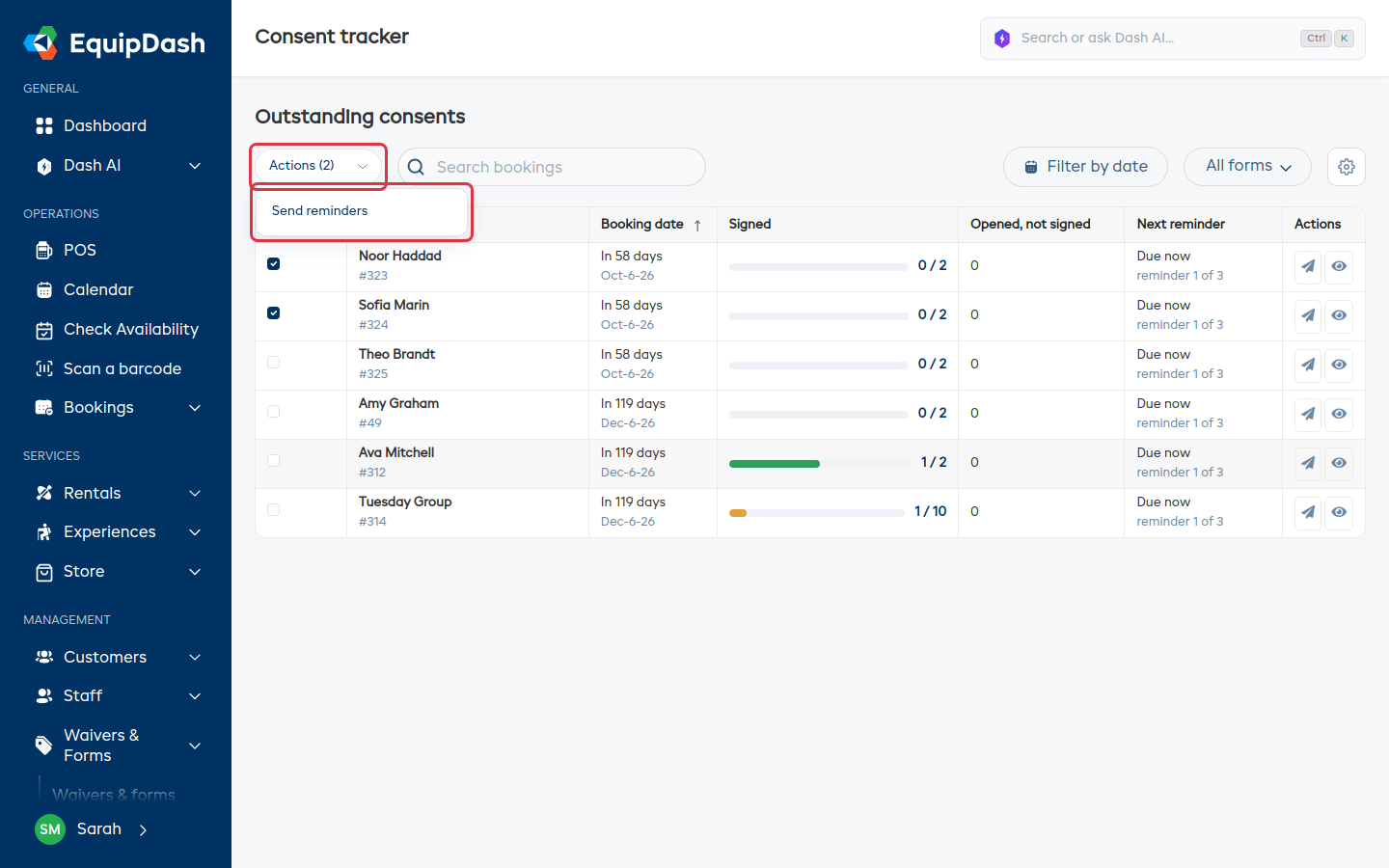
This is the Friday-afternoon tool: filter to next week, select everything, send once.
Chasing By Hand vs. Automatic Reminders
They use the same engine, so they never double up — but they behave slightly differently on timing:
- Automatic reminders follow the sequence you set up, and only go out during waking hours in your own timezone.
- Chasing by hand sends immediately, whatever the time. When tomorrow's booking can't wait, that's the point.
Either way, a chase counts as one of that person's reminders and appears on their timeline like any other send.
See Chasing Unsigned Consents to set the sequence up.
Who Can Use It
Anyone who can view waivers and forms can see the tracker. Sending reminders — the row action, the bulk action and the checkboxes — needs the Manage waivers & forms permission. See Roles Explained.