Getting It Signed
Most of the time you don't do anything. The agreement is emailed to the customer the moment the booking is made, and you find it signed next time you look.
It Sends Itself
As soon as a booking is made, the customer gets an email with a Read and sign button. It doesn't matter where the booking came from — your online booking widget, the POS, Quick Book, an app connected to your account, or Dash AI. Same agreement, same email, every time.
A few things worth knowing:
- Quotes wait. A quote is a proposal, so nothing goes out when you send one. The agreement is emailed the moment the customer accepts it and it becomes a booking.
- It only goes once. Nobody gets the same agreement twice by accident. You can still send it again yourself whenever you want.
- No email address, no email. If the booking has no email address on it, nothing is sent — add one to the customer, then send it from the booking.
- Nothing goes out while it's switched off, or before you've written your wording. See Setting It Up.
- Bookings that have already finished don't get one. Keying in last month's paperwork, or connecting a marketplace that back-fills old bookings, won't email a pile of customers whose booking is long over. You can still open the agreement at the counter if you need it.
Booking Online? They Can Sign Straight Away
Customers who book through your online booking widget don't have to wait for the email. The confirmation page — the "Booking confirmed" screen right after they pay — carries the same Read and sign link.
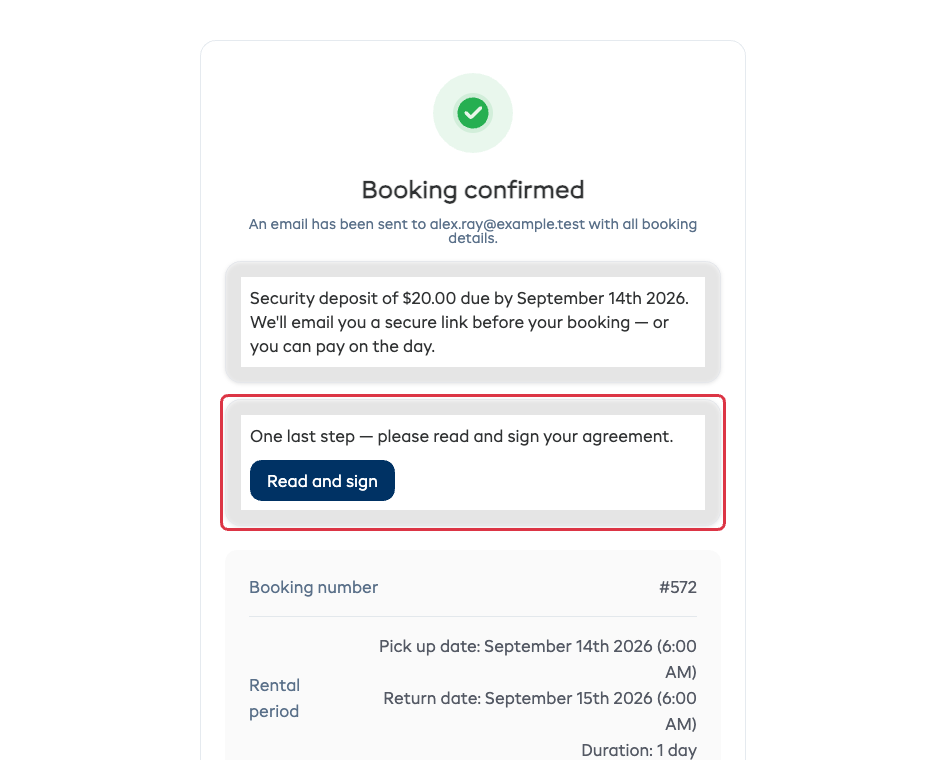
It's the same link as the email, so it doesn't matter which one they use. Once it's signed, that card is replaced with a line telling them there's nothing more to do.
Checking On It
Open any booking and look at the Documents card. The agreement sits at the top with its status — Not signed, Waiting for signature, or Signed — and a line underneath telling you when it was emailed.
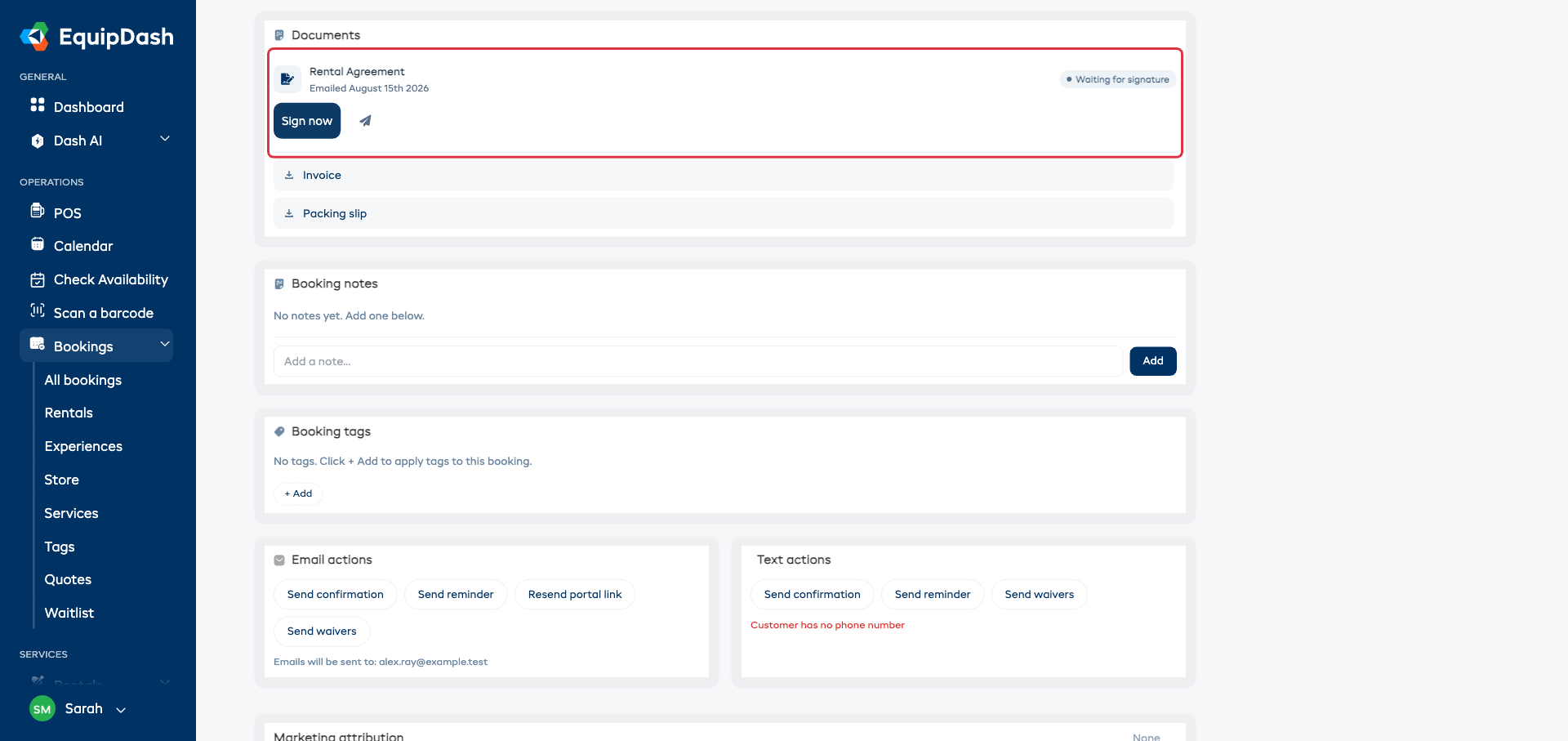
The buttons on the row are:
| Button | What it does |
|---|---|
| Sign now | Opens the whole agreement on your screen so the customer can sign in front of you |
| Paper plane | Emails the customer their link again |
| Eye | Opens the agreement to read (once it's signed, exactly as it was signed) |
| Download | Saves the signed PDF |
Before it's signed you get Sign now and the paper plane. Once it's signed those are replaced by the eye and the download.
Sign Now — At the Counter
Best when the customer is standing in front of you, or when they never got round to the email.
- Click Sign now. The whole agreement opens on your screen.
- Turn the screen (or hand over the tablet) and let them read it.
- They sign in the box with a finger or the mouse. Clear wipes it if they want another go.
- Check the Full name of the person signing — it's already filled in with the customer's name; change it if someone else is signing.
- Click Save signature.
Done. The agreement now shows Signed, with the signature, the name and the date and time printed on it.
Sending It Again
They deleted the email, or you changed the terms? Click the paper plane icon on the row and confirm the email address.
The link stays the same and always shows the latest wording, so it's safe to send as many times as you like.
You'll be told the customer needs an email address first. Add one on the customer record, then send.
Changing the Terms for One Booking
Sometimes one booking needs a line the others don't.
- Click Sign now to open the agreement.
- Click Edit terms.
- Change the wording and click Save wording. It's the same editor as Settings, so you can bold text and add lists here too.
That change applies to this booking only — your saved wording under Settings is untouched, and every other booking carries on as before.
Once an agreement is signed, the wording is locked. That's deliberate: what was signed stays signed.
After It's Signed
The row shows who signed it and when, and the two icons change to eye and download.
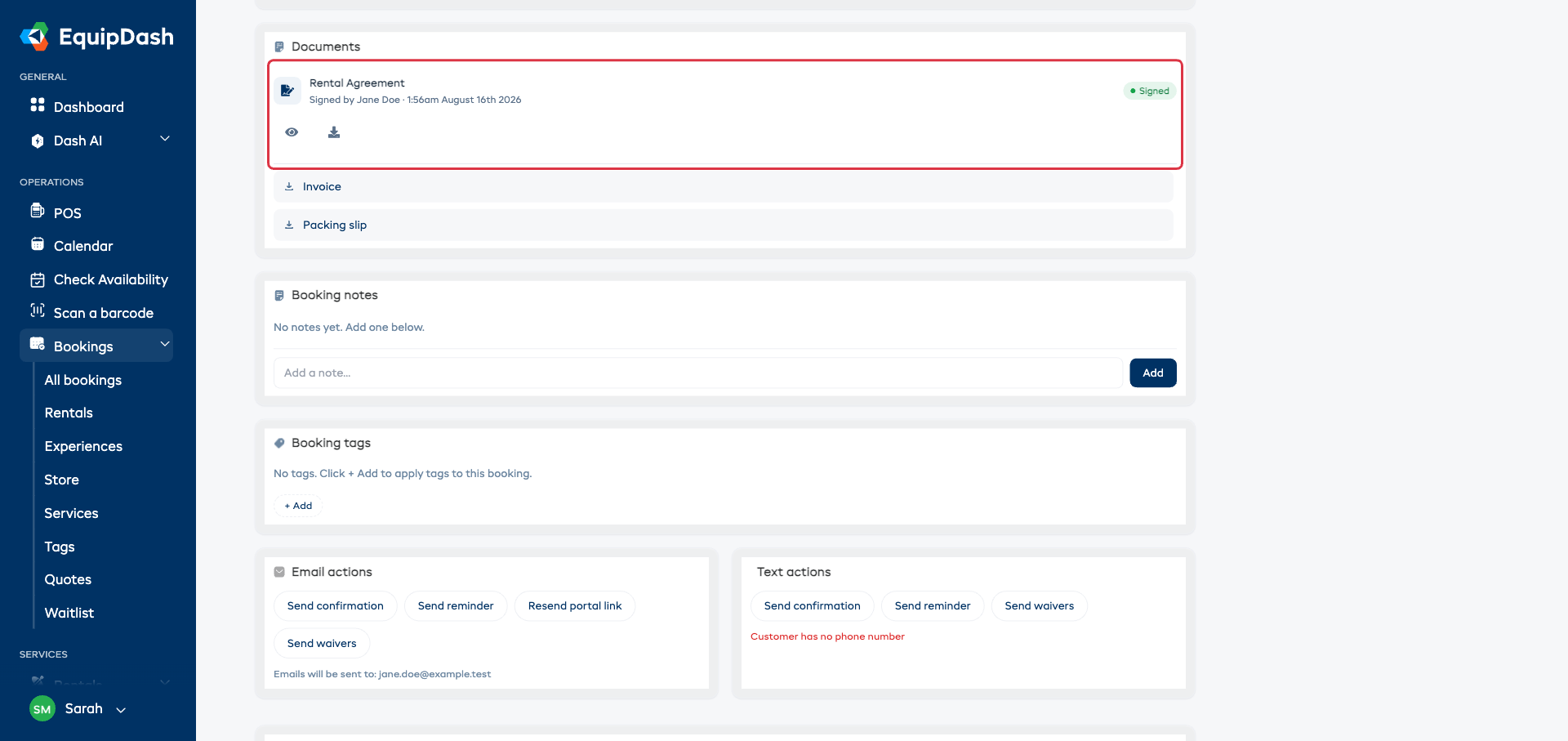
- The eye re-opens it exactly as it was signed.
- The download gives you the signed copy — signature, terms, items, amounts and the signing record all on one document.
The signed copy never changes, even if you later edit your wording in Settings or the booking's price moves.
If Something Goes Wrong
The customer says the link doesn't work. Links are per-booking and don't expire, but an unsigned agreement stops opening if the agreement has been switched off in Settings. Turn it back on, or use Sign now at the counter instead. Anything already signed stays available to them either way.
They signed the wrong thing. A signed agreement can't be unsigned. Fix the booking, then get in touch with us if the record needs correcting.
The signature box won't draw. Ask them to try a firmer, slower stroke — a very fast flick can register as a tap. On a laptop trackpad, click and hold while moving.