Different Prices at Each Location
If one of your locations costs more to run — or the market there simply pays more — you can charge a different price for the same product at each pickup location. Locations without their own price keep charging the normal price.
Turning It On
- Open the product and go to the Pricing tab.
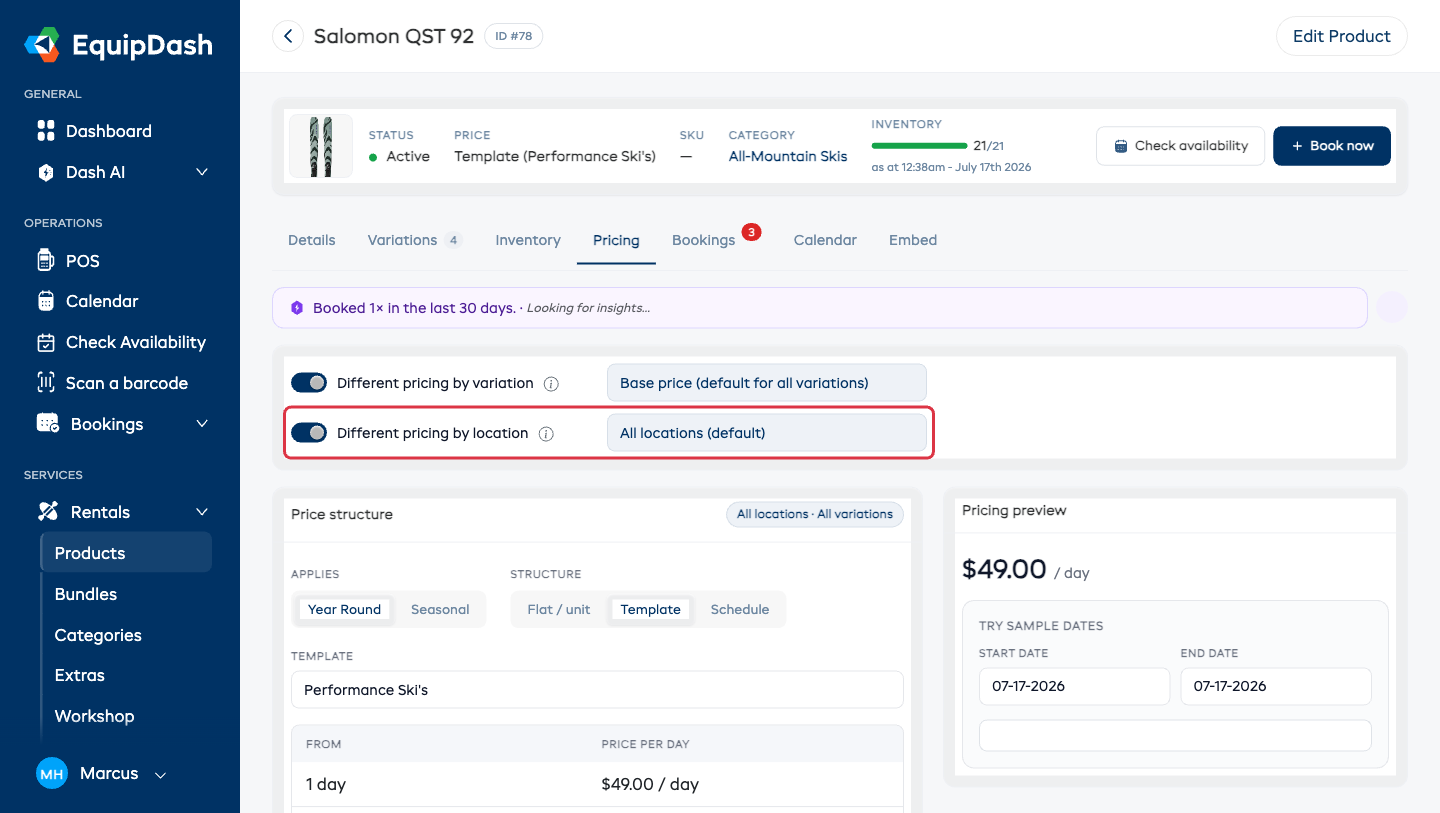
- Turn on Different pricing by location. (The switch only appears when you have two or more pickup locations.)
- A location dropdown appears next to the switch, listing All locations (default) and each of your pickup locations. Locations you've already priced are tagged Custom.
Setting a Location's Price
- Pick a location from the dropdown. A line appears saying that location uses the regular price, with that price in brackets.
- Click Set a custom price — the form appears pre-filled with what that location currently charges.
- Set the price. Everything works like normal pricing: flat rates, schedules, daily rates, seasonal prices, and pricing templates.
- Click Save pricing. The location now shows a Custom tag.
Once a location has its own price, you also get Copy pricing from… (to reuse a price you've already set up elsewhere) and Use regular price instead.
Combining with Variation Pricing
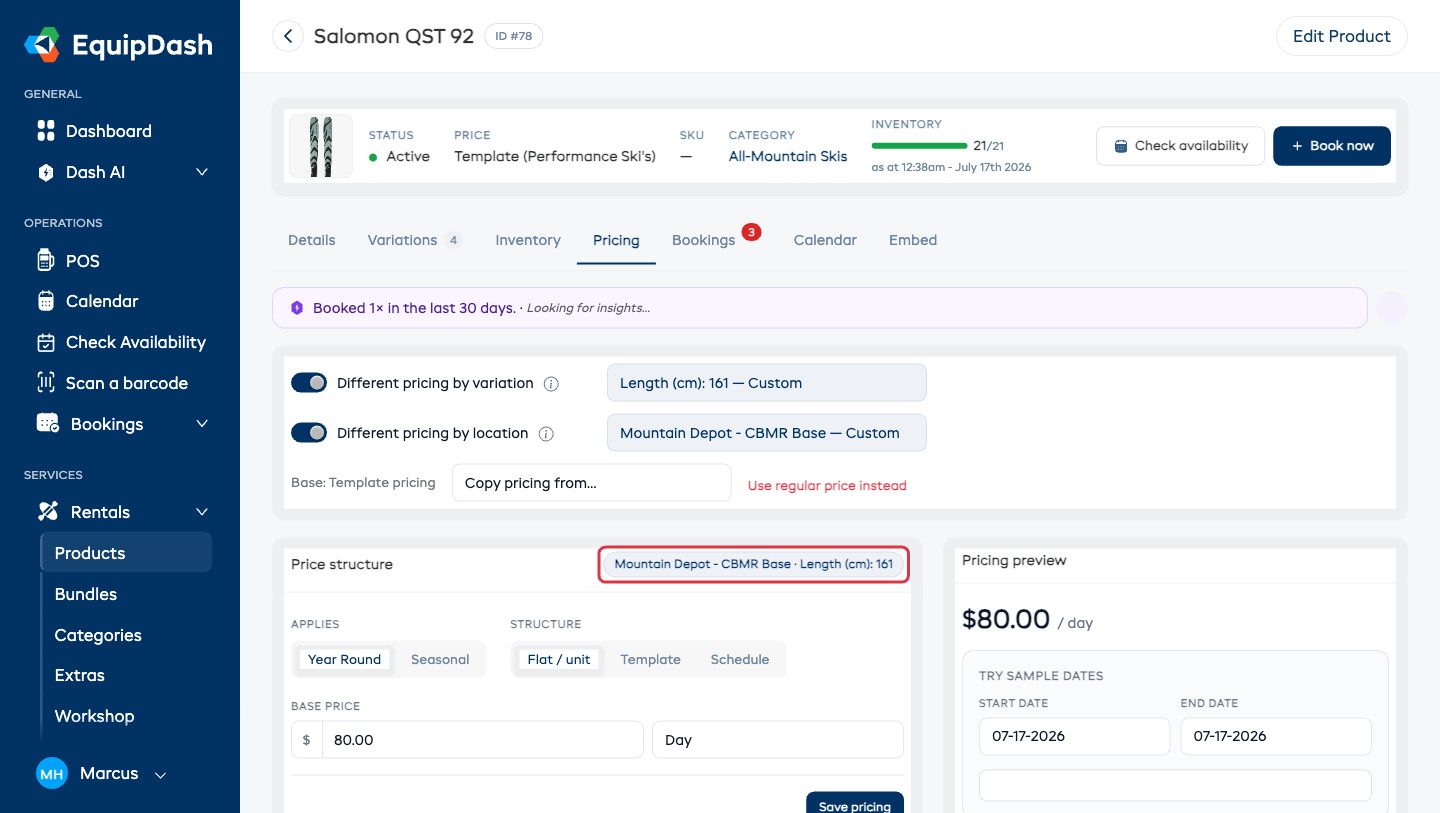
If the product also prices by variation, you can go one step further: pick a location and a variation together to give that exact combination its own price. When both switches are on, the variation dropdown's first option changes to All variations — that's the whole product at the location you picked.
The grey chip on the Price structure card always names exactly what you're editing, so you never lose track of which price you're changing.
When a customer books, the most specific price you've set wins:
- That variation at that location
- That location's price
- That variation's price
- The normal price
What Customers See
- Your booking site always has a pickup location selected — the product shows that location's price, and switching locations updates the price on the page instantly.
- The cart, checkout, confirmation email, and receipts all charge the selected location's price. The same applies at the counter (POS) and in the mobile app.
Going Back
- One location: select it and click Use regular price instead, then confirm.
- Everywhere: turn off Different pricing by location — all locations charge normal prices again, and your setup is kept for whenever you turn it back on.
Good to Know
- Suppliers with a single location see no change anywhere.
- The pickup location decides the price — the return location never changes it.
- Existing bookings keep the price they were booked at.