Pricing Templates
Pricing templates save you time when you have multiple products that share the same pricing structure. Instead of configuring pricing from scratch for each product, you create a template once and apply it to as many products as you like.
When to Use Templates
Templates are ideal when:
- You have many products with the same pricing tiers (e.g., all kayaks cost the same per day).
- You want to ensure consistent pricing across a product category.
- You need to update pricing for multiple products at once by changing the template.
Creating a Pricing Template
- Go to Settings > Rental Settings in the left sidebar.
- Click the Pricing Templates tab.
- Click + Add Template.
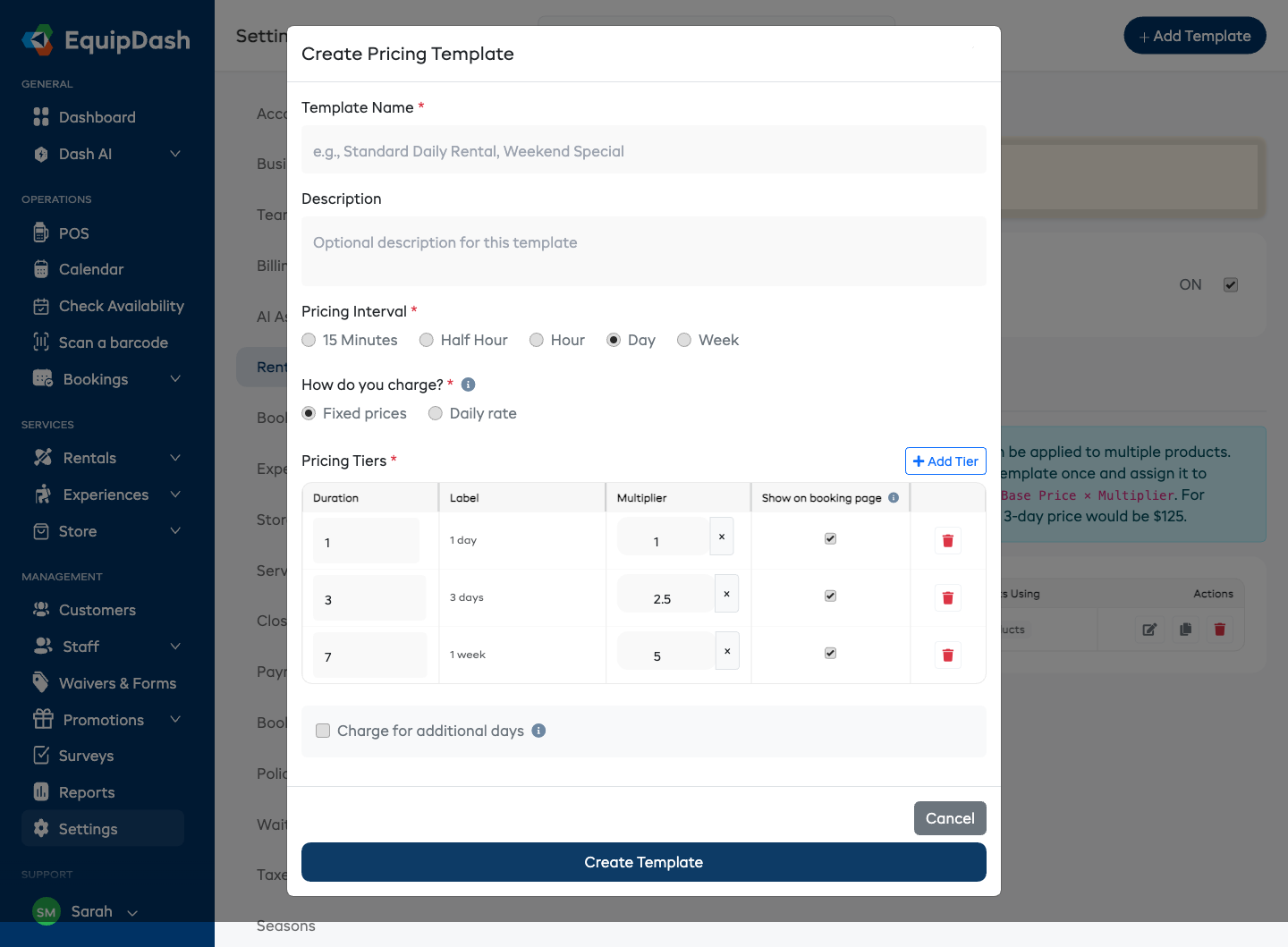
- Fill in the template details:
- Template Name -- A descriptive name (e.g., "Standard Daily Rate" or "Water Sports Hourly").
- Description -- Optional notes about when to use this template.
- Pricing Interval -- The base time unit for pricing tiers (15 Minutes, Half Hour, Hour, Day, or Week).
- How do you charge? -- Fixed prices (the default) means each tier is the total for that duration. Daily rate means each tier is the price per day from that duration on — the customer pays the rate times the number of days, and longer rentals automatically get the cheaper rate. With Daily rate there is no "charge for additional periods" option; the last tier's rate covers any length.
- Prices in this template -- Exact prices (the default) means you type the real prices and every product using the template charges exactly those amounts — applying the template to a product takes one click, with nothing else to set up. Multiplier of each product's base price means each tier scales a base price you enter on every product, so one template can produce different price levels across products.
- Pricing Tiers -- One row per price break. With Exact prices and Daily rate, a row reads "From 3 days → $26.00 per day". With multipliers, the tier value is multiplied by the product's base price (e.g., a 3-day tier at 2.5x with a $50 base price = $125).
- Half-day price -- For Day-based Daily rate templates, tick Half-day price, set Half-day length (how many hours a half day covers — defaults to 12), and enter a flat price for rentals up to that length, shown as "Half day" on the booking page.
- Show on booking page -- Each tier row has a checkbox controlling whether it appears in the price-schedule table on the customer booking widget. Leave the popular tiers checked and uncheck the rest to keep the customer view tidy. This is display only — hidden tiers are still bookable and priced normally, and the widget shows a View full price schedule link to expand the complete list. Because tiers live on the template, this choice applies to every product using it.
- Click + Add Row to add additional tiers.
- Click Create Template.
Applying a Template to a Product
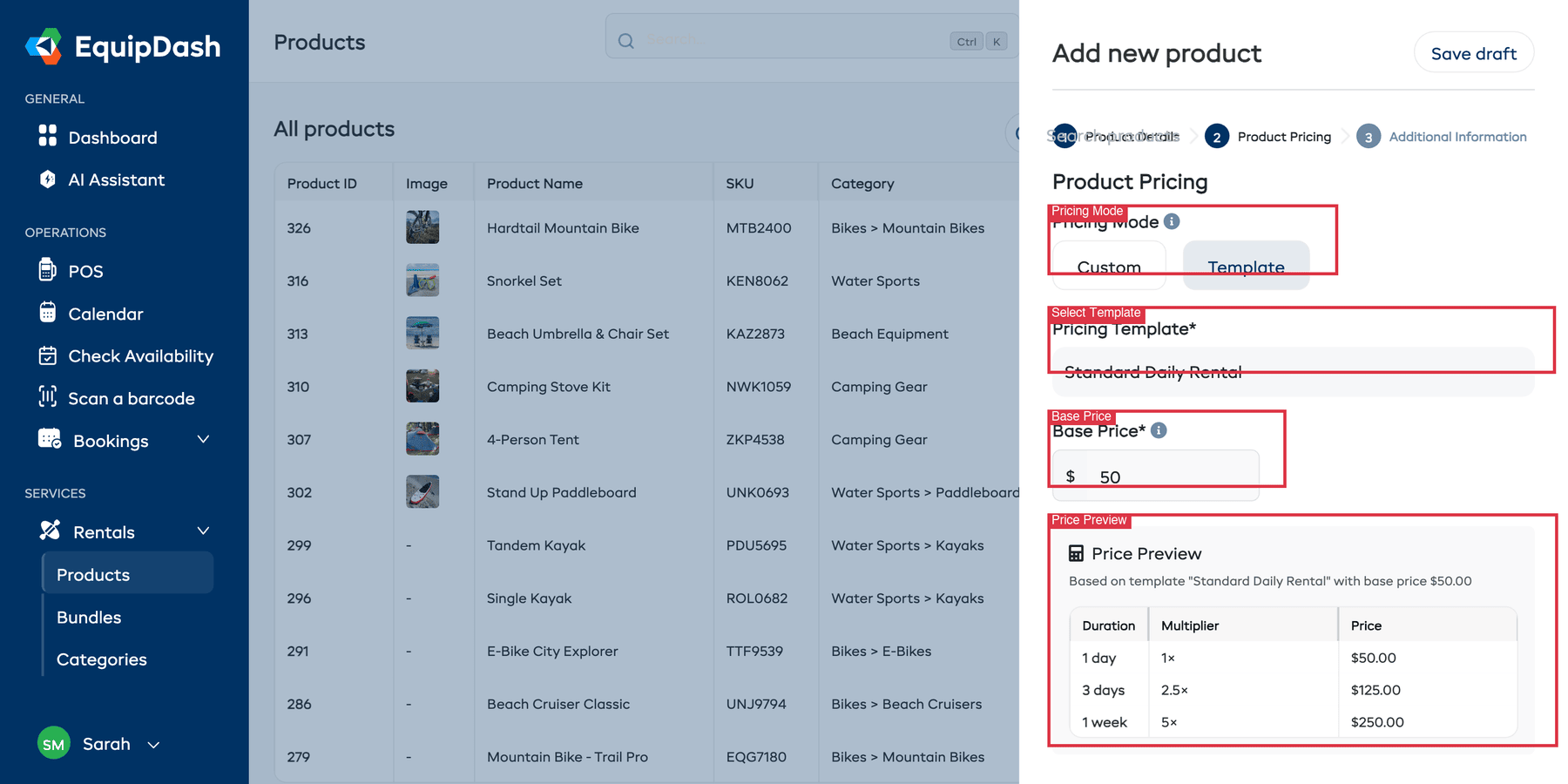
Once you have at least one pricing template, a Pricing Mode toggle appears on the product pricing step:
- Go to Rentals > Products and create or edit a product.
- In Step 2: Product Pricing, set Pricing Mode to Template.
- Select a template from the Pricing Template dropdown.
- For an exact-price template, that's it — the price preview shows the template's price list and there is nothing else to enter. For a multiplier template, enter a Base Price; the preview shows each tier calculated from it.
- Save the product.
How It Works
An exact-price template carries the real price list, so every product using it charges the same amounts — perfect for one template per category (e.g. "Trekking Bikes": 1 day $28/day, 3+ days $26/day, 6+ days $22/day, Half day $21).
A multiplier template defines only the structure (duration tiers and multipliers), while the base price you set on each product controls the actual dollar amounts. For example, if a template has a 3-day tier with a 2.5x multiplier:
- A product with a $50 base price would cost $125 for 3 days.
- A product with a $80 base price would cost $200 for 3 days.
Different templates by season
Templates aren't limited to year-round pricing. On the product's pricing step, set Applies to Seasonal while using a template, and you can point each season at its own template and base price — for example a higher-priced template in your peak season and a quieter one off-season, or a weekend template and a weekday one. Pick which seasons the product runs in, then choose a template (and, for multiplier templates, a base price) for each one. A booking that spans more than one season is split by season — each part is billed at its own season's template (so a Saturday-to-Wednesday rental charges the weekend days at your weekend rate and the weekday days at your weekday rate), just like custom seasonal pricing.
If a booking date falls in no season, the product can't be priced for that date — so make sure your seasons cover the whole period you take bookings for. See Seasonal Pricing for how seasons work.
Switch back to Custom pricing mode at any time if you need to set up unique pricing for a specific product. The product will keep its current pricing when you switch modes.
Editing a Template
- Go to Settings > Rental Settings > Pricing Templates.
- Click Edit on the template you want to modify.
- Update the pricing tiers or time unit.
- Click Save.
Changing a template may affect all products that use it. Review which products are linked to the template before making changes.
Deleting a Template
- In the pricing templates list, click Delete on the template.
- Confirm the deletion.
Products that were using the deleted template will retain their current pricing, but they will no longer be linked to a template. You may want to assign a new template or configure pricing manually.
Template vs Manual Pricing
| Template | Manual | |
|---|---|---|
| Setup speed | Fast -- select and apply | Slower -- configure from scratch |
| Consistency | Guaranteed identical pricing | Risk of inconsistencies |
| Bulk updates | Change template, all products update | Must update each product individually |
| Flexibility | Same structure for all linked products | Fully customized per product |
Related Guides
- How Pricing Works -- Overview of the pricing model.
- Product Pricing -- Setting up pricing on individual products.
- Seasonal Pricing -- Adding seasonal rates.