Different Pricing by Variation
Sometimes one variation of a product costs more to rent than the others — a longer ski, a premium model, a larger trailer. Variation pricing lets you set a price for just those variations. Every other variation keeps using the product's normal price.
Turning It On
- Open the product and go to the Pricing tab.
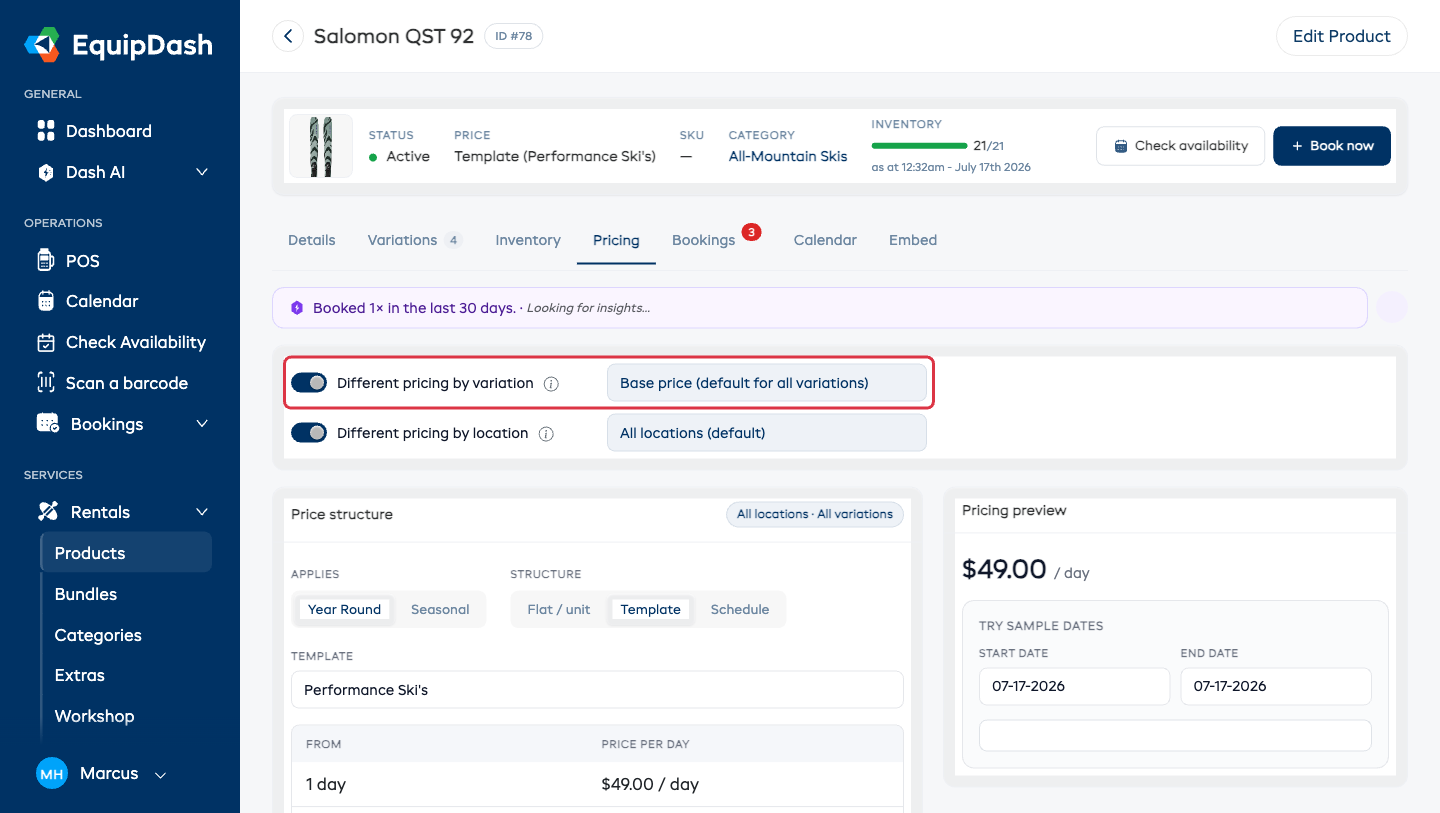
- Turn on Different pricing by variation at the top. (The switch only appears on products that have variations.)
- A dropdown appears next to the switch, listing Base price (default for all variations) and each of your variations. Each variation is tagged Custom or Uses default so you can see at a glance which ones you've priced.
Setting a Custom Price
- Pick a variation from the dropdown. A line appears saying that variation uses the regular price, with that price in brackets.
- Click Set a custom price. The pricing form appears, pre-filled with your regular pricing as a starting point.
- Change the price — everything works exactly like normal pricing: flat rates, schedules, daily rates, seasonal prices, and pricing templates are all available per variation.
- Click Save pricing.
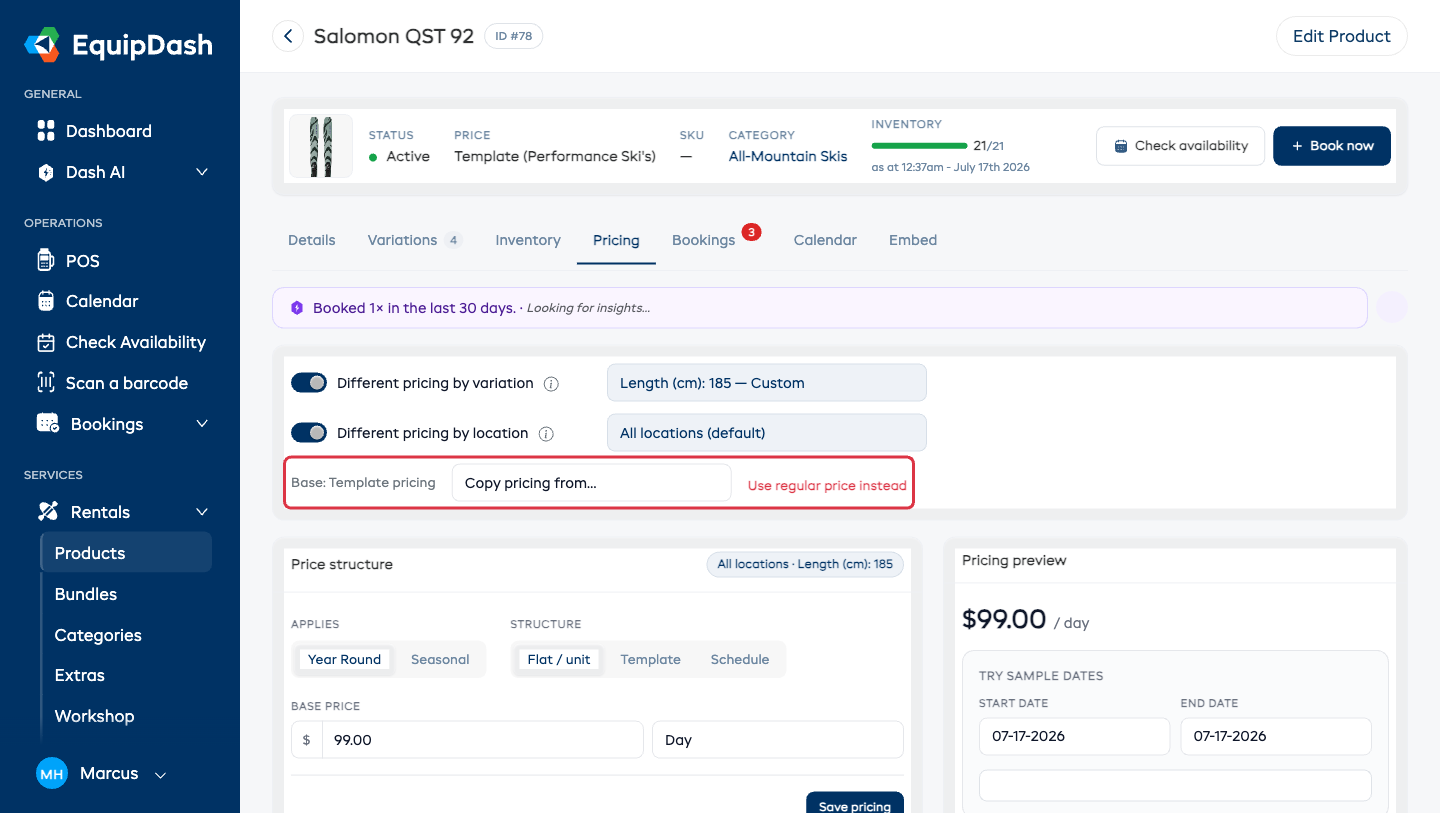
The dropdown now shows a Custom tag next to that variation. The grey chip on the Price structure card always names the variation you're editing, and a small Base: line reminds you what your regular pricing is.
Copying Prices Between Variations
When a variation has a custom price, a Copy pricing from… dropdown appears. Pick Base price or another variation you've already priced to copy its full pricing setup into the one you're editing, then adjust and Save pricing.
What Customers See
- Your booking site shows one headline price at the top.
- Variations that cost more or less show the difference next to their option row (for example +$50.00 or −$20.00), so the customer can see what each choice adds or saves. The cart, checkout, confirmation email, and receipts all charge the full price automatically.
- A short note — Price differs by option selected — sits under the price schedule so nobody is surprised.
- The same price applies everywhere you sell — booking site, point of sale, and the mobile app.
Going Back to the Regular Price
- One variation: select it in the dropdown and click Use regular price instead, then confirm. Its custom pricing is removed.
- The whole product: turn off Different pricing by variation. Every variation immediately charges the regular price again. Your custom prices are kept, so turning the switch back on restores them exactly as they were.
Good to Know
- New variations always start on the regular price — nothing to set up.
- Changing the regular price automatically updates every variation that doesn't have its own price.
- Existing bookings keep the price they were booked at.