Manually Sending SMS From a Booking
The Booking Detail page has a Text actions section — one-click resends of the most common booking SMS, sent to the booking customer's phone number.
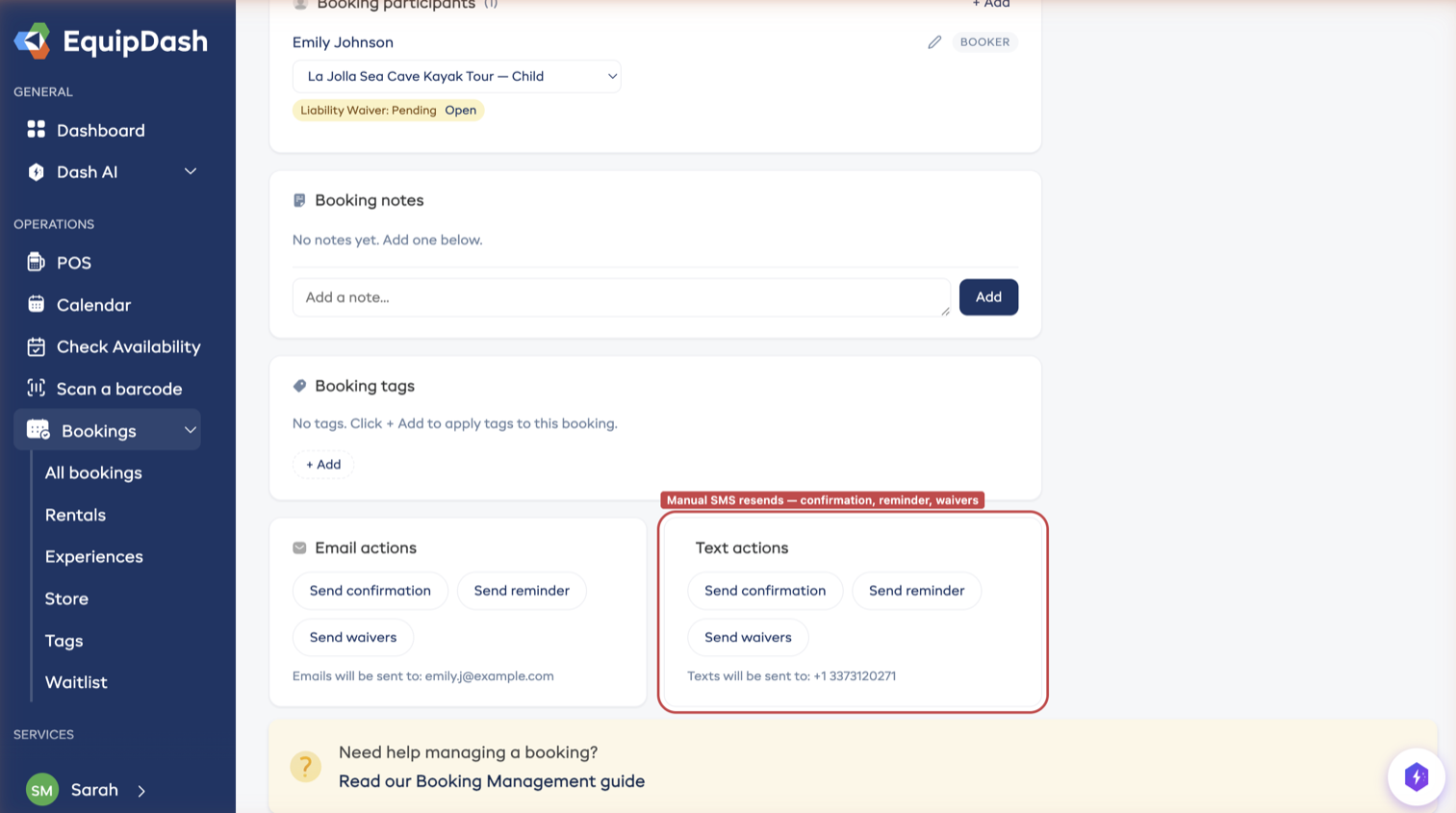
Those buttons send your saved wording for each event. To text somebody something in your own words, use Send a message on the booking's Messages tab - see Writing the customer yourself.
Available Actions
| Button | Sends |
|---|---|
| Send confirmation | The New Booking customer template |
| Send reminder | The Upcoming Booking customer template |
| Send cancellation | (only on cancelled bookings) The Cancelled Booking customer template |
| Send waivers | (only when the booking has incomplete waivers) The Form Request customer template, with a fresh waiver link |
The body uses your customized customer-side templates from Settings → SMS → Templates.
How It Works
- Open the booking detail page (e.g. Bookings → click any booking)
- Scroll to the Text actions card on the right side, alongside Email actions
- Click the action you want to resend
- The SMS sends immediately to the phone number shown below the buttons
You'll see a green toast ("SMS sent to +1 555…") when delivery is queued, or a red toast if something blocked the send.
What Stops a Send
| Block reason | What you'll see |
|---|---|
| Customer has no phone number on file | "Customer has no phone number" hint replaces the recipient line |
| Customer has replied STOP to a previous SMS | "Customer has opted out of SMS" hint replaces the recipient line — buttons still show but the send will toast an opt-out error |
| SMS provider not enabled (managed mode disabled, BYO disconnected) | Buttons render but toast: "SMS isn't enabled for this account" |
| Wallet balance too low to cover the destination cost | Toast: "SMS wallet has insufficient balance — top up under Billing → SMS credits" |
| Phone number can't be normalised to E.164 | Toast: "Couldn't normalise the customer's phone number — please update it on the customer record" |
In every case, the email path is unaffected — clicking Send confirmation under Email actions still works even if the SMS path is blocked.
Manual Sends vs. Automatic Notifications
Manual button clicks bypass the per-event toggle in Settings → SMS → Notifications. The reasoning: you explicitly clicked the button — that's the consent. So you can resend a confirmation SMS to a customer even if you haven't enabled the New Booking customer toggle in your default settings.
This is useful when:
- A customer says "I never got my booking confirmation" — click Send confirmation to resend it as both email and SMS
- A customer is running late for pickup — click Send reminder to nudge them
- A waiver request is sitting unread — click Send waivers to follow up via SMS
All other safeguards (opt-out, wallet balance, phone validity) still apply.
Wallet Costs
Manual sends draw from your prepaid wallet at the same per-country rate as automated sends. Each click is one message; the cost varies by destination country (e.g. ~$0.02 for US, ~$0.07 for UK).
Manual sends appear in the delivery log the same way automatic sends do — with initiated_by: User and the admin user's name attached so you can audit who sent what.