Customizing SMS Templates
Each booking event has a default SMS body that you can replace with your own copy. The Message wording section, on the Texts tab in Settings → SMS, lets you edit the bodies for every event in one place.
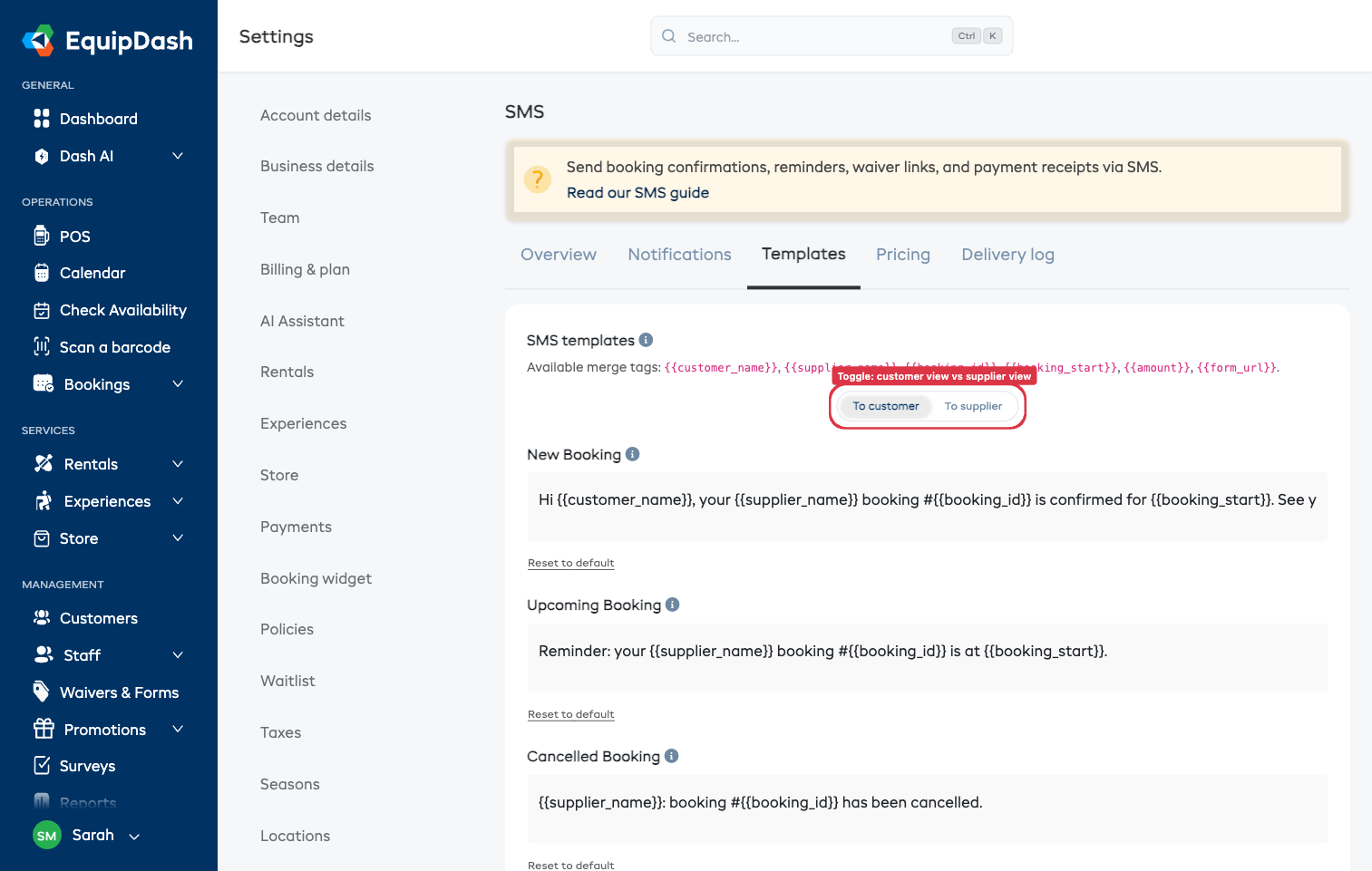
The Customer / Me Toggle
At the top of the Message wording editor is a toggle:
- To customer — the message your booking customers see
- To me — the message you and your admin team see (only for events that send to admins, like New Booking and Form Response)
Pick a side, edit the templates, switch sides, edit those. Each message saves automatically as you go — you'll see a Saved confirmation in the corner.
Some events appear on only one side. For example:
- Form Request only has a customer template — the supplier doesn't need an SMS reminding them they sent a waiver.
- Form Response only has a supplier template — the customer already gets a "thanks, we got your waiver" email.
Switching sides hides events that don't apply to the other recipient.
How to Edit
- Go to Settings → SMS and stay on the Texts tab
- Scroll to Message wording and pick To customer or To me at the top
- Edit the body of any event you want to change
Each message you edit saves automatically — you'll see a Saved confirmation in the corner. To revert one event's body back to the default, click Reset to default under that event's text box. Other events stay as you customized them.
The default texts use the words your shop uses. If you call your pickup time a start time, the default reminder says "start". A default you have not edited keeps following your words when you change them. A text you have edited stays exactly as you wrote it.
Merge Tags
Use these placeholders inside template bodies — they're replaced with real data when the SMS sends:
| Tag | What it expands to |
|---|---|
{{customer_name}} | Customer's first name (or "there" if missing) |
{{supplier_name}} | Your business name |
{{booking_id}} | Public booking reference |
{{booking_start}} | Booking start time, e.g. "4:00pm 6 May 2026" |
{{pickup_time}} | Rental pickup time |
{{return_time}} | Rental return end time |
{{amount}} | Currency-formatted dollar amount |
{{form_url}} | Shortened waiver / form link |
{{booking_url}} | Secure self-service link — the customer can view, reschedule, extend, or cancel their booking with no login |
{{extend_url}} | Direct link to extend an active rental (used by the Send extension option text) |
Add {{booking_url}} to your New Booking and Upcoming Booking customer templates to give customers one-tap self-service — it isn't in the default copy. If you reference a tag that doesn't apply to the event (e.g. {{form_url}} in the New Booking template), the placeholder is silently stripped at send time so the customer never sees {{...}} literally.
Length & Cost
SMS bodies cost per segment:
- 160 characters for plain text (GSM-7 alphabet)
- 70 characters if any character forces Unicode encoding (emoji, smart quotes, accented letters)
Long bodies cost more — a 600-character message is 4 segments, billed at 4× the per-message rate. Keep customer-facing templates under 160 characters where possible to stay at 1 segment.
The editor warns you when a body would exceed 1 segment so you can shorten it before saving.
"Reply STOP to unsubscribe"
Customer-facing templates automatically have "Reply STOP to unsubscribe" appended if it's not already in the body. This is required for compliance with US carrier rules (A2P 10DLC) and best practice everywhere else.
You don't need to add it yourself — but if you do, we won't add it twice. Use your own wording (e.g. "Reply STOP to opt out") if you prefer; we only auto-append when the word "STOP" is missing entirely.
Supplier-side templates don't get the STOP footer (operators opt in per-user, no regulatory unsubscribe requirement).
Tips
- Front-load the important info. Customers see the first ~50 characters in the lock-screen preview. Get the booking ID and time there.
- Cut emojis from customer SMS unless your brand depends on them. A single emoji forces Unicode encoding → 70-character segment limit → easy to overflow into 2 segments.
- Personalize with
{{customer_name}}— it's a 2-character cost (since names average ~6 chars vs. "there" at 5) for a noticeable boost in open-action rates. - Test by sending to your own number — use the Send confirmation button on a booking detail.