Let Staff Set Their Own Availability Growth+This feature requires the Growth+ plan or higher
Every staff member has their own link. They open it on their phone, with no login, and tell you the hours they can work each week, answer for specific dates you ask about, and ask for days off. You see their answers on their Schedule tab.
Weekly hours and date answers apply as soon as they save. Days off wait for you to approve them.
Send one person their link
- Click Staff in the left sidebar and open the staff member.
- Go to the Schedule tab.
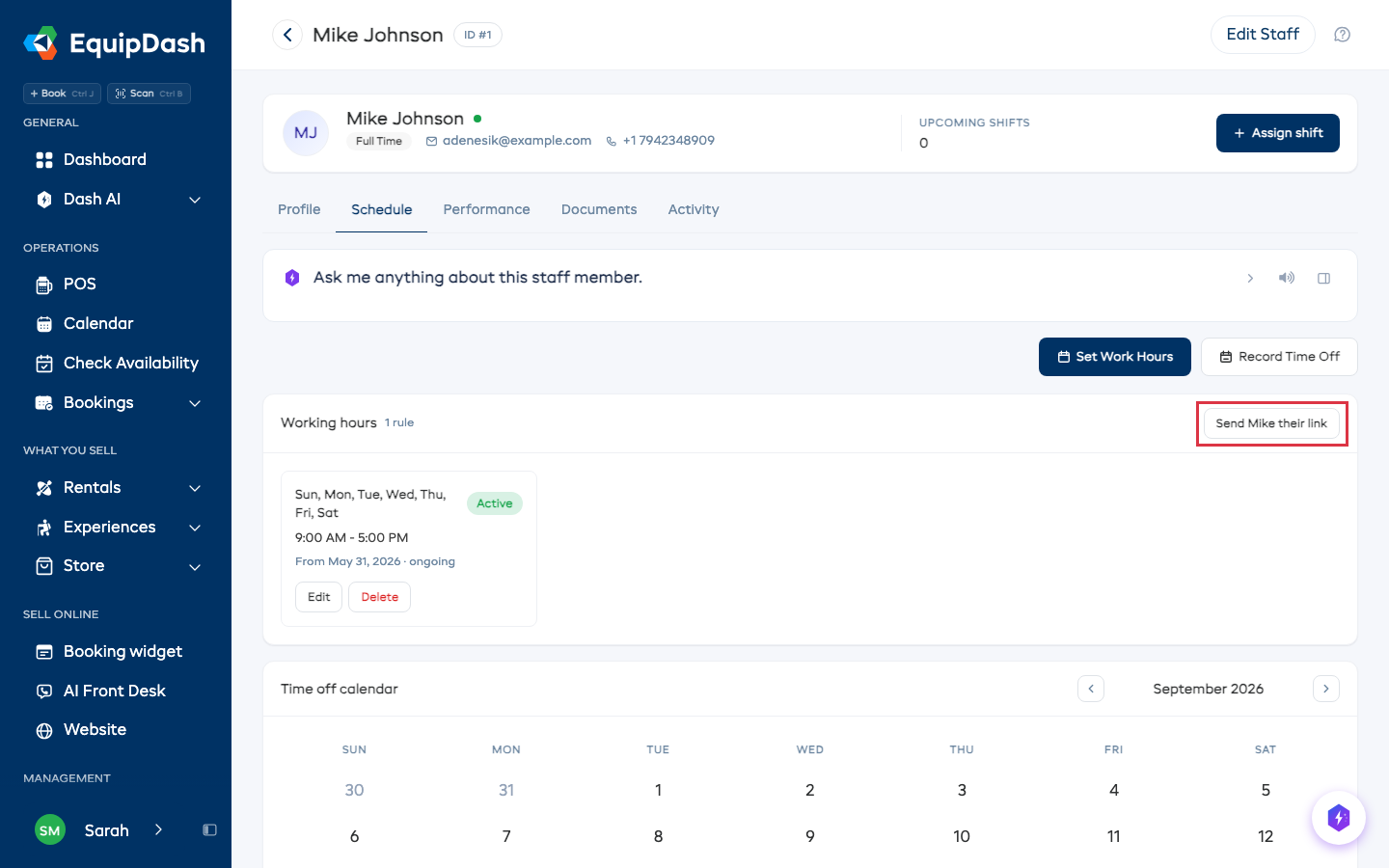
- In the Working hours card, click Send (name) their link.
- Tick Email, Text, or both. Text is only offered when your business has texting set up and the staff member has a phone number.
- Click Send. They get an email with a Set my availability button.
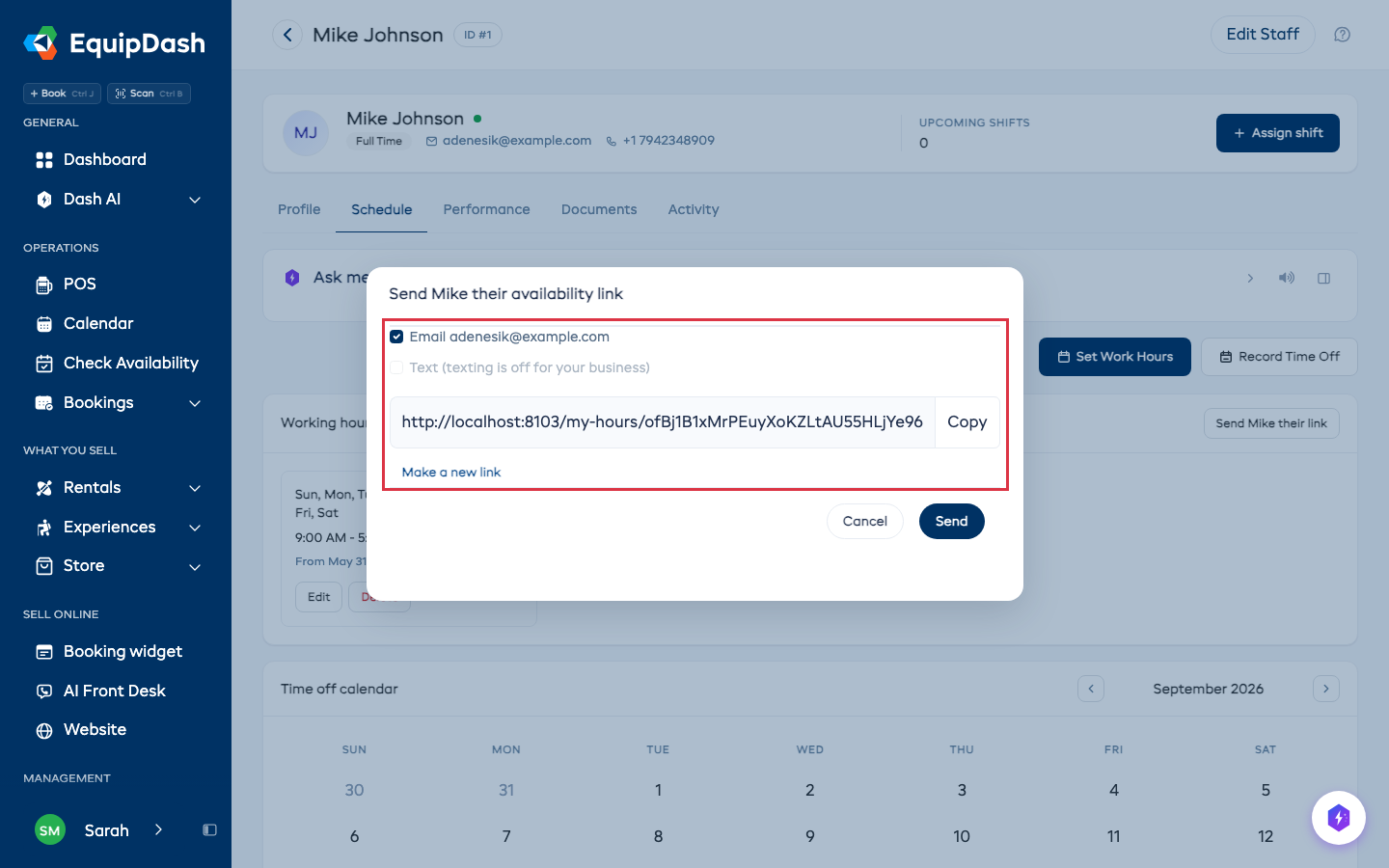
To share the link some other way, click Copy and paste it into a message.
The link stays the same until you change it, so staff can bookmark it. If a link ends up with the wrong person, click Make a new link, then Make new link to confirm. The old one stops working at once and shows "This link no longer works."
Ask everyone at once
Useful at the start of a season, or when you're building next month's roster.
- Click Staff in the left sidebar.
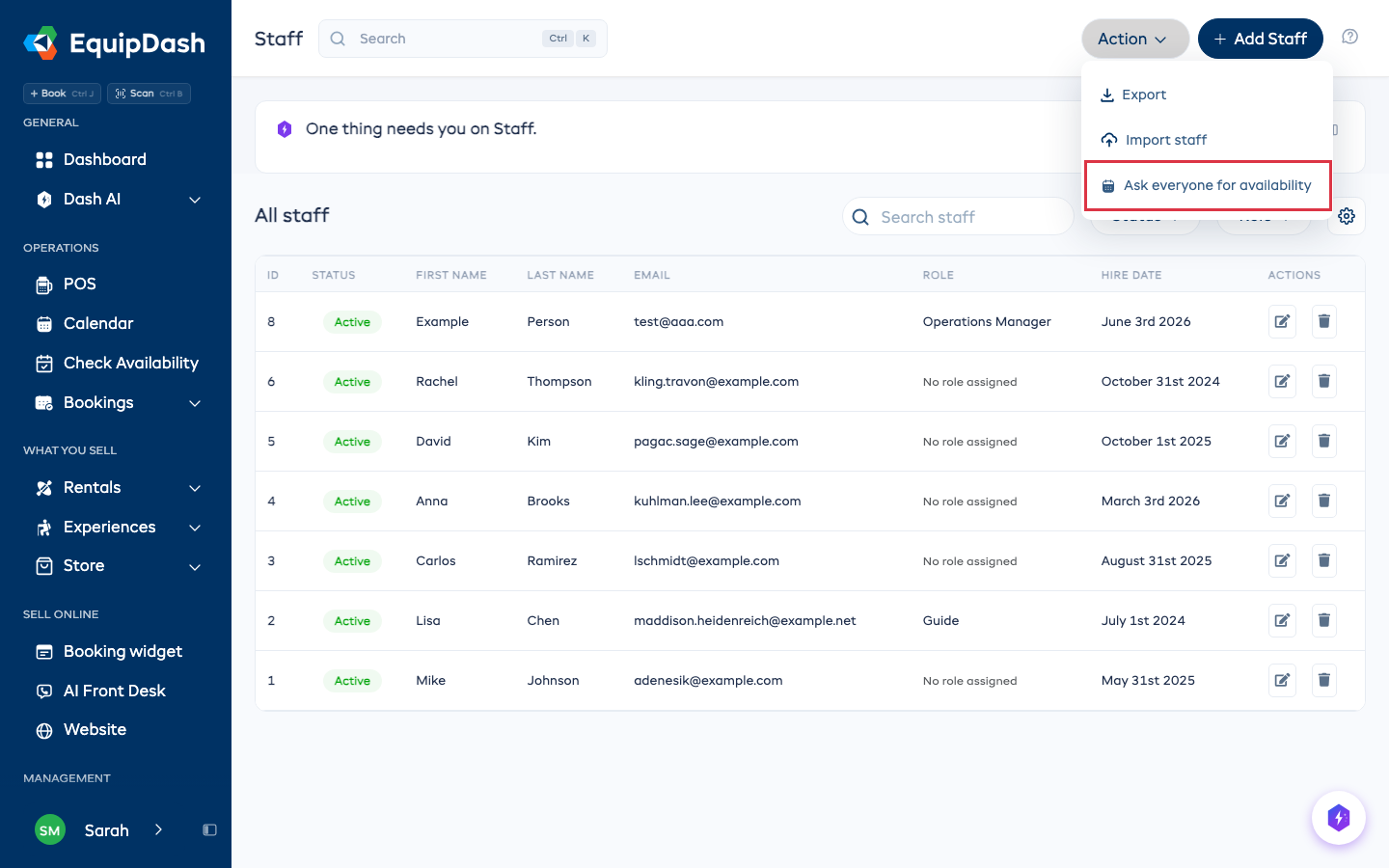
- Click Action, then Ask everyone for availability.
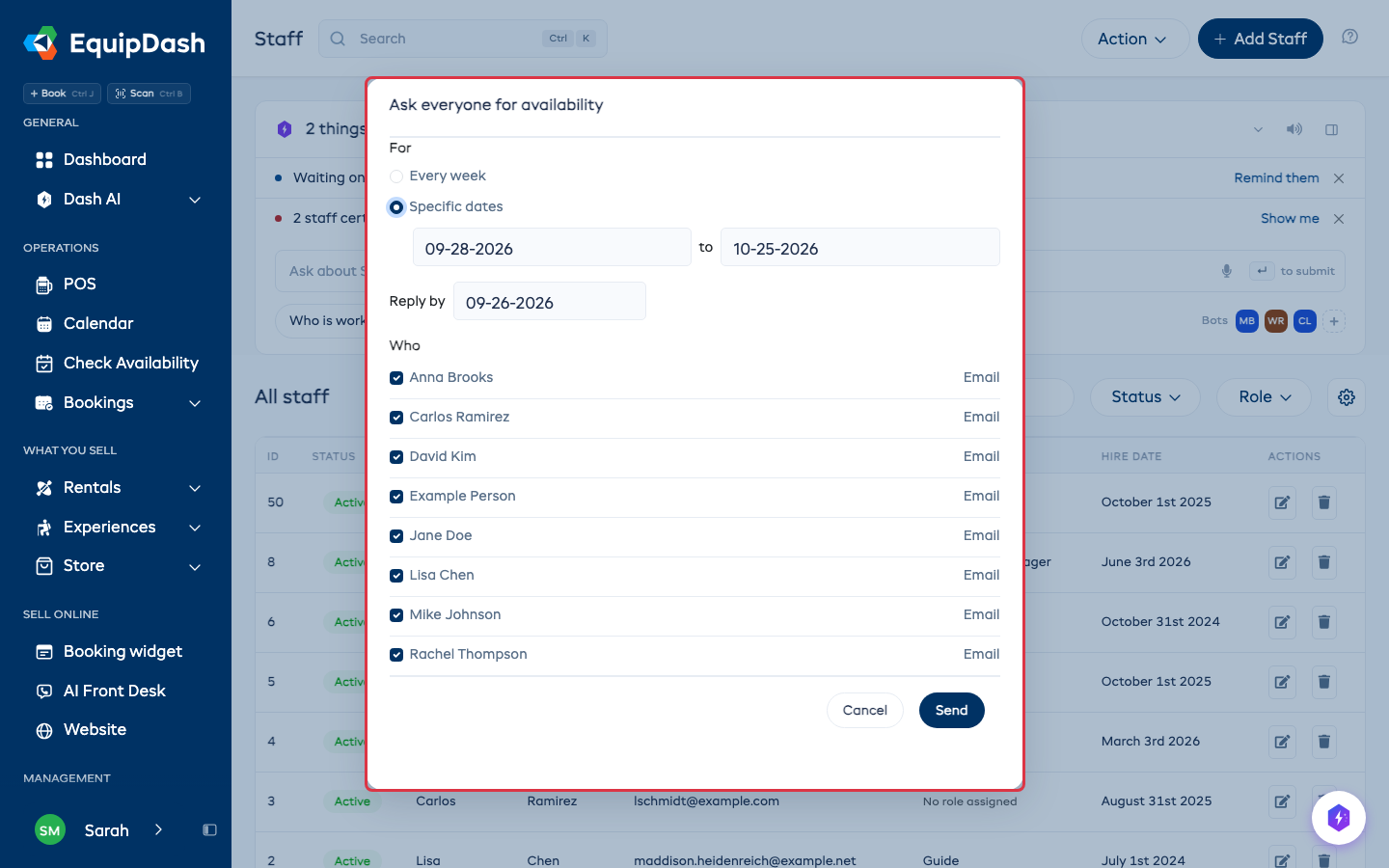
- Under For, choose:
- Every week to ask for their usual weekly hours, or
- Specific dates, then pick the first and last date from the calendar. You can ask for up to three months at a time.
- Optionally pick a Reply by date. Anyone who hasn't answered by the day before gets one reminder, the same way you sent the link (email, text or both).
- Under Who, untick anyone you don't want to ask. Each name shows whether they'll get an email, a text or both. Someone with no email or phone can't be reached, so add one on their Profile tab first.
- Click Send.
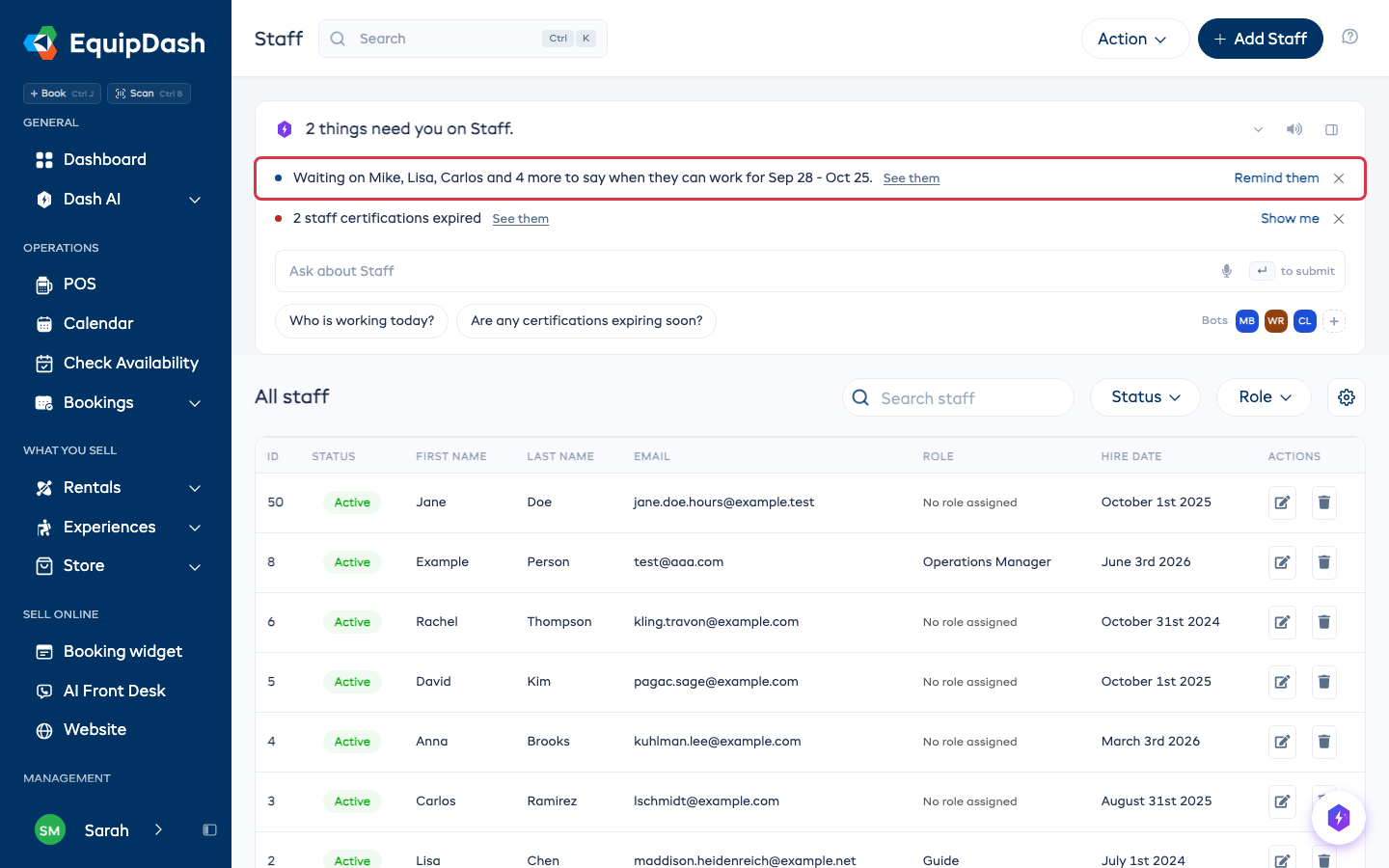
The Dash card at the top of the Staff page then says who you're still waiting on. Click Remind them to send those people their link again. The line goes away once everyone has answered.
What your staff see
The link opens a page with your business name at the top and a hello with their first name. There is no menu and no way into the rest of EquipDash.
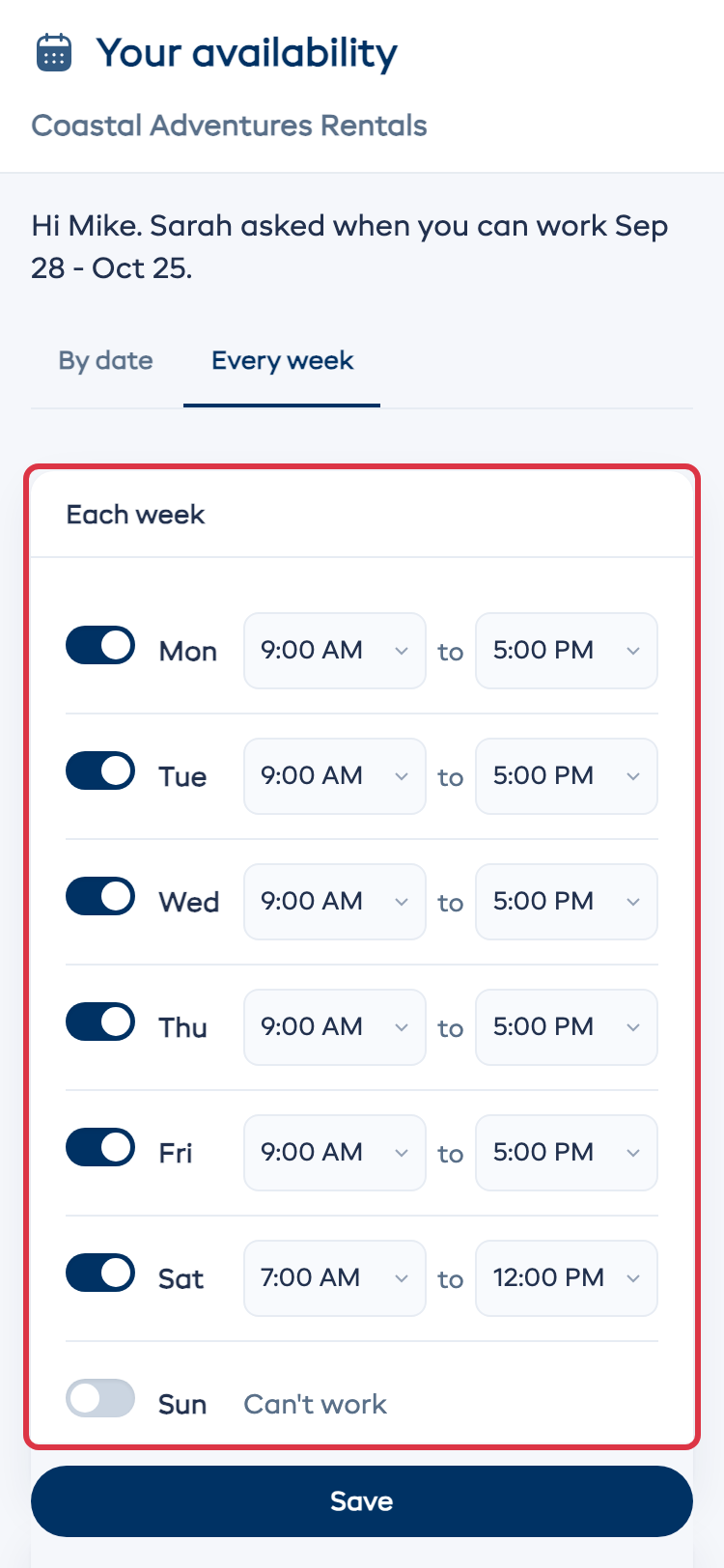
Every week
One row per day. They switch off the days they can't work, set a start and end time for the rest, and tap Save. A day that runs late can end at Midnight. Their new hours replace the old ones from today.
By date
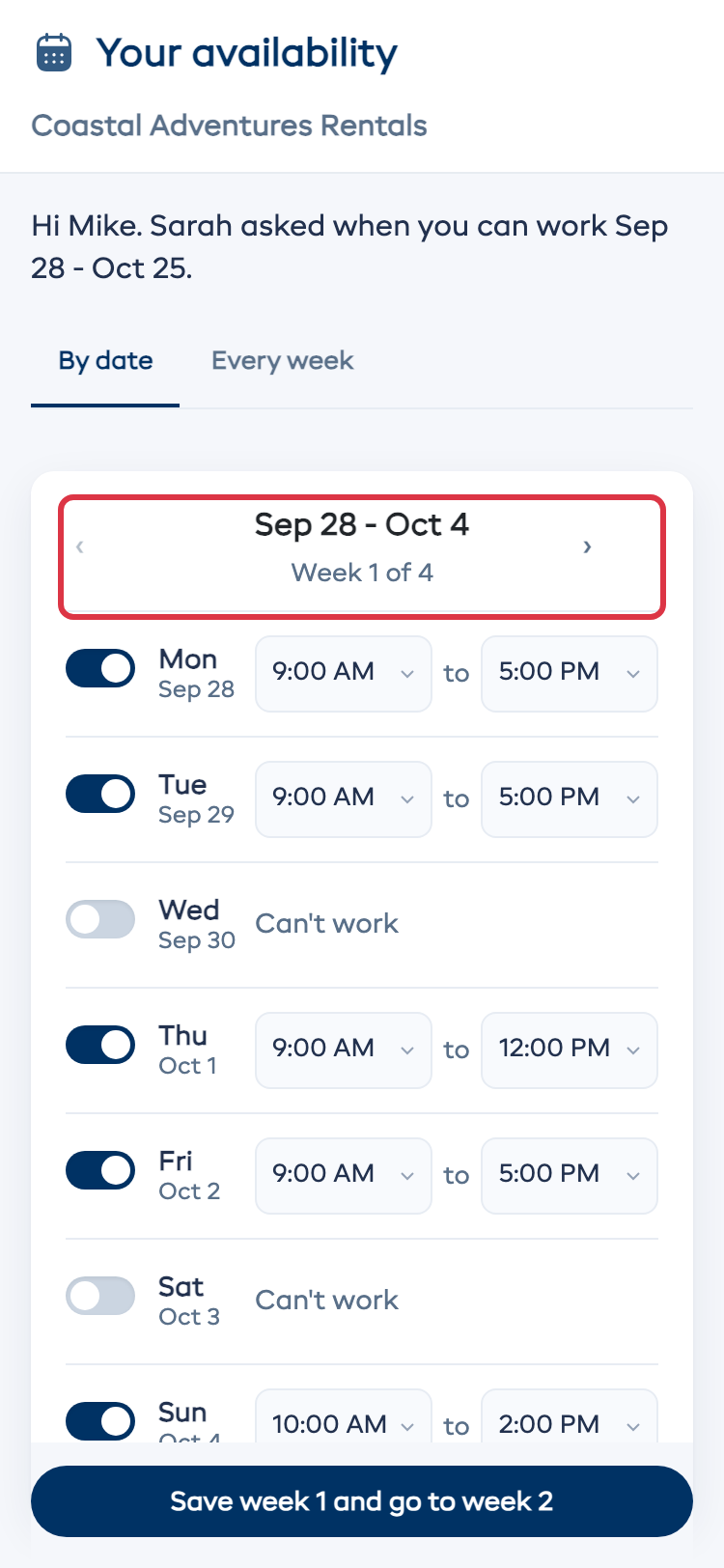
When you ask for specific dates, the page opens on By date, one week at a time. They switch off any day they can't work, change the times on the others, and tap Save week 1 and go to week 2 until they reach the last week. The arrows beside the dates move between weeks, and anything they changed is saved when they move.
An answer for a date counts instead of their usual hours for that day. Dates they haven't answered start from their usual week.
Days you can't work
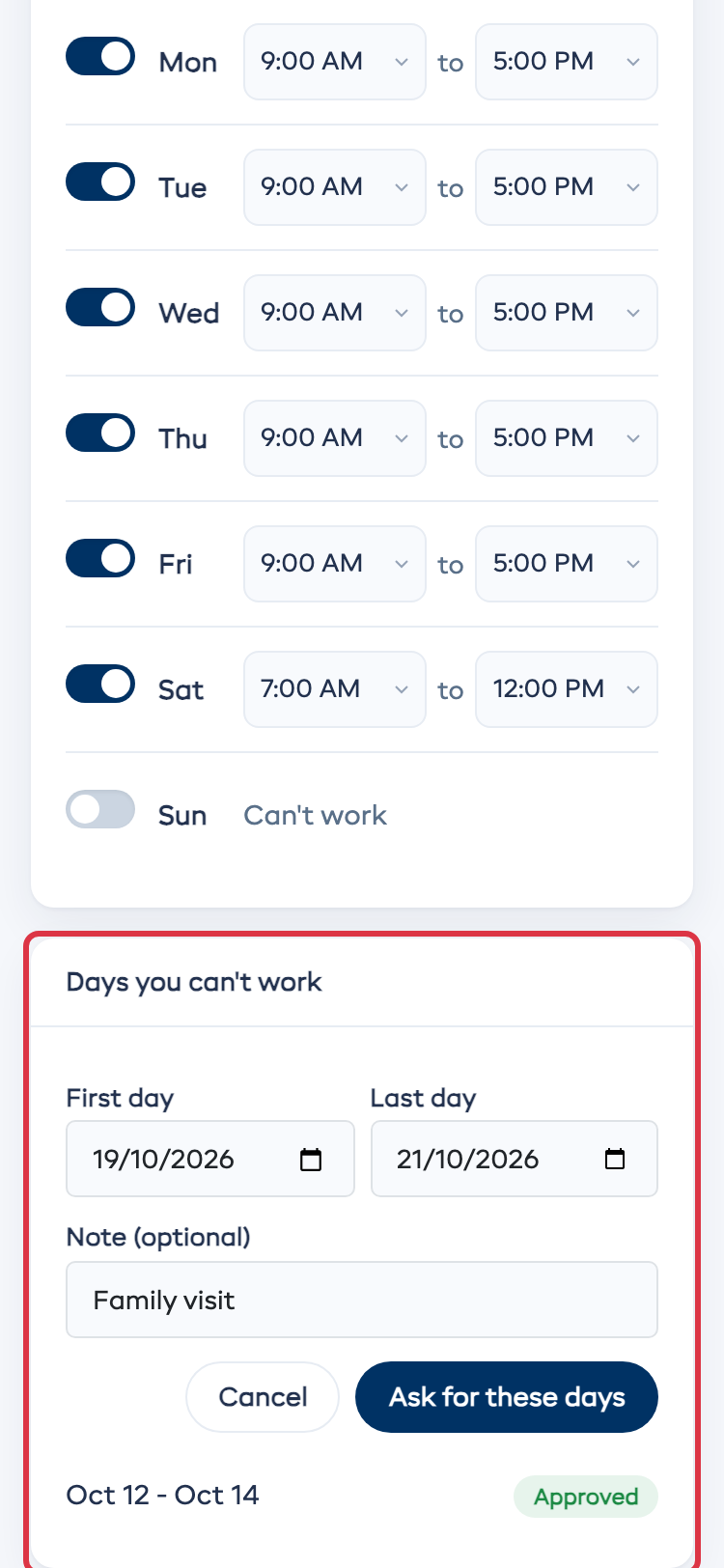
For time off, they tap + Add days, pick the First day and Last day, add a note if they like, and tap Ask for these days. The request shows Waiting for OK until you decide. They can cancel it while it's waiting, and they get an email once you approve or decline it.
See what they told you
Open the staff member's Schedule tab:
- Working hours shows Set by (name) and the date they saved. Their earlier hours are under Show past hours.
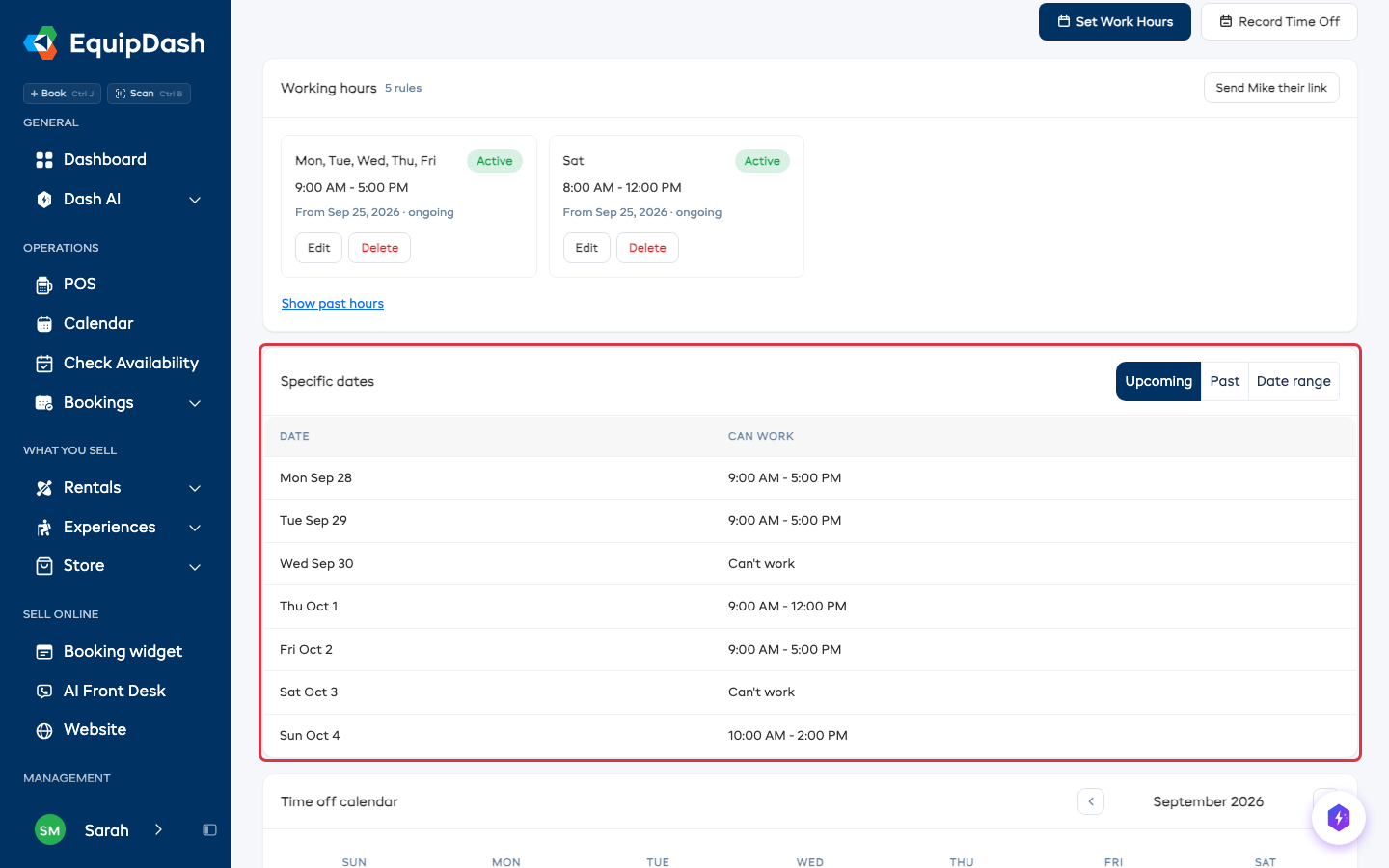
- Specific dates lists each date they answered, with their hours or Can't work. It opens on Upcoming. Click Past for dates that have gone, or Date range and pick a From and To date to see just those days.
Approve or decline days off
A day off asked for from the link lands in Time off entries on the staff member's Schedule tab, marked Waiting for your OK.
- Open the staff member's Schedule tab.
- Find the request in Time off entries.
- Click Approve or Decline.
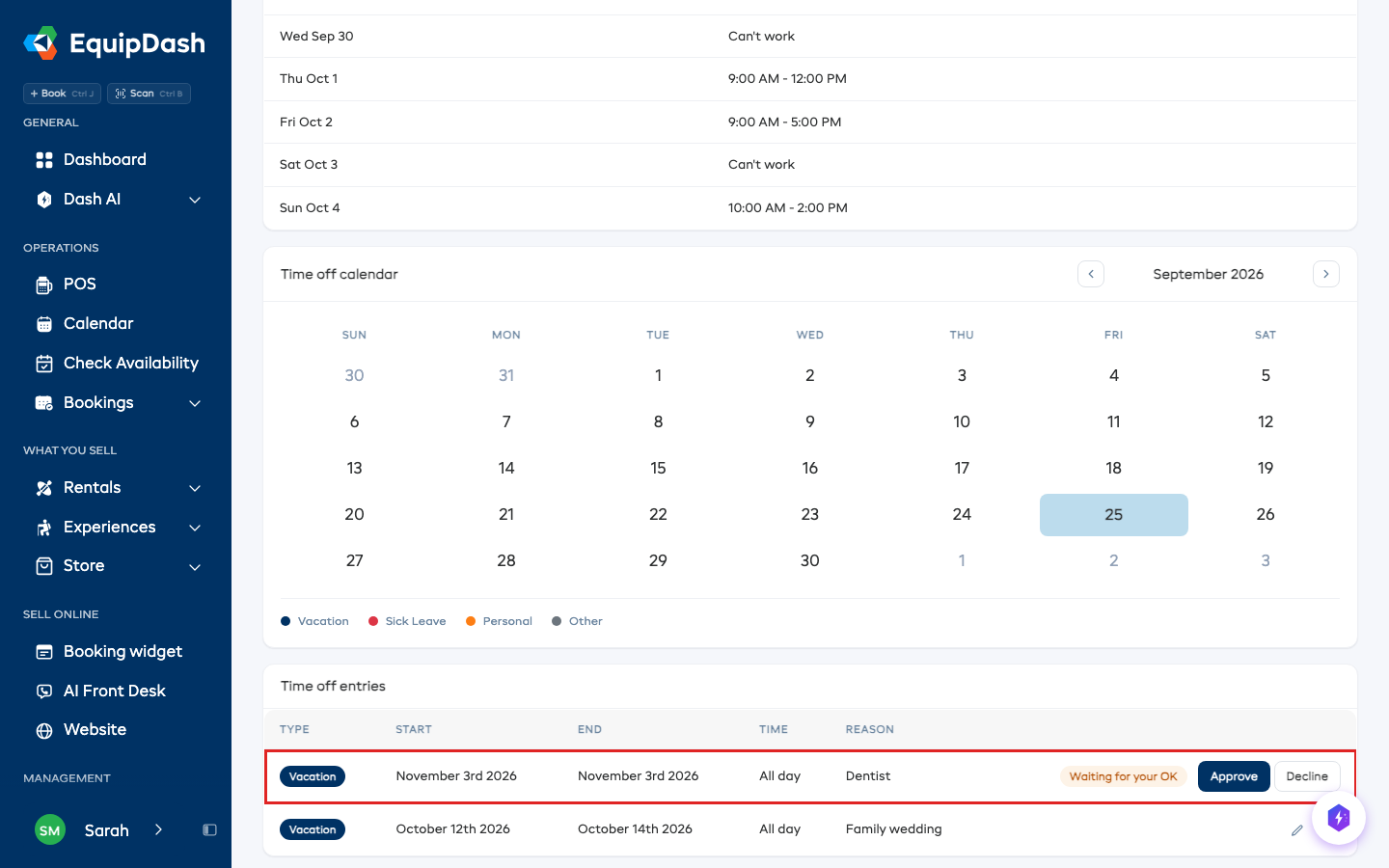
Only people on your team who can manage staff get the email about a new request. The staff member gets an email either way once you decide. Approved days show on the Time off calendar, and the guide picker shows that person as blocked on those days. See Managing Time Off.
On the phone app
You can see and change anyone's hours from the EquipDash app too.
- Tap More, then Staff Hours.
- Tap a name to see their weekly hours and the dates they answered.
- Change their week and tap Save.
Days off waiting for your OK are under More, then Time off. Staff who use the app can set their own hours under More, then My Hours.
Picking guides
In the guide picker on an experience session, anyone outside the hours they gave you is listed after the others with the reason Outside their hours. It's only a warning, so you can still pick them. See Auto-Suggest Guide Picker.
Tips
- Staff with no usual week. If you only ever ask for specific dates, every date starts switched on and they turn off the days they can't do.
- Every day switched off. If someone saves a week with no days on, the shift form warns that they can't work any day right now.
- Dash can ask for you. Try "Ask everyone when they can work from Oct 5 to Oct 18".
- You can still set hours yourself with Set Work Hours. See Setting Availability.