One Signing Link for a Booking
When a booking has more than one person on it, you no longer copy a link each. Copy one link from the booking, send it to whoever is coming, and each person signs their own form from it.
Copying the Link
- Open the booking.
- Scroll to Booking participants.
- Click Copy signing link at the top of the card. It says Copied.
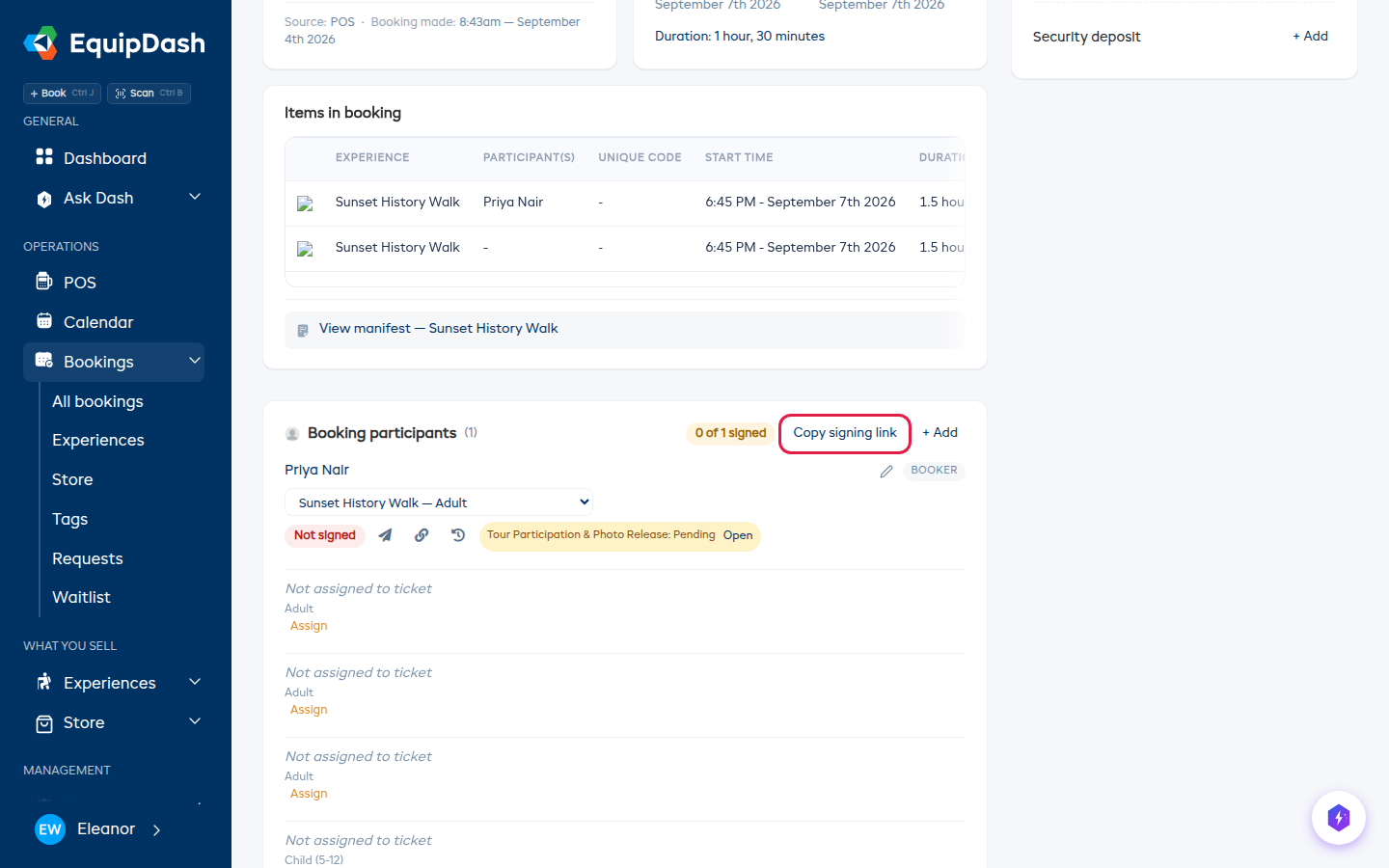
Paste it into a text message, an email, or a chat. You can also open it on the tablet at your counter and hand that over.
The link only appears when something on this booking needs signing, and only for people whose role lets them manage waivers.
What the Customer Sees
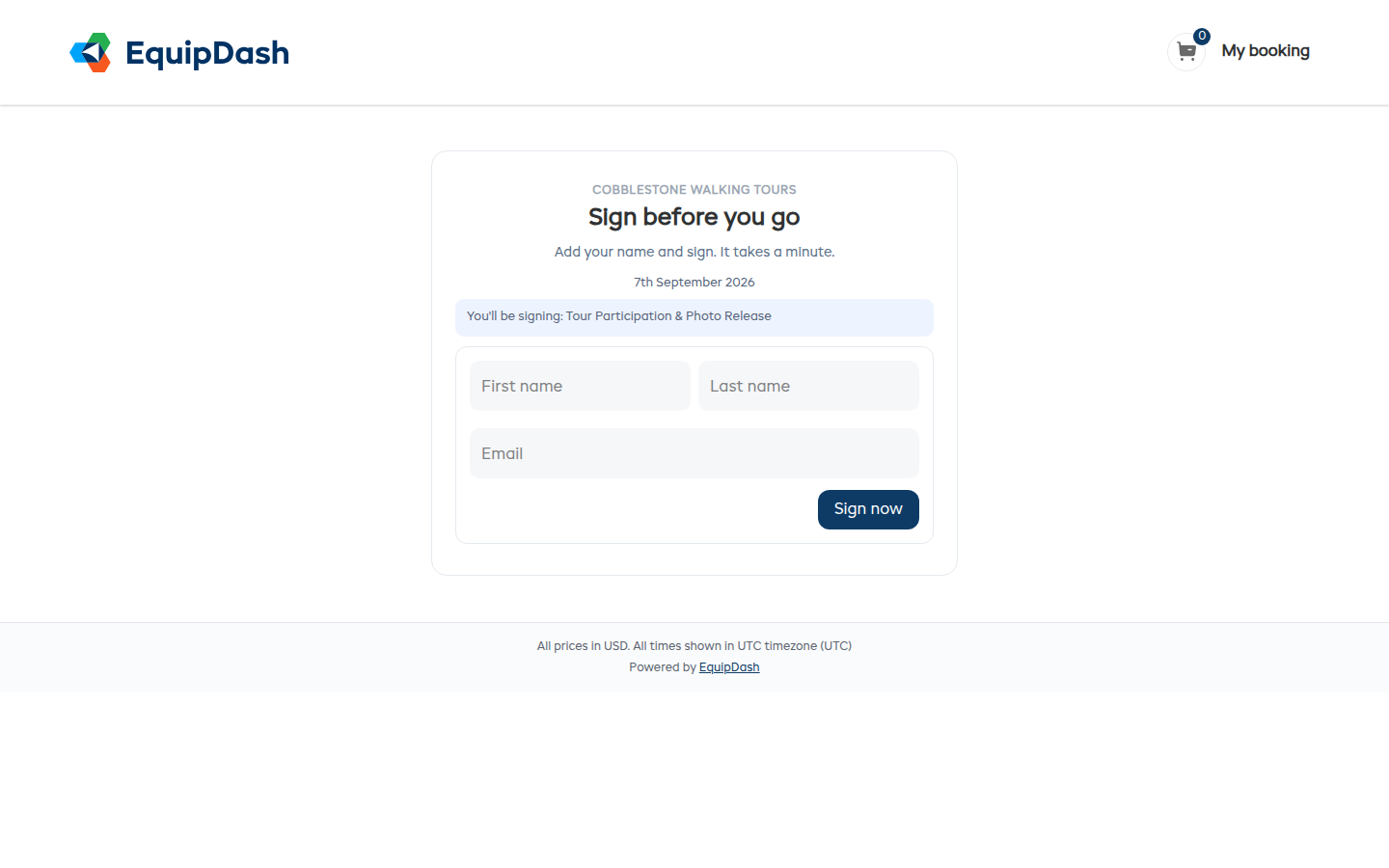
They type their name and email and go straight into the form, with the details you already have filled in. Signing adds them to the booking, so they show up on it like anyone else.
Each person sees only their own part. No list of who else is on the booking, no other names, no count of who has signed. That is the point: you can send one link to a whole school group or a corporate party and nobody sees anybody else.
If they have a second form to sign, they come back to the page and it says so. When they are done it says they are all set.
Passing the Phone Down the Queue
Someone else needs to sign clears the page for the next person, so one tablet at the counter works for a whole group.
Someone Whose Consent Is Already on File
If they have signed the same form recently enough, the page tells them they are all set and asks for nothing.
The Per-Person Links Still Work
Each row in Booking participants keeps its own link icon, and the emails still carry a personal link. Use those when you want to chase one person in particular. Nothing about them has changed.
If an email already belongs to one of your customers, signing matches them to that record rather than adding them twice.
Related
- Chasing Unsigned Consents - reminders that go out on their own
- Sharing Form Links - a link to one form, with no booking behind it