The Category Landing Page
If your business uses more than one booking type — say rentals and experiences, or rentals and a store — your widget now opens on a friendly front door at your main widget link. Instead of dropping customers into one section and hoping they find their way to the others, the landing page gives them a single "Browse by category" view that covers everything you offer.
Customers reach it at your main widget address (for example app.equipdash.com/widget/your-business). From there they pick where to go in one click.
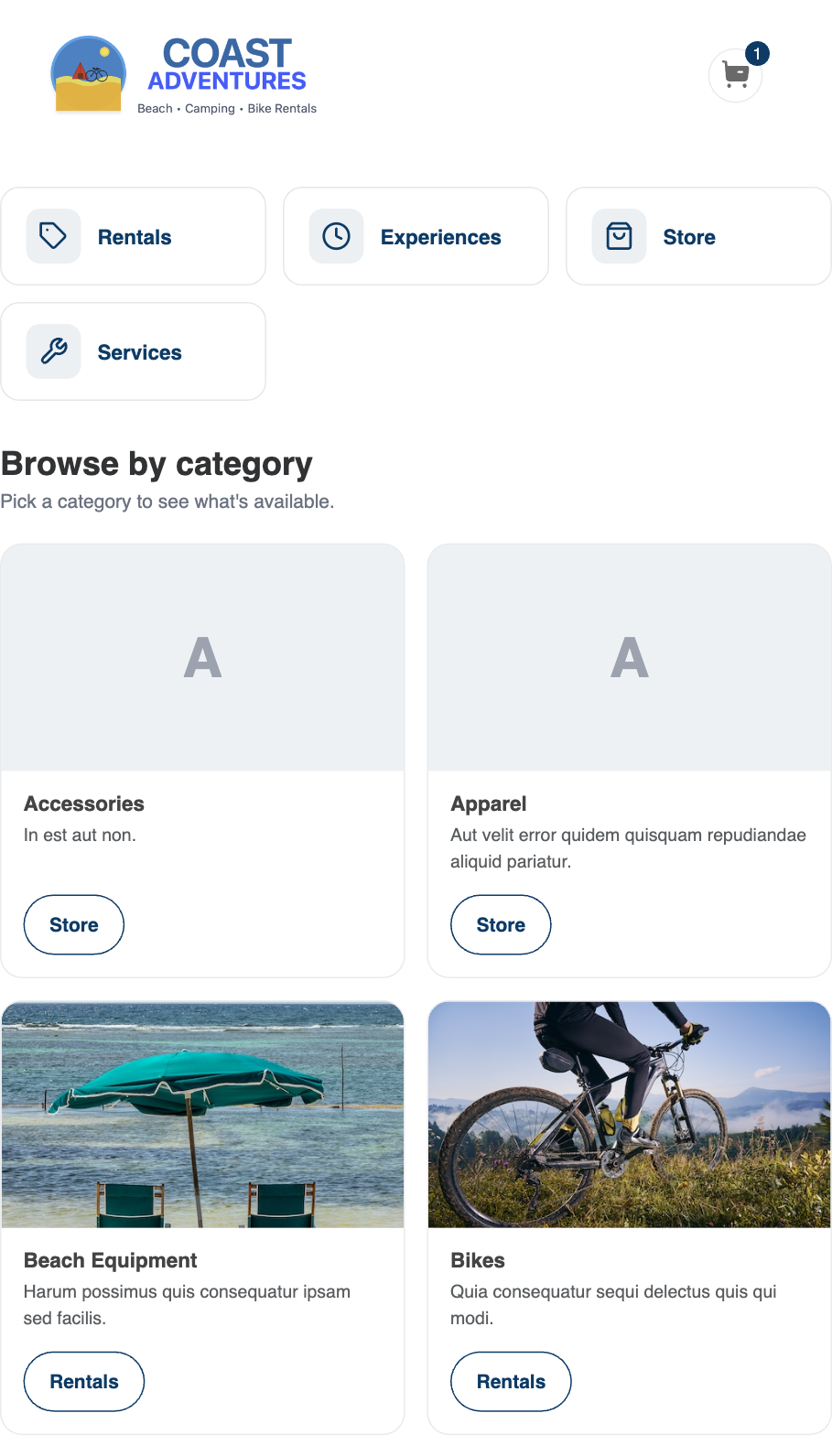
What Customers See
"Browse everything" boxes at the top
A row of clickable boxes sits across the top of the page — one box per section you have turned on that actually has items to show:
- Rentals — jumps straight to your rentals listing.
- Experiences — jumps straight to your experiences listing.
- Store — jumps straight to your store listing.
- Services — jumps straight to your services listing.
- Gift cards — appears if you sell gift cards.
A section only shows a box if it has items, so customers never click into an empty page. This is the quickest path for a customer who already knows "I just want to see your rentals."
Category cards below
Under the browse boxes is a grid of category cards — one per category you've created. Each card shows:
- The category image you uploaded, or
- An automatic collage of photos pulled from the products and experiences in that category if you haven't set a category image, or
- A letter tile as a last resort, only if there are no item photos at all.
This means your landing page looks good out of the box — you don't have to upload a separate image for every category to get an attractive front door.
One button per booking type on each card
Each category card has a button for every booking type that actually has items in that category:
- A Rentals button if there are rentals in the category.
- An Experiences button if there are experiences in the category.
- A Store button if there are store products in the category.
Clicking a button lands the customer on that section's listing, already filtered to the category they chose. So a customer who taps Experiences on your "Water Sports" card goes straight to your Water Sports paddle tours.
Linked categories appear once
If you've linked a category across booking types — for example a single "Water Sports" group covering both rentals and experiences — it shows up as one card with multiple buttons, not a duplicate card per section. Customers see a single, tidy entry and choose which kind of Water Sports they want.
When the Landing Page Is Skipped
The landing page is only useful when there's more than one place to go. If your business has only one booking type enabled — rentals only, for example — there's nothing to choose between, so the widget skips the landing page entirely. Your main widget link goes straight into that one section, exactly as it did before.
You don't configure any of this. It switches on automatically the moment you have a second booking type enabled, and switches off if you go back to one.
The "See all" Link on Listing Pages
Once a customer is inside a section (Rentals, Experiences, or Store), the Category filter in the left sidebar gains a small See all link beside it. Clicking it takes the customer back to the category landing page so they can browse everything again.
This link only appears when you have more than one booking type enabled — the same condition that makes the landing page useful in the first place.
Your Existing Embed Links Still Work
Nothing you've already set up changes. The direct section links — /widget/your-business/rentals, /widget/your-business/experiences, /widget/your-business/store — all behave exactly as before and still drop customers straight into that section. If you've embedded a specific section on a specific page of your website, it keeps working untouched.
The landing page is simply a new, smarter default for your main widget link when you sell across more than one booking type.