Widget for Vouchers
The voucher widget lets your customers purchase gift vouchers directly from your website. Vouchers can be redeemed towards future rental or experience bookings, making them a great option for gifts, corporate rewards, or promotional offers.
Enabling Voucher Sales
Before customers can purchase vouchers through the widget, you need to enable the feature:
- Go to Settings > Booking widget.
- Find the Enable gift card/voucher sales toggle.
- Turn it on. The toggle shows "Enabled" when active.
- Click Update.
Once enabled, a Purchase page URL appears below the toggle. This is your voucher widget link that you can embed on your website or share directly.
Getting the Voucher Widget Link
- Go to Settings > Booking widget.
- Find the Purchase page URL shown below the Enable gift card/voucher sales toggle.
- Copy the link to share or use in a button on your site.
The voucher widget has its own URL, separate from the rentals, experiences, and store widgets. You can embed it on the same page or on a different page — for example, a "Gift Cards" page on your website.
The Customer Experience
The voucher purchase flow is a simple 3-step wizard:
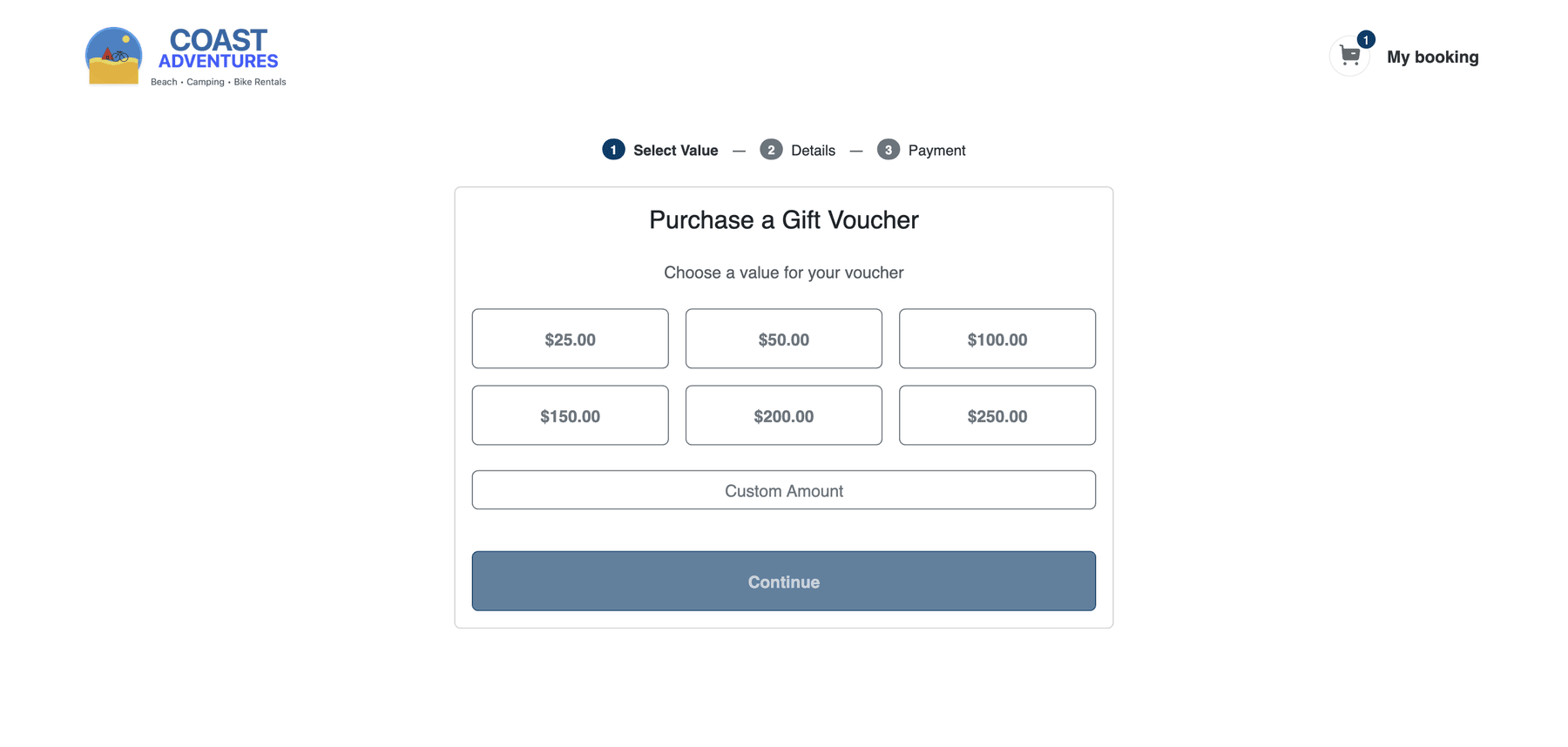
Step 1: Select Value
When a customer opens the voucher widget, they see the Purchase a Gift Voucher page with:
- Preset amount buttons — Clickable cards showing common amounts (e.g., $25.00, $50.00, $100.00, $150.00, $200.00, $250.00).
- Custom Amount — A field where customers can enter any amount they choose.
- A Continue button to proceed.
The customer selects a preset amount or enters a custom amount, then clicks Continue.
Step 2: Details
The customer enters details about the voucher:
- Recipient's name and optionally a personal message
- Their own details (name, email)
Step 3: Payment
If online payments are enabled, the customer completes the payment:
- The voucher amount and any applicable fees are shown.
- The customer enters their payment details via Stripe.
- They confirm the purchase.
Receiving a Voucher
After purchase, the voucher code is delivered via email. The email includes:
- The voucher code (e.g.,
GIFT-ABC123) - The voucher amount
- Any personal message from the purchaser
- Instructions on how to redeem it during booking
Redeeming a Voucher
Customers can redeem their voucher when checking out on the rentals or experiences widget:
- During checkout, the customer finds the promo/voucher code field.
- They enter the voucher code.
- The voucher amount is applied to the booking total.
- If the voucher covers the full amount, no further payment is needed.
- If the booking total exceeds the voucher value, the customer pays the remaining balance.
Partial redemption is supported — if the voucher has remaining balance after a booking, it can be used again on a future booking.
Managing Vouchers in EquipDash
All vouchers purchased through the widget appear in your EquipDash dashboard under Promotions > Vouchers. From there you can:
- View all active, redeemed, and expired vouchers
- Check the remaining balance on any voucher
- See the purchase history and redemption history
- Manually create vouchers for walk-in customers or special promotions
Tips for Promoting Voucher Sales
- Add a "Gift Cards" link to your website navigation menu pointing to the voucher widget
- Feature vouchers seasonally — Promote them around holidays, birthdays, and special occasions
- Offer preset amounts that match your popular booking prices so the voucher covers a full booking
- Mention vouchers in your confirmation emails — Let existing customers know they can buy gift vouchers for friends and family