Widget for Experiences
The experiences widget lets your customers browse your activities and tours, pick a date and time slot, choose how many participants, and book online. This page explains the customer booking flow for experiences and how it connects to your EquipDash account.
Experiences only appear on your widget when the Experiences module is enabled. Disabling the module hides them across the portal and the widget.
The Customer Experience
Browsing Experiences
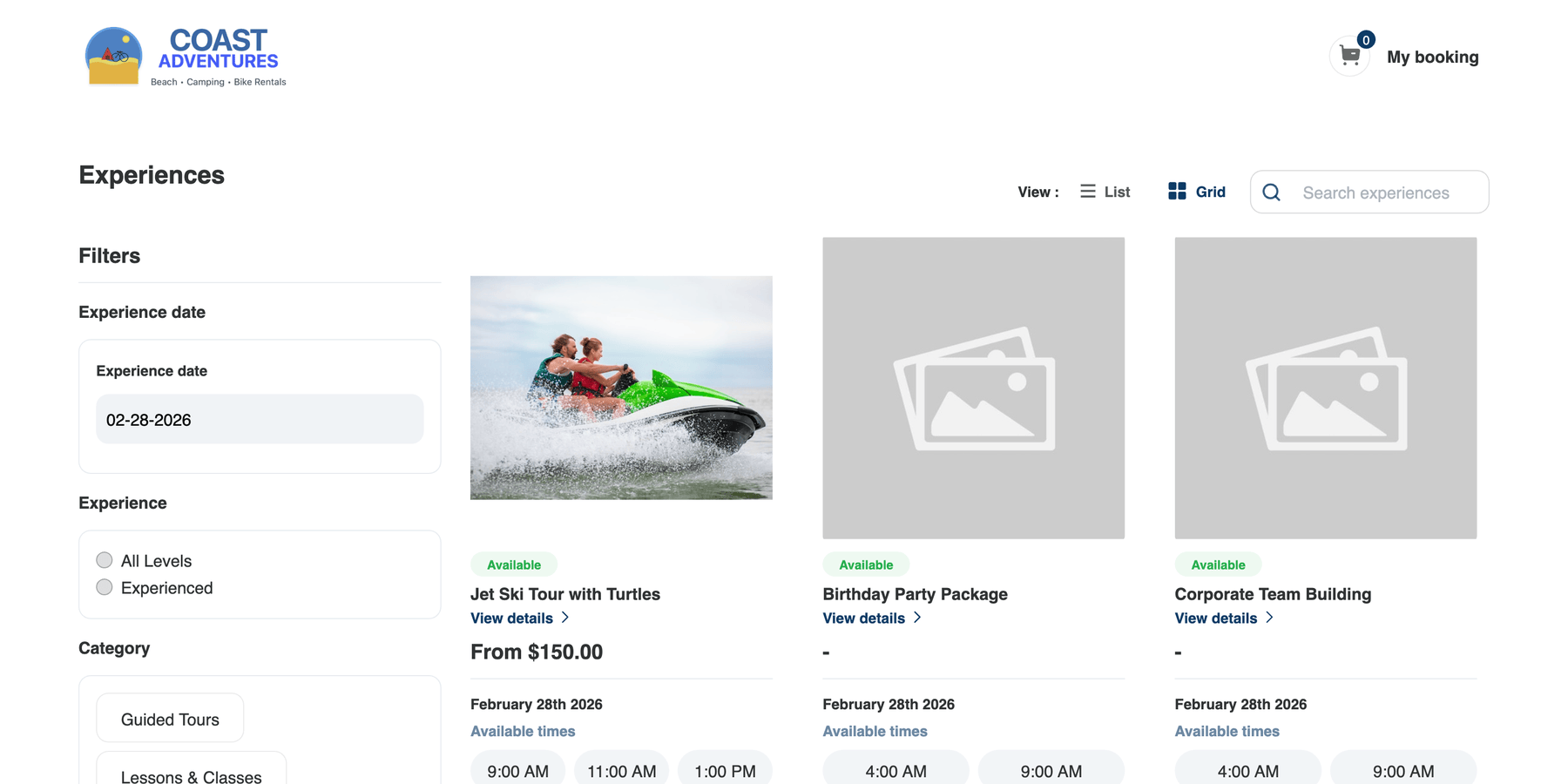
When customers open the experiences widget, they see your activities displayed in a grid or list view. A View: toggle lets customers switch between layouts, and a Search experiences bar lets them find specific activities.
Each experience card shows:
- Experience image
- Availability badge (e.g., "Available" in green)
- Experience name
- View details link
- Starting price (e.g., "From $150.00")
- Date for the selected experience date
- Available times — Time slot chips showing available start times (e.g., "9:00", "11:00", "1:00")
Filters Sidebar
On the left side, customers see a Filters sidebar with:
- Experience date — A date picker to select the date they want to attend.
- Experience — If skill levels are configured, customers can filter by level (e.g., "All Levels", "Experienced"). This filter only appears when the wizard is enabled and levels are set up.
- Category — Category chips to filter experiences by type (e.g., "Guided Tours", "Lessons & Classes").
Selecting a Date and Time
- In the Filters sidebar, the customer selects an Experience date using the date picker.
- The experience cards update to show available times for that date.
If the customer already has sessions in their booking and then changes the date, the booking follows them: each session is re-matched to the same time on the new date. A session that runs at the same time on the new date stays booked (re-priced if the price differs); if fewer places are free, the group size drops to what fits; if there's no session at that time on the new date, it's removed. Any change pops a Your cart was updated summary so the customer sees exactly what moved — if nothing changed, nothing appears. 3. Available times appear as clickable time slot chips directly on each card (e.g., "9:00", "11:00", "1:00"). 4. The customer clicks on the time slot they want.
If a time slot is fully booked, it appears grayed out. If you have the waitlist feature enabled, customers can join a waitlist for full time slots.
Viewing Experience Details
When a customer clicks View details on an experience card, the detail page opens showing:
- Overview block — At-a-glance tiles for Duration / Meeting Point / Ages / Group Size / Cancellation
- Full description of the experience
- Images (all photos you have uploaded — a rotating strip on listing cards; the full gallery here)
- Date and time slot selector — with prev/selected/next day tri-column view
- Rate categories — Different pricing tiers (e.g., Adult, Child, Senior)
- Pricing for each rate category
- Content blocks — Highlights, What's Included, Itinerary, Check-in, What to Bring, Restrictions, Health & Safety, Cancellation notes
- Related experiences — Other activities the customer might enjoy
- Breadcrumb home icon in the top-left to return to the listing
Choosing Participants
After selecting a time slot, the customer chooses how many participants:
- The rate categories appear (e.g., Adult, Child, Senior — based on how you set up the experience).
- Each category shows its price per person.
- The customer uses the quantity selectors to set the number of participants in each category.
- The total price updates in real time as they adjust quantities.
Adding to Booking and Checkout
- The customer clicks + Add to booking.
- The experience is added to their booking with the selected date, time, and participant counts.
- The cart icon (My booking) in the top right updates with the item count.
- They can continue browsing for more experiences, or click My booking to proceed to checkout.
The checkout flow now includes several upgrades — see the dedicated guides:
- Inline waiver signing — Customers sign before payment
- Custom fields on widget — Per-booking or per-participant structured data
- Participant Comments — Quick free-text notes per participant
- Multi-tier cancellation policy — Tier breakdown shown before payment
- Returning customer auto-fill — Recognise repeat customers by email
How It Connects to Your Dashboard
Bookings made through the experiences widget appear in your EquipDash dashboard just like any other booking:
- The booking appears in Bookings with the source marked as "Widget"
- The specific time slot and participant counts are recorded
- Participant spots are deducted from the time slot's capacity
- Customer profiles are matched by email or created automatically
- Confirmation emails are sent based on your notification settings
- The booking appears on the Calendar for the relevant date and time
Browse-by-Date Mode
As an alternative to the classic activity-first browse, you can land customers on a date-first view where they pick a day and see every experience bookable that day. See Listing Mode to switch between Activities and By Date layouts.
Experience Widget with the Wizard
If you have the wizard mode enabled for experiences, the flow becomes a step-by-step process:
- Choose a date — Customer selects the date first
- Choose a level — If skill levels are configured, the customer picks their level
- Select an experience — The widget shows only experiences running on the selected date at the appropriate level
- Choose a time and participants — Select the time slot and number of participants
- Checkout — Complete the booking
Waitlist for Full Sessions
If a time slot is fully booked and you have the waitlist feature enabled, customers can join a waitlist:
- The customer sees a time slot marked as full.
- They click Join Waitlist or Notify Me.
- They enter their name, email, and the number of spots they need.
- If a spot opens up (e.g., someone cancels), they receive an email notification.
This helps you capture demand even when sessions are full.