Bot Approval Modes Growth+This feature requires the Growth+ plan or higher
Approvals decide what a Dash Bot does on its own and what it checks with you first. One control sets the whole bot, and anything involving money asks you first no matter what you pick.
The Two Settings
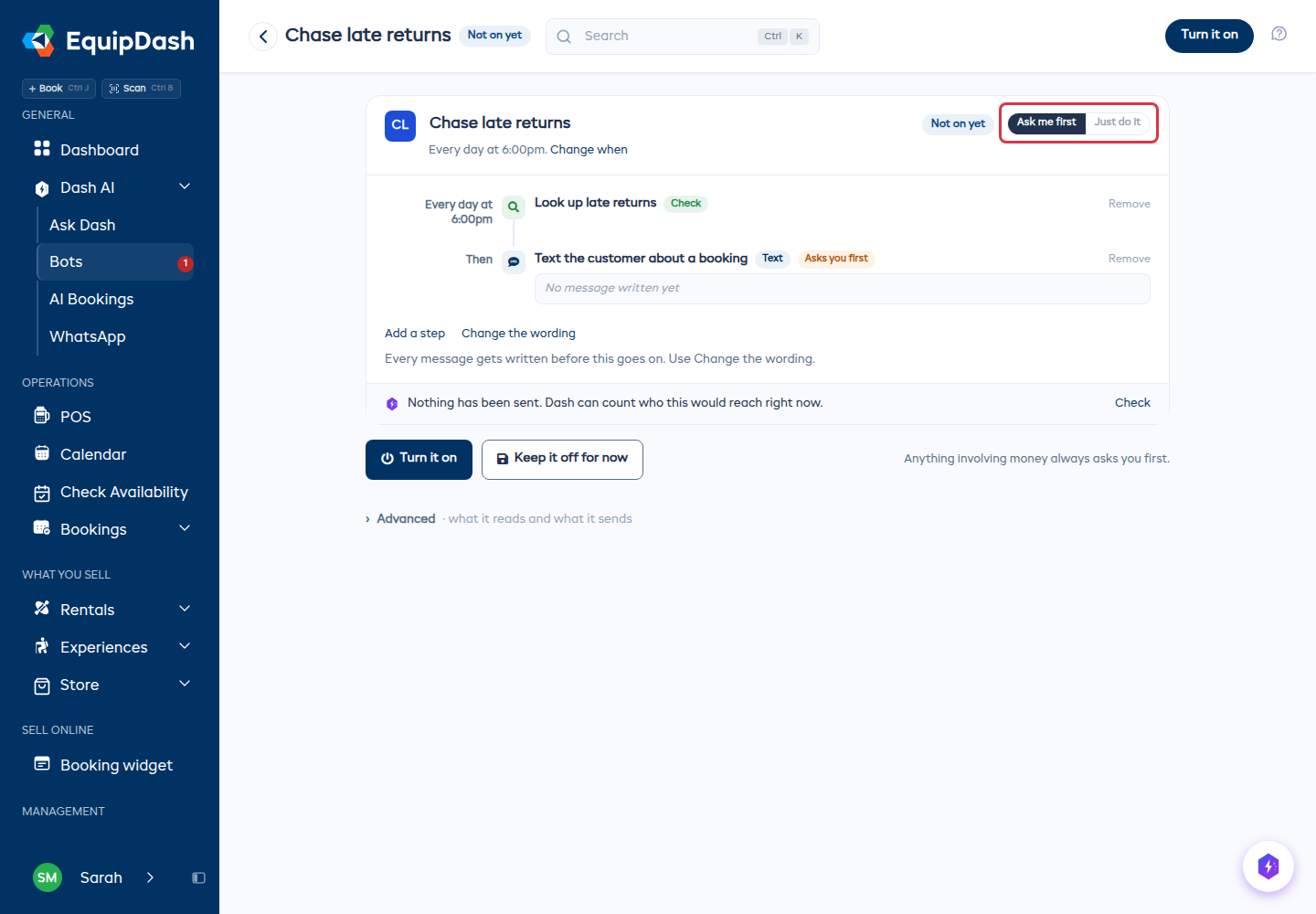
At the top right of a bot, one control switches between the two.
Just do it
The bot gets on with the job and tells you afterward. Use it once a bot has had a few good runs and you are happy for it to work unattended.
Ask me first
The bot does the looking up, then stops before anything leaves your shop and waits for your OK. The run shows as Waiting for your OK until somebody responds. This is the setting a new bot starts on.
What Asks First by Default
Under Advanced · what it reads and what it sends, each switch you turn on carries a sensible default:
| Switch | Default |
|---|---|
| Look things up | Runs on its own - nothing is changed |
| Email & message customers | Asks you first |
| Payments & refunds | Always asks you first - locked |
| Connected apps | Always asks you first - locked |
| Everything else | Asks you first for the risky actions inside it, otherwise runs on its own |
You can change the Ask me first toggle on any switch that is not locked. If you are comfortable with a bot emailing customers unattended after a few good runs, turn it off. If you want extra caution somewhere quiet, turn it on.
What Can Never Be Switched Off
Some actions always wait for a person, no matter how the bot is set up:
- Refunds
- Charges, including damage charges and extra charges
- Recording a payment
- Sending a payment link
- Releasing a security deposit
- Cancelling a booking or a series
- Anything sent out to a connected app
These are locked in the builder, and they are enforced when the bot actually runs - so there is no combination of settings, instructions, or templates that lets a bot move money or cancel on a customer without you.
Setting It Up
- Open the bot - either a new one or one you already have.
- Set the control at the top right to Ask me first or Just do it.
- For finer control, open Advanced · what it reads and what it sends, turn on the switches this bot needs, and set Ask me first on any of them. Locked switches show Always asks first with a padlock instead.
- For the finest control, open Fine-tune individual abilities and set each ability separately.
- Click Turn it on, or Keep it off for now.
Each step in the bot carries an Asks you first tag where it applies. Read the steps before you turn the bot on.
Waiting for Your OK
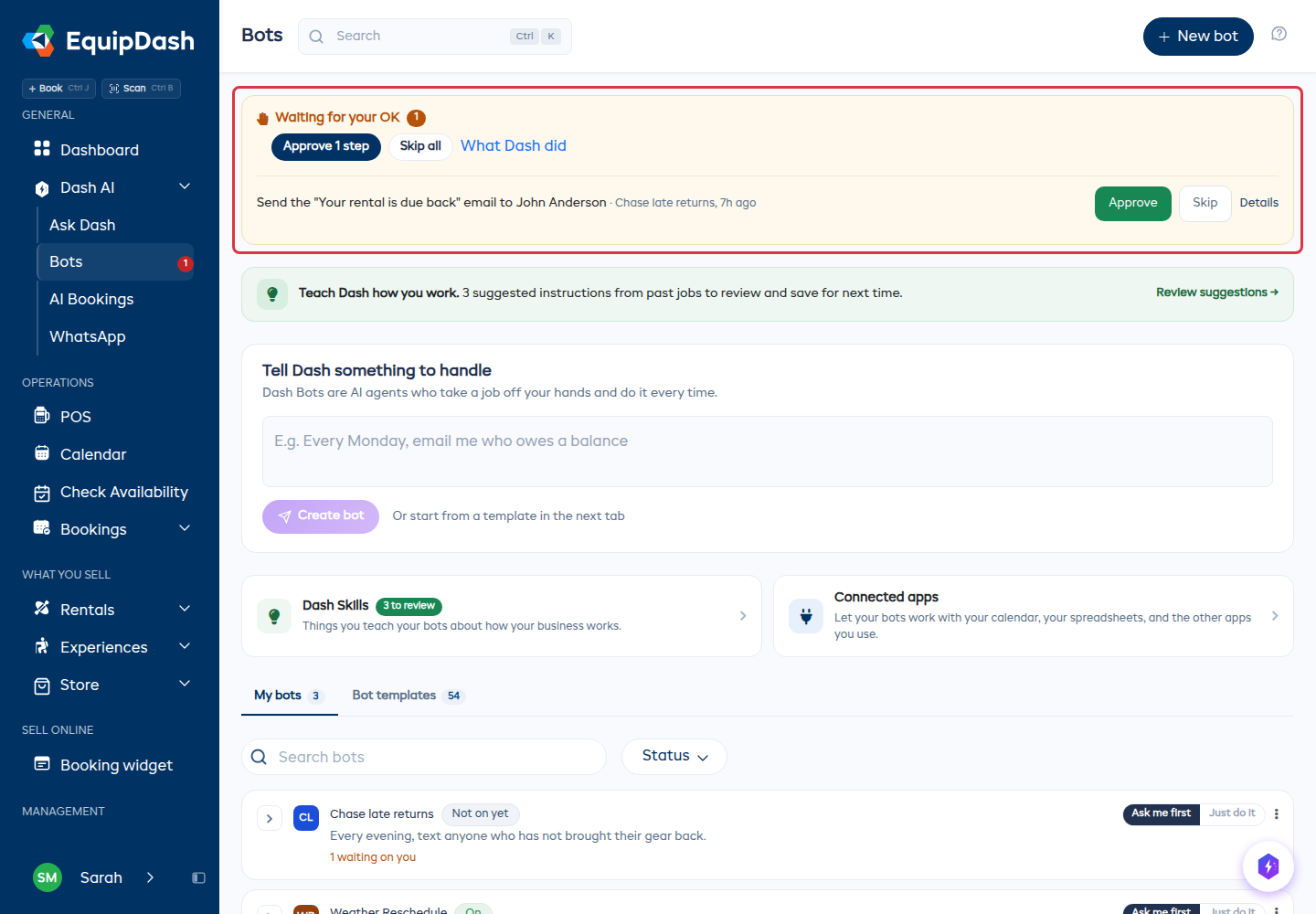
Everything waiting for a decision - across every bot - is collected in one Waiting for your OK box at the top of the Bots page. Each row is a plain sentence describing what the bot wants to do, which bot asked, and when.
For each row you can:
- Click Approve to let it go ahead. For a message, the button reads Review message so you can read it first.
- Click Skip to pass on that one action.
- Click Details to open the full run.
Approve all and Skip all at the top of the box clear everything at once.
You never have to go hunting through individual bots to clear approvals.
Skipping does not cancel the run
Skipping one action skips only that action. The bot carries on with the rest of its work - if it was sending five reminders and you skip one, the other four still go out.
Approving or Skipping Inside a Run
You can also respond from the run itself:
- Open the Bots page and click the bot, or go straight to its run history.
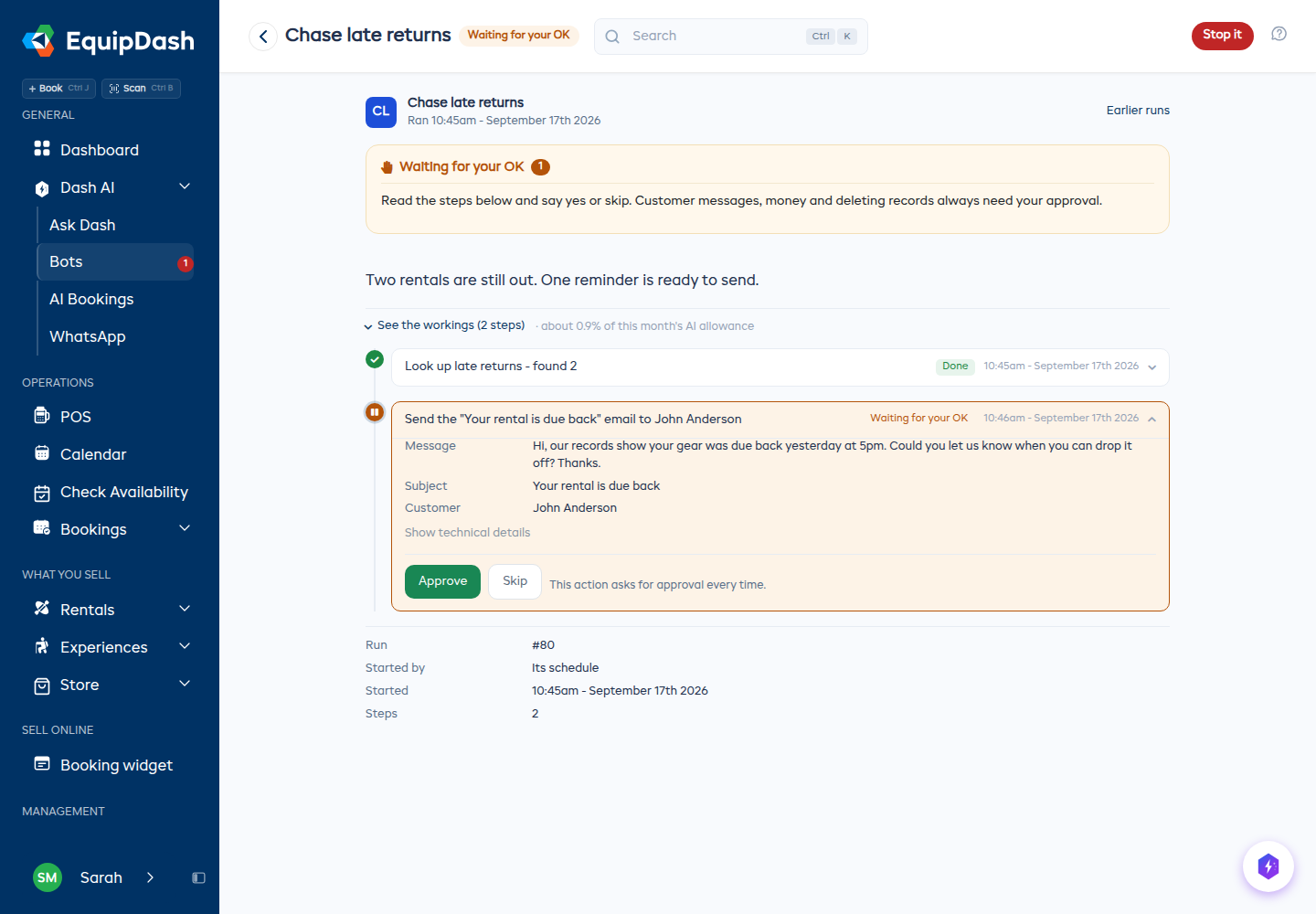
- Open the run showing Waiting for your OK.
- Under See the workings, find the step that is waiting. It reads as a plain sentence, and opens to show the message itself before you decide.
- Choose one of:
- Approve - let this one action go ahead.
- Skip - pass on this action. The run continues without it.
Show technical details under a step opens the exact values behind it, if you ever want to check them.
What Happens Afterward
After approving
- The bot picks back up and does the action.
- It continues to the next step.
- If it reaches another action that asks first, it pauses again.
After skipping
- That action is marked as skipped and is not carried out.
- The rest of the run continues.
- The skip is recorded in the run history, along with who skipped it and when.
Tips
- Start cautious, relax later. When a bot is new, let it ask about anything that makes a change. After a few good runs, switch the ones you trust to run on their own.
- Reading is always safe. Looking things up changes nothing, so there is no reason to make it ask.
- Always ask before the first customer email. Seeing the first couple of messages a bot wants to send is the fastest way to know whether the instructions are right.
- Use "Approve & don't ask again" for a long run. If a bot is sending twenty of the same reminder and the first one looks right, you do not need to approve the other nineteen individually.
- Check the run history now and then. Even actions that ran on their own are all recorded.
Related Guides
- Dash Bots Overview
- Creating a Bot
- Bot Triggers
- Bot Run History
- Dash Skills
- Approving changes Dash makes - the same idea when you ask Dash yourself
- Connected Apps