Availability Reports
The availability report gives you a snapshot of your entire product inventory at a specific point in time. See how many units are in stock, how many are booked, how many are out, and whether you have any shortages.
Accessing the Availability Report
You can access the Availability Report in the following ways:
- From Check Availability: Open the Check Availability modal on any product or booking, then click the View Full Report link.
- Directly via URL: Navigate to
/rentals/availabilityin your browser.
The report loads with the current date and time selected by default.
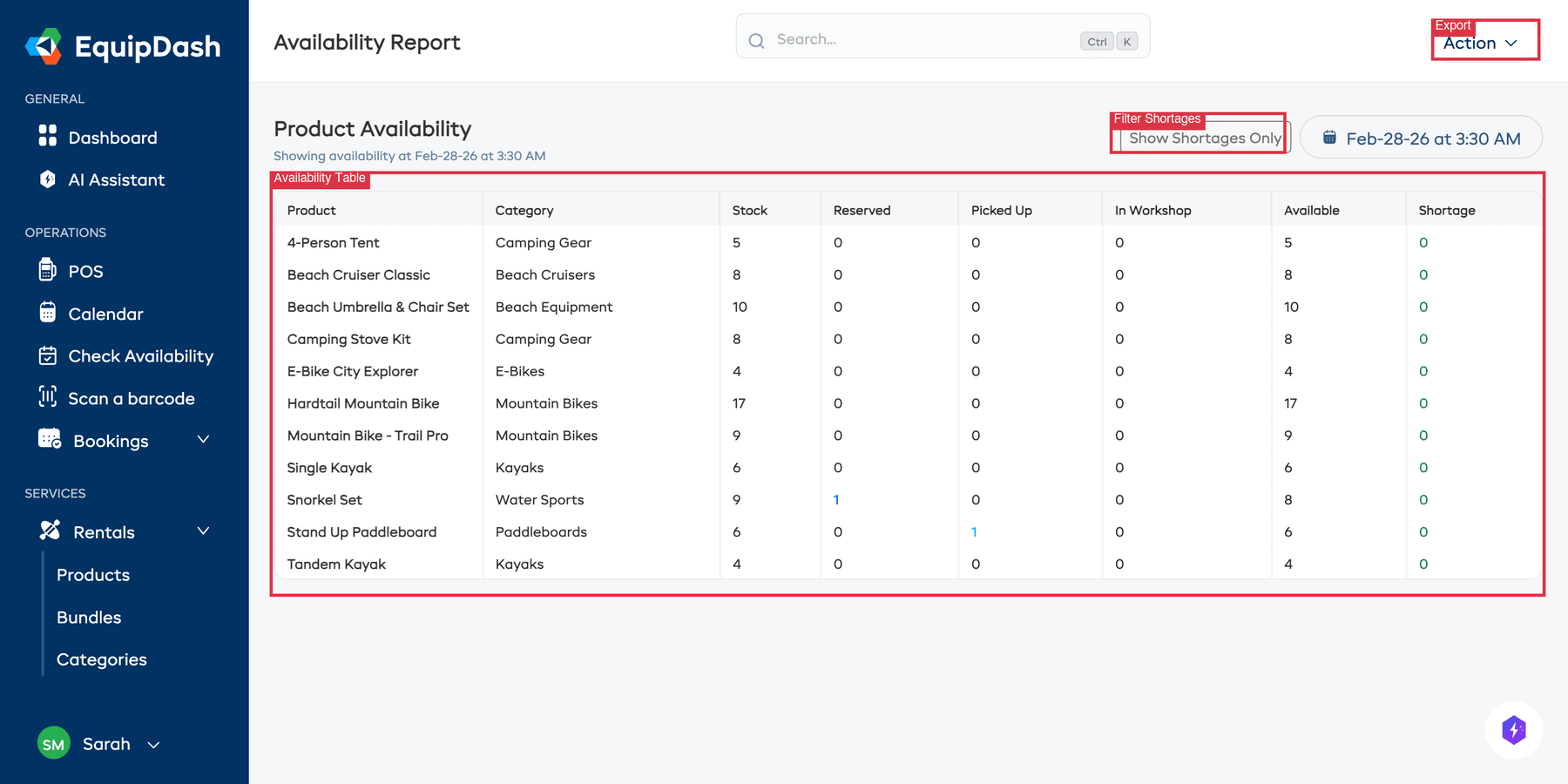
What the Report Shows
The report displays a row for each product with the following columns:
| Column | Description |
|---|---|
| Product | The product name |
| Category | The product's category |
| Stock | Total inventory units owned |
| Reserved | Units assigned to upcoming bookings for the selected date/time |
| Picked Up | Units currently out with customers |
| In Workshop | Units currently in the workshop |
| Available | Units free to be booked (Stock - Reserved - Picked Up - In Workshop) |
| Shortage | Negative availability (more booked than in stock) |
Selecting a Date and Time
The report is a point-in-time snapshot. You can change the date and time to see availability at any moment:
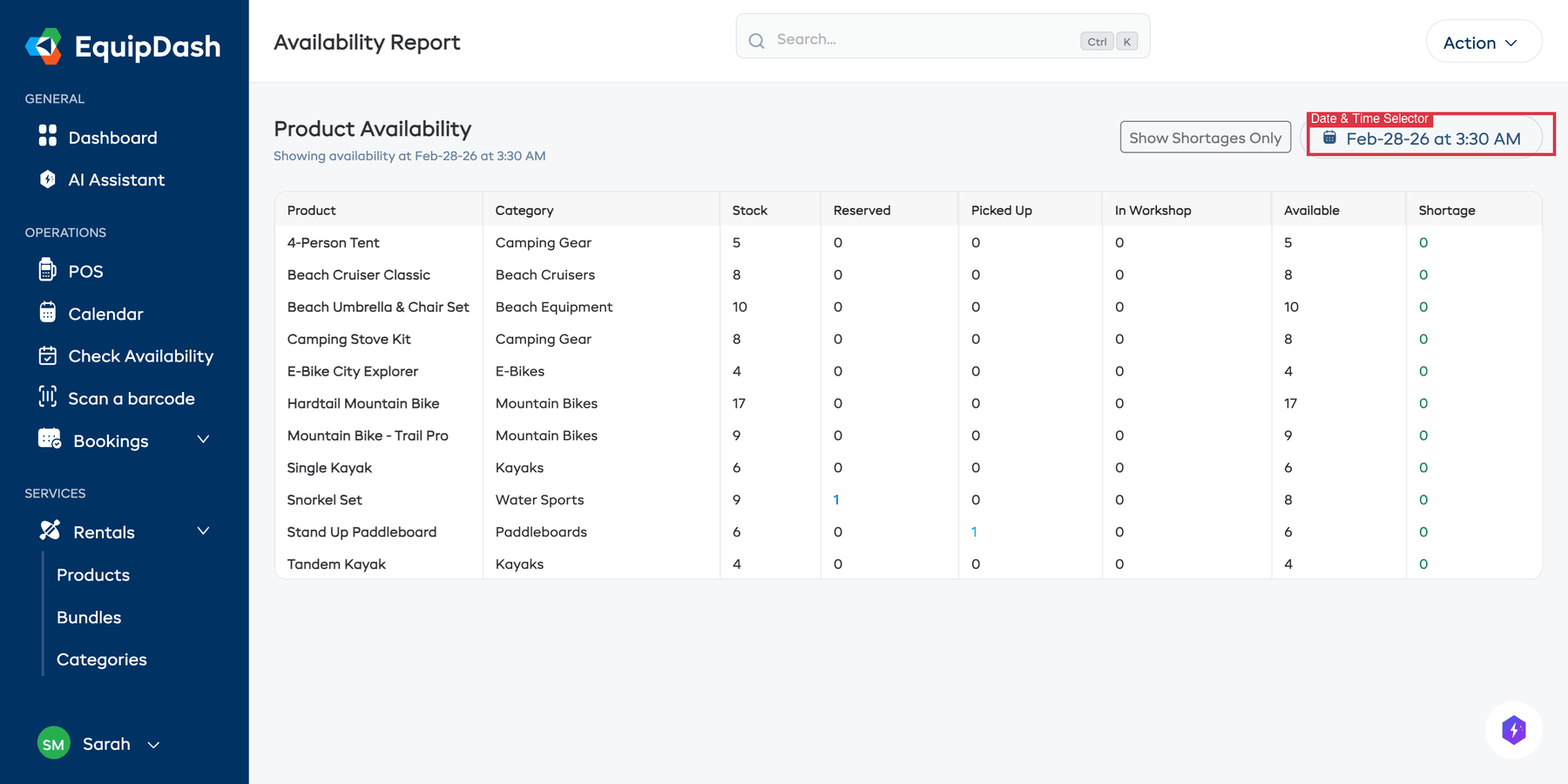
- Click the date/time button at the top of the report (it displays the currently selected date and time, e.g., "Feb-26-26 at 6:30 AM").
- Select a new date and time from the picker that appears.
- The report updates automatically to reflect availability at that specific date and time.
This is useful for checking future availability (e.g., "How many kayaks do we have available next Saturday at 10 AM?").
Filtering for Shortages Only
If you want to quickly see only products with problems:
- Click the Show Shortages Only button.
- The report will filter to show only products where the available count is zero or negative.
- This helps you focus on items that need attention, like contacting customers to reschedule or sourcing additional stock.
Exporting the Report
You can download the availability report as a CSV file:
- Click the Action dropdown at the top right of the report.
- Select Export.
- A CSV file will download containing all the data visible in the report.
- Open the file in a spreadsheet application like Excel or Google Sheets for further analysis.
The exported file includes: Product, Category, Stock, Reserved, Picked Up, In Workshop, Available, and Shortage columns.
Using Availability Reports for Planning
The availability report is a powerful planning tool:
- Spot peak demand -- Check availability for upcoming busy periods to see if you have enough stock.
- Identify underused inventory -- Products that are always available might be overpriced, under-marketed, or candidates for retirement.
- Plan purchases -- If you consistently see shortages on certain products, it is time to buy more inventory.
- Workshop scheduling -- Avoid sending items to the workshop when availability is already tight. Check the report before scheduling maintenance.
Related Guides
- Understanding Availability -- How availability is calculated.
- Checking Availability -- Using the quick availability checker.
- Inventory Units -- Managing your physical inventory.
- Reports Overview -- All available reports in EquipDash.