Checking Availability
EquipDash provides a dedicated availability checker that lets you quickly see what is available for any date and time. Use it when a customer calls to ask about availability, or when you need to plan ahead.
Opening the Availability Checker
- Click Check Availability in the left sidebar under OPERATIONS.
- The Check Availability modal opens with a search field and a weekly availability grid.
Searching for a Product or Experience
- Type in the Search products or experiences... field to find what you want to check.
- Results appear grouped under PRODUCTS and EXPERIENCES headers, showing the name, ID, and SKU or code for each item.
- Click on a product or experience to select it.
You can also scan a barcode to select a product. Click the barcode icon next to the "Check Availability" title to open the barcode scanner, then scan a product's barcode label to jump straight to its availability.
Reading the Availability Grid
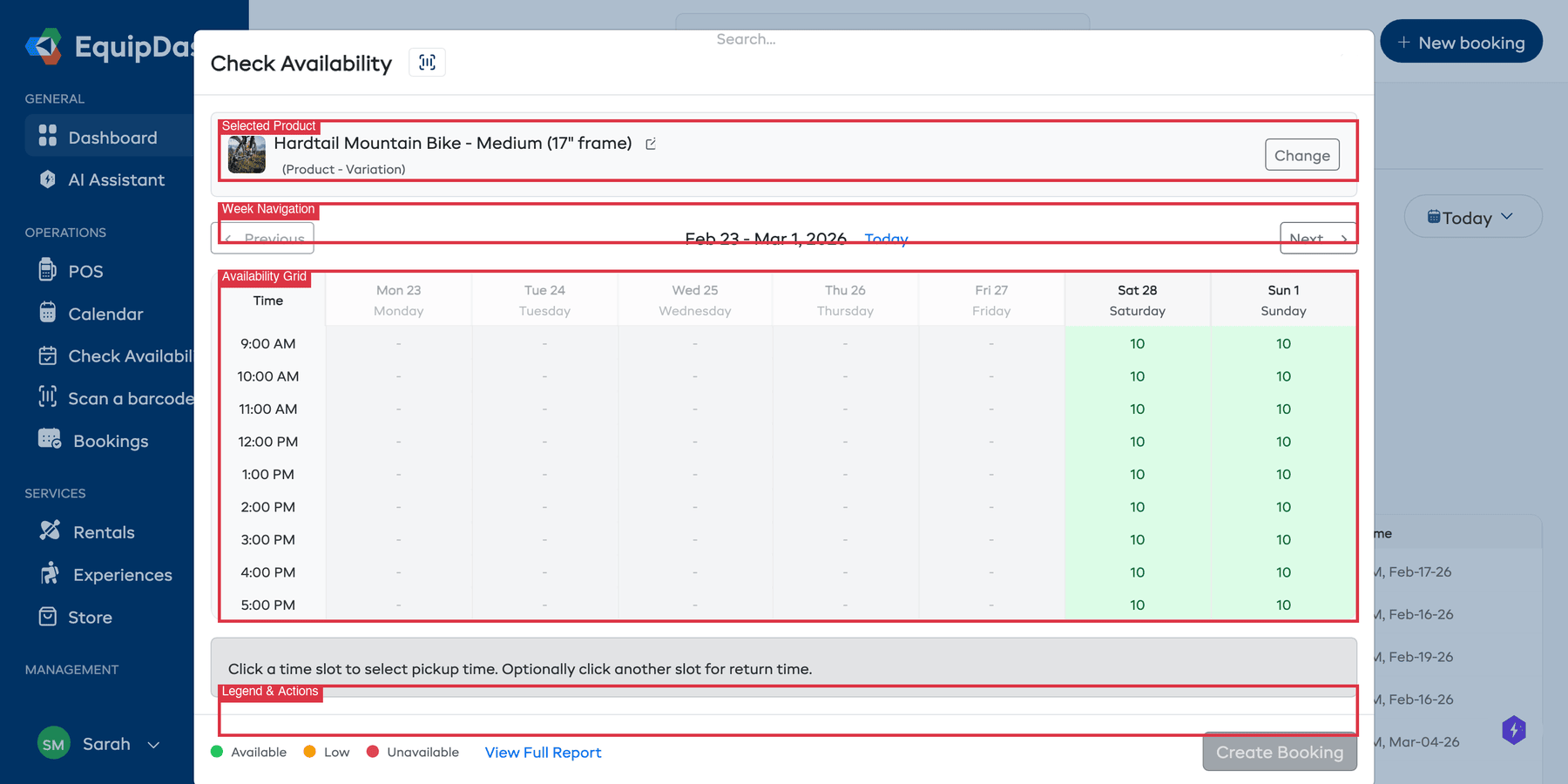
Once you select a product or experience, the weekly availability grid appears showing available and booked time slots for the selected item.
The grid shows a week at a time with hourly time slots (e.g., 9:00 AM -- 5:00 PM) along the vertical axis and days (Monday -- Sunday with date and day name) along the horizontal axis:
| Cell color | Meaning |
|---|---|
| Green / Available | The time slot is open for booking. Shows the number of available units. |
| Orange / Low | Limited units are available for that time slot. |
| Red / Unavailable | The time slot is fully booked. Shows 0. |
| Grey / Past | The time slot is in the past. Shows "-". |
A legend at the bottom of the grid confirms the color meanings: green dot = Available, orange dot = Low, red dot = Unavailable.
Navigating Weeks
- Use < Previous and Next > to move between weeks.
- The date range for the current view is displayed between the navigation arrows (e.g., "Feb 23 - Mar 1, 2026").
- Click Today to jump back to the current week.
Selecting Dates for a Booking
The availability checker is not just for viewing -- you can also use it to start a booking:
- Click on an available (green) time slot to select it as the pickup time.
- Optionally, click another time slot to set the return time. If you click a time slot before the current pickup, it becomes the new pickup and the original becomes the return.
- Your selection is highlighted on the grid with a summary displayed below.
- Click the Create Booking button at the bottom to navigate to the POS with those dates pre-filled.
You can also click the View Full Report link to open the full Availability Report page for deeper analysis.
Checking from the Calendar
You can also check availability from the Rental Calendar:
- Go to Calendar in the left sidebar.
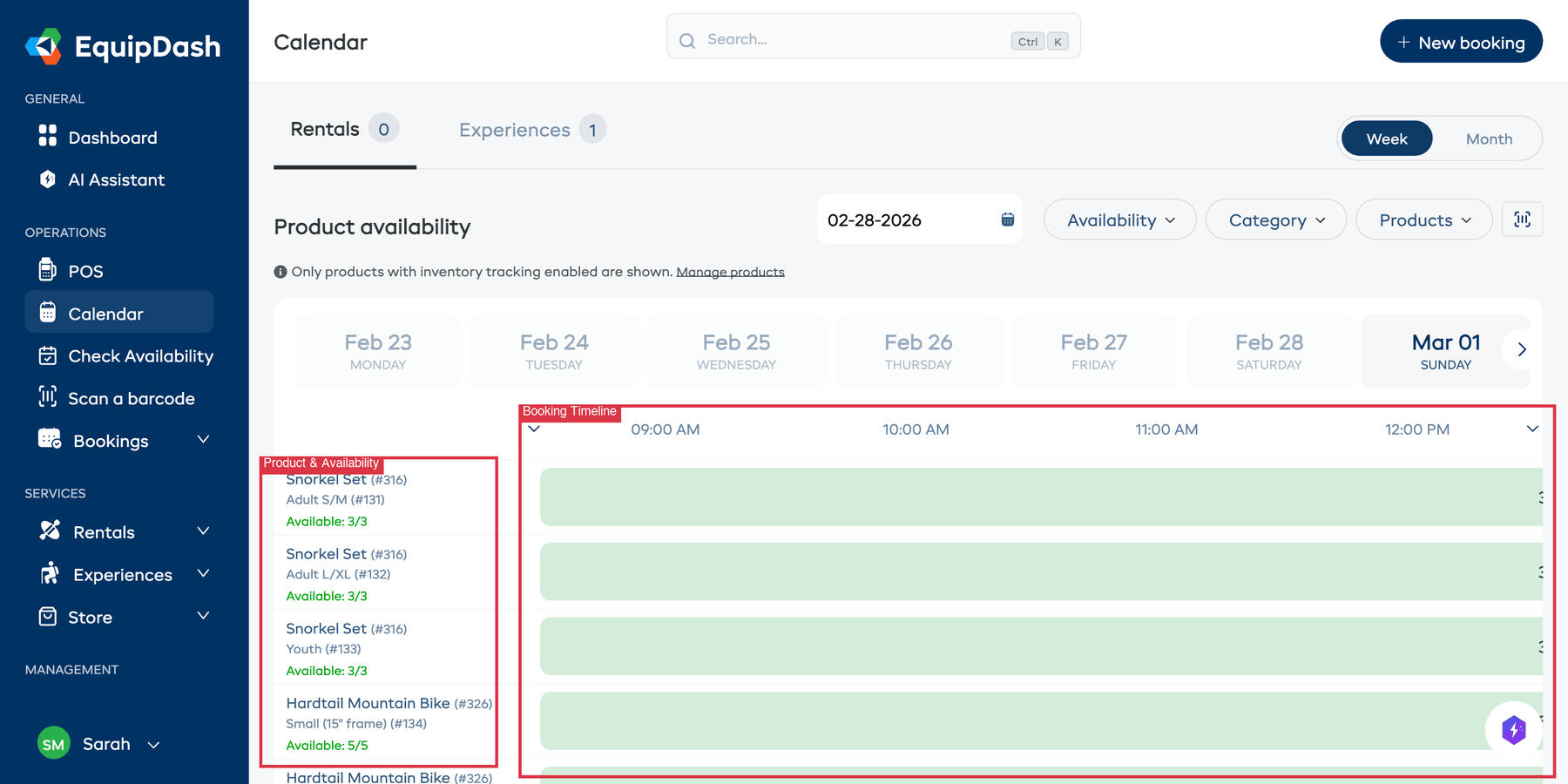
- The Rentals tab shows a weekly timeline view of all products with inventory tracking enabled.
- Each product row displays the product name, variation, and current availability count (e.g., "Available: 3/3").
- Booking bars appear in the timeline showing when items are reserved or picked up.
- Use the date picker and filters (Availability, Category, Products) to narrow the view.
Checking from the Product Detail Page
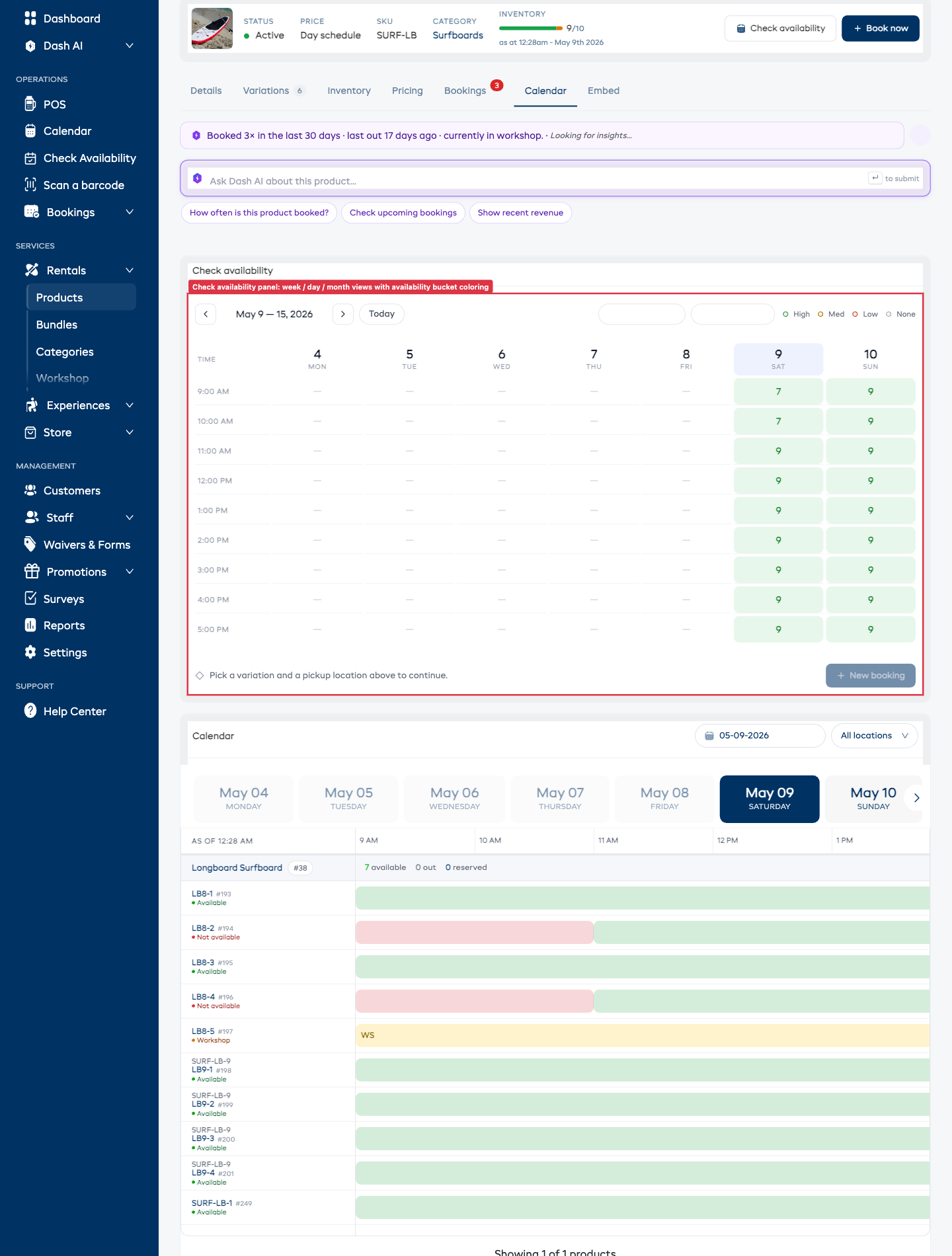
Each product has a Calendar tab on its detail page with an embedded availability panel:
- Go to Rentals > Products and click a product.
- Click the Calendar tab.
- The Check availability panel at the top shows the same weekly availability grid as the main checker, pre-filtered to this product. The full Rentals calendar for this product (per-unit timeline) sits below.
- You can navigate weeks, switch between Week / Day / Month views, filter by variation or location, and the colored cells show availability buckets (high / medium / low / none).
There is also a Check availability button right in the product's hero strip at the top of the page — clicking it scrolls straight to this panel without you needing to switch tabs.
The availability panel on the product detail page opens on the current week by default. Use the week navigation arrows or the Today button to jump around.
Related Guides
- Understanding Availability -- How availability is calculated.
- Availability Reports -- Viewing broader availability data.
- Rental Calendar -- Seeing availability on the calendar.
- Creating a Booking -- Creating a booking after checking availability.