Product Variations
Variations let you offer different options for a single product -- like sizes, colors, or types -- without creating separate products for each one. Customers can choose their preferred option when booking, and inventory is tracked per variation.
Key Concepts
Before setting up variations, it helps to understand two key terms:
Variation Properties
A variation property is the category of difference between options. For example:
- Size -- for products that come in Small, Medium, Large
- Color -- for products that come in Red, Blue, Green
- Type -- for products that come in Road, Mountain, Hybrid
A product can have one or more variation properties. For example, a wetsuit might have both Size and Color as properties.
Variations
A variation is a specific option or combination of options that a customer can choose. Each variation has a value for every property defined on the product.
For example, if a wetsuit has Size and Color properties, the variations might be:
| Variation | Size | Color |
|---|---|---|
| 1 | Small | Red |
| 2 | Small | Blue |
| 3 | Large | Red |
| 4 | Large | Blue |
Each variation can also have its own SKU, short description, and image.
Setting Up Variations While Adding a Product
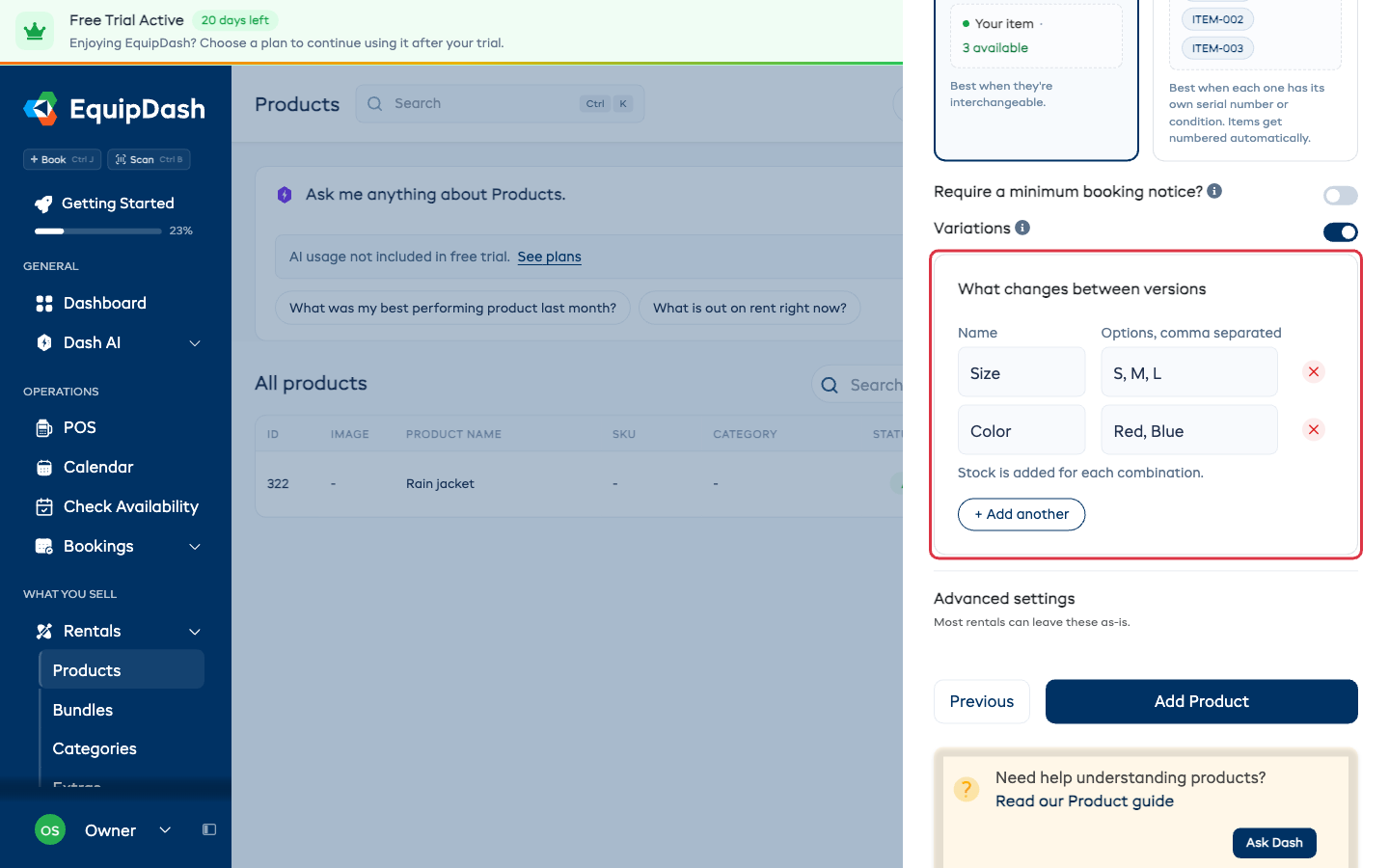
The quickest way is in the Add product panel itself, on step 3:
- Switch on Variations.
- Under What changes between versions, type a Name (for example Size) and its Options, comma separated (for example S, M, L).
- Click + Add another for a second thing that changes, such as Color with Red, Blue.
- Click Add Product.
Every combination becomes a version, in the order you typed it. Size S, M, L and Color Red, Blue make six versions: S Red, S Blue, M Red, and so on. Add stock for each version on the Inventory tab after you save.
You can add, rename or remove versions later on the product's Variations tab, as described below.
Enabling Variations on a Product
Variations are enabled with a single toggle on the Details tab:
- Open the product's Product Detail page.
- The Details tab opens by default. In the right column, find the Variations toggle on the Behaviors card.
- Switch it on.
Once enabled, the Variations tab on the product detail page is where you manage everything else.
The Variations Tab
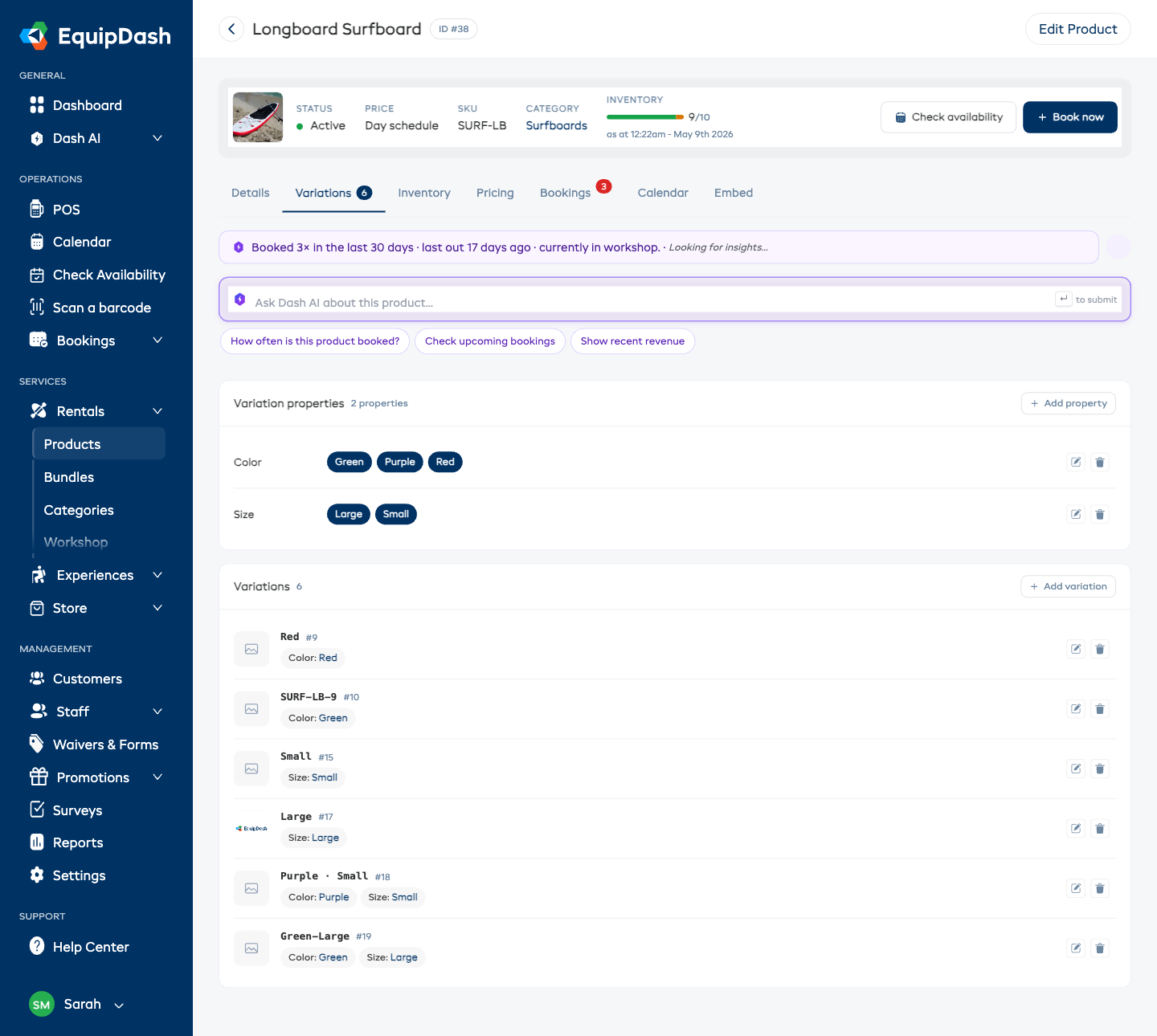
Click the Variations tab on the product detail page. The tab is split into two cards:
- Variation properties — your defined properties (for example Size or Color) with their values displayed as chips. The + Add property action sits in the top-right of the card.
- Variations — every individual variation as a row with its ID, image, SKU, property values, and inline edit / delete icons. The + Add variation action sits in the top-right of the card.
Adding a Variation Property
Before you can add variations, you need at least one variation property.
- On the Variations tab, click + Add property in the top-right of the Variation properties card.
- Enter a Property name (for example "Size", "Color", or "Weight").
- Click Add Property.
You can add as many properties as needed. Each property creates a new column on the variations row and a new field in the Add Variation form.
Adding a Variation
Once you have at least one property, you can add variations:
- Click + Add variation in the top-right of the Variations card.
- Optionally enter a SKU / unique identifier for this variation.
- Enter a value for each property (e.g., "Small" for the Size property).
- Optionally enter a Short description -- a one-line explainer shown under the option name wherever customers choose a variation. Perfect for size guidance, e.g.
5'2" - 5'6" / 158cm - 168cm. - Optionally upload a Variation image specific to this variation.
- Click Add Variation.
Repeat this for each option you want to offer. For example, if you have three bike sizes, add three variations: Small, Medium, and Large.
Keep the property value itself short ("Small", "Medium") and put fit guidance in the Short description instead of cramming it into the name. Long names get cut off on the booking widget; the description gets its own line underneath.
Editing Variations
To edit an existing variation:
- Click the edit icon (pencil) on the right of the variation row.
- Update the property values, SKU, short description, or image.
- Click Save.
To rename a variation property:
- Click the edit icon (pencil) on the right of the property row.
- Enter the new name.
- Click Save.
Reordering Variations
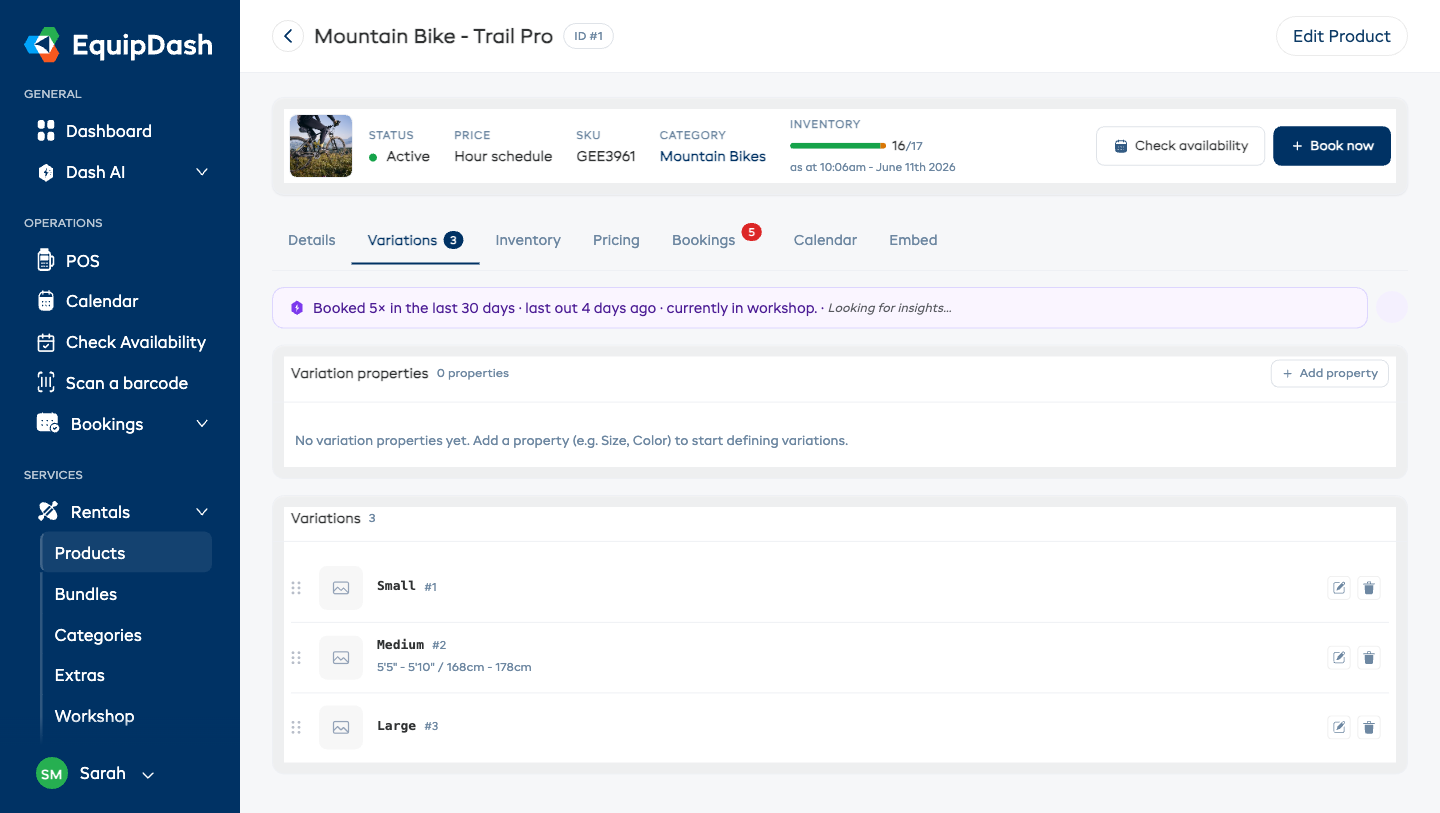
When a product has more than one variation, you can set the order they appear in — on the booking widget, POS, and app — by dragging them.
Each variation row has a drag handle (the dotted grip on the left). Click and hold it, drag the variation up or down, and release. The new order saves automatically.
New variations are added to the bottom of the list, so your existing order stays put until you move them.
Deleting Variations
To delete a variation, click the delete icon (trash) in the Actions column and confirm.
To delete a variation property, click the delete icon (trash) next to the property name.
Deleting a variation or property that has existing bookings or inventory may affect historical data. Consider keeping variations in place and adding new ones rather than removing existing ones.
Managing Variation Inventory
When inventory tracking is enabled with variations, each variation gets its own inventory count or individual units:
- Just track the total -- Each variation has its own stock quantity. For example, 5 Small and 8 Medium.
- Track each item -- Each variation can have its own individually numbered units. For example, Small #A-S-001 and Medium #A-M-001.
You manage variation inventory from the Inventory tab on the product detail page.
Variations on the Booking Widget
When a customer views a product with variations on the booking widget, each option is listed with its availability and a quantity picker. If a variation has a Short description, it appears right under the option name -- so a customer choosing between "Small" and "Medium" sees the height range for each before picking. Availability is calculated per variation, so if all Small wetsuits are booked, the customer will see that Small is unavailable while Medium and Large may still be available.
The same description appears under the option in the POS when your staff build a booking, so they can help a customer pick the right size without checking a separate chart.
Related Guides
- Creating a Product -- Full product creation walkthrough.
- Inventory Units -- Managing individual physical items.
- Managing Products -- Editing and managing products.