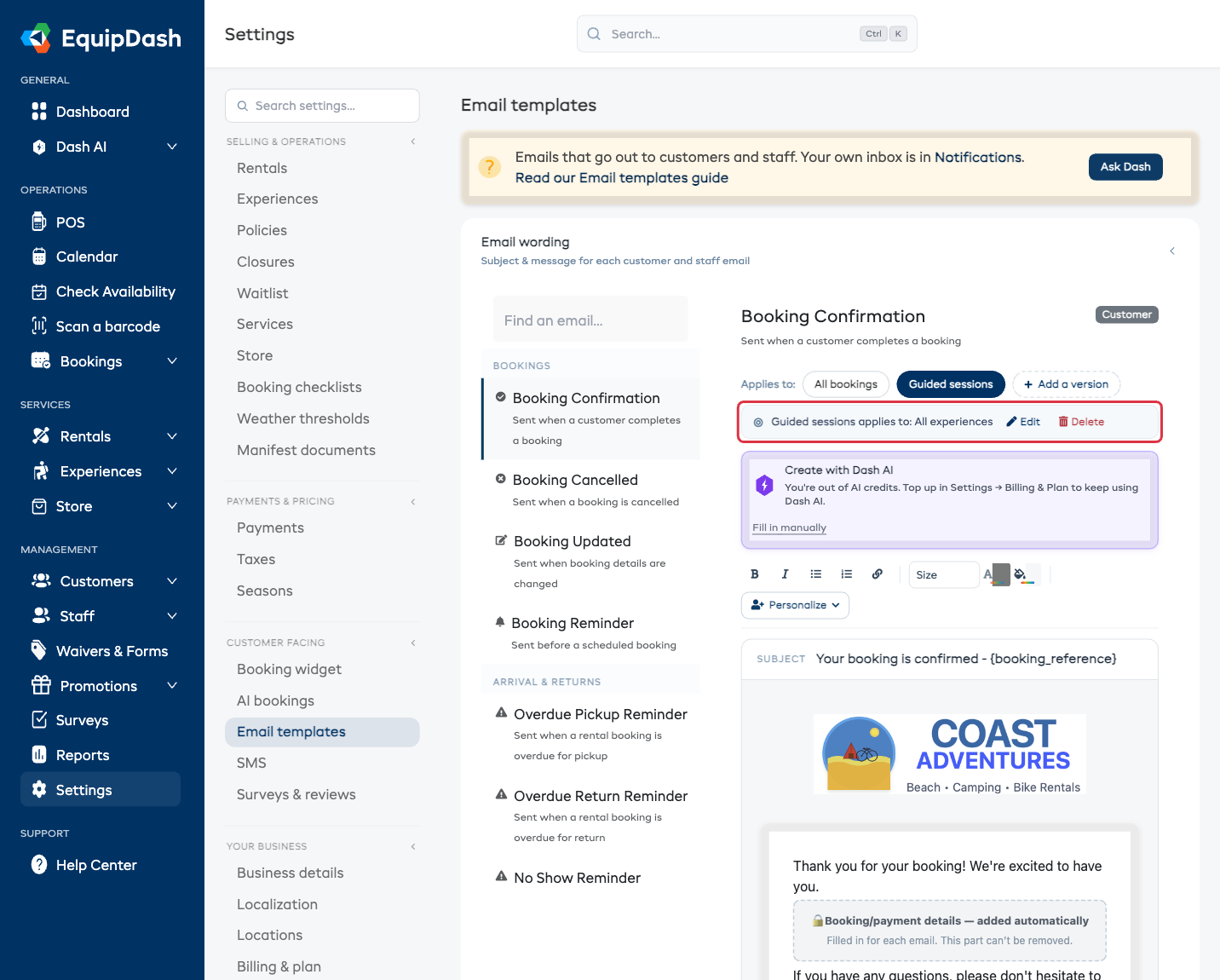
Different Emails for Different Items
Sometimes one wording doesn't fit everything you offer. A booking for a guided session might need different arrival instructions than an equipment rental. Versions let a booking email speak differently for some items, while everything else keeps your standard wording.
Versions are available on booking emails -- the Bookings and Arrival & returns groups (confirmation, updates, cancellations, reminders, pre-arrival, and overdue reminders).
Adding a version
- Open Settings → Email templates and pick a booking email, e.g. Booking Confirmation.
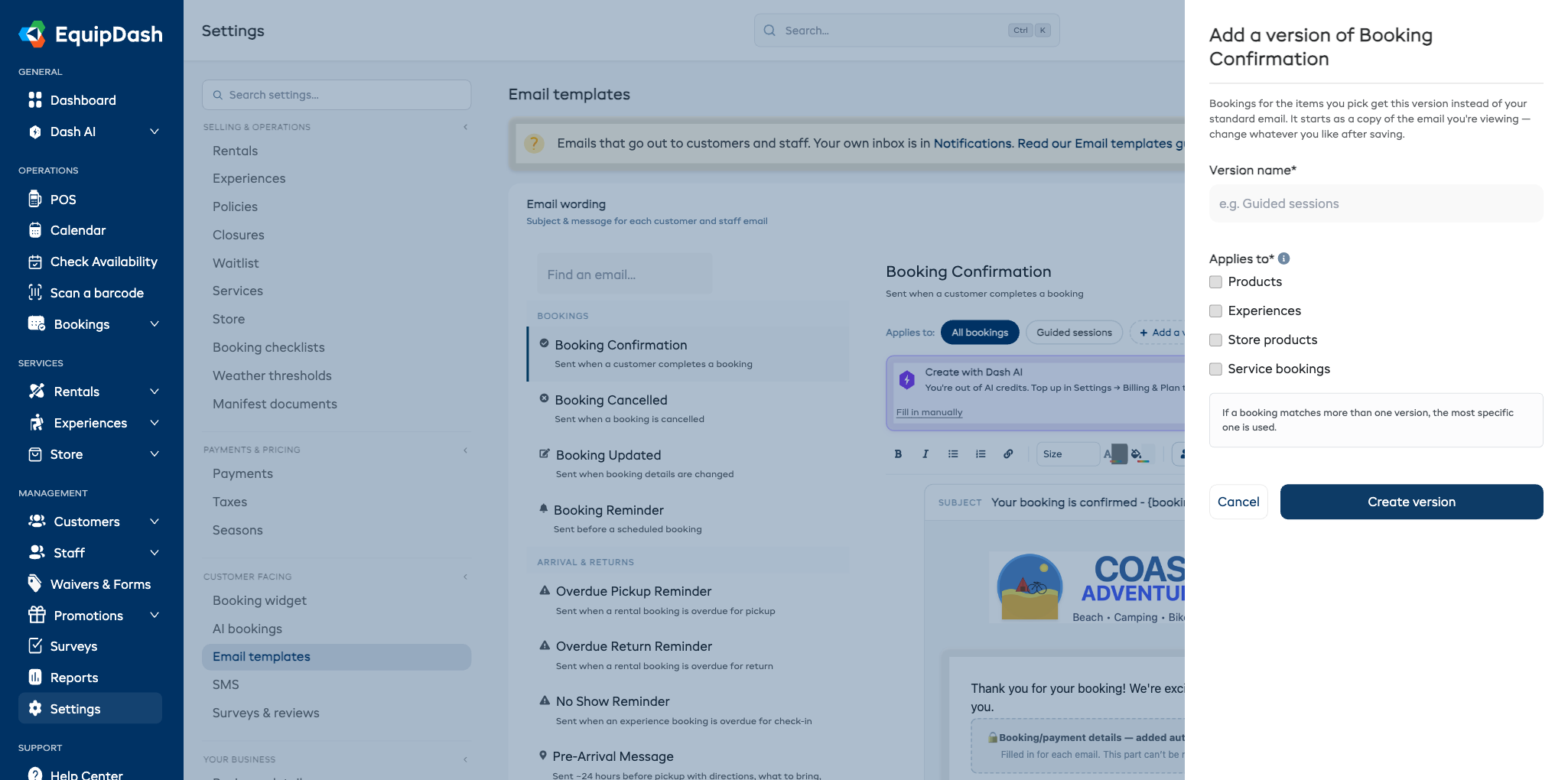
- In the Applies to row above the editor, click + Add a version.
- Give it a name -- for example the line of business it's for.
- Pick what it applies to, exactly like assigning a waiver:
- Products, Experiences, Store products, and/or Service bookings
- then All, specific Categories, or Individual items (service bookings are always all of them).
- Click Create version.
The new version starts as a copy of the email you're viewing, and the editor switches to it -- change whatever you like. Edits to a version never touch your standard email.
How EquipDash picks which version to send
Each booking gets exactly one email. If a booking matches more than one version, the most specific one wins:
- A version pointed at the specific item on the booking
- A version pointed at one of the item's categories (or a parent category above it)
- A version for all products or all experiences
- Your standard email (All bookings)
Managing versions
- Switch between them -- click the pills in the Applies to row. All bookings is your standard email.
- See what a version covers -- pick its pill and the line under the row spells it out, e.g. "Guided sessions applies to: All experiences".
- Change the targeting -- pick the version's pill and click Edit on that line.
- Delete a version -- same line, Delete. Bookings for its items simply go back to your standard email.
- The Send this email switch and any timing settings live on the standard email and cover all its versions -- switch it off and nothing sends, versions included.