Connecting Rapyd
Connect your own Rapyd account in EquipDash. Payments go to that account, and your plan commission is billed monthly.
Rapyd appears in Settings > Payments for businesses in enabled Rapyd countries. Your own Rapyd account must be approved to take live payments.
Before You Start
- Open your own Rapyd account and complete Rapyd's business approval.
- Find your access key and secret key in Rapyd under Developers > API access control. Live and test accounts have separate keys.
- Disconnect another card payment account before connecting Rapyd.
Connect Your Account
- Click Settings in the sidebar, then Payments.
- Open the connection section. If a choice of processors appears, choose Rapyd.
- Click Connect Rapyd.
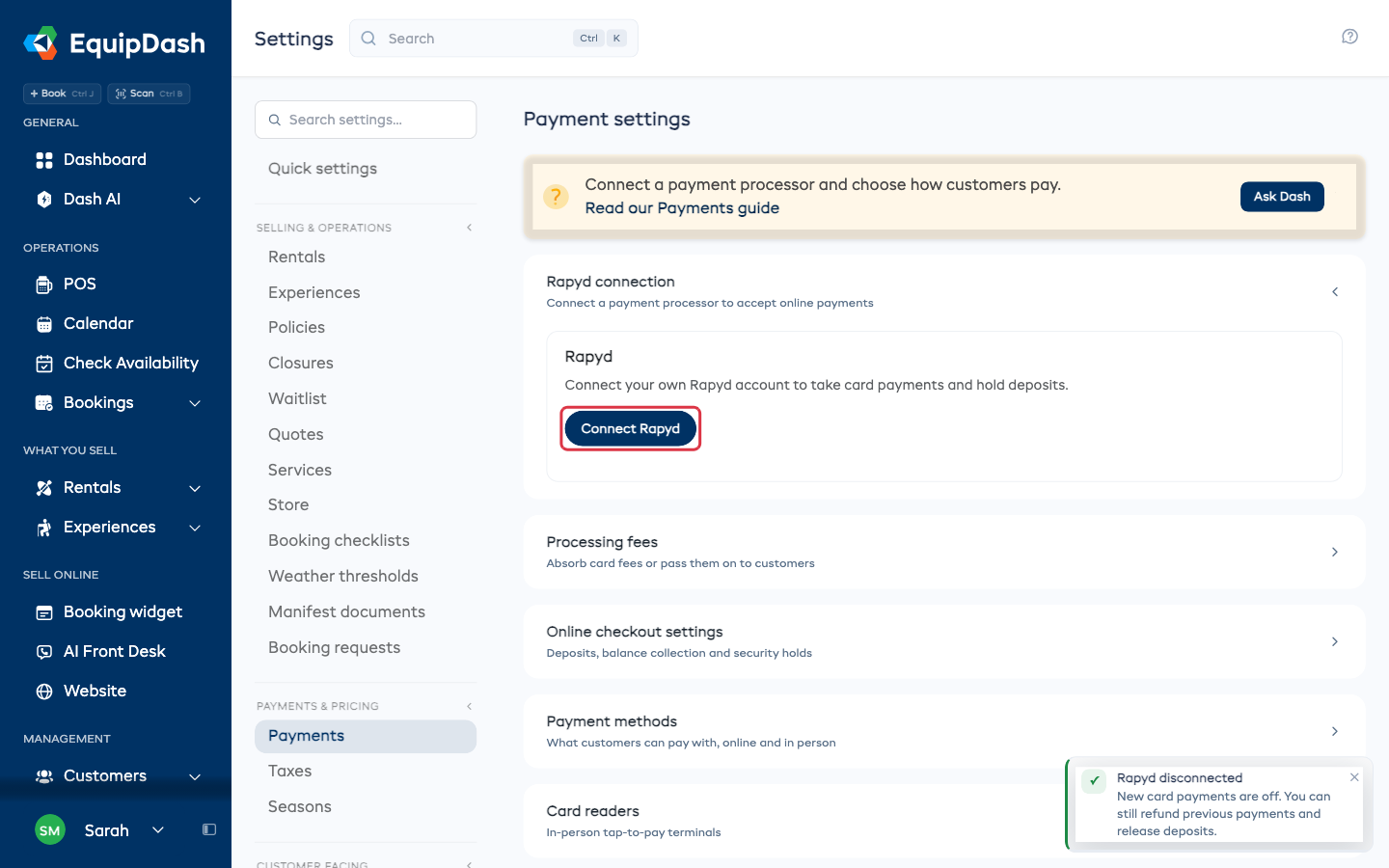
- Choose Live or Test under Account mode.
- Enter the Access key and Secret key from that Rapyd account and mode.
- Click Save and connect.
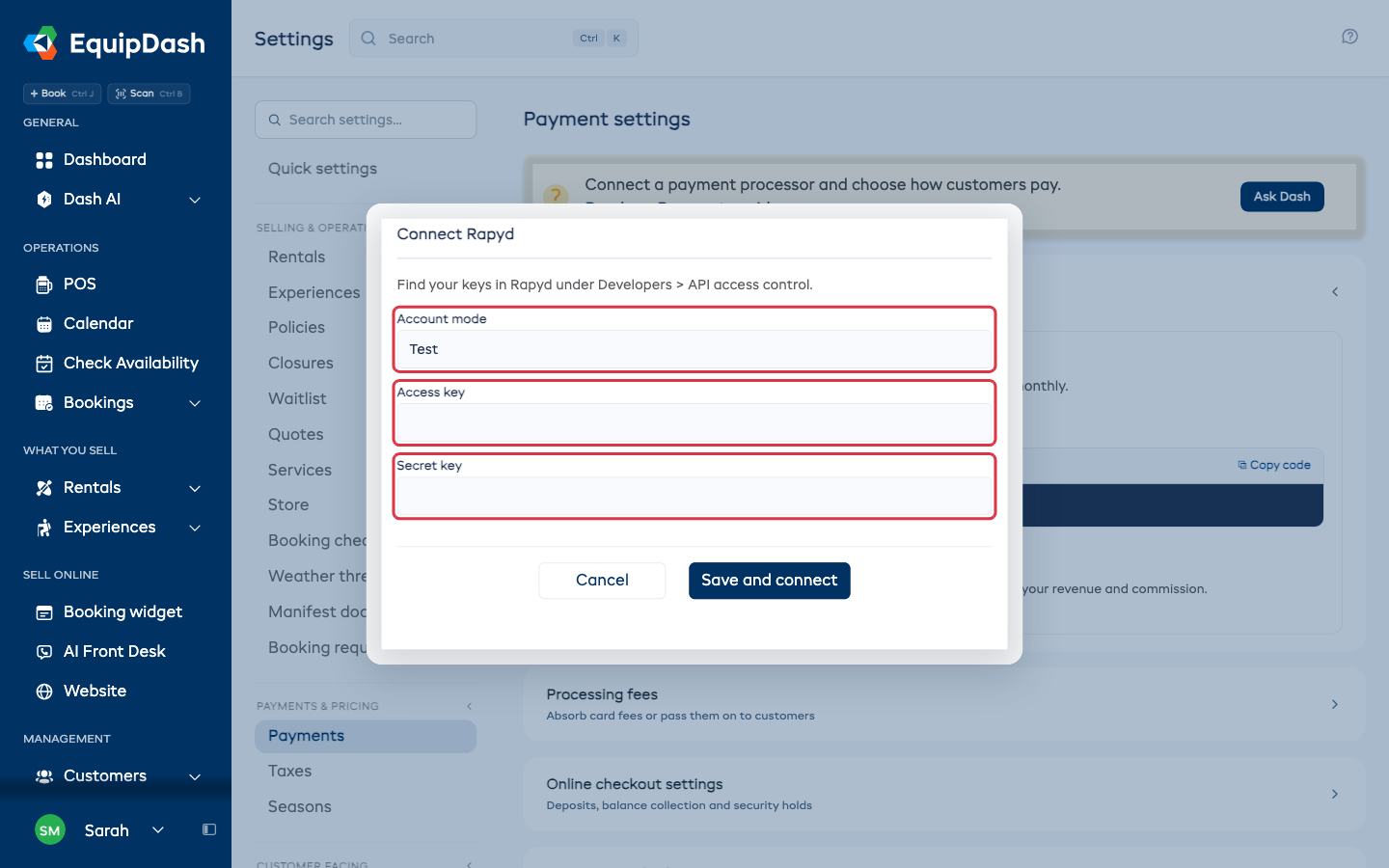
EquipDash checks the keys before saving them. If Rapyd cannot verify them, check the mode and paste both keys again. Your working connection stays connected.
Set Up Webhooks
Webhooks let Rapyd tell EquipDash when a payment, refund, or deposit changes.
- Copy the Webhook URL from the connected Rapyd card.
- In the same Rapyd account and mode, open Developers > Webhooks > Management.
- Add an endpoint using the copied URL exactly as shown.
- Enable these events: PAYMENT_COMPLETED, PAYMENT_CANCELED, PAYMENT_EXPIRED, PAYMENT_FAILED, REFUND_COMPLETED, PAYMENT_REFUND_FAILED, and PAYMENT_REFUND_REJECTED. If Rapyd lists REFUND_REJECTED, enable that too.
- Repeat in the other mode when you connect its keys.
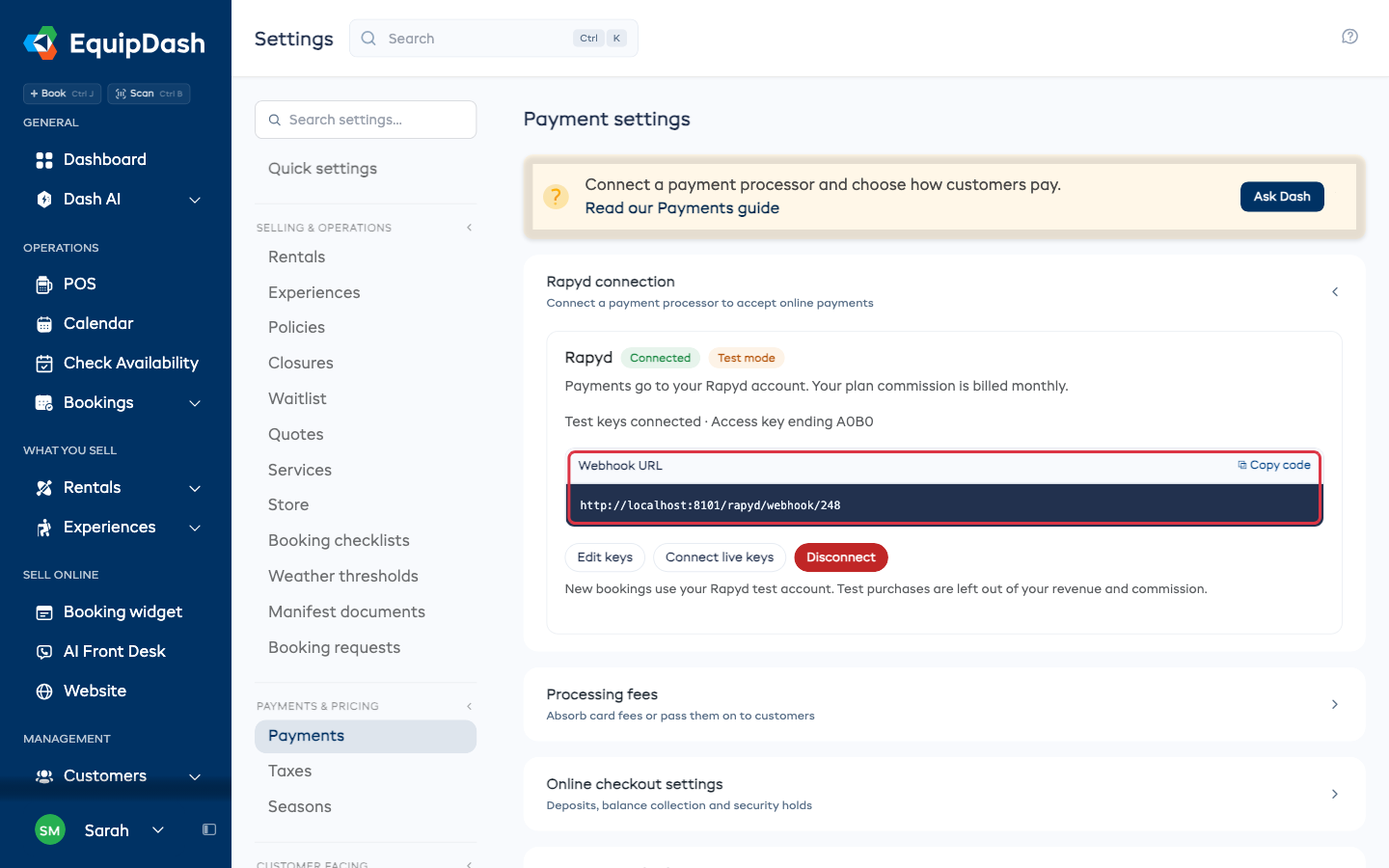
Use the URL for your business. A URL from another business or the previous shared Rapyd connection will not work.
Try Test Payments
- Click Connect test keys on the Rapyd card, or Edit keys and choose Test.
- Enter your Rapyd sandbox access and secret keys, then click Save and connect.
- Open your booking page and pay with Rapyd's test card 4111 1111 1111 1111, a future expiration date, and a three-digit security code.
- Check that the purchase is marked as a test purchase. Test purchases are left out of revenue and monthly commission.
- Try a refund and, if you use security deposits, a hold or charge.
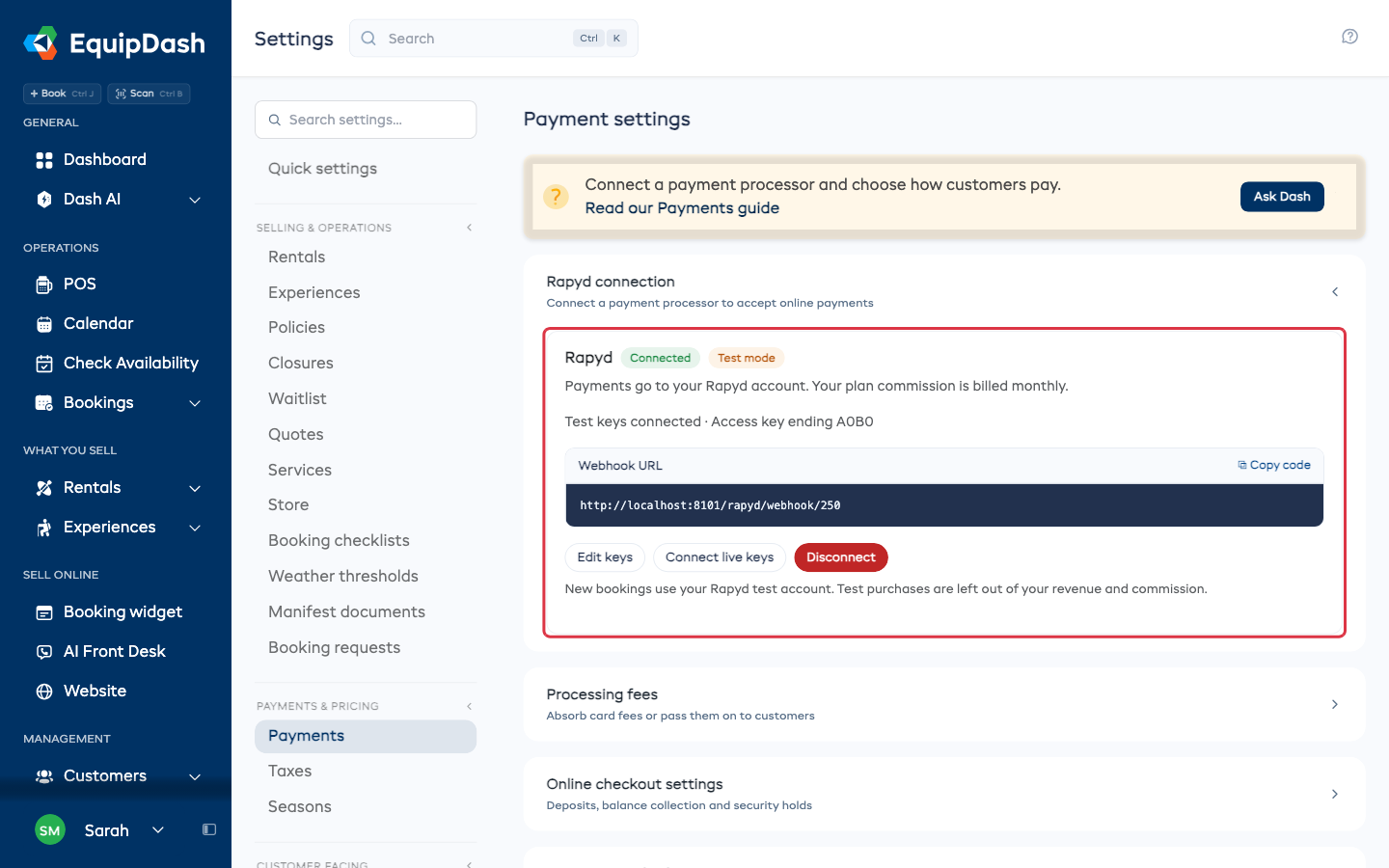
Click Connect live keys when you want to take real payments. Once both pairs are connected, use Test mode to switch between them. An earlier test booking keeps using the test account for refunds and deposit actions, even after you switch to live.
Hold Security Deposits
Under Settings > Payments > Online checkout settings > Security deposits, choose Hold or Charge.
- Hold reserves the deposit on the customer's card. You can release it or charge some or all of it.
- Charge takes the deposit. You refund it when it is no longer needed.
When a customer pays online, their saved card can secure the deposit. For bookings starting within 7 days, EquipDash places the hold immediately. For later bookings, it waits until the booking is 7 days away. If the card cannot secure the deposit, you receive an email and the customer receives a payment link.
An uncaptured hold expires after 7 days.
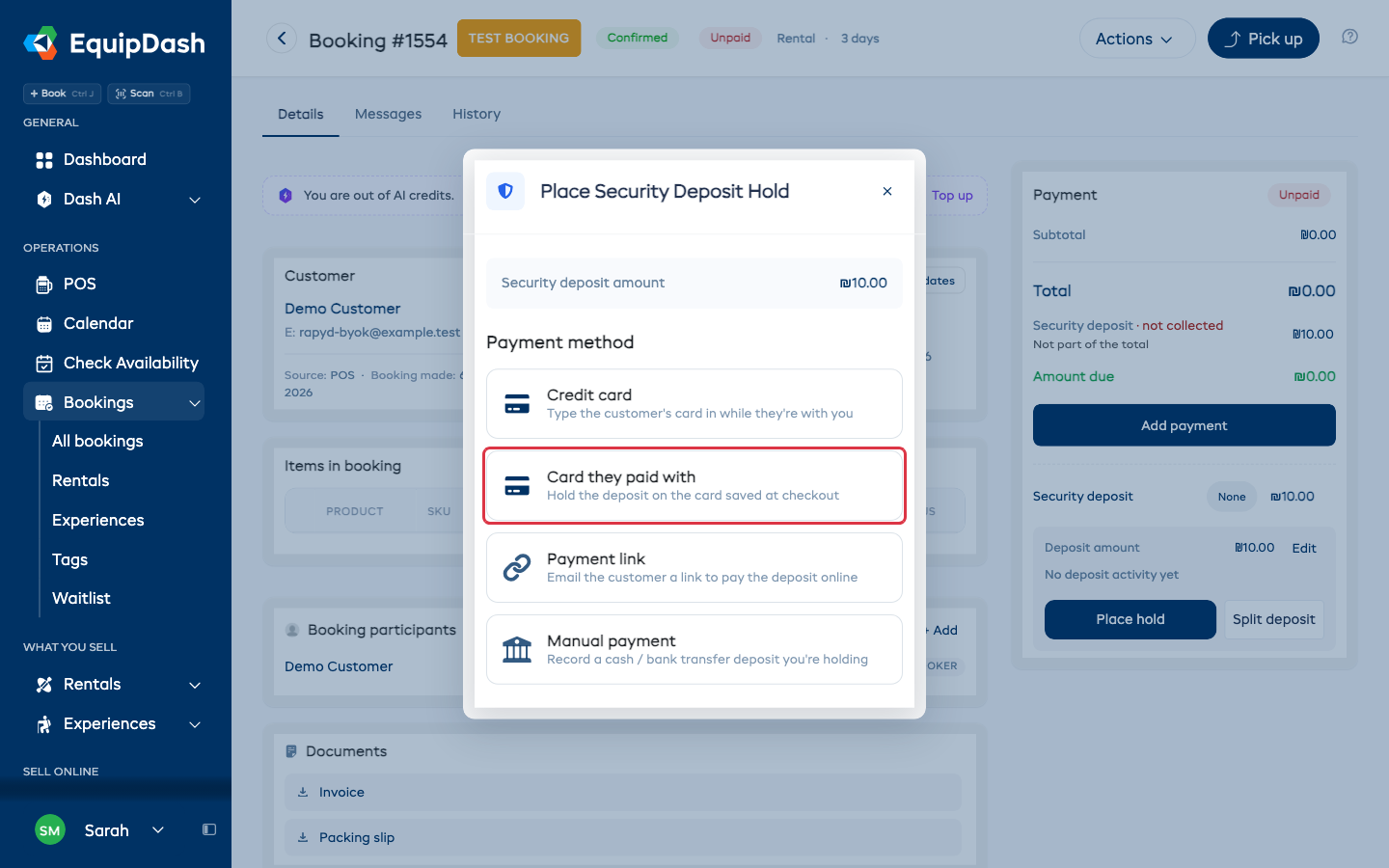
To take a deposit from a booking, open Security deposit, click Place hold or Charge, and choose Card they paid with or Payment link.
Refund Payments
Refund from the booking page as usual. Rapyd returns the money to the customer's card. A refund may show as pending until Rapyd confirms it.
Change Keys or Disconnect
- Click Edit keys to replace a pair. Use keys from the same Rapyd account. EquipDash checks access to previous payments and saved cards before accepting the change.
- Click Disconnect to stop new card payments. Previous records stay visible, and the encrypted keys are kept so you can refund earlier payments and release deposits.
Saved cards and payments do not move to a different Rapyd account. If replacement keys cannot access your previous payments, EquipDash keeps the working keys.
Fees and Card Readers
Your plan commission is added to your monthly EquipDash invoice. It is not deducted from each Rapyd payment. Completed refunds credit the commission on the refunded amount; security deposits and test purchases carry no commission.
Rapyd's own processing fees follow your agreement with Rapyd. See Processing fees to choose whether to pass card fees to customers.
Rapyd does not support EquipDash card readers or Tap to Pay. Use a payment link, cash, or bank transfer for in-person payments.