Program Messages Growth+This feature requires the Growth+ plan or higher
Every intake gets told the same handful of things: here's what happens next, you start next week, bring a towel, thanks for coming. Writing those out again for each cohort is the kind of job that quietly eats a morning.
So you write them once, on the program. Every cohort you run sends them automatically, worked out from its own dates — "a week before we start" means a different day for the autumn intake than the spring one, and you never touch it again.
Where it lives
Open a program from Experiences → Programs and go to the Communications tab.
- On the program, you see the plan: the messages, in order, and when each one goes out.
- On a cohort, you see that same plan turned into real dates for the people on it, plus what has already been sent.
Setting up your first messages
The tab starts empty with two ways in:
- Use the standard set drops in four messages most programs want: a welcome when someone books, a reminder a week before you start, a what-to-bring the day before, and a thank-you afterwards. Every one of them is yours to reword, retime or remove.
- Start from scratch adds one blank message.
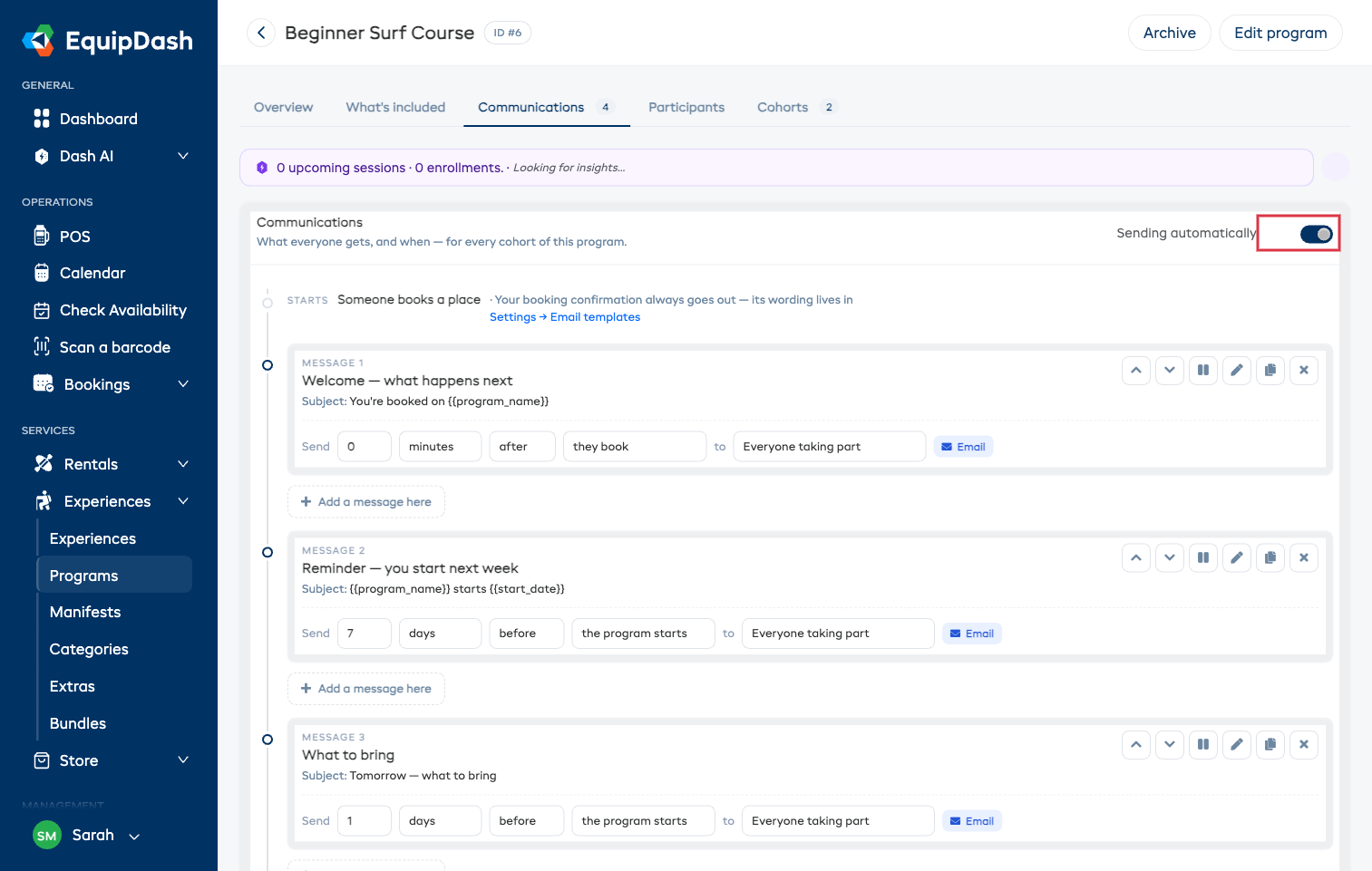
Either way, nothing sends until you turn the switch at the top right to on. Set everything up in peace first.
Reading the timeline
The tab reads top to bottom, in the order things actually happen.
The grey markers are the fixed moments you can't change: someone books a place, the cohort runs, the last session finishes. Your booking confirmation is one of these — it always goes out, and its wording lives in Settings → Email templates.
The white cards between them are your messages. Each one shows what it is, what it says, and — along the bottom — when it goes out, who gets it, and whether it's an email or a text.
Changing when a message goes out
Change it right on the card. There's no form to open.
Each message is timed against one of these moments:
| Send it… | Good for |
|---|---|
| after they book | A welcome, or anything that should land straight away |
| before / after the program starts | "You start next week", "What to bring" |
| before / after each session | A reminder for every single session |
| before / after a session you pick | A halfway note, a note after session one |
| after the program ends | A thank-you, or what to book next |
| on a set date | A one-off — an open evening, a schedule change |
Set the number and the unit next to it: 7 days before the program starts, 90 minutes before each session, straight away after they book.
Two of them ask for one more thing, right on the same row:
- A session you pick shows a small box for which session — 1 for the first, 2 for the second, and so on.
- A set date swaps the number and unit for a date box. Until you pick a date, that message waits.
Day and week timings go out at 9:00am in your own timezone, not at whatever time the session happens to start. Minutes and hours stay tied to the session itself, so "90 minutes before" means exactly that.
Choosing who gets it
Also on the card:
- Everyone taking part — each person on the booking, at their own address. The default.
- Whoever made the booking — one message per booking. Right when a parent books for a child, or an organizer books for a group.
- Both — participants, plus the booker if they aren't taking part themselves.
Anyone without an email address (or without a mobile, for a text) is skipped, and the cohort's page tells you who.
Writing the message
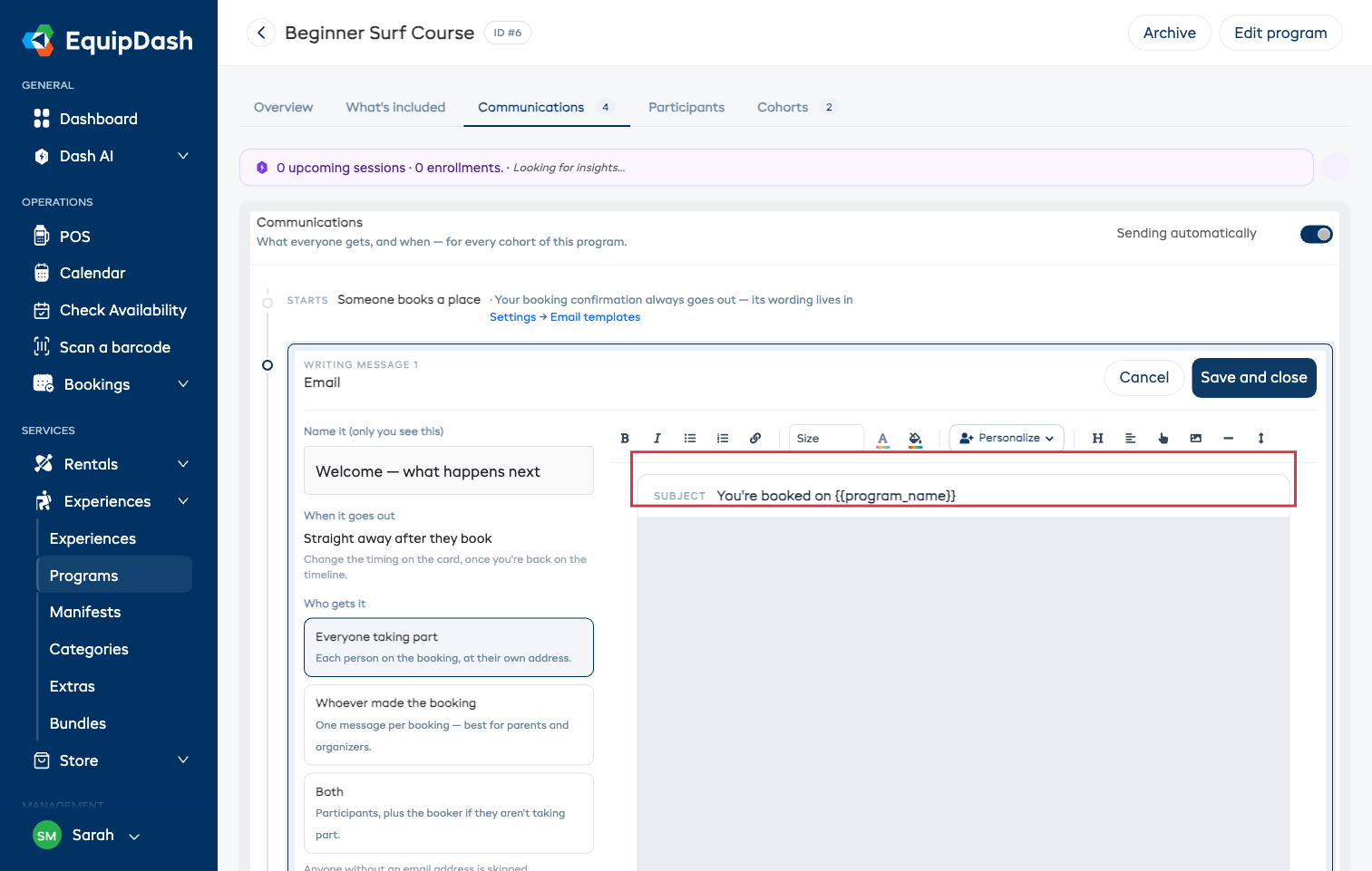
Press the pencil on a card.
An email opens in the same editor you use for your other emails: your logo, your colors, and blocks you can add — heading, text, image, button, divider. Type straight into it.
A text message is a plain box with a phone preview beside it, and it tells you how many credits it costs before you leave the page.
Filling in their details automatically
Both kinds let you drop in details that fill themselves in per person. Click any of the chips to copy it, then paste it where you want it:
{{first_name}} · {{program_name}} · {{cohort_name}} · {{start_date}} · {{start_time}} · {{session_date}} · {{session_number}} · {{location}} · {{balance_due}}
So "Hi {{first_name}}, {{program_name}} starts on {{start_date}}" arrives as "Hi Maya, Beginner Course starts on Sep 15, 2026".
Send yourself a test before you finish. It goes to the email address on your own login, with the details filled in, so what lands in your inbox is what your customers get. A text message arrives as an email too, so testing costs you no credits.
Adding, copying and pausing
- Add a message here sits between every pair of cards — press the one where you want the new message and pick Email or Text.
- Copy duplicates a message, wording and all, just below the original. The copy starts paused.
- Pause (the ⏸ button) stops a message without deleting it. It stays on the timeline, greyed out, so you remember it exists.
- Remove deletes it. Future cohorts stop sending it; anything already sent stays in your customers' history.
What a cohort actually sent
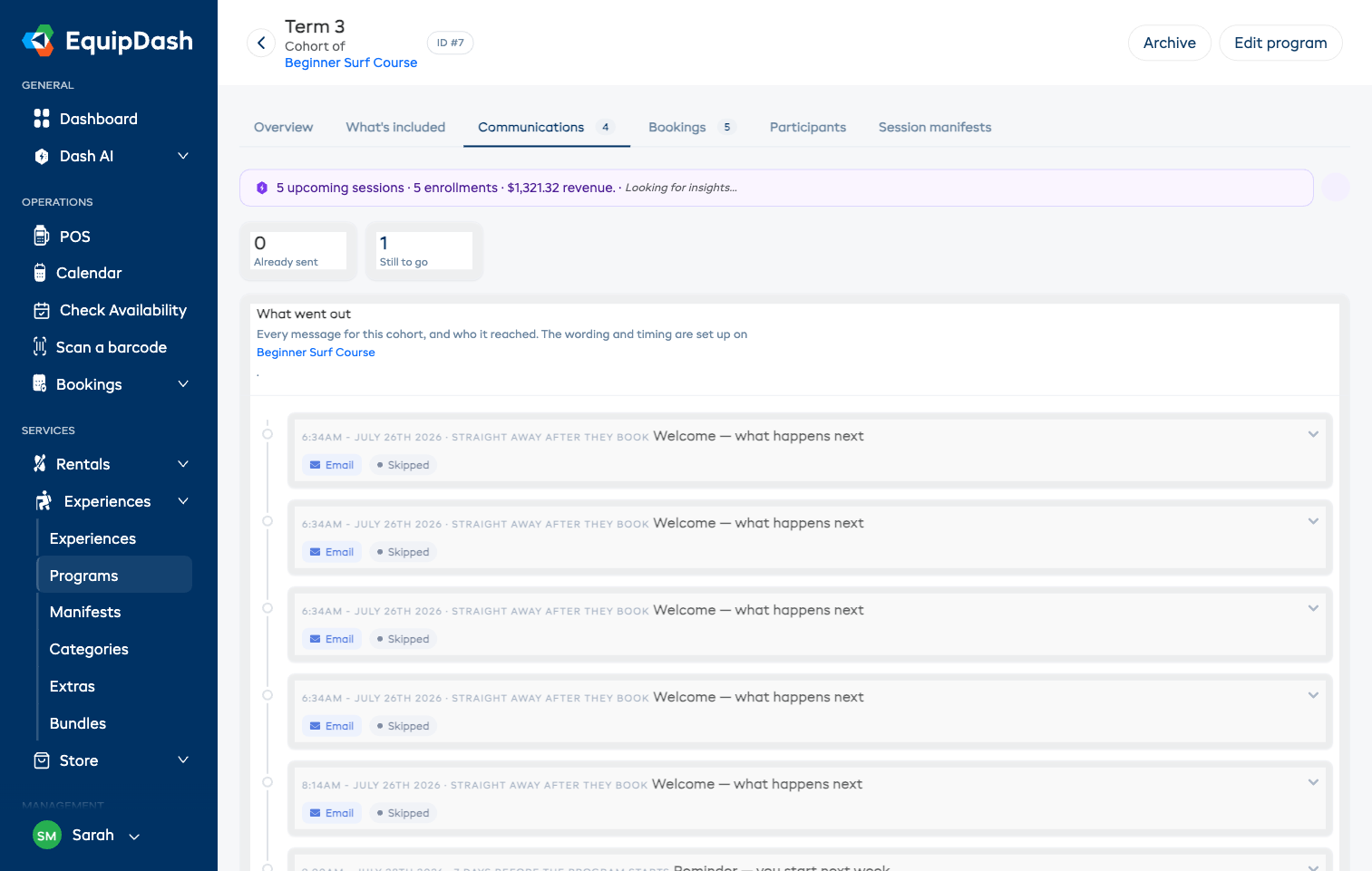
Open a cohort and go to Communications. This is the record for that intake, in date order — not a second place to change things. Everything about the plan is set once on the program.
Each row has a real date and a status:
- Sent — it's gone, with how many people it reached.
- Scheduled — still to come.
- Skipped — it won't go out for this cohort.
Click a row that has been sent to see exactly who it went to: each person, the address or number it reached them at, and anyone it couldn't reach and why. That's the screen to open when someone says they never got the email.
Rows still to come have two buttons:
- Send now — sends it immediately, without waiting for its date.
- Skip — this cohort doesn't get it. Every other cohort is unaffected, and you can put it back until its moment passes.
The addresses shown are the ones the message actually went to, saved at the moment it was sent. If a customer changes their email later, the record of where their message landed stays as it was.
Things worth knowing
Someone who joins late still gets the welcome, but not messages whose moment has already passed. Nobody books in week three and receives "you start next week".
If you move a cohort's dates, every message that hasn't gone yet moves with them. Anything already sent stays exactly as it was.
If someone cancels, they stop receiving everything from that point. A quote that was never accepted never receives anything at all.
Nothing goes out overnight. Messages only send between 8:00am and 8:00pm in your timezone. Anything due outside that waits for the morning rather than being dropped.
Texts use your SMS credits. A text before each of four sessions, to twelve people, is 48 credits — the editor shows you the number before you commit. See Topping up your SMS wallet.