Visual Editor
The visual editor shows the booking page your customers see for one item, and lets you change it right there. Type over the words, click a price or a setting to change it, or tell Dash what you want different.
It works the same way for rentals, experiences, store products and bundles.
Opening it
- Open the item: Rentals > Products, Experiences, Store > Products or Rentals > Bundles, then click the item.
- Click Visual editor at the top right.
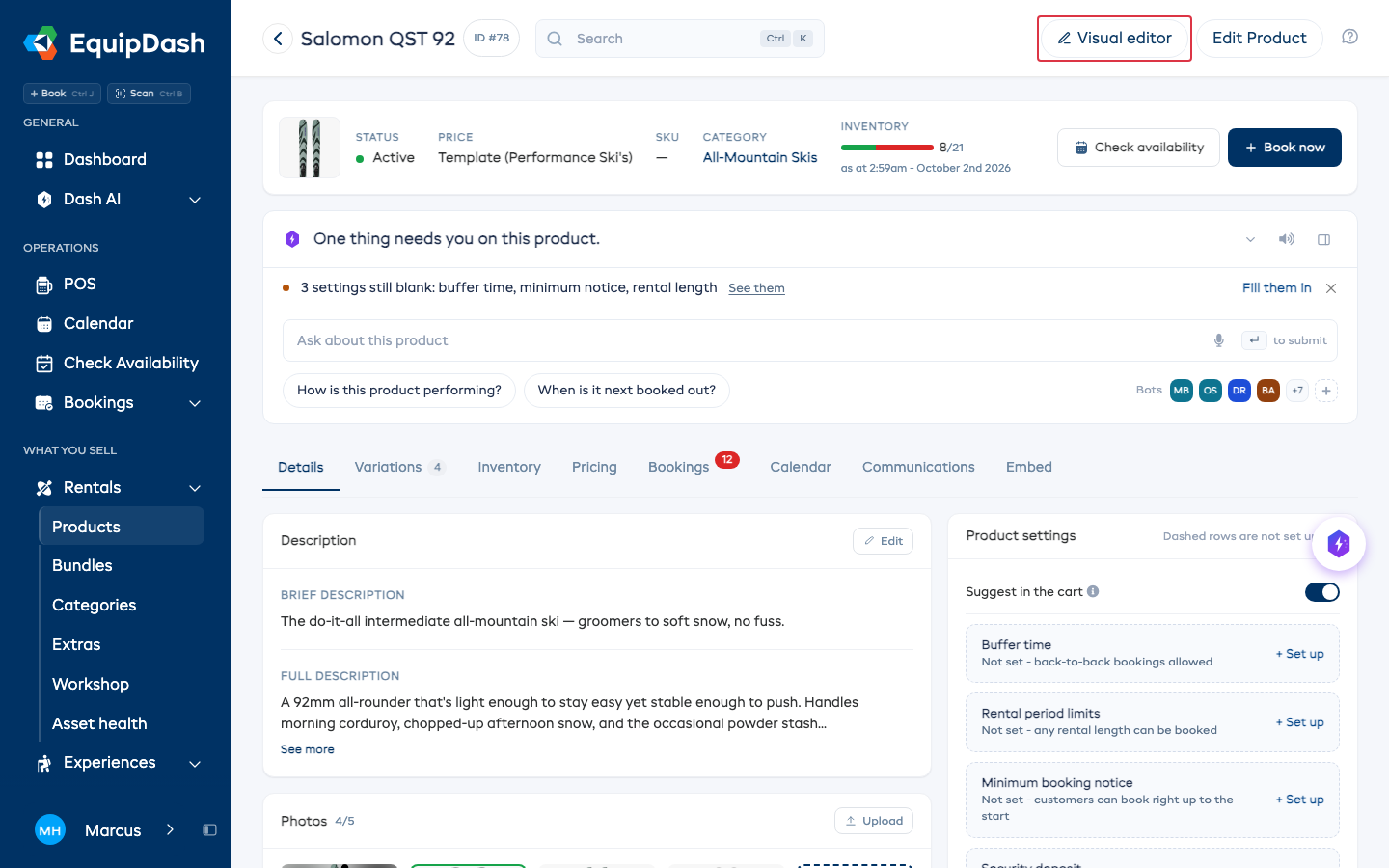
Your booking page opens with Dash beside it. Click Done at the top right when you're finished.
Items your customers can't see yet (a draft, Staff only, sold only as an add-on) still open, with a note at the top saying why customers don't see them.
Changing the words
Click the name, the overview or the full details, type, then click anywhere else. It saves as you go, and All changes saved shows at the top.
Changing a price, photos or a setting
- Click the part of the page you want to change, for example the price.
- Click Change price (or Change photos, Change stock and sizes and so on) in the bar that appears.
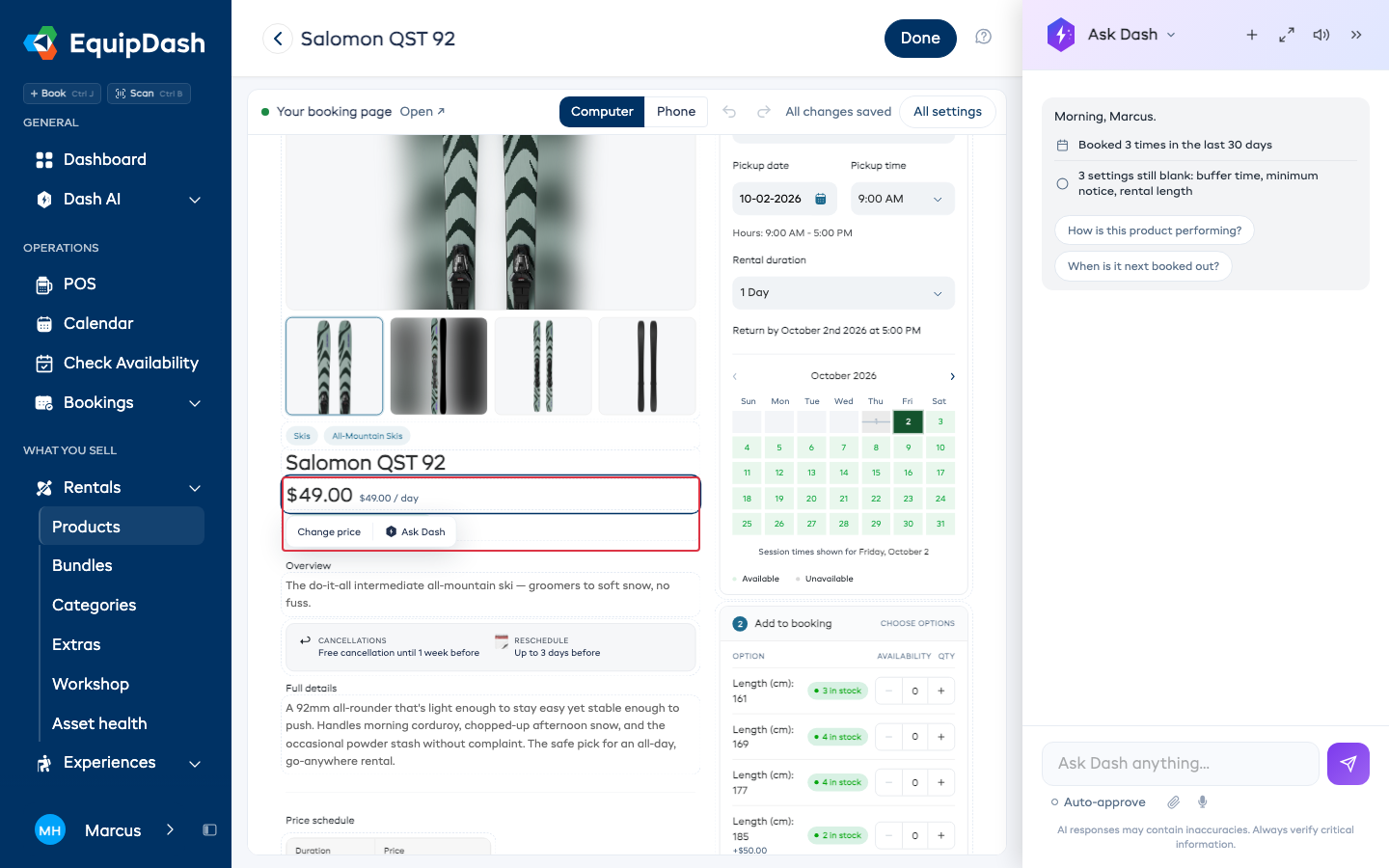
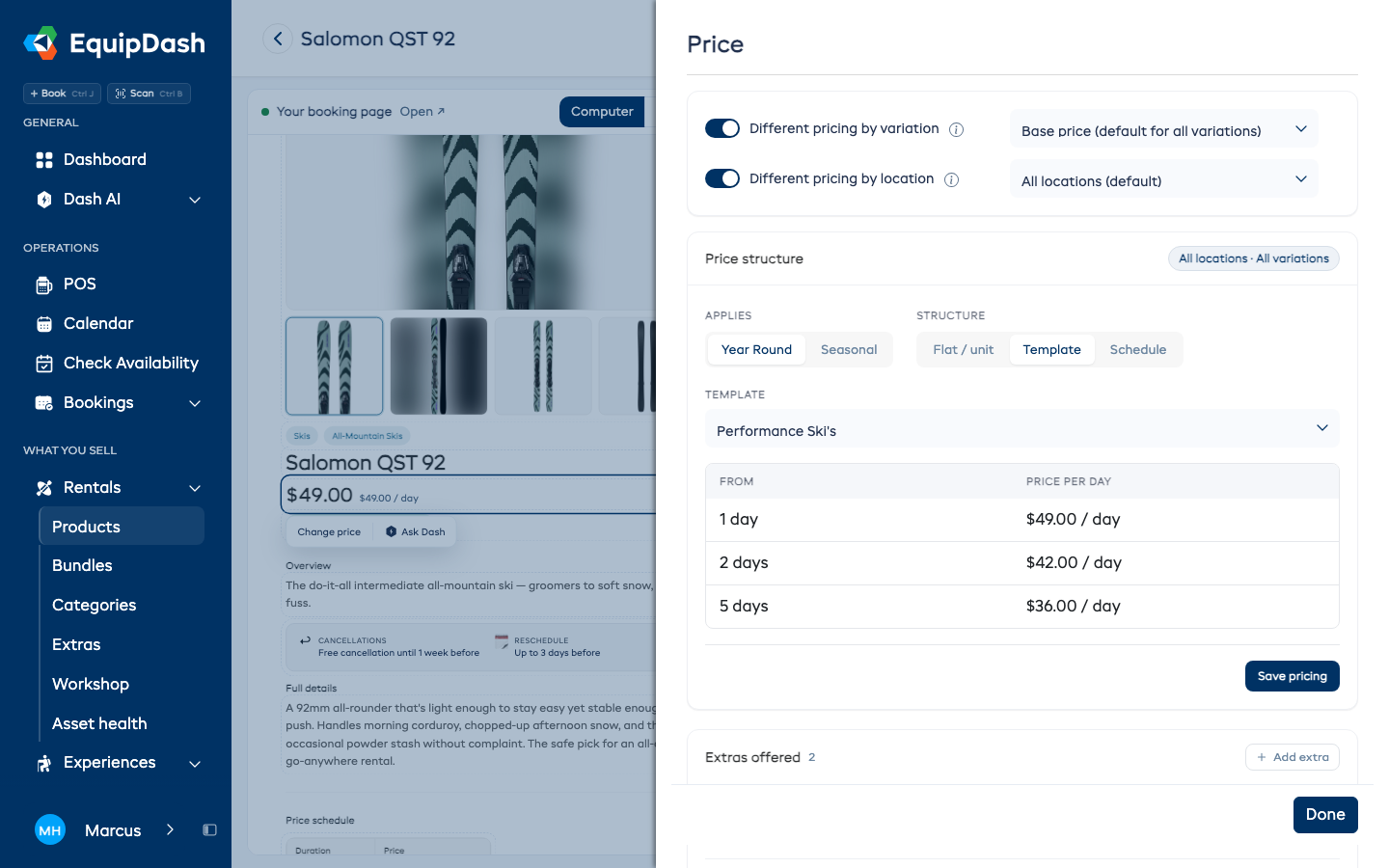
A panel opens on the right with the same controls you'd find on the item's own page. Change what you need and click Done. The booking page updates straight away.
Things set for your whole shop, like opening hours or pickup locations, open their Settings page in a new tab.
Every setting in one list
Click All settings at the top to see every setting for the item, grouped, with what each one is set to now. Click any row to change it.
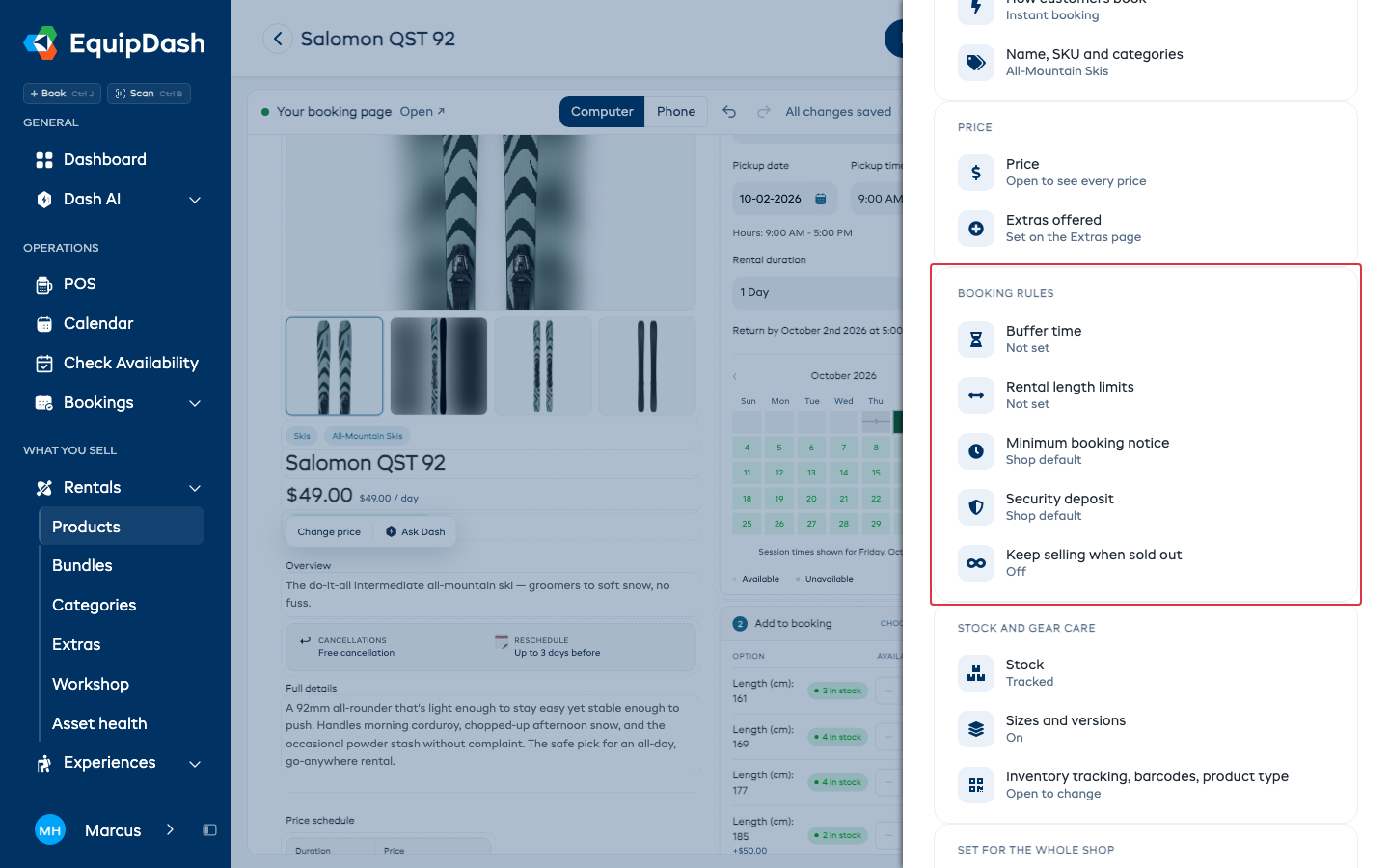
Asking Dash to change something
- Click the part of the page you want changed.
- Click Ask Dash.
- Type what you want, for example "Make this shorter", and press Enter.
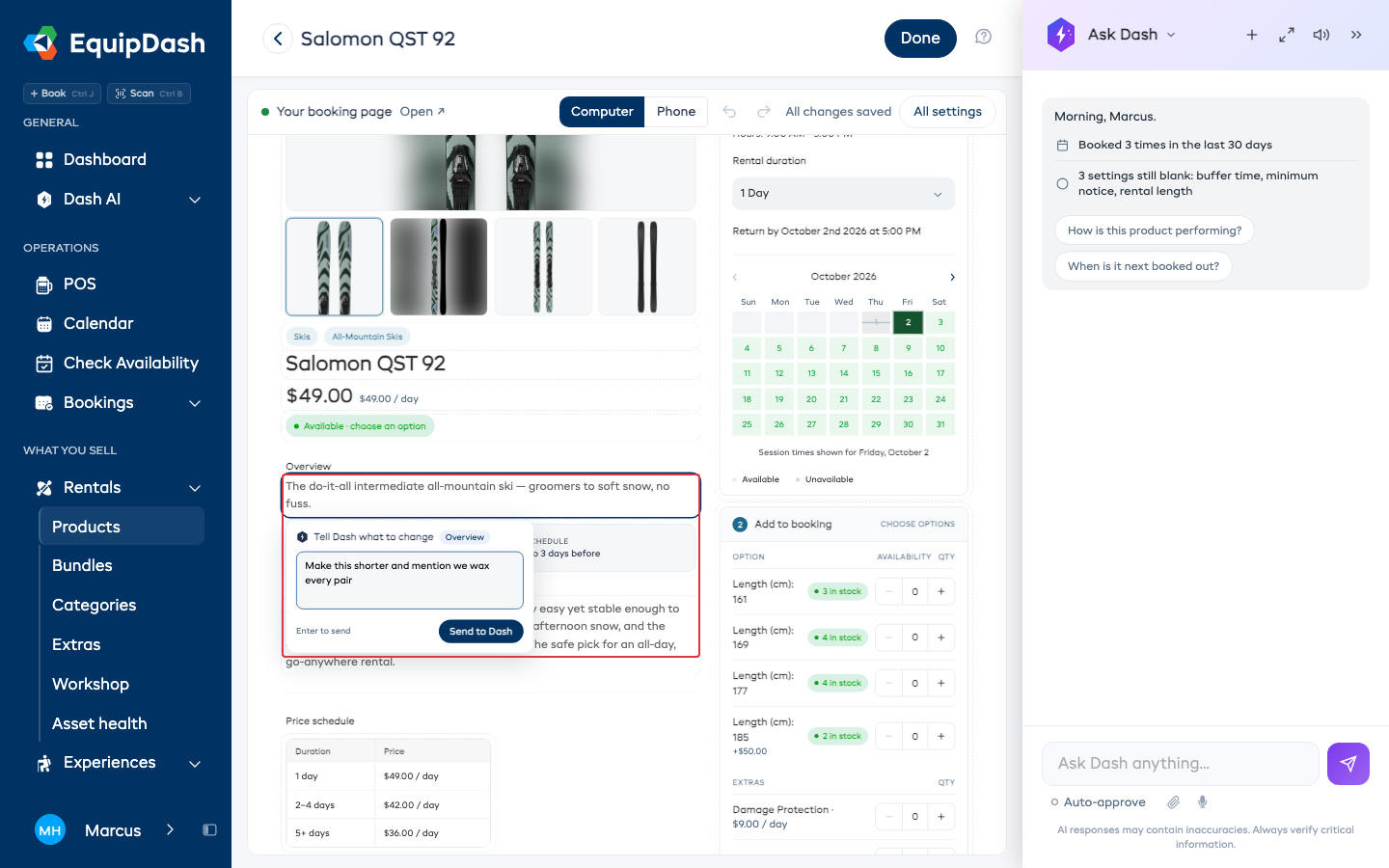
Dash knows which item and which part you picked. Words and photos change straight away and show Dash changed this, with Undo next to it. A change to a price, a deposit or a discount always waits for you to approve it in the Dash panel first, even if you've switched on auto-approve.
Undo and redo
Use the arrows at the top to undo or redo your last changes to the item's words and settings.
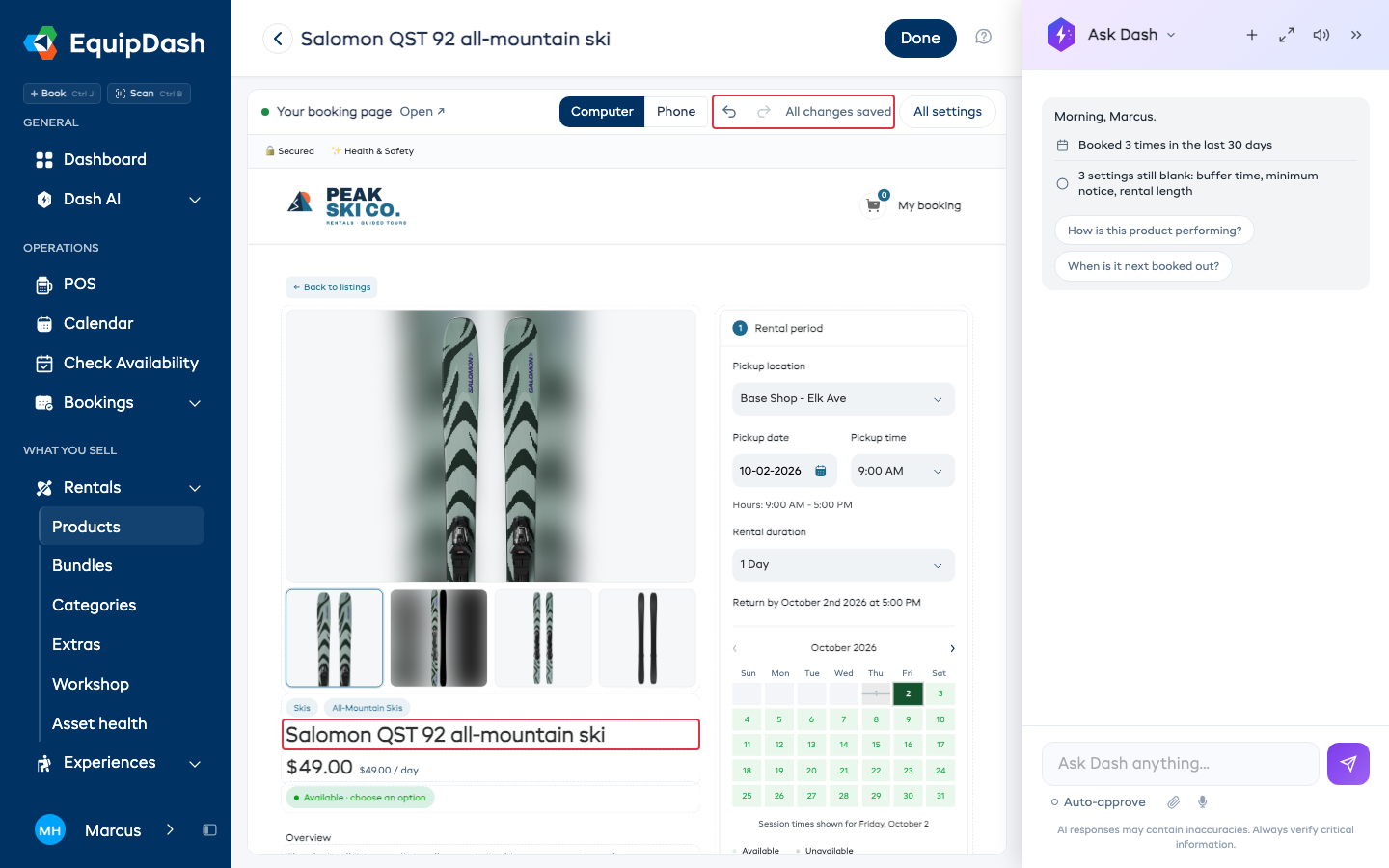
Undo doesn't cover prices, photos, or the items inside a bundle. Change those back in the panel where you changed them. Undo also leaves anything changed since, like stock a customer just bought or a word someone else edited.
Seeing it on a phone
Click Phone at the top to see the page at phone size. Click Computer to go back.
Who can use it
Anyone who can edit the item can open its visual editor. Staff who can only view items see the item's page without the Visual editor button.