The Gear List
The gear list answers one question: what do I pull off the shelf for this booking, and which site do I pull it from?
The Fulfillment screens tell you what's going out today. The gear list is the other view — everything one booking (or one whole program run) needs, across every one of its dates, in the order you'd actually walk the store room. Print it, hand it to whoever's loading, and tick as you go.
Nothing is added to it by hand. Gear appears on its own from the activities and rentals already on the booking.
Where to find it
On a booking: open the booking and click the Gear tab, next to Details.
The tab only appears when there's actually something to pull. A booking that reserves none of your stock doesn't get the tab at all — no empty screen to click into.
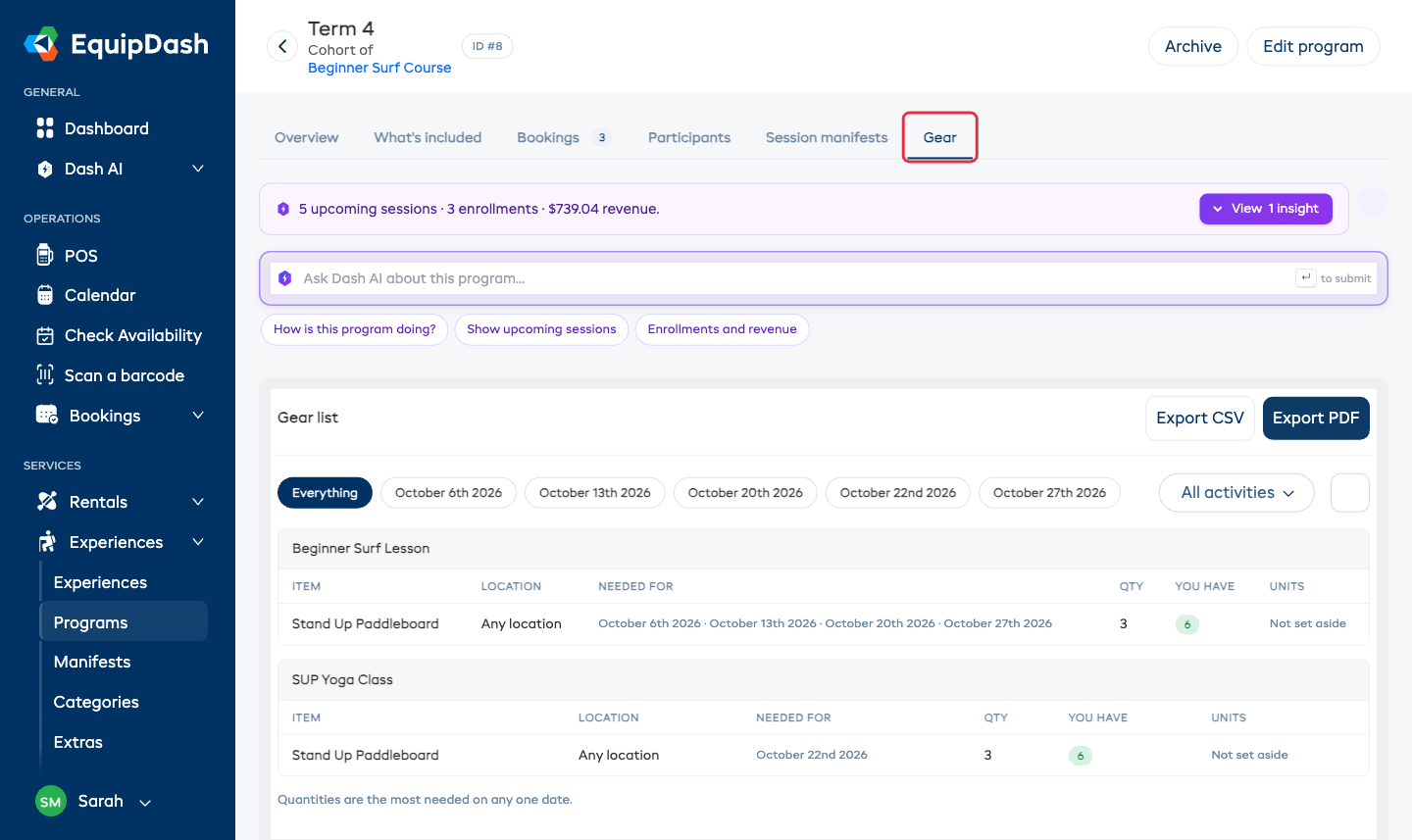
On a program run: open the program from Experiences → Programs, open the run, and click the Gear tab. This is the version most people print, because it covers every date in the term at once.
The Gear tab is only visible to team members who are allowed to see your products. Anyone else doesn't see the tab, and a gear sheet link won't open for them either.
Reading the list
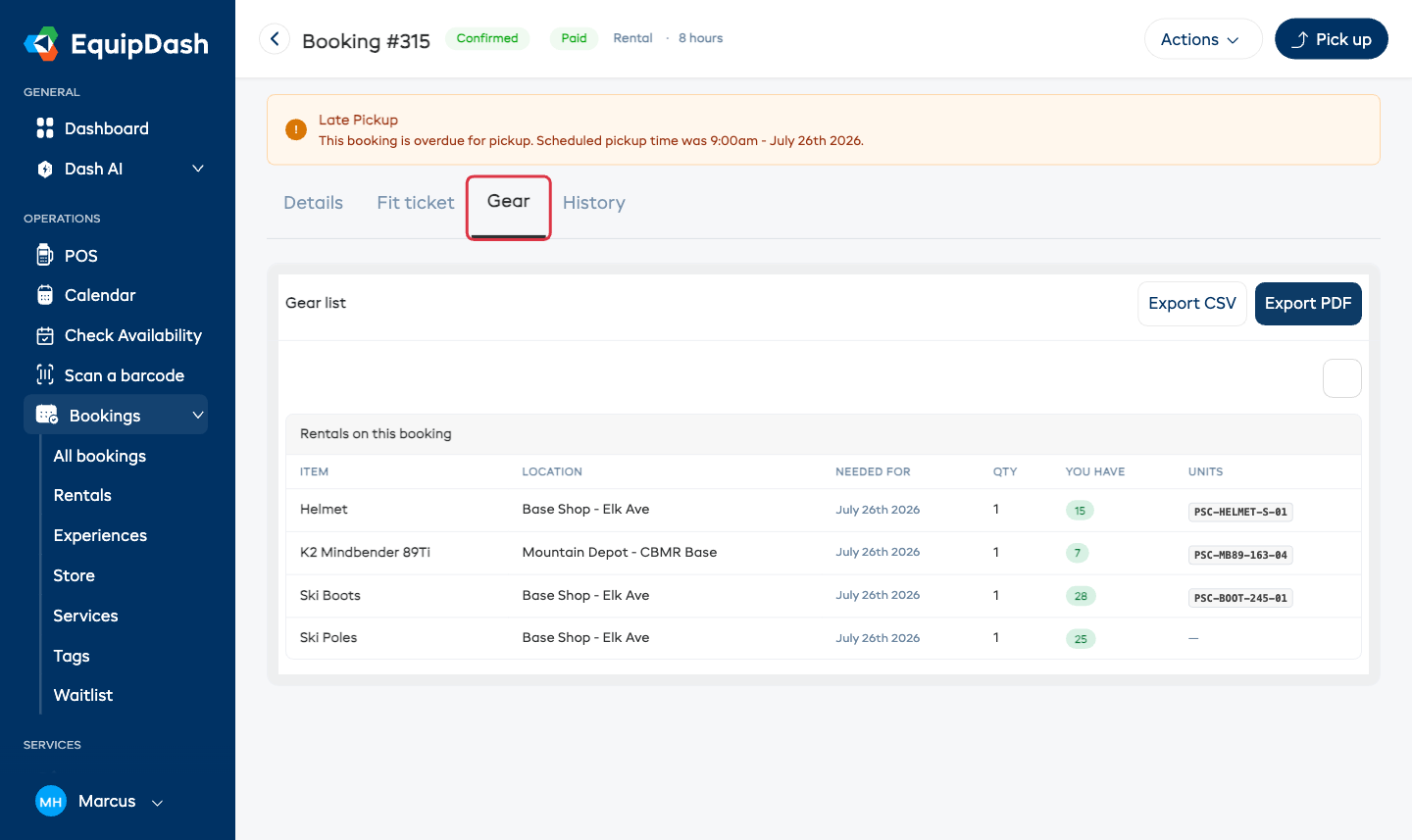
The list is grouped by activity, one section each, because that's how you walk the day — pull for the first session, then the next. Gear that came from a plain rental on the booking sits together under Rentals on this booking.
Each row is one item at one site:
| Column | What it tells you |
|---|---|
| Item | The product, plus its variation where it has one. If the item comes out of a kit, the row says Part of [kit name] underneath. |
| Location | The site this row's gear comes from. Stock that isn't tied to one site reads Any location. |
| Needed for | The dates this item is wanted on — or All [N] dates when it's every one of them. |
| Qty | How many to pull. |
| You have | How many you own that could cover it, colored green, amber or red (see below). |
| Units | The individual tags of the items actually set aside — the labels your staff read off the gear itself. |
Gear kept at two sites is two rows, one per site, each with its own count and its own tags. That's deliberate: two sites means two stops, and you need to know what to grab at each.
The number is the peak, never the total
If you need 12 of the same item on Tuesday and 12 again on Saturday, the list says 12 — not 24. You own twelve, you send them out, they come back, they go out again. Adding the dates together would send you shopping for stock you don't need.
Whenever a booking or run covers more than one date, a line under the list says exactly that.
Green, amber, red
The You have number is colored so a problem is obvious from across the room:
- Green — you own more than you need. Comfortable.
- Amber — you own exactly enough, with nothing spare. One breakage ruins the day.
- Red — you own fewer than this needs.
Anything red also raises an orange bar above the list naming the items you're short of, so you can't scroll past it — and the same shortfall is called out on the printed sheet.
"Not set aside" in the Units column
The Units column normally lists the tags of the specific items being held for this booking. Two other things can show instead:
- A dash (—) — the gear is held, but you count it as a quantity rather than tagging each item, so there are no individual labels to print.
- Not set aside — nothing is being held for this row. It still tells you what to pull, but no particular item is reserved, and it won't stop the same gear being promised to someone else.
Gear reads Not set aside when the product doesn't count its stock (see When gear isn't counted), or when it was attached to an activity after this booking was taken. Editing the booking sets it aside properly.
Narrowing the list
Two controls sit above the list, and each only appears when there's a choice to make:
- Date buttons — on anything covering more than one date, you get Everything plus one button per date. Click a date to see just that day's pull; the quantities re-count for that day alone. Click Everything to come back.
- All activities — on a booking or run with more than one activity, a dropdown narrows the list to one of them.
If a date or activity needs nothing, the list says so plainly rather than looking broken.
Choosing your columns
Click the gear icon above the list to pick which columns you see. Item always shows; Location, Needed for, Qty, You have and Units are yours to turn on, off, and reorder. A single-site shop can drop Location; a shop that doesn't label individual items can drop Units. Your choice is saved, so the list looks the same next time.
Printing the sheet
Two buttons sit in the top-right of the card:
- Export PDF — a printable sheet with a tick box against every row, grouped by activity in the same order as the screen, with the site, quantity and individual tags on each line. Anything you're short of is flagged in red. Across the top: which booking or program it's for, and the date you printed it.
- Export CSV — a spreadsheet with one row per item and columns for the activity, item, location, what kit it's part of, the dates it's needed for, how many, how many you have, how many you're short, and the tags.
The sheet and the spreadsheet always cover the whole booking or run, whatever you've filtered the screen to. The date buttons and the activity dropdown change what you're looking at, not what you print.
Where the gear comes from
You never add gear to a booking yourself. It arrives from three places, all of which you set up once:
- Activities — whatever the experience says it uses. See Run Activities on Your Rental Fleet.
- Rentals on the booking — the items the customer hired, plus anything inside a kit those items draw from. See What's in the kit.
- Extras — gear added as an extra alongside a rental.
Change what an activity uses, or add an item to the booking, and the list updates the next time you open it.
When gear isn't counted
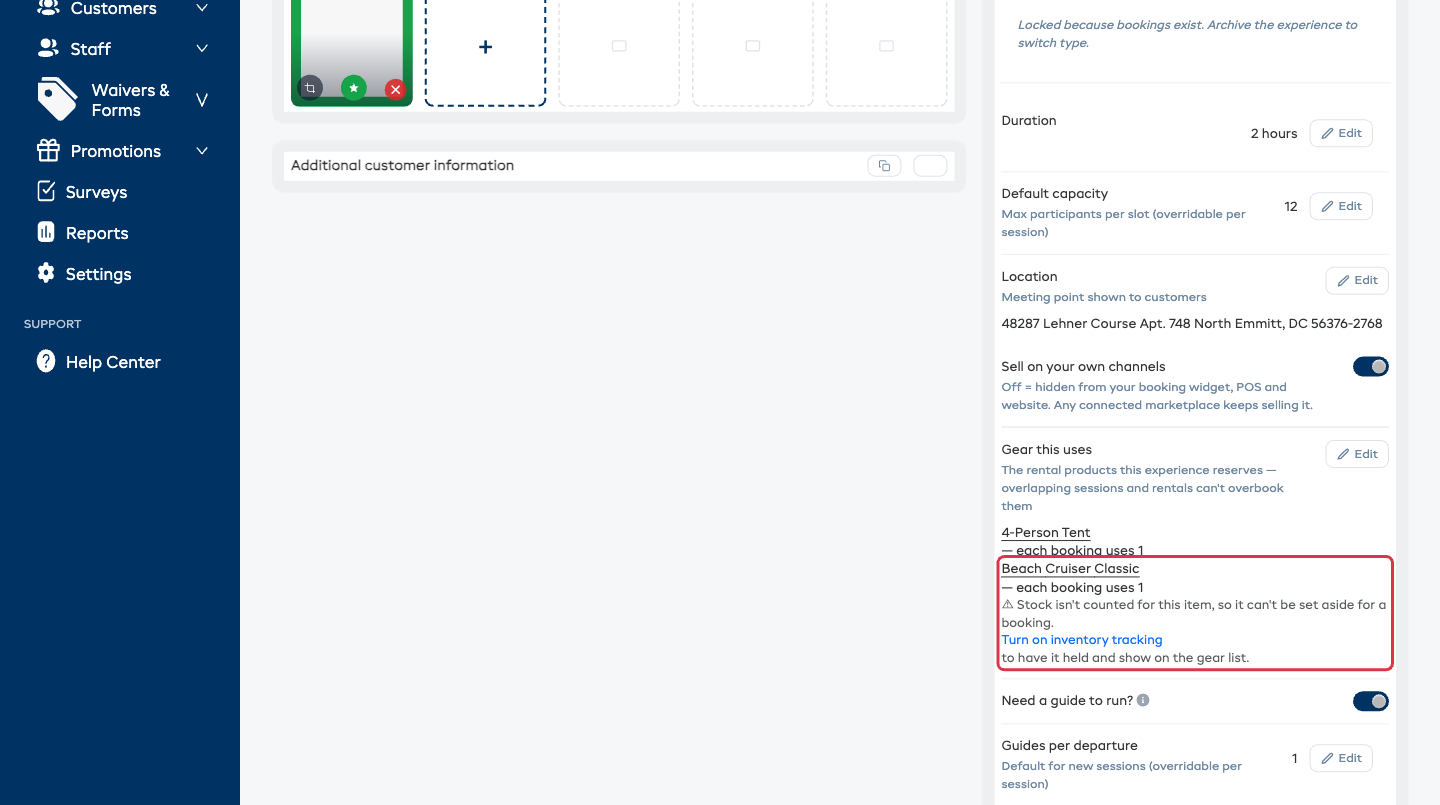
A product only gets set aside for a booking if it counts its stock. Turn Inventory tracking off on a product and EquipDash has no idea how many you own — so nothing can be reserved, the item can be promised to two bookings on the same day, and it shows on the gear list as Not set aside.
If that matters for a piece of gear, open the product from Rentals → Products, turn Inventory tracking on, and add your stock. See Inventory Units.
When you attach gear to an activity, EquipDash warns you right there if that product doesn't count its stock, so you find out at setup time rather than on the morning of the session.
Gear across a whole program run
A program run is where the list earns its keep. One run can span a term, with a different mix of activities each week and gear split across sites — and the peak-not-total rule means the sheet still reflects what you actually have to own.
Open the run, click Gear, then either work date by date with the date buttons or print the whole term in one go. See Cohorts.
Related guides
- Booking Fulfillment — handing the gear over and taking it back
- Run Activities on Your Rental Fleet — telling an activity what gear it uses
- Inventory Units — counting stock and labeling individual items
- Multiple Locations — keeping stock at more than one site
- What's in the kit — items a kit draws from the shelf
- Cohorts — one run of a program, on its own dates