Customer Portal Growth+This feature requires the Growth+ plan or higher
The customer portal is a single private web page that shows a customer every booking they've made with you — what's coming up and what's already been and gone — with the same self-service buttons they get on an individual booking.
They reach it from a View all my bookings link in their booking emails. There's no sign-up, no password, and nothing for you to set up per customer.
The portal is not an account. It's one private web address, unique to that customer, delivered to their inbox — exactly like the View booking links you already send. Customers never create a password, and you never field a "I forgot my login" call.
Turning It On
The portal is off until you switch it on.
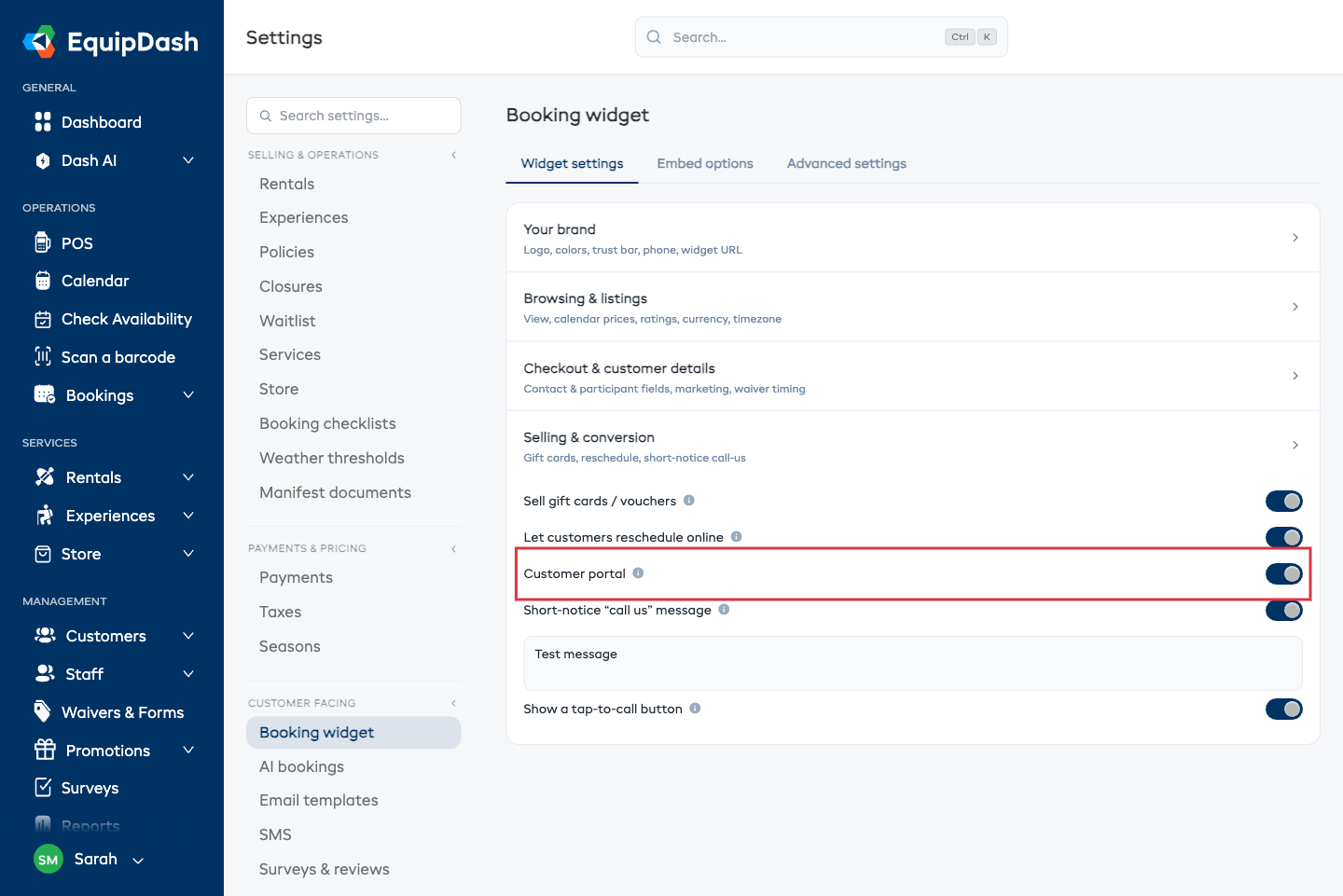
- Go to Settings → Booking widget.
- Open the Selling & conversion section.
- Switch on Customer portal.
That's it — it saves as you flip it, and the link starts appearing in booking emails from the next one you send.
The Customer portal row shows a padlock and can't be switched on. Upgrading to Growth or Pro unlocks it. Trials include it.
How Customers Get the Link
Once the portal is on, a View all my bookings link is added to:
- The booking confirmation email
- The booking reminder email
It sits under the usual View booking button, as a quiet text link. It only goes to the person who made the booking, and only by email — portal links are never sent by text message.
You can also send it on demand — see Resending the Link below.
What the Customer Sees
Tapping the link opens their own My bookings page, branded with your logo and colors. It's built for a phone.
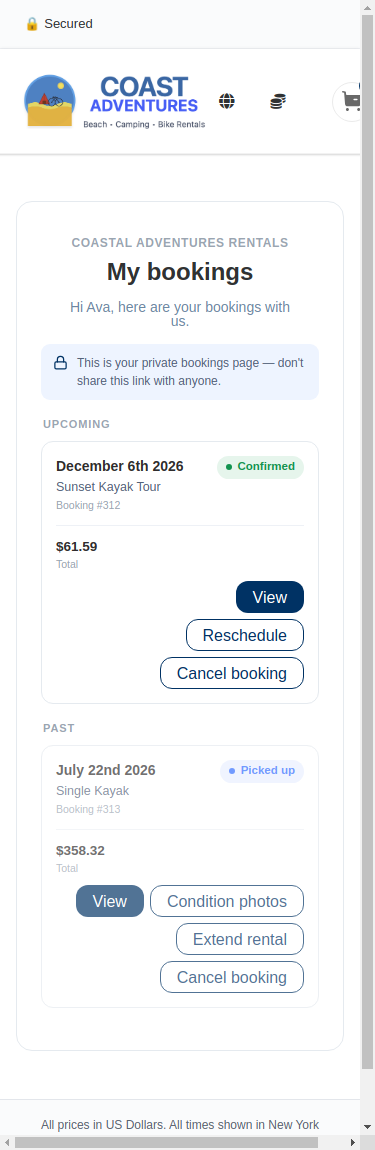
Each booking is one card showing the dates, what they booked, the booking number, a status chip and the total. Underneath are the actions that booking currently qualifies for:
| Button | Appears when |
|---|---|
| View | Always — opens the full booking page they already know. |
| Condition photos | The booking includes an item you've asked customers to photograph. See Customer Condition Photos. |
| Reschedule | The booking hasn't started yet, and you allow online reschedules. |
| Extend rental | It's a rental they've already picked up, and you allow online extensions. |
| Cancel booking | The booking is still active. |
Those buttons obey exactly the same rules as the single-booking links — your availability, your minimum notice, your cancellation policy. Nothing new is being allowed. See Customer Self-Service.
Bookings are split into Upcoming and Past, in your shop's timezone. Upcoming is shown in full; Past pages ten at a time, newest first.
A banner at the top reminds the customer not to share the link, because anyone holding it can see that list. It's the same trade-off as any emailed booking link — nothing sensitive is shown (no card details), but treat it as private.
Bookings are matched by email address
The portal shows every booking made with that email address at your shop. If the same person has booked three times over two seasons — and ended up as three separate customer records because of a typo in a phone number — they still see all three bookings in one place. That's the point: a customer thinks in terms of "my bookings", not your records.
Resending the Link
If a customer says they can't find the email, send it again in one click.
- Open the booking.
- In the Email actions card, click Resend portal link.
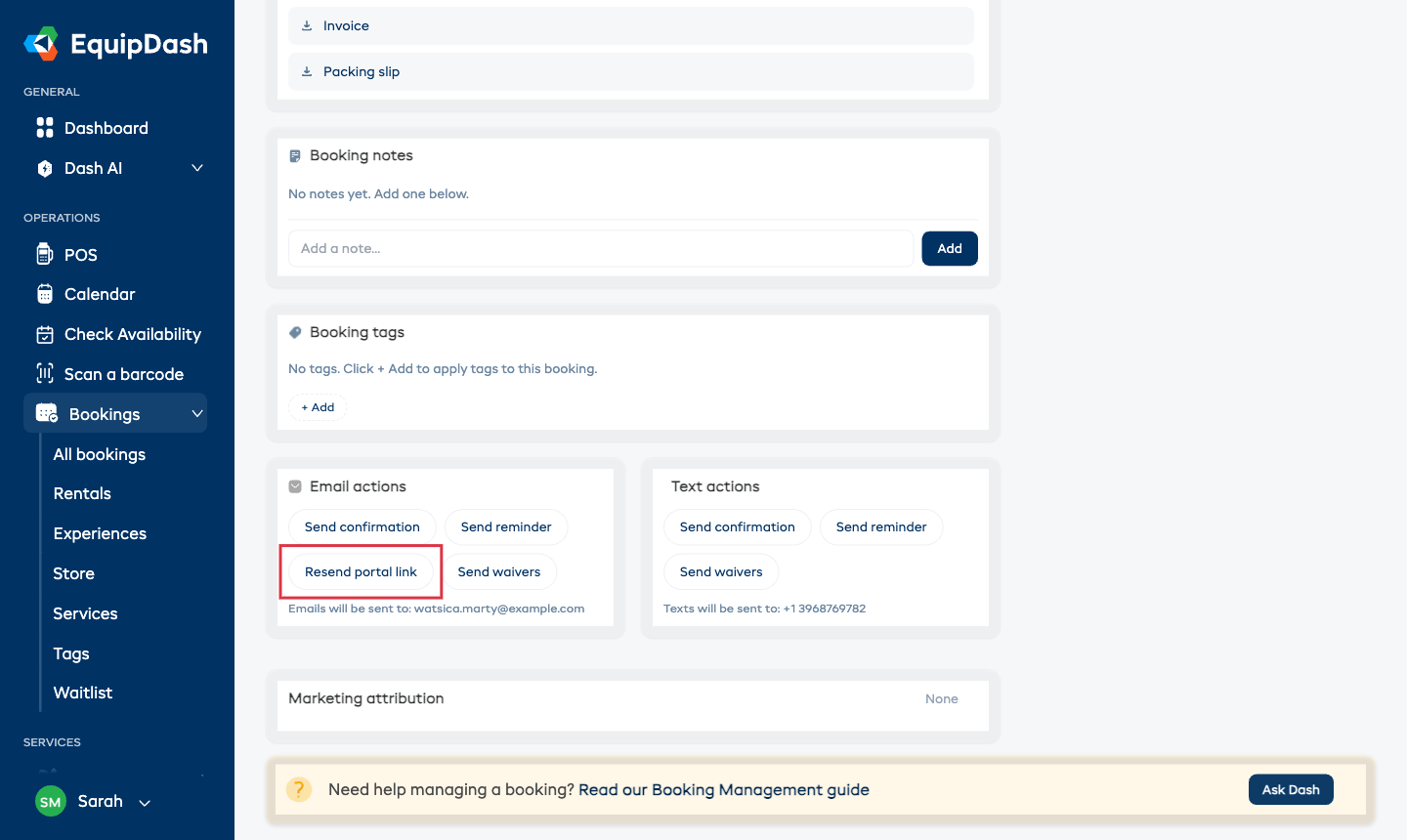
The email goes to the address shown under the buttons. The button only appears when the portal is switched on and your plan includes it.
Wording the Portal Link Email
The email that carries the link is a normal template you can edit.
- Go to Settings → Email templates.
- On the Customer tab, pick Customer Portal Link.
- Edit the Subject line, Introduction text and Closing text, then save.
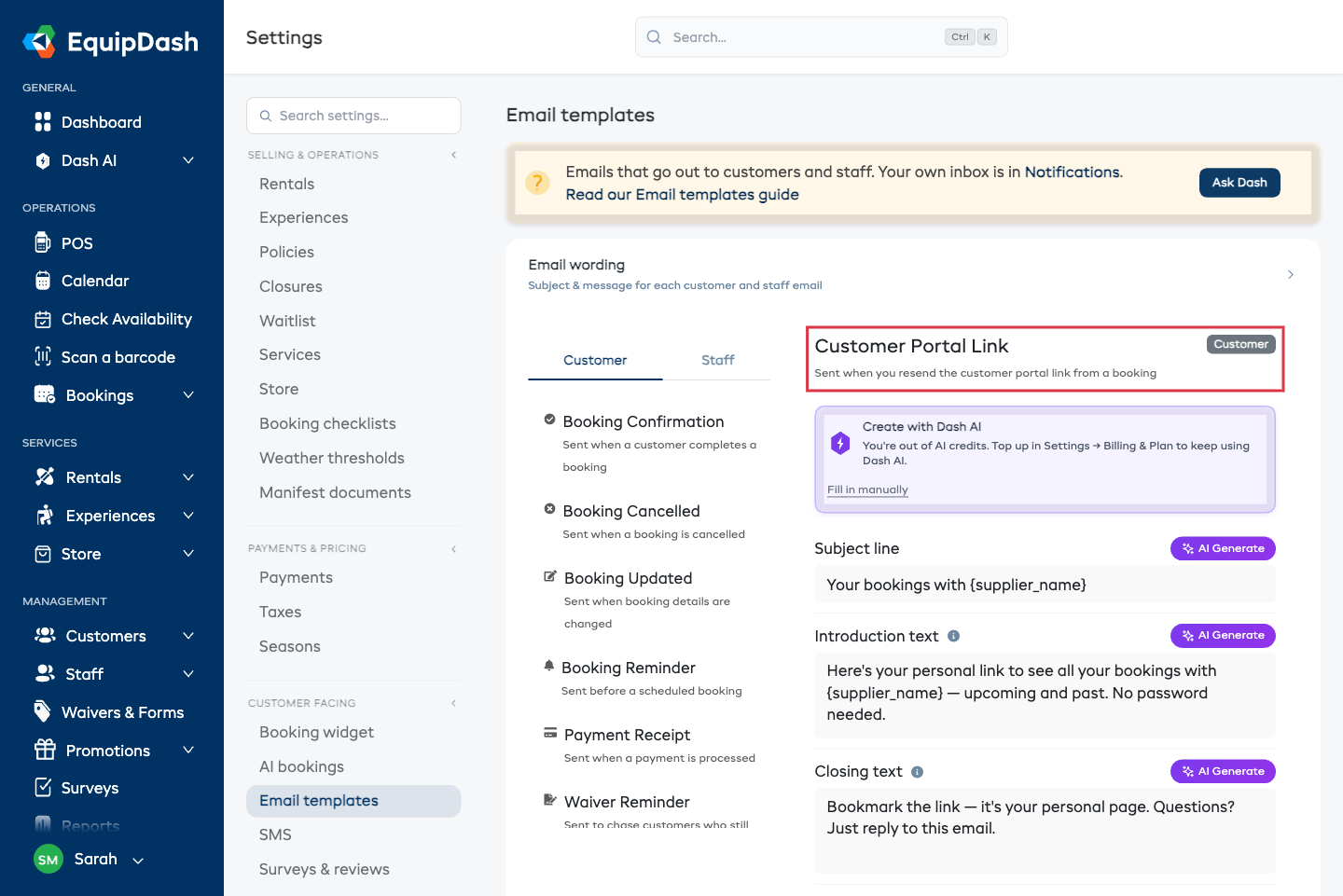
It takes the usual merge variables — {customer_name}, {supplier_name}, the booking fields — plus {portal_url}, the link itself. The button in the email is added for you, so you don't need to paste {portal_url} in unless you want a second, inline link.
Switching It Off
Turn Customer portal off in Settings → Booking widget and the link stops going out immediately. Any link already sitting in a customer's inbox stops working too — instead of their bookings they see a short, friendly "This page is no longer available — please contact the business" message, never an error page. The same thing happens if your plan changes to one that doesn't include the portal.
How Long Does the Link Last?
A portal link stays valid for a year past the customer's last booking, and a fresh one goes out with every booking email — so in practice the newest email in their inbox always works.
Related Guides
- Customer Condition Photos — let customers photograph gear at pickup and complete the pickup themselves.
- Customer Self-Service — the per-booking reschedule, extend and cancel links.
- Customizing Email Templates — wording every email you send.
- Extending an In-Progress Rental — the operator side of an extension.