Taking Booking Requests
Some experiences you can't sell on autopilot. A private group, a charter, a workshop that needs the right guide - you want to see who's asking before you commit to running it.
Request to book does exactly that. The customer picks a time and enters their card as usual, but nothing is charged and nothing is confirmed. The request lands in your Requests inbox, the time is held for them while you think, and you either approve it (which books it and takes the payment) or decline it (which frees the time up straight away).
Everything else works the way it always does. A request is just a booking you haven't said yes to yet, so your pricing, extras, waivers, confirmation emails and reports all behave exactly as they do for an instant booking.
When to use it
| Use Instant booking when… | Use Request to book when… |
|---|---|
| Anyone who fits can come | You want to see who's asking first |
| You always have staff for it | You need to check a guide is free |
| The price is the price | A big group might need a conversation |
| It runs whatever the numbers | You'd rather not run it for two people |
You set this per experience, so you can sell your daily departures instantly and still take requests for your private ones.
Turning it on
- Go to Experiences and open the experience (or click Add Experience for a new one).
- Go to step 3 - Additional Information.
- Open Advanced settings.
- Under How customers book, choose Request to book.
- Save.
That's the whole setup. Requests appears in your Bookings menu as soon as one experience is set this way, and disappears again if you turn them all back to instant - so a shop that never takes requests never sees the feature.
What the customer sees
On the experience page and again at checkout, they're told plainly that this one is a request:
Request to book. You are not charged until we confirm, usually within 24 hours.
They pick their time and party as normal. At the payment step they enter their card, and above it:
Your card will not be charged until we confirm your booking. We will confirm within 24 hours.
They can add a message with the request - "it's my dad's 70th", "two of us are slow walkers" - which is often the thing that tells you whether to say yes.
They get an email straight away confirming you have their request, and their own page they can open any time to see where it stands.
If you'd rather not take card details up front, switch Take a card when someone asks off in settings. Customers then ask without entering a card, and you email them a payment link when you approve. See Settings below.
Answering a request
Requests waiting on you are in Bookings → Requests. The badge on the menu item is how many are still waiting.
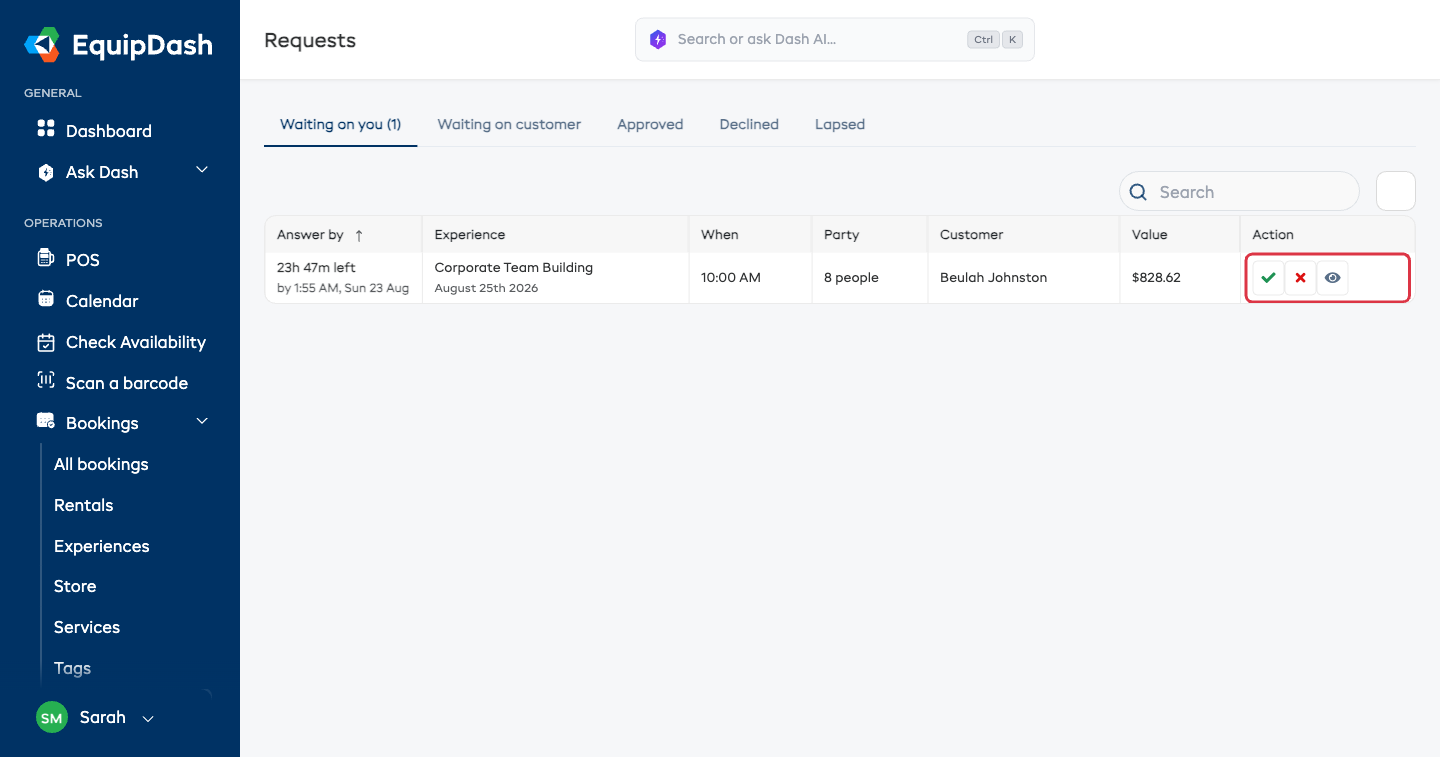
Each row shows how long you have left to answer, what was asked for, how many people and what it's worth. The three buttons on the right are approve (green tick), decline (red cross) and open the booking (eye).
The tabs across the top split them up:
- Waiting on you - nobody has answered these yet. This is your queue.
- Waiting on customer - you offered a different time and they haven't replied.
- Approved - you said yes and they became real bookings.
- Declined - you said no.
- Lapsed - nobody answered in time and the time was released.
You can also answer from the booking itself. Open any request and the card sits at the top of the page:
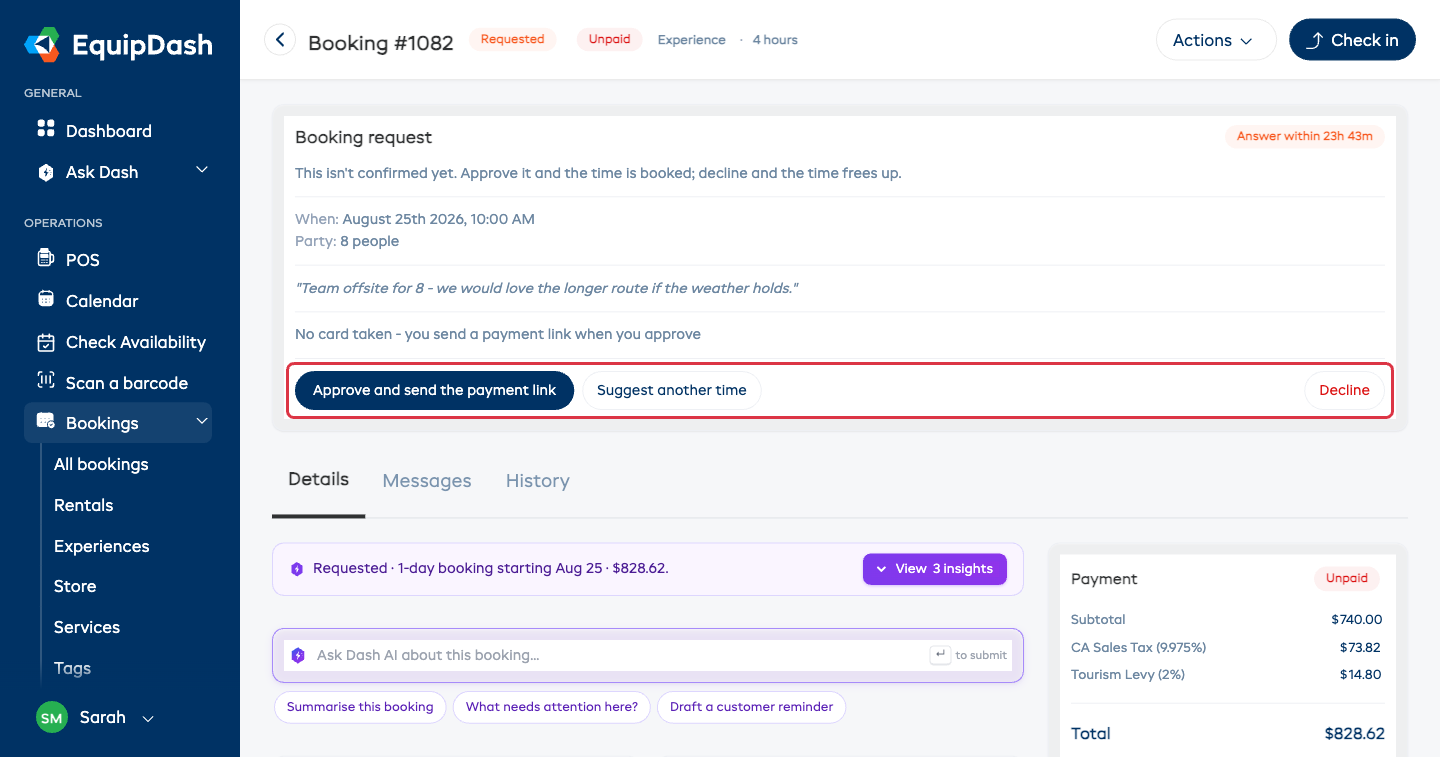
It shows the time, the party, anything the customer wrote, and whether a card is on file.
Approve
Approving does everything a normal booking does, in one tap:
- the booking is confirmed and the time is taken properly;
- the saved card is charged (or, if you take no card, they're emailed a payment link);
- the customer gets their confirmation email;
- waiver requests go out - deliberately not before now, because nobody should be asked to sign for something that might not happen.
If the card is declined, the booking still goes through as confirmed and unpaid, and the customer is emailed a payment link instead. You get an email telling you the automatic charge didn't work, so you're never left wondering whether you were paid.
Decline
Declining charges nothing and frees the time immediately. You can add a short message, and tick a few of your open times to suggest in the email - it commits you to nothing, it just gives them somewhere to go.
Offer a different time
Suggest another time is the middle path: you can't do what they asked, but you can do Thursday.
Search your open times, pick one, add a note if you like, and send it. The customer gets an email with one button to accept. Their card stays saved and uncharged until they press it. If they say yes, it books and charges exactly as an approval would.
While you're waiting, the request moves to Waiting on customer so it stops nagging you about something you've already answered.
If nobody answers in time
Every request is on a clock, and the clock is the whole point - a time held forever is a time you can't sell.
- If you don't answer before the deadline, the request closes itself, the time goes back on sale, and the customer gets an apology. Nothing is charged.
- If you offered a different time and the customer doesn't take it, the same thing happens - the hold runs out and the time is released. The email tells them the time was held as long as it could be, rather than blaming you for being slow.
You're nudged by email half way through the window, so a request rarely lapses without you having seen it twice.
The deadline also never outlives the departure itself. If someone asks for a time that starts in six hours and you normally take 24 hours to answer, you get the six hours (minus your minimum booking notice), not the 24 - otherwise the request would expire after the activity had already run.
Settings
Settings → Experiences → Booking requests holds the three shop-wide choices. They apply to every experience you've set to request to book, so you configure them once rather than on every product.
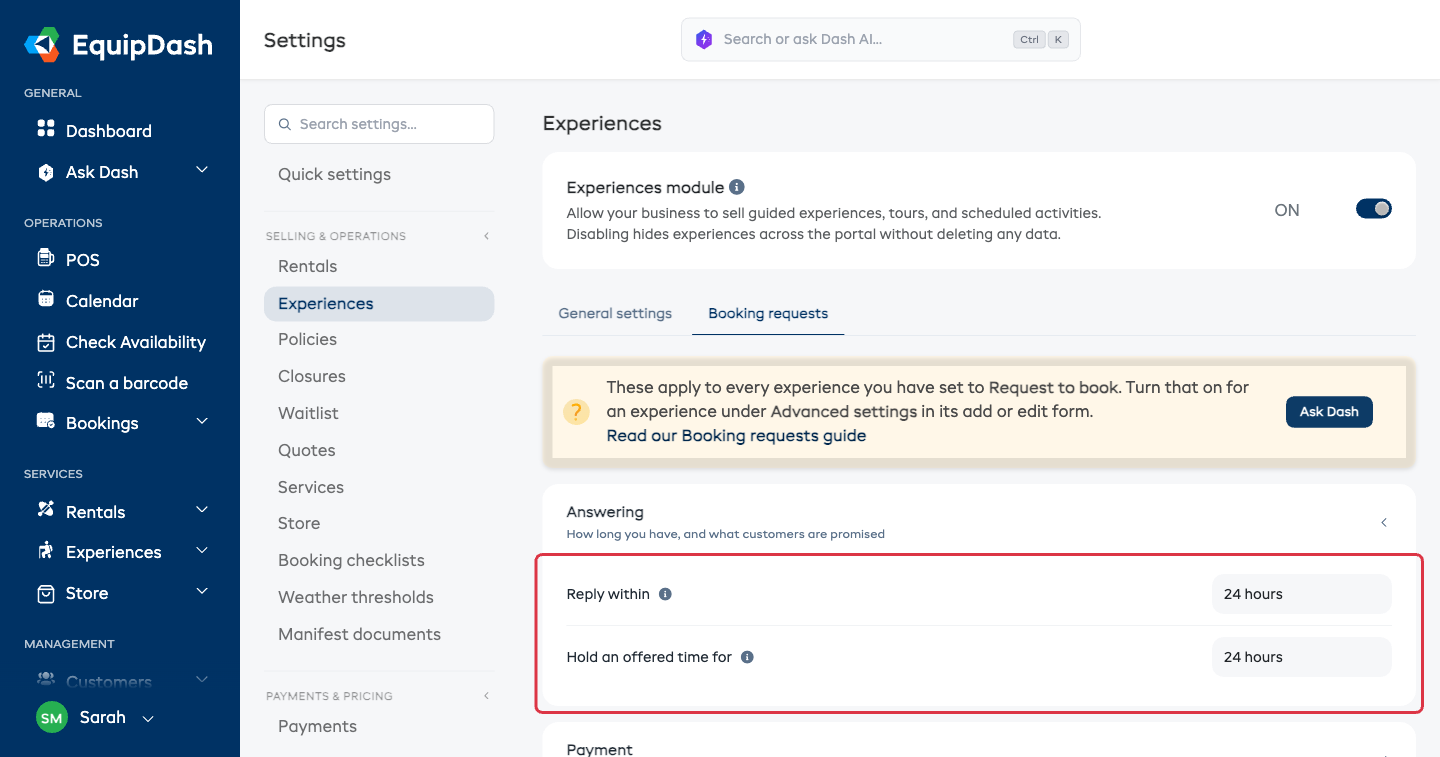
- Reply within - how long you have to answer. Customers are told this number, and it's also how long the time is held for them. Four hours through to three days.
- Hold an offered time for - when you offer a different time, how long that time is held while you wait for their answer. This is a separate clock on purpose: a shop that answers within four hours might still want to give the customer a whole day to reply.
- Take a card when someone asks - on by default. The card is saved but not charged, so nothing shows on their statement until you say yes, and a decline never needs a refund. Switch it off if you'd rather send a payment link after approving.
There's also Who gets told, where you choose which of your team get the email when a request comes in.
The emails
Six emails cover the whole lifecycle, and every one of them is yours to reword under Settings → Email templates → Booking requests:
| Goes to | When | |
|---|---|---|
| New Request | your team | Someone asks |
| Request Received | the customer | Straight away, so they know it arrived |
| Request Approved | the customer | You said yes |
| Another Time Offered | the customer | You suggested a different time |
| Request Declined | the customer | You said no |
| Request Not Answered | the customer | The time ran out |
Each one has its own subject, opening and closing lines, and merge tags like {experience_name}, {request_date} and {request_answer_by}. Leave them alone and they send perfectly good wording out of the box.
On your phone
Requests are in the EquipDash mobile app too, so you can answer one from the dock instead of going back to the desk.
- When something is waiting, a link appears on your Dashboard. When nothing is, it stays out of your way.
- The Requests screen has the same three tabs and approve/decline on each card.
- Opening a booking that is a request shows the same Approve and Decline buttons at the top.
Declining on the phone asks for a message the same way the portal does, so the customer hears it in your words.
Who can approve
Answering a request is its own permission, separate from seeing them.
- Bookings → View lets a team member open the Requests inbox and see what's waiting.
- Bookings → Approve or decline booking requests is what actually lets them answer.
That split means front-desk staff can see the queue building up without being able to commit the business to running something. Admins and Managers have both by default. Change it per person under Settings → Team.
Common questions
Does a request hold the time, or can someone else book it? It holds it. From the moment the request arrives until you answer, that time is not sold to anyone else. That's the point - otherwise you could approve four requests against three slots.
Is the customer charged anything while they wait? No. Their card is saved, not charged, not even held. Nothing appears on their statement until you approve. A decline never needs a refund.
Can I take requests for rentals too? Not yet. Request to book is an experience setting. Rentals still book instantly.
What if I want to see the request in my calendar? Requests appear as an unconfirmed booking, so you can see the time is spoken for without mistaking it for a sale.
Can Dash AI handle these? Yes. You can ask Dash to list what's waiting, read one out, approve it, decline it or offer another time - the same rules and the same permission apply. See Dash AI.
Related
- Creating an experience
- Experience schedules
- Quotes - for when the price isn't agreed, rather than the yes
- Email templates