How Programs Work Growth+This feature requires the Growth+ plan or higher
A program packages several sessions into one thing customers buy. A four-week beginner course, a school-holiday camp, a term of weekly classes, a two-day intensive — the customer pays once and is signed up for every date in the package.
Programs are included on the Growth+ and Pro plans. If you don't see Programs under Experiences, check your plan under Settings → Billing.
What you get
- One purchase for the whole run. However it's sold — online or at the counter — the customer gets one booking that covers every session and pays once.
- Any mix of experiences. A program can combine several different experiences, not just repeats of one. A surf course can include four surf lessons and a paddle session.
- Your choice of price. Charge the sum of the sessions, or set one fixed rate for the whole program — per person (with your usual rate types) or per group.
- Let the customer pick a slot. Some dates can be offered as "pick one of these" — for example a morning or an evening option for week 3.
- A roster you can actually use. Every participant appears on each session's manifest automatically, exactly as if you'd booked them one by one.
Programs and cohorts — the one idea to understand first
Most programs run more than once. You teach the same beginner course in Term 3 and again in Term 4. So a program has two parts:
| What it is | Does it have dates? | Can customers book it? | |
|---|---|---|---|
| The program | Everything that stays the same — the experiences, the price, the description, the photos | No | No |
| A cohort | One run of it, on its own dates | Yes | Yes |
You build the program once. Each time you run it you add a cohort ("Term 3", "Summer intake", "January group") with its own dates. Each cohort keeps its own participants, bookings, and revenue.
You get your first cohort as you create the program — the last step of the New program panel asks for its dates. So a program is sellable by the time you finish creating it.
Customers never have to work this out. On your booking page they see the program's name and a picker of start dates — "Term 3 — Starts August 4th 2026".
Read Cohorts for the full picture.
Before you start
You need experiences with dates already on the calendar. A program is built from the real dates of your experiences — you tick which of those dates belong to the program, you don't create new ones here. Add the dates first if they don't exist: see Setting Up Availability.
If you charge a fixed per-person price, your rate types (Adult, Child, Student…) come from your experience pricing — set those up once and programs share them. See Rate Types.
The Programs list
Click Experiences in the sidebar, then Programs.
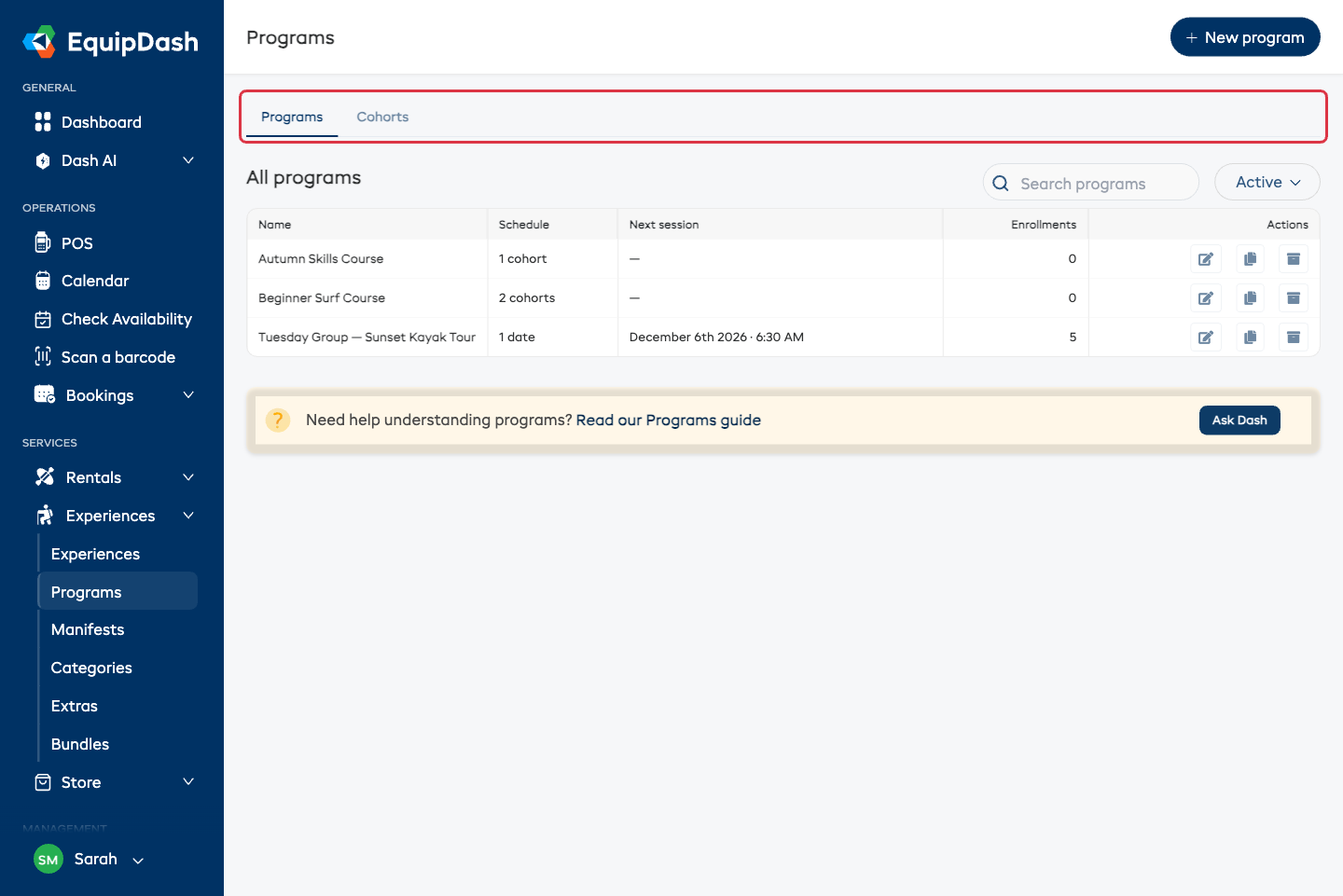
Two tabs: Programs lists the programs themselves, Cohorts lists every run across all of them.
On the Programs tab each row shows:
- Name — with a "Cohort of…" line if you're looking at a run.
- Schedule — how many cohorts the program has, or how many dates if it runs only once.
- Next session — the next date coming up.
- Enrollments — everyone signed up across its bookings.
Along the top:
- Search programs — find one by name.
- Active / Archived — archived programs are hidden here until you switch to Archived.
The Cohorts tab adds a Program filter and a Filter by date button, so you can answer "what's running next month?" across everything at once.
At the end of each row: Edit (opens the program), Duplicate (a standalone copy, including its dates, with online bookings turned off), and Archive (stops it selling and hides it).
Who can see and change programs
- Viewing programs needs Experiences view access.
- Creating and editing a program, adding dates, creating cohorts and archiving needs Experiences create access.
- The Session manifests tab follows your normal manifests permission.
See Roles & Access.