Printing & Exporting the Schedule Growth+This feature requires the Growth+ plan or higher
Print a clean copy of the week's schedule for the shop floor, the back-of-house wall, or anyone who needs a non-digital reference.
Printing the Current Week
- Go to Staff → Schedule and navigate to the week you want to print.
- Adjust Location, Role, or View filters if you want to print only a subset (e.g. just one location).
- Click the Print button in the toolbar.
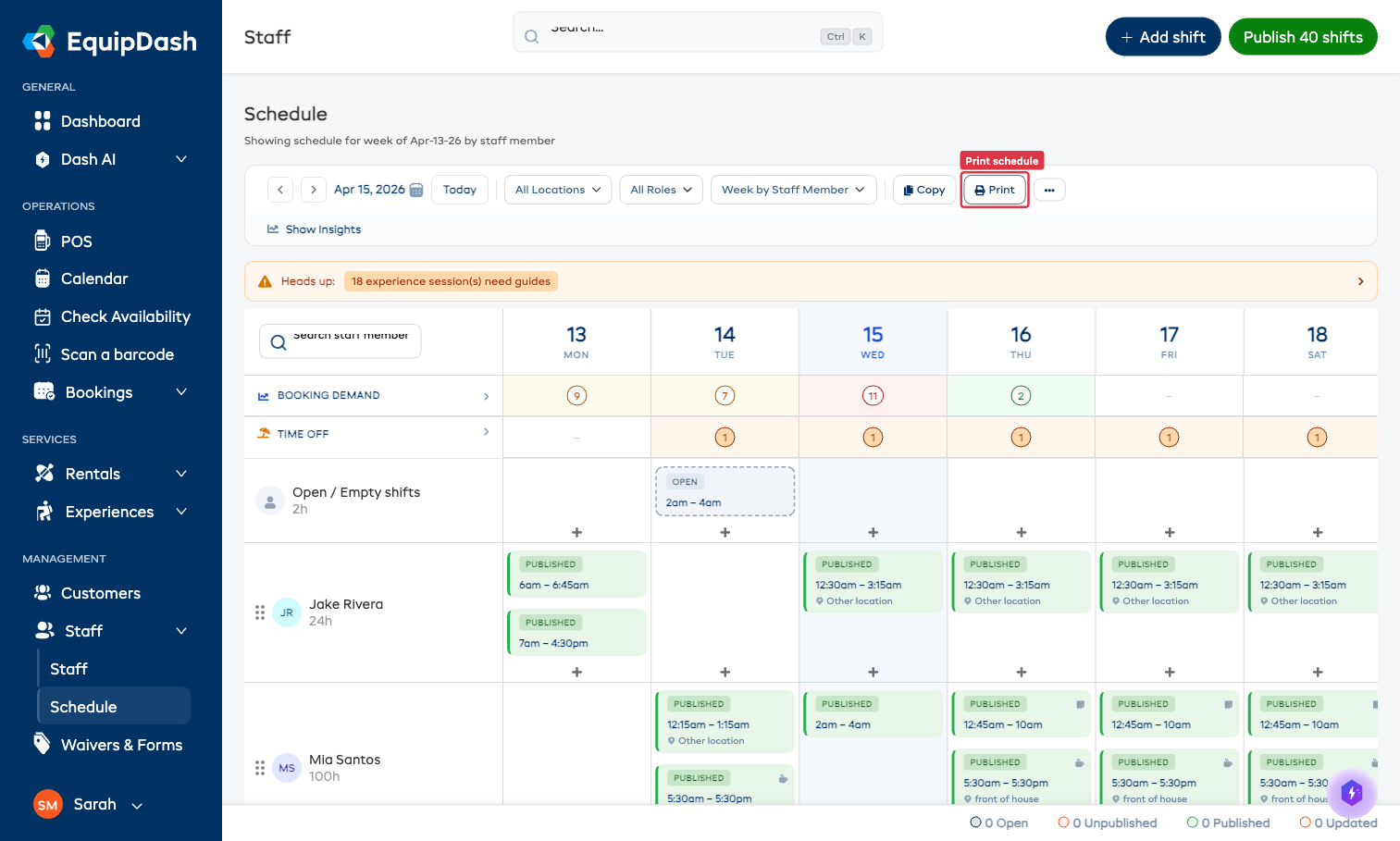
- Your browser's print dialog opens. From here you can:
- Send to a connected printer.
- Choose Save as PDF as the destination to save a digital copy.
- Confirm to print or save.
What's on the Printout
The printable view is optimised for paper and includes:
- The week label and date range at the top
- Staff member names down the left
- Days of the week across the top
- Each shift's start time, end time, and location
- A summary footer with total scheduled hours
Sidebar navigation, filters, and on-screen action buttons are hidden in the print view — you get a clean grid only.
Tips for a Clean Print
- Switch to landscape in your browser's print dialog — the schedule grid is wide.
- Tick "Background graphics" in your browser's print options if you want the shift status colors to print. Without it, all shifts print white.
- Print one location at a time if you have many staff — a single full-team page can be cramped on A4. Use the Location filter to print one location at a time.
Exporting Schedule Data
EquipDash doesn't currently offer a CSV/Excel export of the staff schedule. If you need to move shift data into a spreadsheet, the best options today are:
- Save as PDF via the Print dialog (above).
- Use the API — the List shifts endpoint returns the same data in JSON for any custom export pipeline. See the API documentation for details.
If you'd like a built-in CSV export, let us know — we prioritize based on demand.
For the opposite direction — bringing shifts in from a spreadsheet — see Importing Shifts from CSV.