Scheduling Insights Growth+This feature requires the Growth+ plan or higher
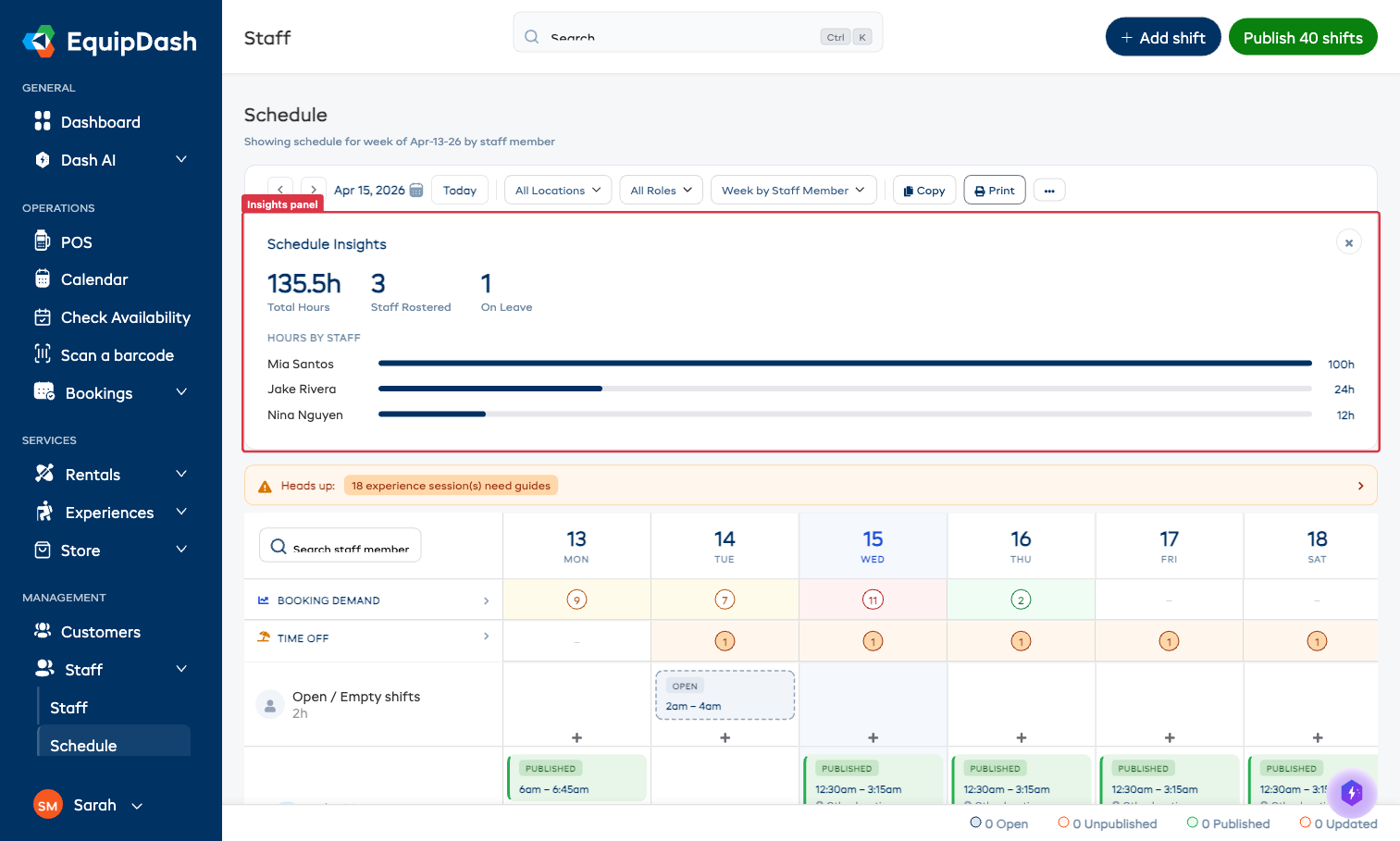
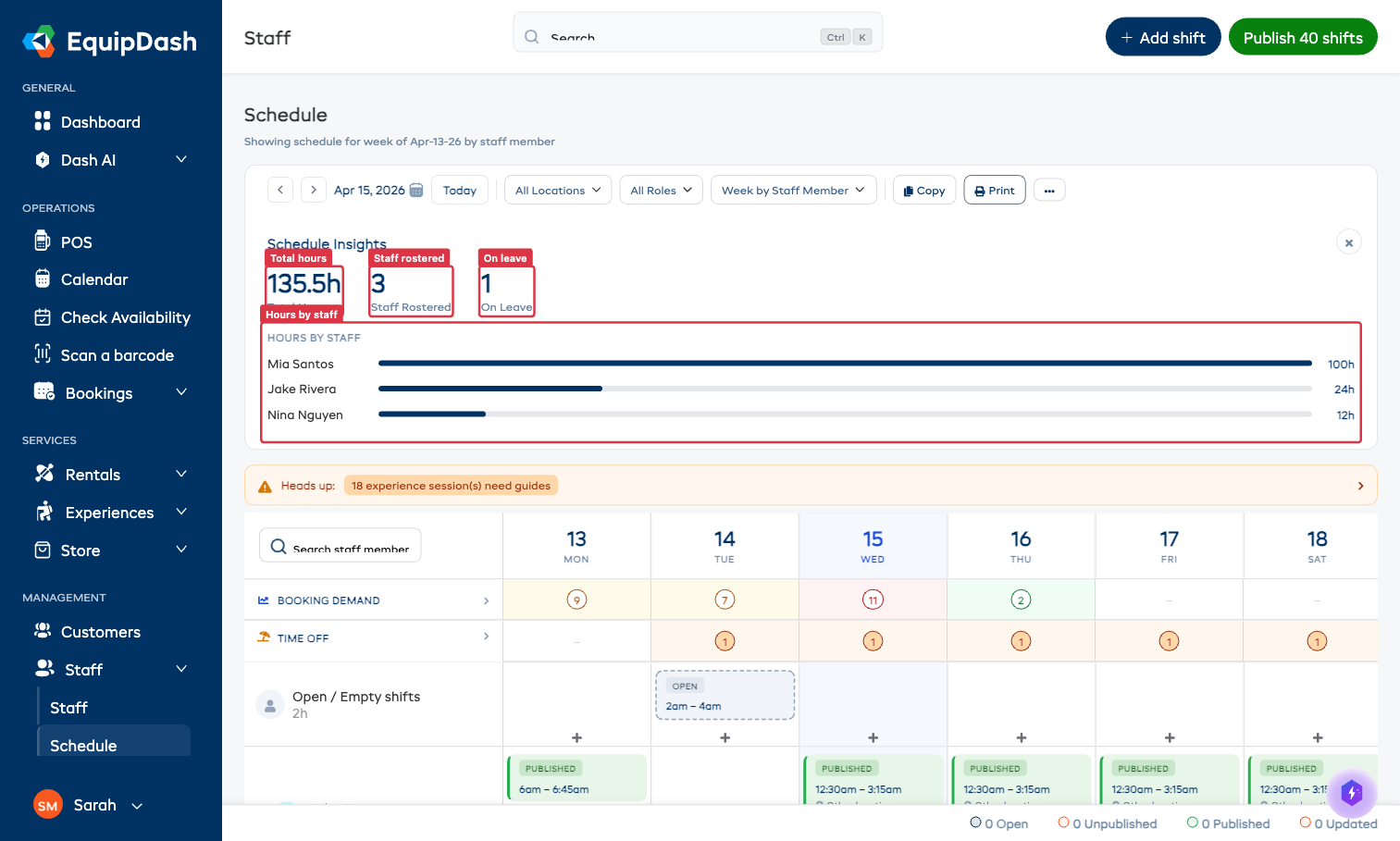
The Schedule Insights panel gives you a quick read on the week you're looking at — how many hours are scheduled, how many people are rostered, who's on leave, and how hours are distributed across the team. Useful for catching under- and over-scheduled team members at a glance.
Opening the Insights Panel
- Go to Staff → Schedule.
- Above the schedule grid, click the Show Insights button.
- The insights panel expands above the grid for the currently selected week.
- Click the X in the top-right of the panel to close it.
Understanding Each Metric
| Metric | What it means |
|---|---|
| Total Hours | The sum of all scheduled hours across every staff member for the selected week (including open/unassigned shifts that have a time range). |
| Staff Rostered | The number of distinct staff members who have at least one shift this week. |
| On Leave | The number of staff members with approved time-off that overlaps the selected week. |
| Hours by Staff | A per-person bar chart showing how many hours each staff member is scheduled for this week, sorted highest to lowest. |
Using Insights to Spot Problems
- Imbalanced load — one bar much longer than the others signals someone is carrying more than their fair share. Consider redistributing shifts.
- Low Total Hours — if your week looks thin relative to demand, cross-check with the Booking-Linked Scheduling demand overlay.
- On Leave count — if this looks unusually high for the week, double-check your time-off approvals so you don't accidentally publish shifts that conflict with leave.
Navigating Between Weeks
The insights panel always reflects the week currently visible in the grid. Use the date picker or arrow buttons above the grid to change week — the numbers update automatically.