Shift History Growth+This feature requires the Growth+ plan or higher
Every shift keeps a full audit trail. When someone says "I thought I was off Tuesday" or "who moved my shift?", the shift history answers both — you see who made each change, what changed, and exactly when.
Opening the History Panel
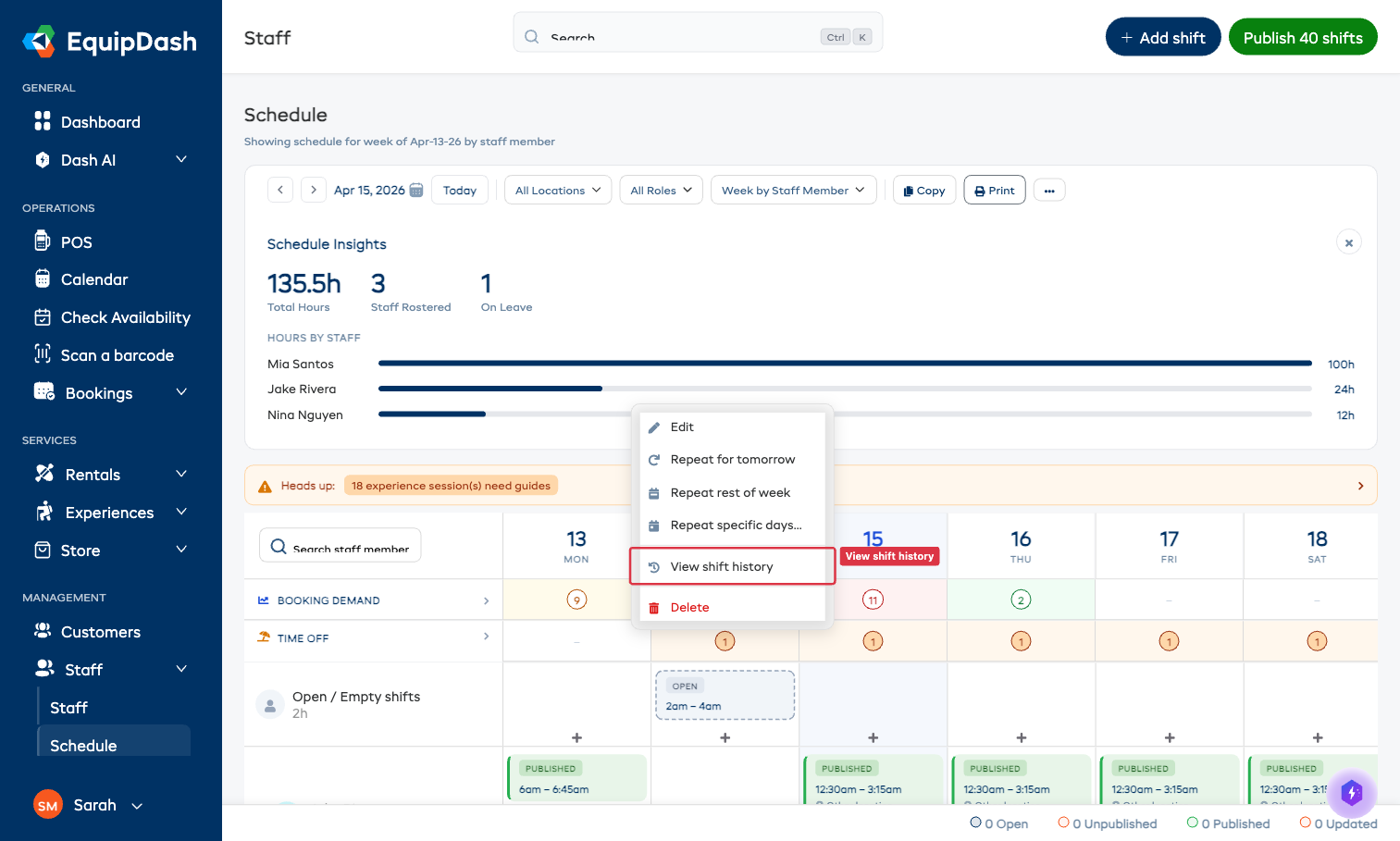
- Go to Staff → Schedule.
- Right-click on the shift you want to investigate, or click the shift and choose Quick actions from the popover that appears.
- A menu opens with quick actions — click View shift history.
Reading the History
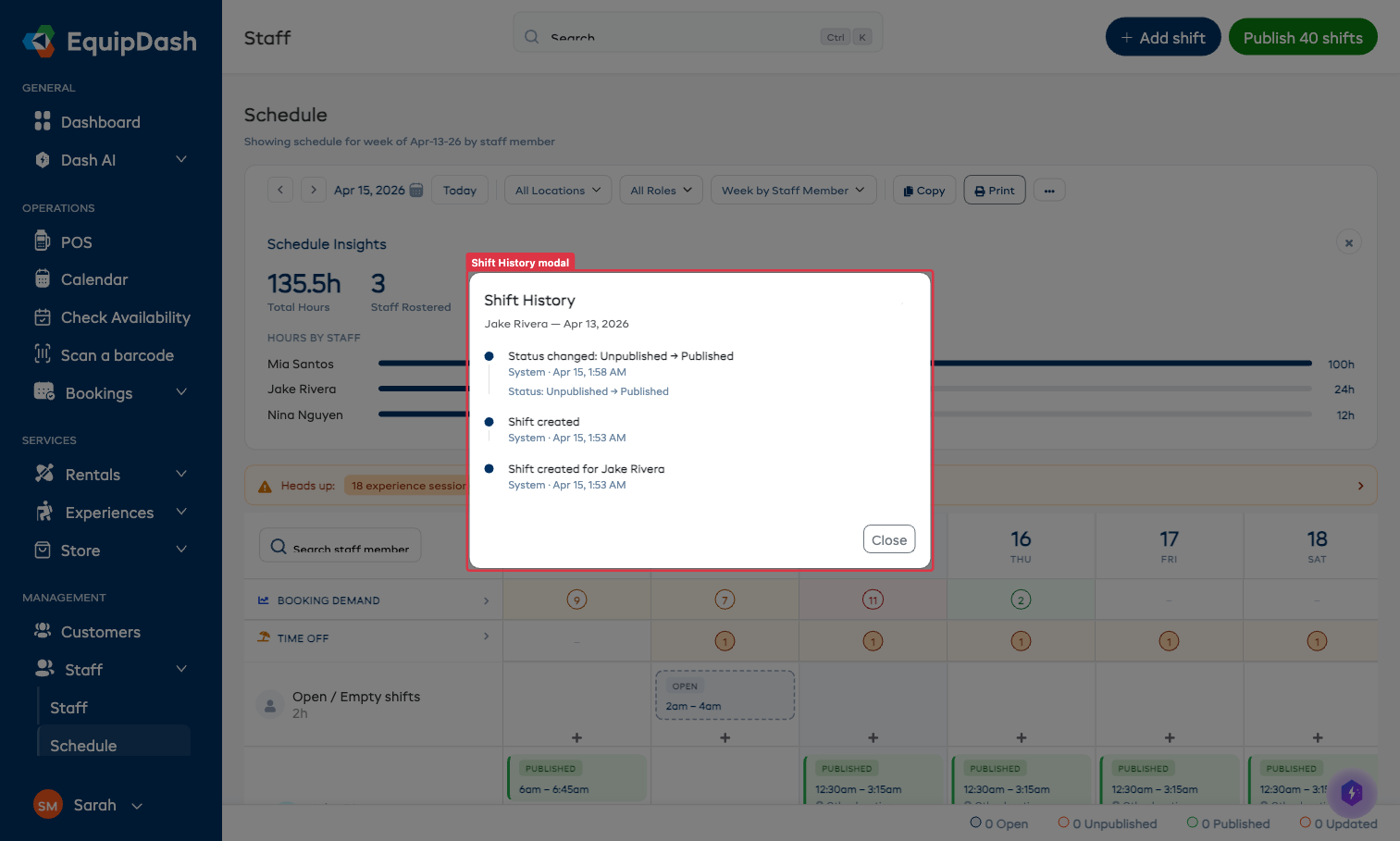
The Shift History modal lists every event against this shift, newest at the top:
- The event title says what happened — for example "Status changed: Unpublished → Published", "Shift created", or "Shift edited".
- The actor line shows who made the change (a user's name, or System for automatic events like publish-time status flips).
- The timestamp shows the date and time.
- Where the change modified specific fields (times, location, break, staff member), a details line underneath the event spells out the before/after values.
Common Event Types
| Event | What it means |
|---|---|
| Shift created | The original creation of the shift. The details line names the staff member it was assigned to (or marks it as Open). |
| Shift edited | A manual edit via the Add/Edit Shift form. The details line lists which fields changed and the new values. |
| Shift moved | The shift was drag-and-dropped to a new day, time, or staff member. |
| Status changed | The shift's publish state changed (e.g. Unpublished → Published, or Published → Updated after an edit). |
| Shift deleted | The shift was removed. Deleted shifts retain their history for compliance. |
Closing the Modal
Click Close in the bottom-right or the X at the top-right of the modal.