Bulk Editing Shifts Growth+This feature requires the Growth+ plan or higher
When you need to change a lot of shifts in one go — say a public holiday means you're shifting every shift two hours later, or you need to clear a week and start over — use the bulk actions in the schedule toolbar.
How Bulk Actions Are Scoped
Bulk actions don't require you to tick individual shifts. Instead, they apply to every shift currently visible in the grid. The "currently visible" scope is determined by:
- The week (or other date range) you've navigated to
- The Location filter
- The Role filter
- The View mode (Week by Staff Member, Week by Area, Day, Two-Week, Month)
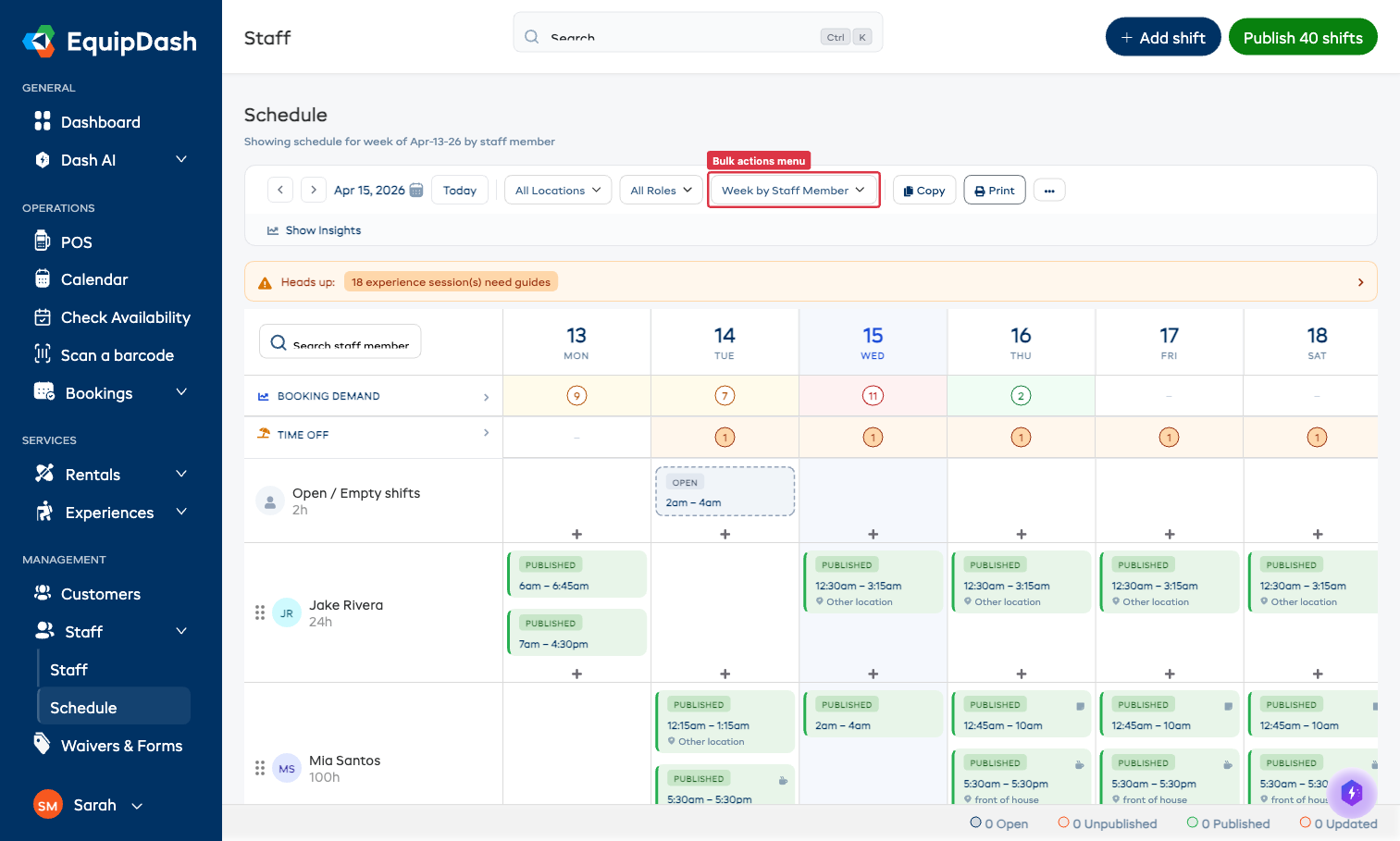
Always check the toolbar before running a bulk action — narrowing the date range or location filter narrows what gets affected.
Opening the Bulk Actions Menu
Click the ··· (more actions) icon at the right end of the schedule toolbar. The bulk actions menu appears.
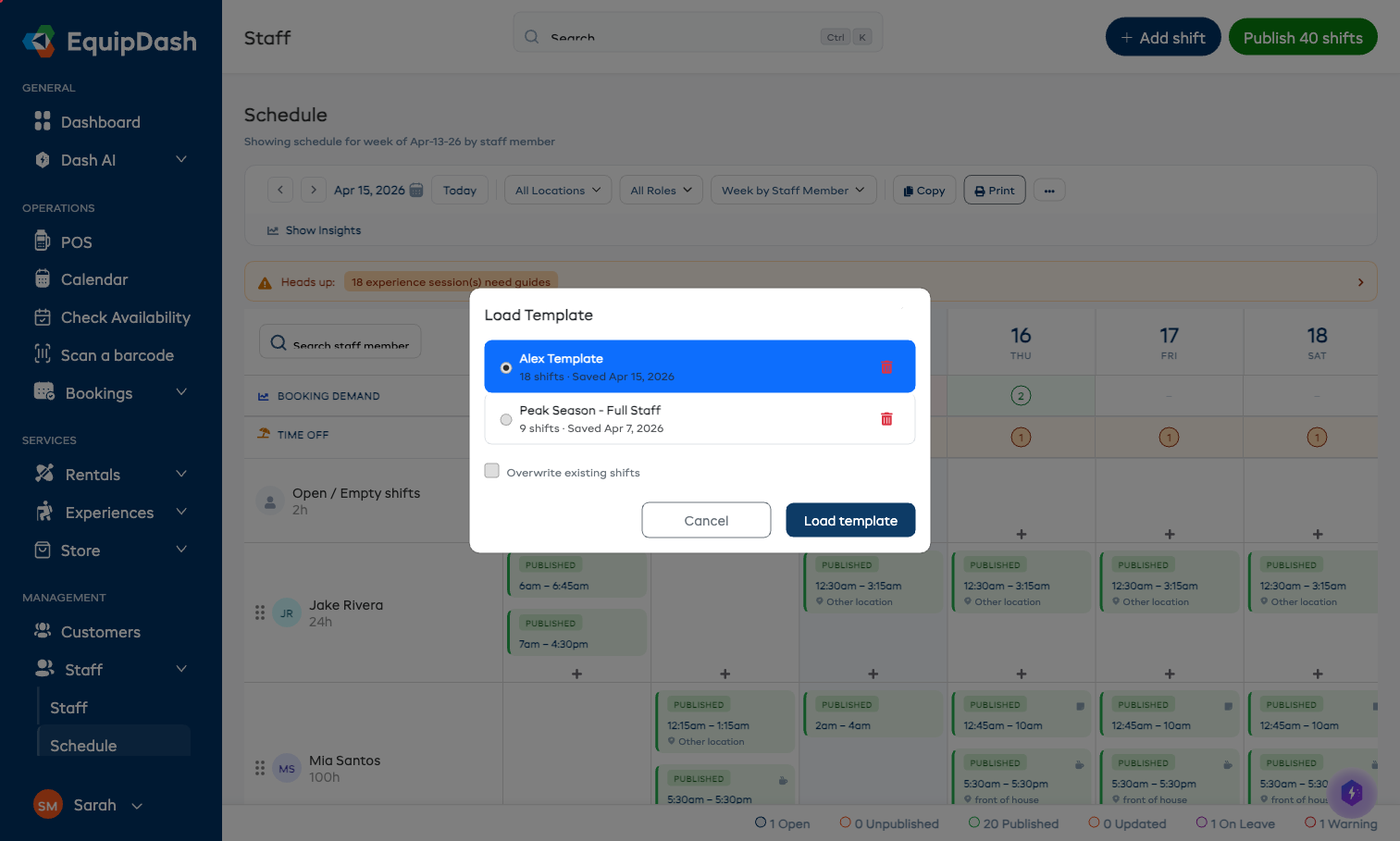
Available Actions
| Action | What it does |
|---|---|
| Mark all shifts open | Removes the staff assignment from every shift in the current view and sets the status to Open. Useful when re-allocating a week. |
| Remove empty shifts | Deletes any shift that's marked Open with no staff member assigned. A spring clean for unfinished planning. |
| Bulk time change | Apply new start and/or end times to every shift in the current view (see below). |
| Import shifts from CSV | Bulk-create new shifts from a spreadsheet. See Importing Shifts. |
| Delete all shifts | Permanently delete every shift in the current view. Asks for confirmation. Cannot be undone. |
Bulk Time Change
This is the most common bulk operation — moving the timing of every shift in a day or a week.
- Open the
···menu and choose Bulk time change. - The Bulk Time Change modal opens.
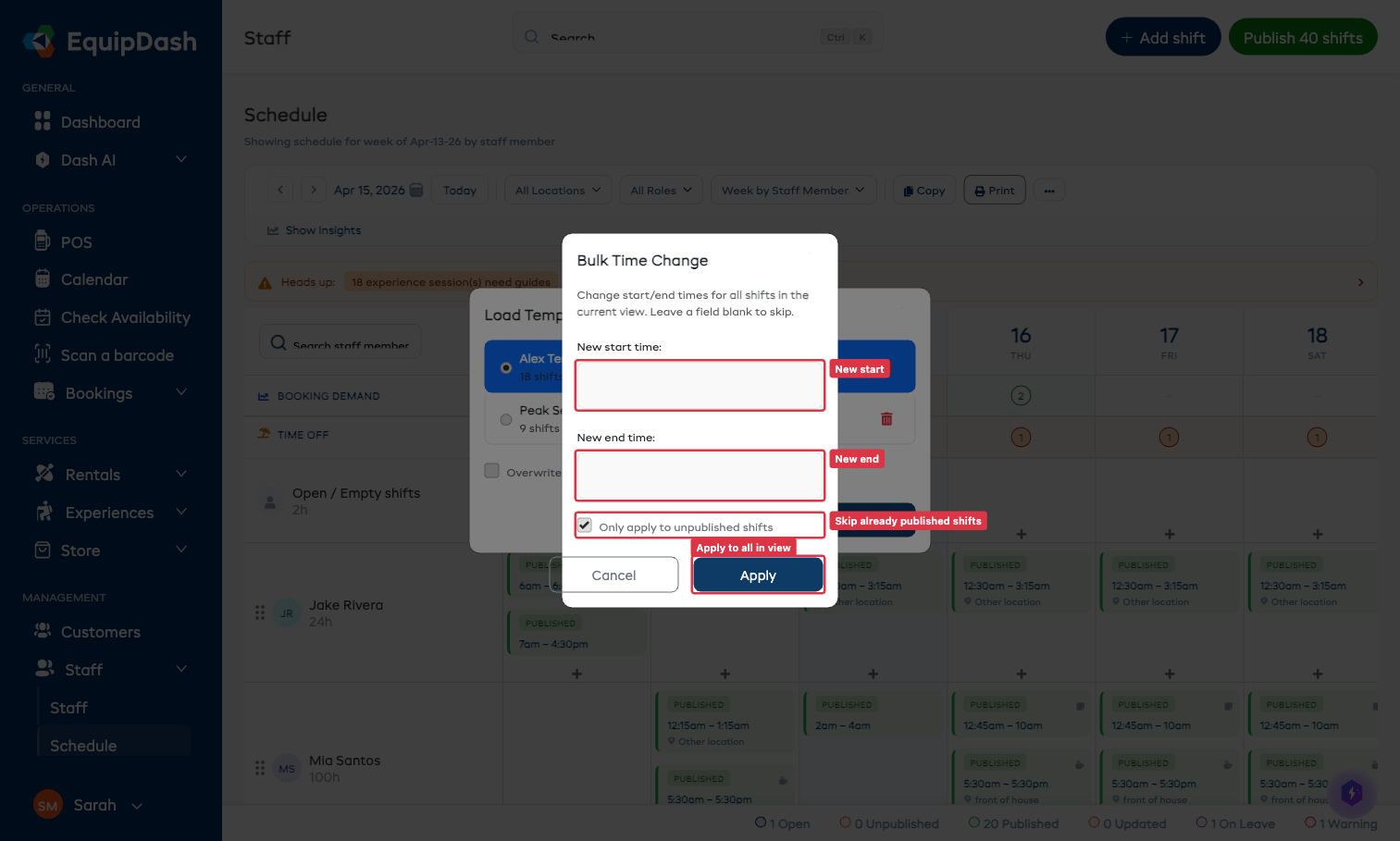
| Field | What it does |
|---|---|
| New start time | Sets every shift's start time. Leave blank to leave start times unchanged. |
| New end time | Sets every shift's end time. Leave blank to leave end times unchanged. |
| Only apply to unpublished shifts | On by default. Skips already-published shifts so you don't accidentally re-publish a notification storm to staff. |
- Click Apply.
Affected shifts are updated in place. Any previously-published shifts that get changed flip to the Updated status, prompting you to publish again.
Safety Tips
- Filter first, then bulk-act. If you want to change only "Front of House" staff, set the Role filter to Front of House before opening the bulk menu — otherwise you'll affect everyone.
- Try a small range first. When learning a bulk action, view a single day rather than a full week. You'll see the impact more clearly.
- Delete all shifts is irreversible. There's no undo. If in doubt, use Mark all shifts open instead so the time/location info is preserved while you re-think.