Schedule Templates Growth+This feature requires the Growth+ plan or higher
If your schedule follows predictable patterns — a "peak season" week, a "shoulder season" week, a "weekends only" week — you can save that pattern as a template and apply it to any future week in two clicks.
Saving the Current Week as a Template
- Go to Staff → Schedule. Navigate to the week you want to save.
- Click the Copy button in the toolbar, then choose Save as template.
- The Save as Template modal opens.
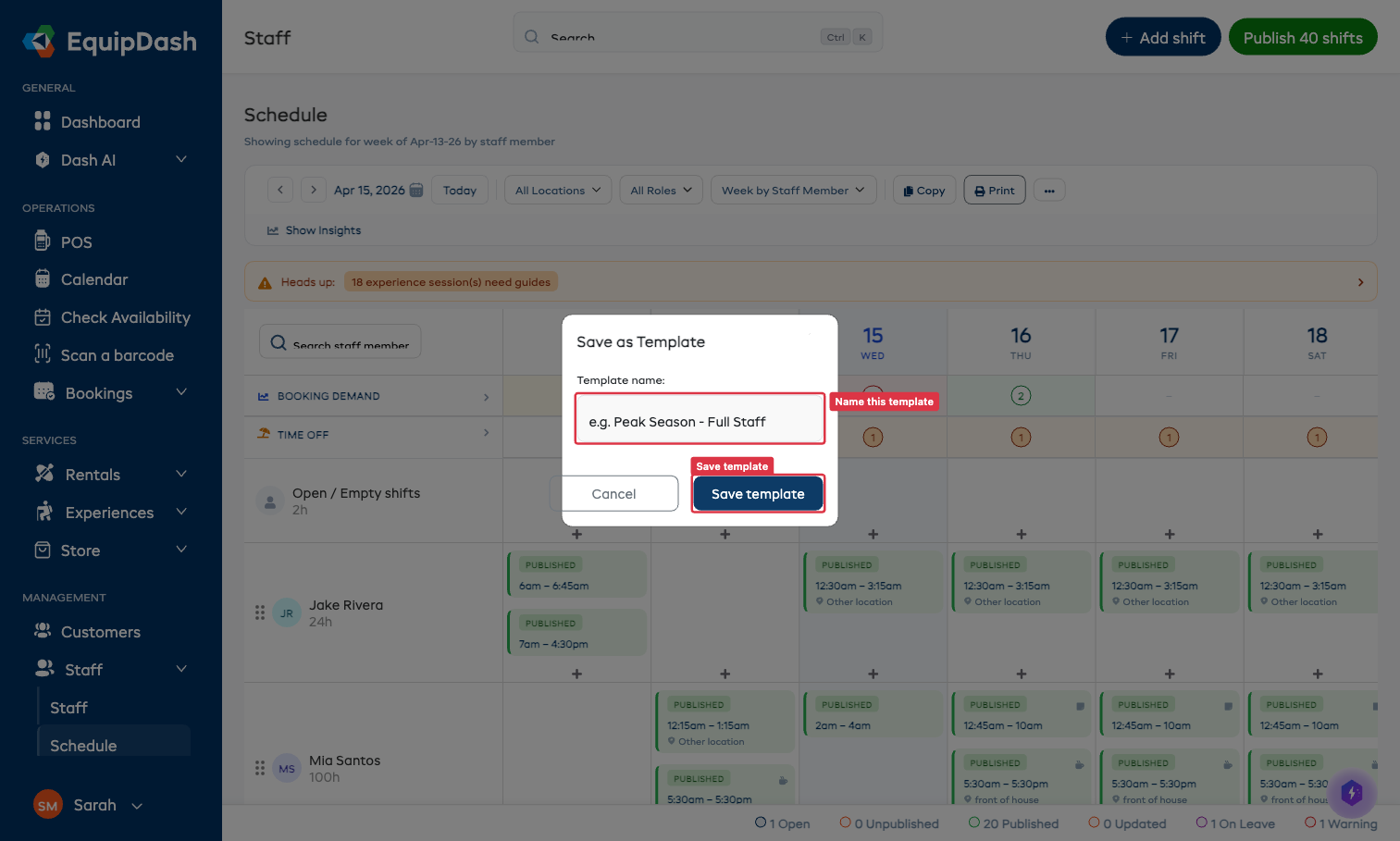
- Enter a memorable name in Template name — for example
Peak Season - Full StafforWeekends Only. - Click Save template.
The template captures every shift in the current week (staff, times, location, break, notes) and stores them as a per-day-of-week pattern, so the template can be applied to any future week.
Loading a Template onto a Week
- Navigate to the target week — the week where you want the shifts to appear.
- Click the Copy button, then choose Load template.
- The Load Template modal lists your saved templates. Each row shows the template name, the number of shifts it contains, and when it was saved.
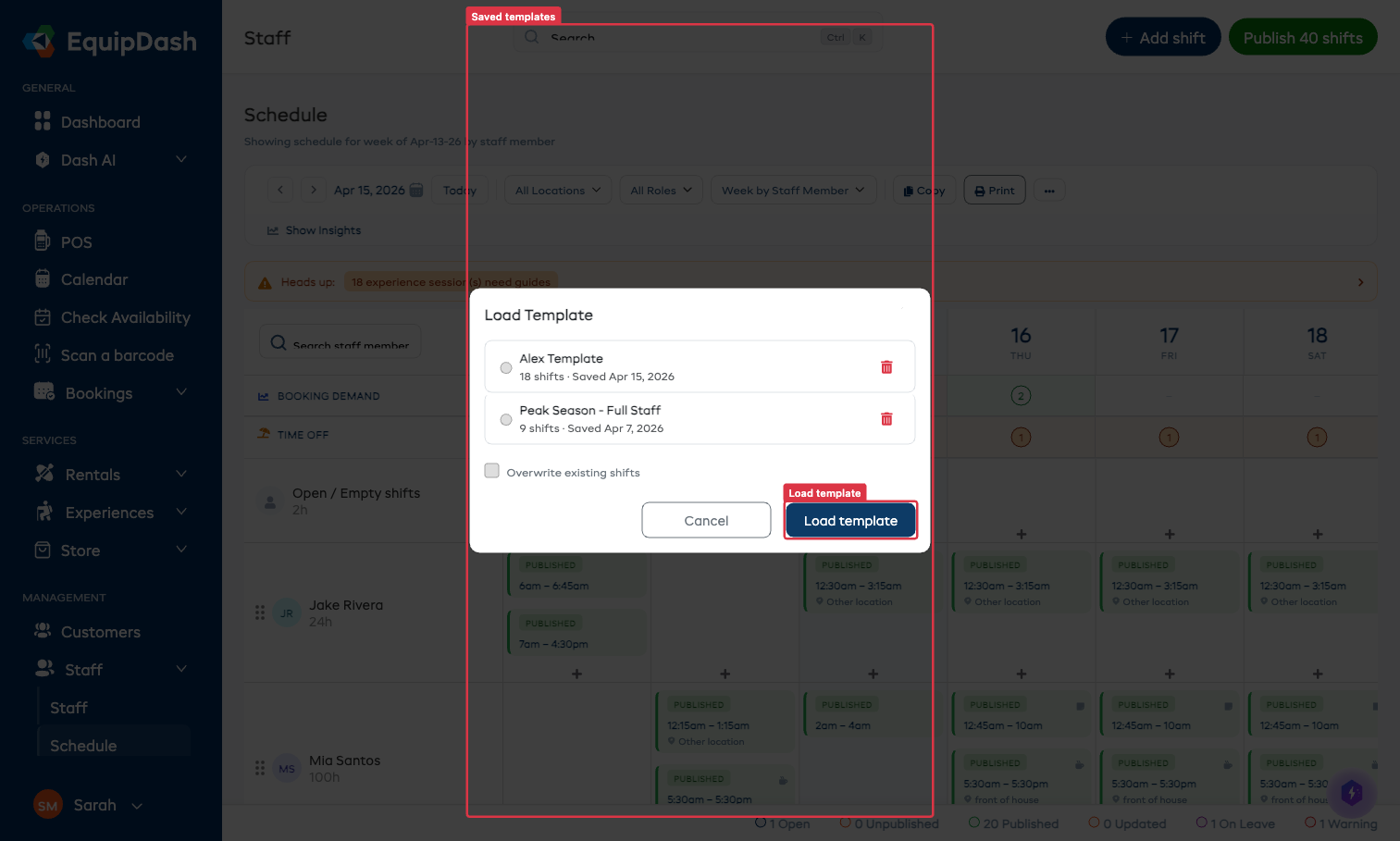
- Click the template you want to use to select it.
- Optionally tick Overwrite existing shifts to delete any shifts already in the target week before loading. Off by default.
- Click Load template.
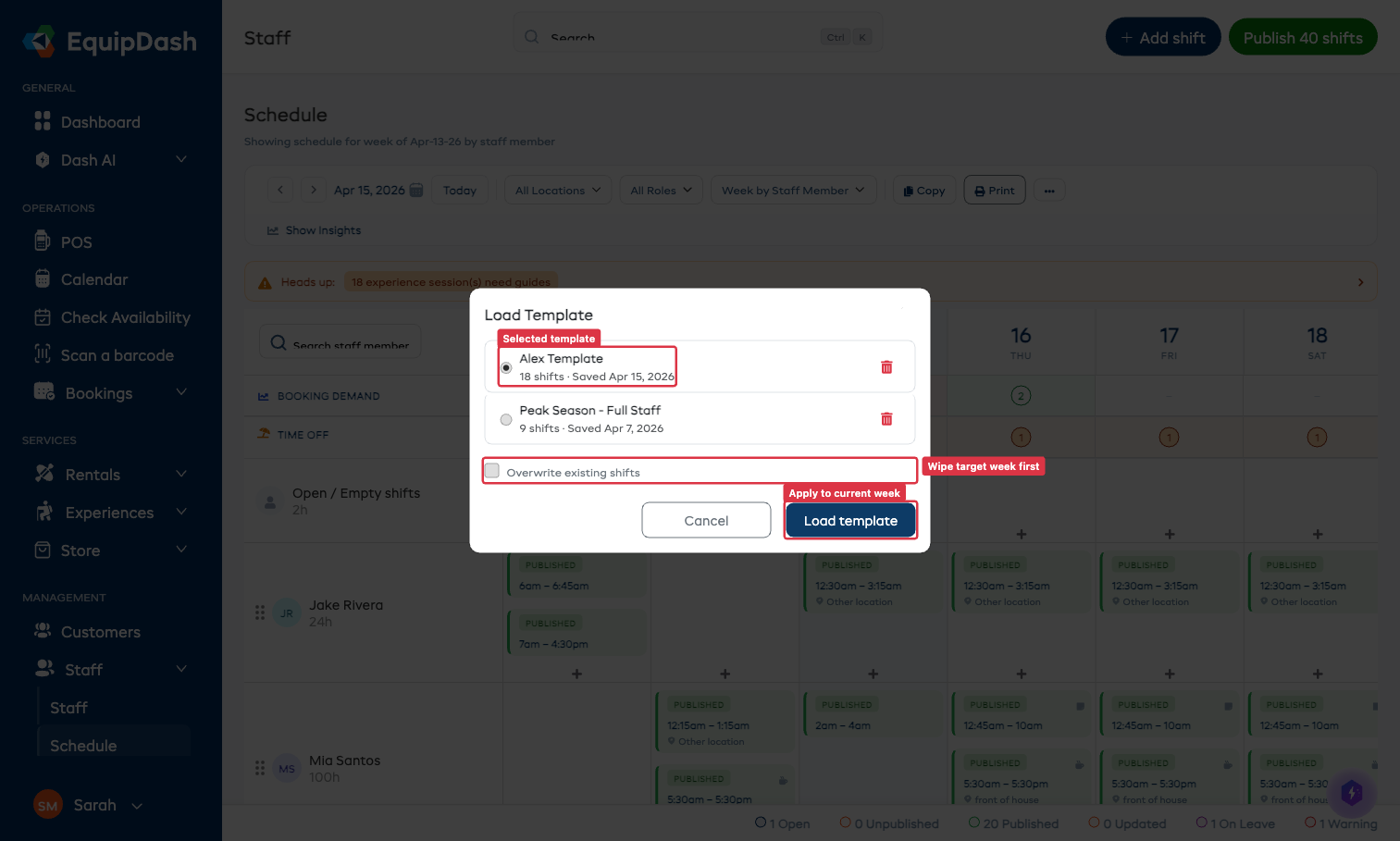
Shifts from the template are created in the target week, matching day-of-week. They're loaded as Unpublished — publish the week when you're ready.
Deleting a Template
In the Load Template modal, click the red trash icon on the row for the template you want to remove.
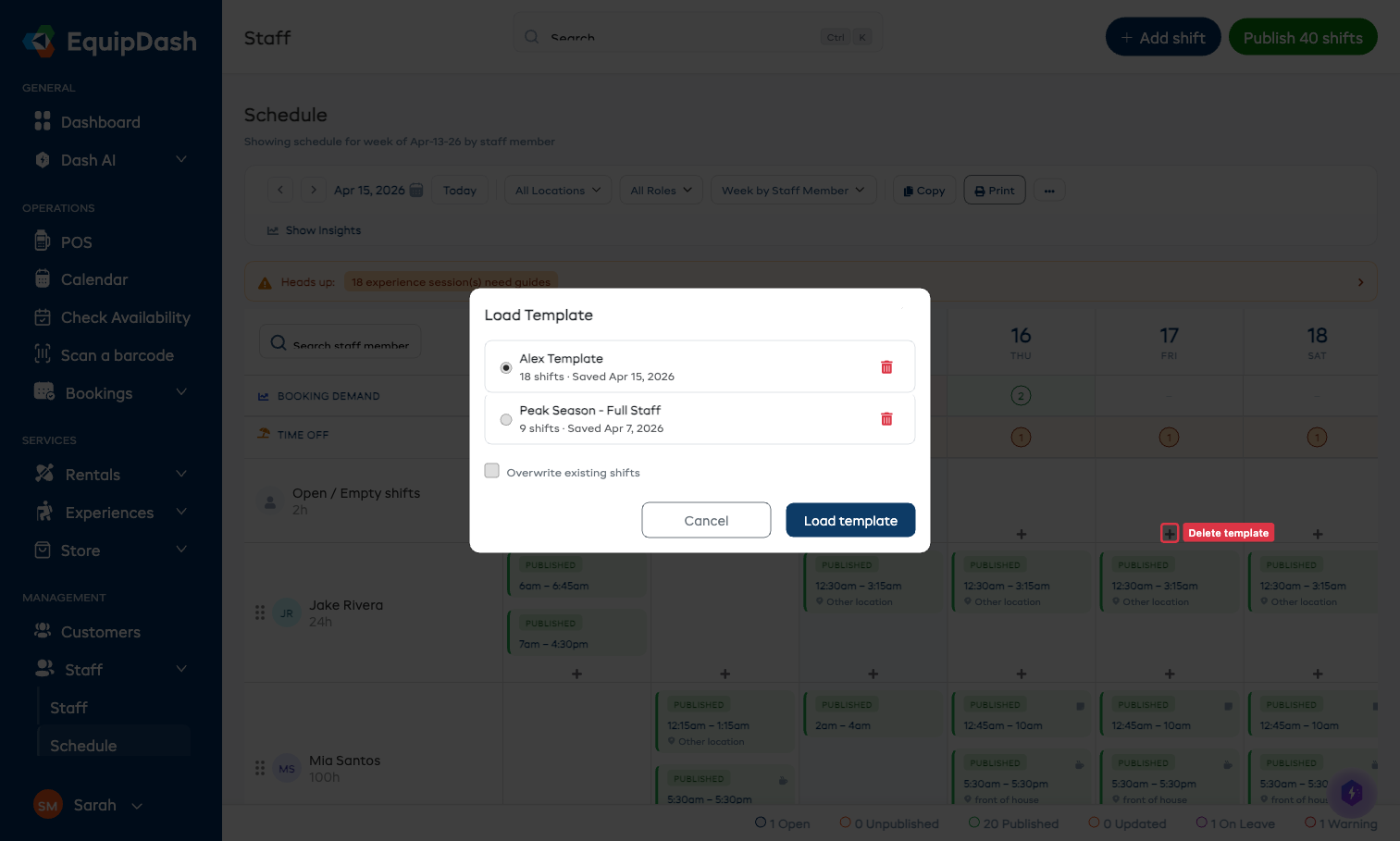
Deleting a template does not affect any shifts that were previously created by loading it — those stay on the schedule exactly as they were. Only the template itself is removed.
Template Best Practices
- One template per recurring pattern. Don't save twenty slight variations — save the common shape and tweak afterwards.
- Name with a purpose.
Summer Mon–FribeatsTemplate 3. A future-you will thank you. - Revisit and re-save. Over time, your "normal" week drifts. Once a season, re-save the template from a week that looks right.