Sending Items to Workshop Growth+This feature requires the Growth+ plan or higher
When a rental item needs maintenance, cleaning, or repair, you can send it to the workshop. This removes it from available inventory so it will not be booked while it is being serviced.
There are two ways to send items to the workshop:
Method 1: From the Product Inventory Page
- Go to Rentals > Products and click on a product name.
- Open the Inventory tab.
- Find the inventory row you want to send and click the workshop icon (wrench) in the Actions column.
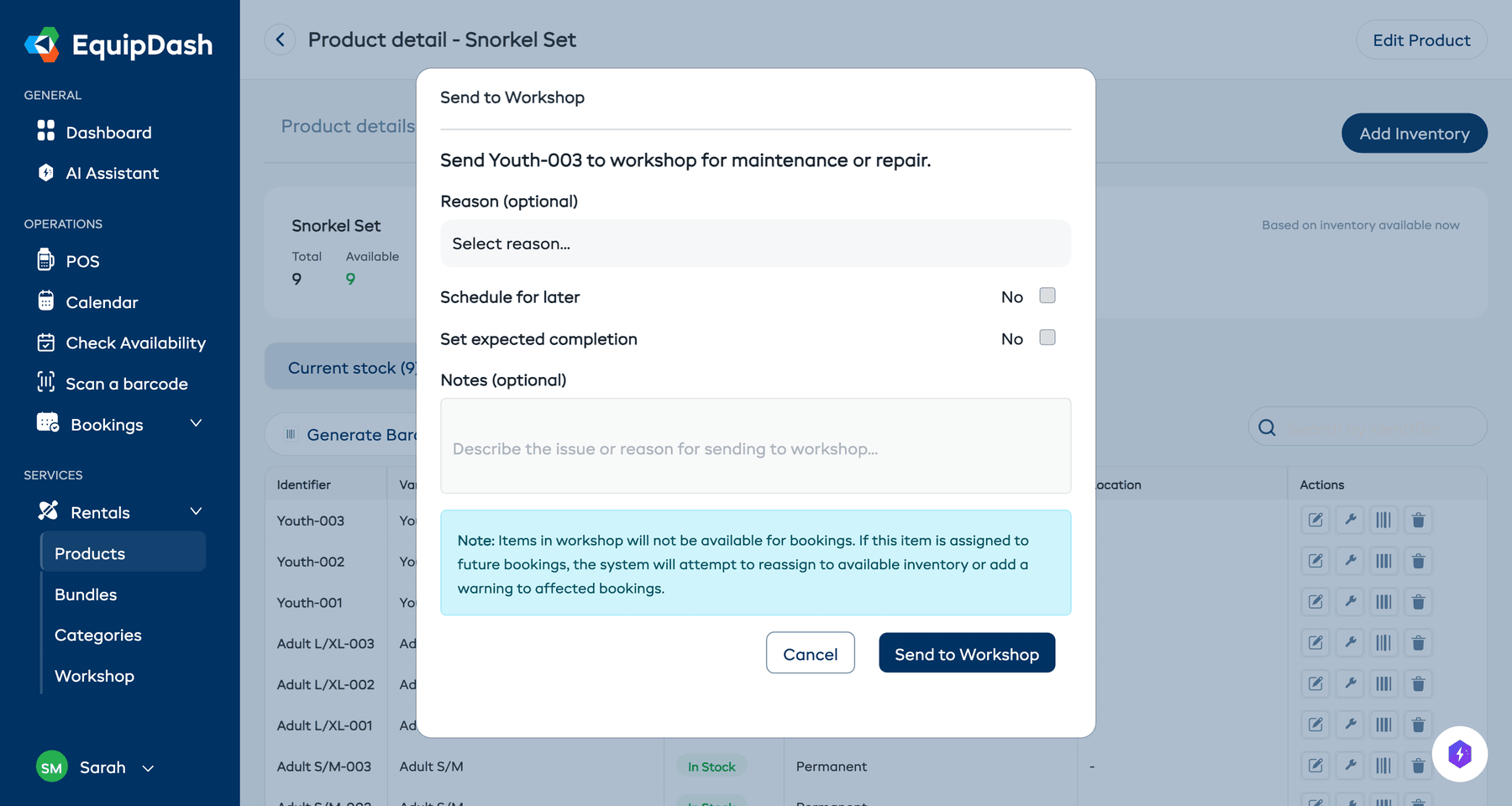
- In the Send to Workshop modal:
- Set the Quantity of units to send.
- Optionally select a Reason (Repair, Cleaning, Maintenance, or Other).
- Optionally toggle Schedule for later to set a future start date.
- Optionally toggle Set expected completion to set an expected end date (with optional auto-complete).
- Optionally add Notes describing the issue.
- Click Send to Workshop.
Method 2: From the Workshop Page
- Go to Rentals > Workshop in the left sidebar.
- Click the Add Item button in the top-right corner.
- In the form that appears:
- Search for and select the Product.
- If the product uses item tracking, select the specific Inventory Unit.
- If the product uses group tracking, enter the Quantity of units to send.
- Select a Reason for the workshop visit.
- Add any Notes describing what needs to be done.
- Optionally set scheduling options:
- Schedule for later -- If the item should enter the workshop at a future date.
- Set expected completion -- If you know when the work will be done.
- Auto-complete -- Automatically mark the item as complete when the scheduled end time arrives.
- Click Send to Workshop.
You can also use the barcode scanner within the Add Item form to scan an item's barcode. EquipDash will identify the item and pre-fill the product and unit details.
What Happens After Sending
- The inventory unit's status changes to In Workshop.
- The item disappears from available inventory and cannot be assigned to new bookings.
- A new entry appears in the In Workshop tab on the Workshop page.
- The workshop log records the date, reason, and notes for the entry.
Automatic Checklist Attachment
If the item's product has default checklist templates assigned, those checklists are automatically attached to the new workshop job. This means your team can start working through the inspection steps immediately, without any manual setup.
You can still add or remove checklists on individual workshop jobs after the item is sent to the workshop. Automatic attachment just gives you a head start.
Preventing Duplicate Sends
If you try to send an item that is already in the workshop, EquipDash will show a warning message letting you know the item is already being serviced. An item can only have one active workshop entry at a time.
Related Guides
- How the Workshop Works -- Overview of the workshop feature.
- Completing Workshop Items -- Marking items as fixed and returning them.
- Workshop Checklists -- Attaching and completing checklists.
- Scanning Barcodes -- Using the barcode scanner.
- Inventory Units -- Understanding inventory unit management.