Connected Apps Growth+This feature requires the Growth+ plan or higher
Your bots already know everything inside EquipDash. Connected apps let them reach the other tools you use every day - putting a pickup on your calendar, keeping a spreadsheet up to date, chasing an unpaid invoice, or sending a message the way you already send it.
You stay in charge of two things at all times:
- What each app is allowed to do - you tick the exact list.
- Anything a bot sends out. Every action that leaves EquipDash and lands in a connected app asks you first. That cannot be switched off.
This page is about apps your bots reach out to. If you are looking for the ChatGPT app - using Dash from inside ChatGPT - see Using Dash in ChatGPT instead.
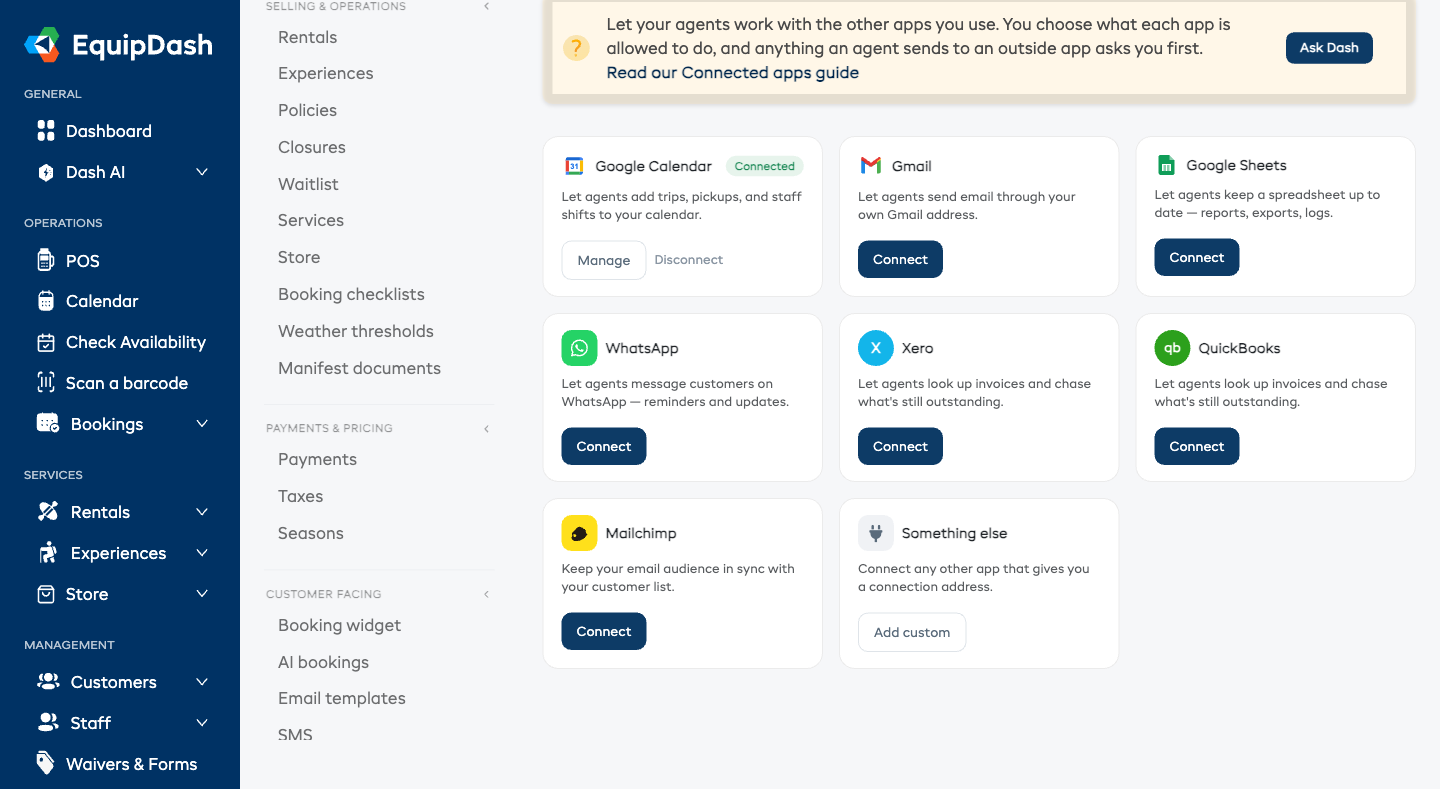
Apps you can connect
| App | What bots can do with it |
|---|---|
| Google Calendar | Add trips, pickups, and staff shifts to your calendar. |
| Gmail | Send email through your own Gmail address. |
| Google Sheets | Keep a spreadsheet up to date - reports, exports, logs. |
| Message customers on WhatsApp - reminders and updates. | |
| Xero | Look up invoices and chase what is still outstanding. |
| QuickBooks | Look up invoices and chase what is still outstanding. |
| Mailchimp | Keep your email audience in sync with your customer list. |
| Something else | Connect any other app that supports this kind of connection. For advanced users. |
Before you start
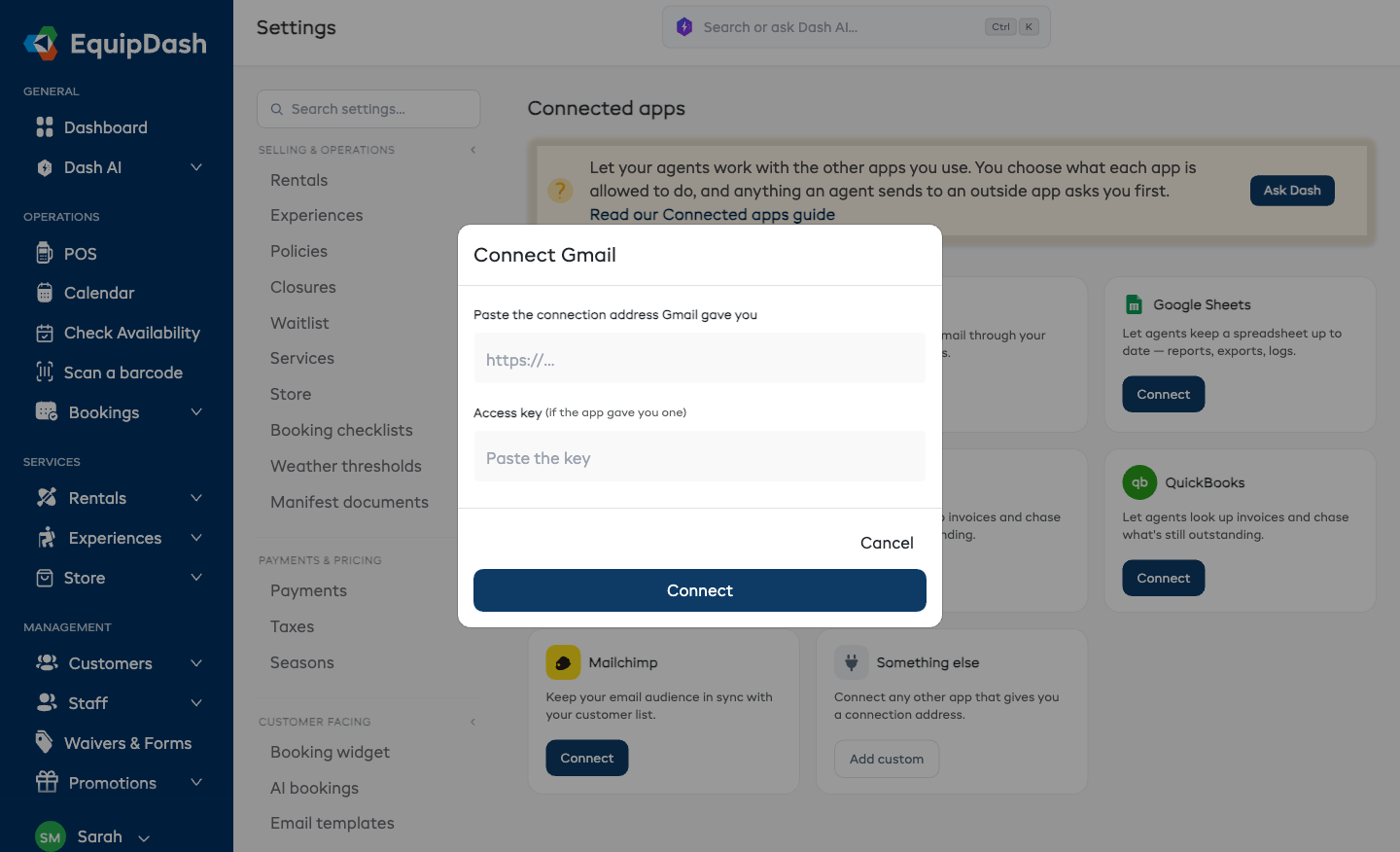
To connect an app you need two things from that app:
- Its address - the web address of the service you are connecting to.
- Its access key - the key or token that proves the connection is yours.
Where you get these depends on the app. If you are not sure, whoever set up that app for your business will know, and the person who handles your website or IT will be able to find them in a minute.
Your access key is stored securely and is never shown again after you save it. If you lose it, get a new one from the app and reconnect.
Connecting an app
- Click Settings in the sidebar.
- Under Connections & advanced, select Connected apps.
- Find the app you want and click Connect.
- Paste the app's address into the first field.
- Paste the access key into the second field.
- Click Connect.
EquipDash checks the connection straight away. If the app answers, you go directly to the next step - choosing what it is allowed to do. If it does not answer, the app is still saved, and you will see a message asking you to check the address and key and try again.
Choosing what the app is allowed to do
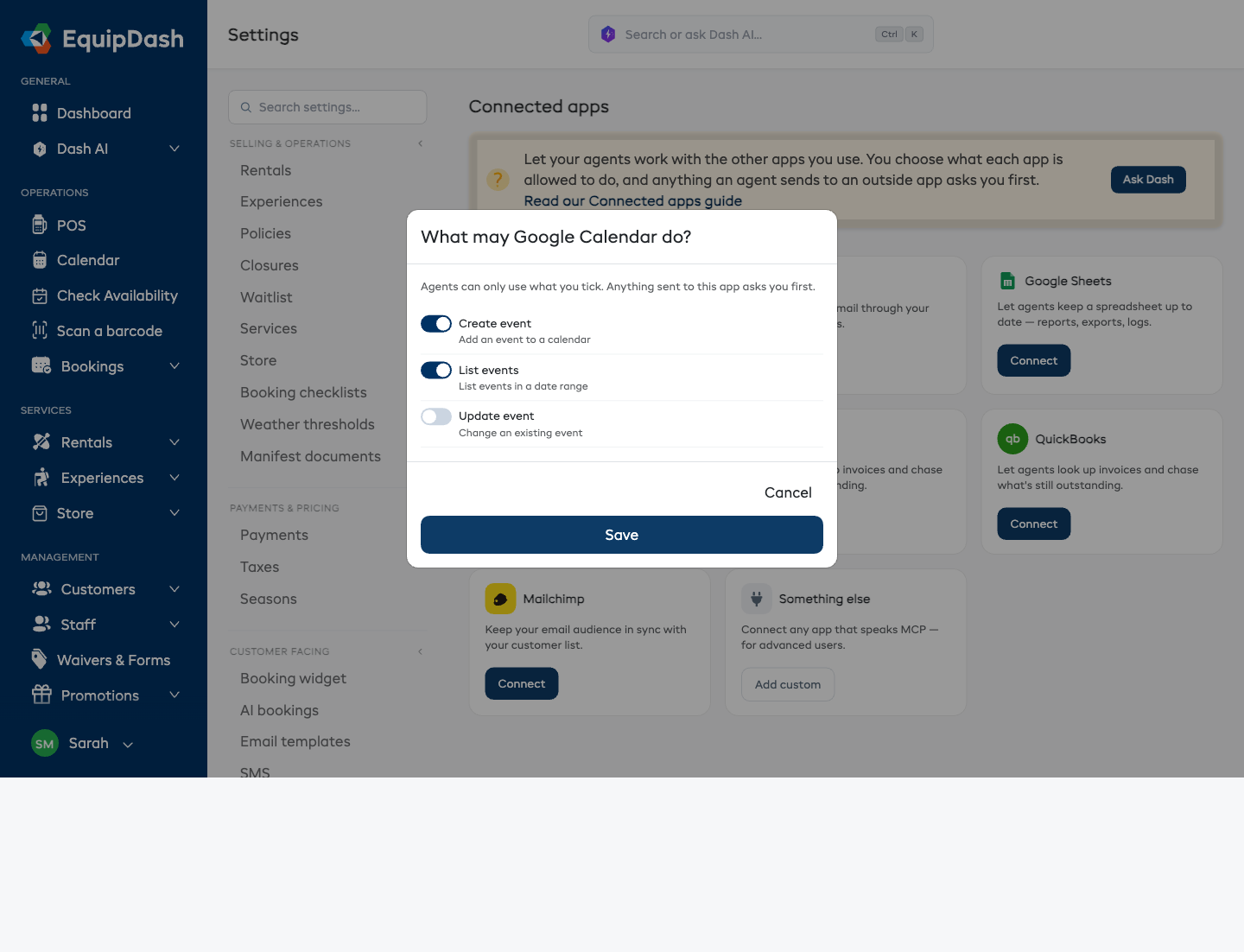
Once an app is connected, you tick exactly what your bots may do with it. Nothing is allowed until you tick it.
- On the Connected apps page, click the connected app.
- You will see a list of everything that app offers.
- Tick the ones you want to allow, and leave the rest unticked.
- Click Save.
Bots can only use what you ticked - and anything sent to the app still asks you first.
You can come back and change the list at any time. Removing a tick takes effect immediately, on the very next run.
Using a connected app in a bot
Once an app is connected, it appears as its own switch when you build or edit a bot:
- Go to Bots and open the bot (or click New bot).
- Open Advanced (what it reads and what it sends) and, under What it is allowed to reach, turn on Connected apps.
- Click Turn it on or Keep it off for now.
The switch is marked Always asks first and stays that way. Whenever the bot wants to send something to a connected app, the action appears in the Waiting for your OK box on the Bots page, where you approve or skip it in one click.
If you want tighter control than a single switch, open One ability at a time under Advanced on the bot and pick the exact actions this bot may use.
Learn more about building a bot
Seeing what is connected
Connected apps show up in two places:
- On the Bots page - a strip listing every connected app, so you can see at a glance what your bots can reach.
- On the Connected apps settings page - each connected app shows which of your bots currently use it, so you know what would be affected if you disconnected it.
If an app stops responding
An app that is not answering is marked with a warning symbol on both the Bots page and the Connected apps settings page. Bots skip it rather than getting stuck.
The usual causes are simple:
- The access key was rotated or revoked in the other app. Get a new one and reconnect.
- The address changed.
- The other service is temporarily unavailable - try again shortly.
To fix it, click the app, re-enter the address and key, and click Connect again.
Disconnecting an app
- On the Connected apps page, find the app and click Disconnect.
- Confirm in the window that appears.
Bots can no longer reach that app. Any bot that used it keeps working - it simply skips the steps that needed the app. If you reconnect later, you will be asked to tick what it is allowed to do again.
Who can do this
- Viewing the Connected apps page needs access to integration settings.
- Connecting an app, changing what it is allowed to do, and disconnecting all need permission to manage integrations. Admins have this by default.
Approving or skipping a bot's outgoing action needs the Bots: Manage permission.
Learn more about team permissions