Bot Run History Growth+This feature requires the Growth+ plan or higher
Every time a Dash Bot runs - whether triggered manually, by a schedule, or by an event - EquipDash records the full details of that run. The run history lets you see what the bot did, how long it took, how many credits it used, and whether it succeeded or needs your attention.
Viewing the Run History
- Go to the Bots page.
- Click on the bot you want to inspect.
- The bot's detail page opens, showing its configuration and a Run History section.
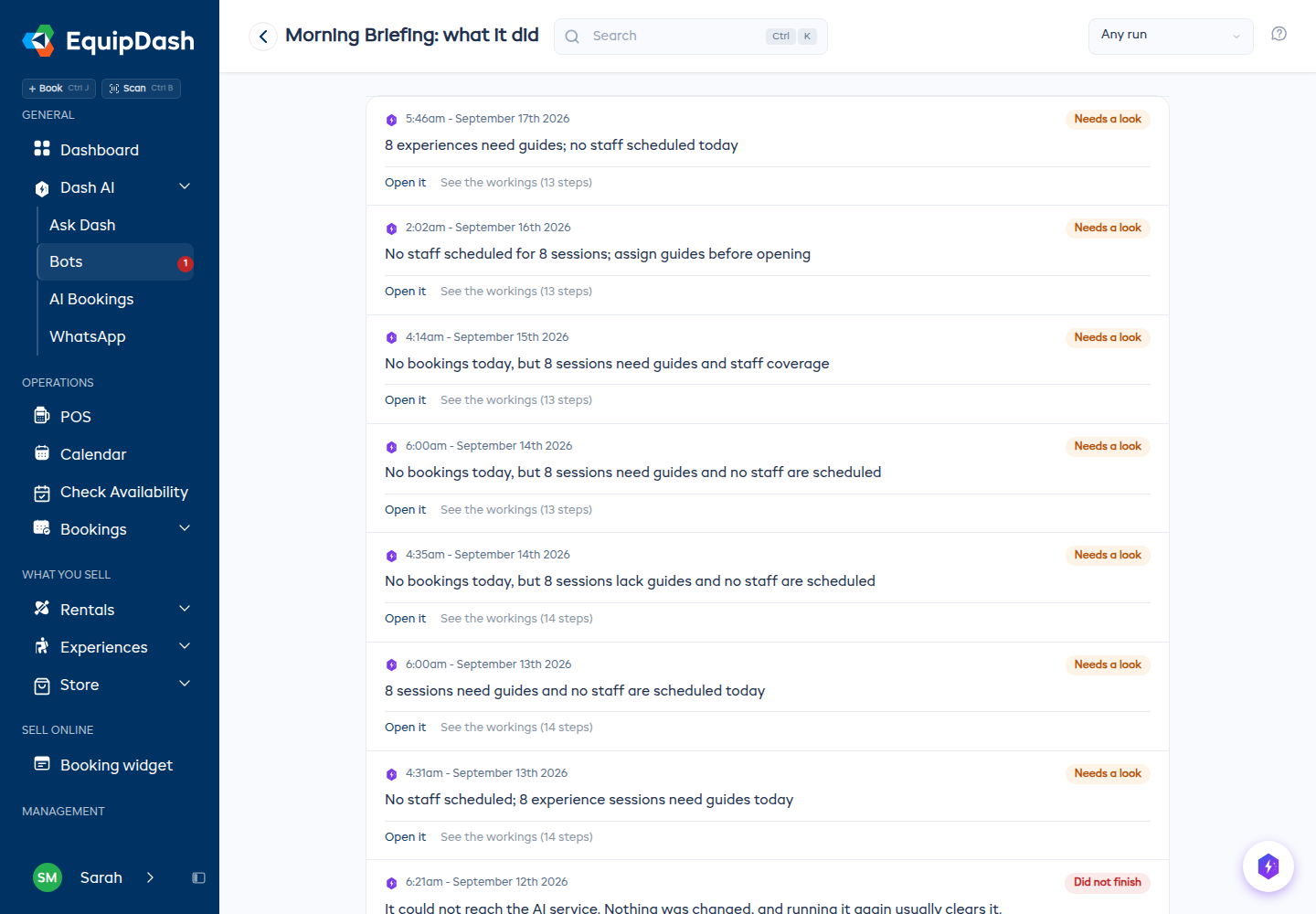
- The run history lists all runs for this bot, with the most recent at the top.
Understanding Run Statuses
Each run carries a status that says where it got to, in plain words. A run is never given a green tick for work it did not finish.
| Status | Meaning |
|---|---|
| Running | The bot is working right now. |
| Waiting for your OK | The bot paused on a step that asks you first and is waiting for someone to approve or skip it. |
| Needs a look | The bot finished and found something worth your attention. Open it to read what it found and every step it took. |
| Nothing needed you | The bot checked, found nothing to act on, and stopped. This costs nothing - no AI is used. |
| Stopped early | The bot ran out of steps, or started repeating itself and was stopped. The steps it did finish are listed. Raise Max steps under Advanced if this keeps happening. |
| Did not finish | Something went wrong, or the run took too long. A message says what. |
| Stopped | Somebody stopped the run. |
Status colors
- Running and Stopped - blue
- Nothing needed you - green
- Waiting for your OK, Needs a look and Stopped early - amber
- Did not finish - red
Filtering Runs by Status
If you are looking for one kind of run:
- On the run history page, use the Any run dropdown at the top right.
- Pick a status - for example Waiting for your OK or Did not finish.
- The list updates to show only those runs.
- Set it back to Any run to see everything again.
Viewing Run Details
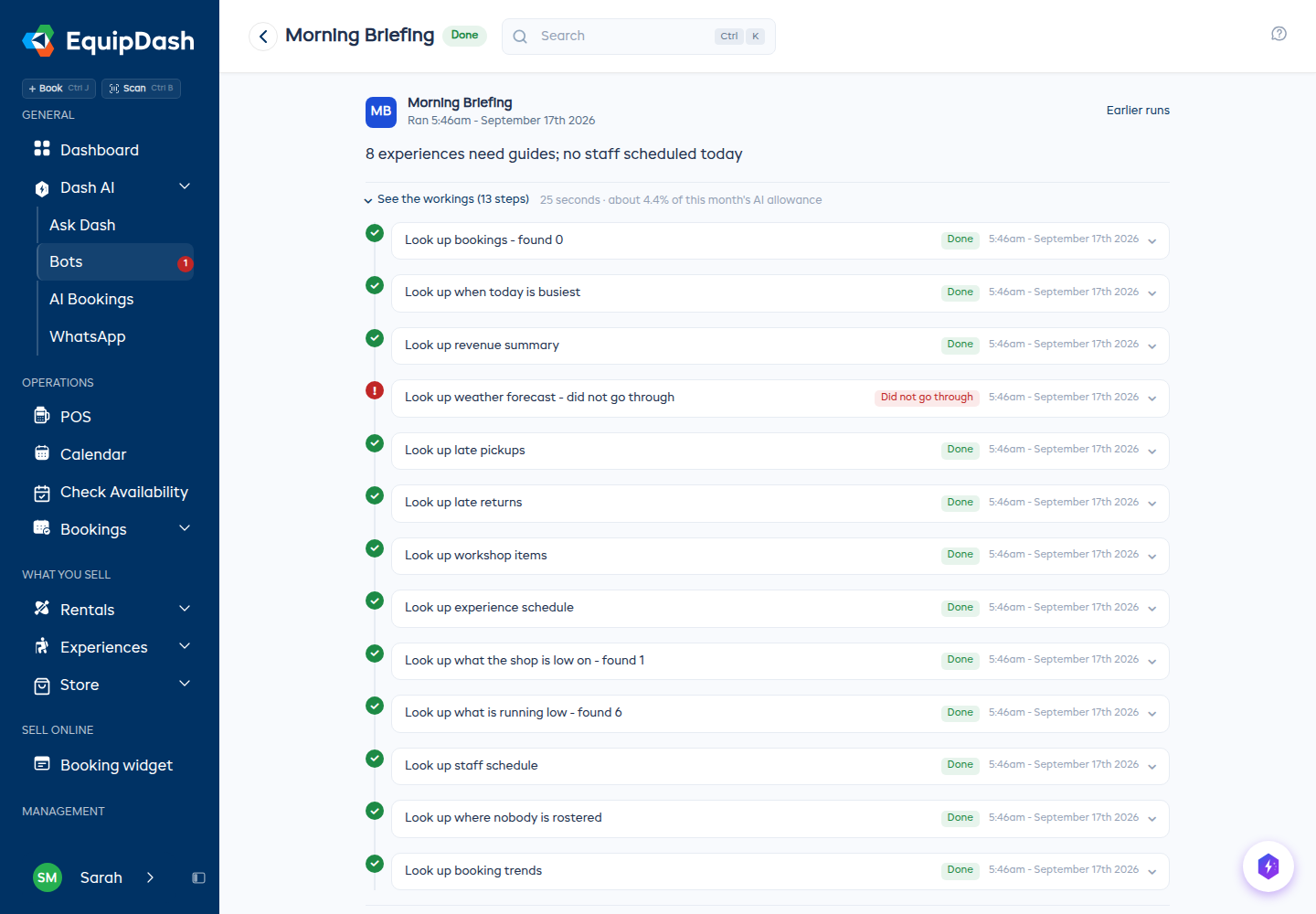
Click on any run in the list to see its full details. The detail panel shows:
Summary
The bot generates a plain-language summary of what it accomplished during the run. For example: "Found 3 overdue rental returns. Sent reminder emails to 2 customers. 1 customer was already contacted today and was skipped."
Run Information
| Field | Description |
|---|---|
| Triggered by | How the run was started - Manual (by a specific user), Schedule, or Event |
| Started at | When the run began |
| Completed at | When the run finished (if finished) |
| Duration | How long the run took |
| Credits used | The number of AI credits consumed by this run |
Actions
The actions section lists everything the bot did, in order, written as plain sentences - "Emailed the customer about their overdue return", not a technical function name. Each step also shows whether it went ahead, is waiting for you, or was skipped, and the time it happened.
Click a step to expand it if you want the exact detail behind the sentence - what the bot asked for, and what came back.
Show Dash's thinking
If you want to understand why the bot did something, flip the Show Dash's thinking switch above the list. The bot's reasoning appears between the steps, in its own words. Leave it off for the short version.
For actions that asked you first, you will also see who responded and when.
Telling Dash it got something wrong
If a step is not what you wanted, you can teach the bot instead of just fixing it by hand:
- Expand the step.
- Click Not what you wanted?
- Type what Dash should have done instead.
- Click Send to Dash.
Your note feeds into the suggestions on the Dash Skills page, where you decide whether to keep it. Nothing changes until you do.
Managing Pending Approvals
If a run is Waiting for your OK, there is an action waiting for you.
The quickest place to deal with it is the Waiting for your OK box at the top of the Bots page - it collects pending actions from every bot so you can clear them in one pass. You can also respond inside the run itself.
Approving an action
- Open the run with Waiting for your OK status.
- Find the pending step.
- Read the sentence describing what the bot wants to do, and expand it if you want more detail.
- Click Approve to let it go ahead - or Approve & don't ask again to also stop being asked about that same kind of action for the rest of this run.
If several actions are waiting in the same run, Approve all clears them together.
Skipping an action
- Open the run with Waiting for your OK status.
- Find the pending step.
- Click Skip.
Skipping does not cancel the run. Only that one action is passed over; the bot carries on with everything else it had planned. The skip is recorded, along with who skipped it and when.
Cancelling a run
You can stop a run at any time while it is Running or Waiting for your OK.
- Open the run.
- Click Cancel run.
- The run stops right away and is marked Stopped.
Checking What a Run Cost
Each run shows what it used:
- Tokens used - the raw amount of AI work the run needed.
- Share of your monthly allowance - a plain percentage, so you can see at a glance whether a run is cheap or expensive.
A run that finds nothing needed doing this time uses no AI at all.
To see usage across all your bots, go to Settings > AI Assistant.
Following Up on a Run
After a run completes, you can send it back out with extra instructions instead of starting from scratch. On the run page, type what you want in the Follow up box and click Run - the new run starts with the previous run's results as context.
Troubleshooting
Stopped early - the bot ran out of steps. Raise Max steps in the builder, or narrow the instructions so there is less to get through.
Stopped - got stuck - the bot kept trying the same thing. This usually means the instructions are ambiguous, or the bot was asked to do something it does not have the right switch turned on for. Check step 2 of the builder and tighten the instructions.
Waiting to start - the run is queued behind other background work. If it sits there for more than a few minutes, stop it and try again later.
Failed - open the run to see the message. Common causes:
- Out of AI credits. Buy a credit pack from Settings > Billing & Plan.
- Something the bot looked for no longer exists (for example, a booking that was deleted). Adjust the instructions if it keeps happening.
Did not finish (took too long) - the job was too broad. Narrow the instructions or reduce how much the bot has to work through.