Bot Triggers Growth+This feature requires the Growth+ plan or higher
A trigger decides when a Dash Bot runs. Every bot has exactly one. Dash sets it when it writes the bot, and you can change it any time with Change when on the bot itself.
Manual Trigger
A manual trigger means the bot only runs when you click Run Now. It will never run on its own.
When to Use Manual Triggers
- You want full control over when the bot runs.
- The task is something you do on demand rather than on a recurring basis (e.g., generating a one-off report or auditing your inventory before a busy weekend).
- You are testing a new bot and want to run it yourself before enabling automatic execution.
How to Set Up
- Open the bot and click Change when.
- Under It runs, choose Only when I press Run.
- Click Done. There is nothing else to set.
Running a Manual Bot
- Go to the Bots page.
- Find the bot and click Run Now.
- The bot starts immediately and you can track its progress in the run history.
Scheduled Trigger
A scheduled trigger runs the bot automatically at a set time or interval. This is the most common trigger type.
Available Frequencies
| Frequency | Description | Example |
|---|---|---|
| Every 15 minutes | Runs four times per hour, every hour | Checking for new form submissions |
| Every 30 minutes | Runs twice per hour, every hour | Monitoring stock levels |
| Hourly | Runs once every hour | Checking for late pickups |
| Every 4 hours | Runs six times per day | Chasing incomplete waivers |
| Daily | Runs once per day at a specific time | Morning briefing at 7:00 AM |
| Weekly | Runs once per week on a specific day and time | Performance report every Monday at 8:00 AM |
| Monthly | Runs once per month on a specific date and time | Month-end inventory review on the 1st at 9:00 AM |
How to Set Up
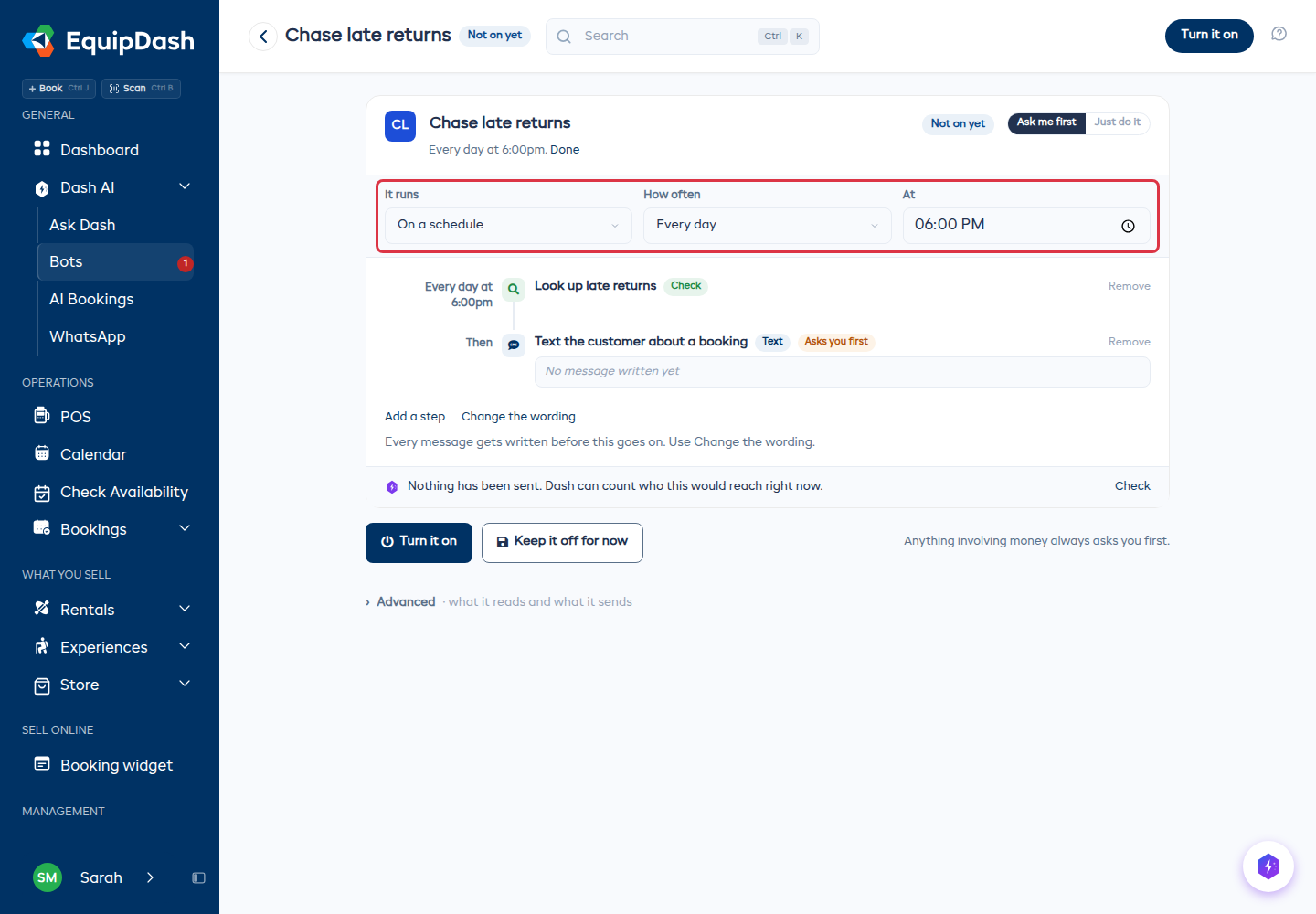
- Open the bot. The line under its name says when it runs today - "Every day at 6:00pm".
- Click Change when.
- Under It runs, choose On a schedule.
- Set How often, then the fields that appear beside it:
- At - the time of day it runs, in your own time zone.
- On (weekly only) - the day of the week.
- Date (monthly only) - the day of the month, 1 to 28.
- Click Done.
Important Notes
- All schedule times use your business time zone, set in Settings > Localization.
- The bot has to be switched on for scheduled runs to happen. A bot that is off has its schedule paused.
- If a bot is still running when its next time comes around, that run is skipped so the two cannot overlap.
Event Trigger
An event trigger runs the bot automatically when something specific happens in your EquipDash account. For example, you can run a bot every time a new booking is created.
Available Events
Events are grouped by category:
Bookings
| Event | Fires When |
|---|---|
| Booking created | A new rental or experience booking is created |
| Booking updated | An existing booking is modified (dates, items, status) |
| Items picked up | A customer collects their rental items |
| Customer checked in | A customer checks in to an experience |
| Items returned | A customer returns their rental items |
| Booking completed | A booking is marked as completed |
| Booking cancelled | A booking is cancelled |
| Experience booked | A customer books a spot on an experience |
Payments
| Event | Fires When |
|---|---|
| Payment received | A payment is recorded against a booking |
| Payment refunded | A refund is processed for a booking |
Customers
| Event | Fires When |
|---|---|
| Customer created | A new customer is added to the system |
Waivers & Forms
| Event | Fires When |
|---|---|
| Waiver/form completed | A customer submits a waiver or form |
Surveys
| Event | Fires When |
|---|---|
| Survey response received | A customer completes a survey |
Workshop
| Event | Fires When |
|---|---|
| Item sent to workshop | An item is sent for repair |
| Workshop repair completed | A workshop item is marked as repaired |
Staff
| Event | Fires When |
|---|---|
| Staff shift created | A new staff shift is created |
How to Set Up
- Open the bot and click Change when.
- Under It runs, choose When something happens.
- Pick the event beside it. Events are grouped by category.
- Click Done.
Use Cases for Event Triggers
- Booking created - Send a personalized preparation email to the customer with what to expect and what to bring.
- Items picked up - Log the pickup time and check if any waivers are still incomplete.
- Items returned - Check the returned items and flag any damage or missing items to the team.
- Payment received - Log the payment and check if the booking is now fully paid.
- Survey response received - Thank promoters and follow up with detractors automatically.
- Workshop repair completed - Check if the repaired item has upcoming bookings and notify staff.
Important Notes
- The bot receives context about the event that triggered it (e.g., which booking was created), so its instructions can reference "the booking that was just created."
- Event-triggered bots must be enabled to respond to events. Disabling the bot stops it from reacting to events.
- If the same event fires multiple times in quick succession (e.g., several bookings created at once), each event triggers a separate bot run.
Weather Trigger
A weather trigger runs the bot when one of your weather rules is breached by the forecast - wind above your limit, too much rain, temperature outside your range, and so on.
How to Set Up
- Set up at least one rule in Settings > Weather thresholds.
- In the builder, go to step 3 · When should it run?
- Select Weather.
- Choose whether the bot fires when any of your rules is breached, or pick the specific rules it should watch.
Use Cases for Weather Triggers
- Draft a message to everyone booked on an affected day so you can review and send it in one go.
- Flag which bookings are affected so somebody can call them.
- Put a note on the affected bookings before the shift starts.
Learn more about weather thresholds
Choosing the Right Trigger
| Scenario | Recommended Trigger |
|---|---|
| "I want a morning briefing every day" | Schedule - Daily at 7:00 AM |
| "Remind customers about overdue returns" | Schedule - Daily at 9:00 AM |
| "Send a welcome email when someone books" | Event - Booking created |
| "Generate a report when I ask for one" | Manual |
| "Check for late pickups throughout the day" | Schedule - Hourly |
| "Follow up on bad survey scores" | Event - Survey response received |
| "Review next week's staffing every Sunday" | Schedule - Weekly on Sunday |
| "Tell me who's affected when the wind picks up" | Weather - any rule |
A scheduled bot that runs and finds nothing to act on records a Nothing needed doing this time run and uses no AI at all. You do not need to worry about scheduling a bot hourly just in case.